
SQL Server Management Studio is still the tool most production DBAs live in day to day, and it has changed more in the last couple of years than the previous decade. There is a new install and update model, a different default connection security posture, and enough quality-of-life settings buried in menus that most people never find them.
This page collects the SSMS setup, scripted-install, and troubleshooting posts on this site, plus the settings and shortcuts that never earned their own post but are worth knowing anyway, organized by what you’re actually trying to do: get it installed, configure it the way you want, or fix the thing that just broke.
Installation & Maintenance
The manual walkthrough for a one-off install on your own workstation, or the scripted version below when you’re setting up more than one machine.
Silent by default, detects which installer framework is already on the box, and adds SSMS to PATH when it’s done. Built for fleet installs and repeat jump-host setups, not a one-off click-through.
What Changed in SSMS 21 and 22
If you stepped away around SSMS 18 or 19, the tool you come back to is different in kind, not just in version number. SSMS 21 moved onto the Visual Studio 2022 shell: 64-bit at last, installed and updated through the Visual Studio Installer, with the first official dark theme and git built in. SSMS 22, the current line, sits on the Visual Studio 2026 shell and has been shipping updates roughly monthly (tracked in What’s New in SSMS 22 for DBAs). These are the changes that matter on a production estate; version-by-version download detail lives in the Install & Update post.
| Change | Why it matters |
|---|---|
| Modern connection dialog | The default since 22.0. Recent and favourite connections now go up to 60, and 22.9 added connection import and export, which finally makes a jump-host rebuild painless. |
| Execution plan in a new tab | Right-click a plan and choose Show Execution Plan in New Tab (22.0). Comparing two plans stops being a window-juggling exercise. |
| Results grid, grown up | A JSON viewer for JSON columns, independent zoom, the column’s data type on hover (22.6), and Save Results as Excel, JSON, Markdown or XML (22.4.1). No more paste-into-a-spreadsheet detour. |
| Group by schema in Object Explorer | Added in 22.4.1, the toggle sits between Refresh and Show Policy Health. On a database with hundreds of objects across schemas this is the single biggest navigation win in years. |
| Git, built in | Native since SSMS 21: clone, branch, commit and push from the Git menu, against GitHub or Azure DevOps. It versions your script files and SQL projects, not the database itself; schema as source is the separate Database DevOps workload, GA since 22.10.2. |
| GitHub Copilot | Generally available since 22.4.1 as the optional AI Assistance workload: chat, code completions, and Agent Mode, which gained DBA-shaped skills in 22.8 (wait category analysis, slow-query investigation and IO pressure among them) and went GA in 22.10.2. Opt-in per machine, and code completions ship switched off. |
| Copilot tools, skills and MCP servers | Agent mode’s built-in tool groups, the diagnostic skills in sql-tools, your own skills, and MCP servers from the registry. Most tools are read-only; three groups can change things. |
| Restrict what Copilot can run | Copilot runs with your login’s permissions. A database setting makes it run as a restricted user instead. |
| A native T-SQL formatter | Arrived in preview in 22.7 and generally available since 22.10.2. Comma style, JOIN line breaks, alias style, brackets and casing are all configurable, with a before-and-after preview in the settings. |
| Schema Compare | Preview in 22.7, generally available since 22.10.2. Compares two databases, a database and a .dacpac, or a SQL project, and generates the script that makes the target match. The feature people used to keep Azure Data Studio or a paid compare tool for. |
| Query Hint Recommendation Tool | Generally available since 22.4.1, but not installed by default: in the Visual Studio Installer, Modify your SSMS, and on the Individual components tab tick Query Hint Recommendation Tool under Code tools. It then appears on the Tools menu. Select one slow query and it runs it again and again with different hints, inside a time budget (300 seconds by default), and reports any hint that at least halves the elapsed time. It executes the query each time, so point it at a test copy, never production. A hint it finds is a stopgap: apply it as a Query Store hint and keep looking for the cause. |
| Searchable settings | Tools → Options is now one page with a search box across the top. Type what you are after instead of remembering where it lives in the tree: “results to text” for the text output limit, “color theme” for dark mode. |
| SSIS is back | SSMS 21 shipped without it. 22.0 reinstated SSISDB catalog management, package execution and the Import Export Wizard. |
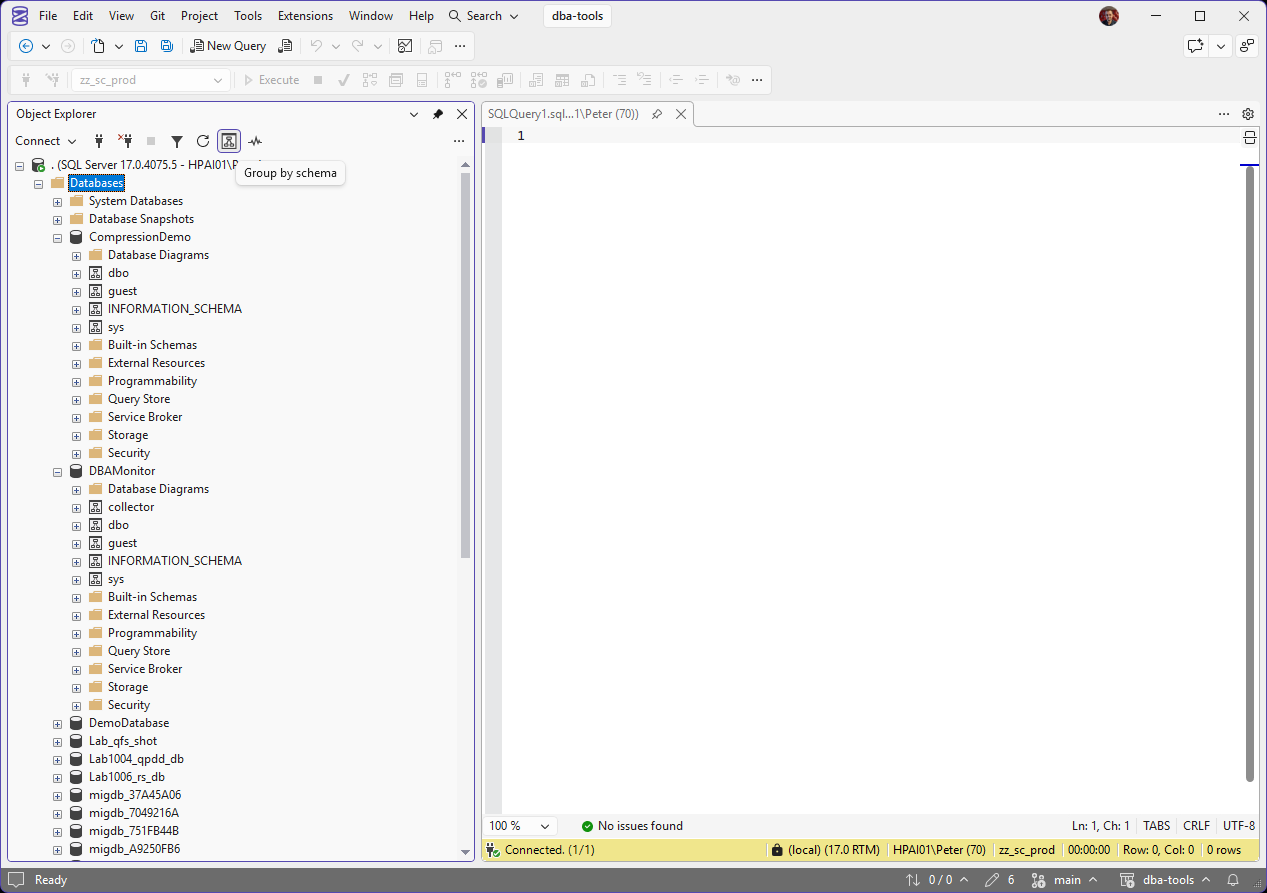
Group by schema on the lab instance: each database lists its schemas as nodes of their own, so the tables and procedures you are after sit under dbo or collector rather than in one long list.
Go Deeper on 21 and 22
Troubleshooting & Configuration
Which One You Need
- Fresh machine or SSMS won’t update: start with Install & Update, or the scripted version if you’re setting up more than one box.
- Suddenly can’t connect after an SSMS upgrade: it’s almost always the certificate chain trust error.
- Need to test as another account: Open as a Different Domain User.
- A query’s output looks cut off, or you can’t see something you expect in Results to Text: the 256-character limit.
- Moving off Azure Data Studio: where each job it did lives now.
- Test and production have drifted apart: Schema Compare lists every difference and scripts the fix.
- Want Copilot’s help without it touching production: restrict what it can run, then see what its tools can do.
- Coming back to SSMS after a few years away: start with What Changed in SSMS 21 and 22 above.
Keyboard Shortcuts Worth Knowing
The handful that save real time every single session, not the exhaustive list: Query-window keys get their own deep dive in SSMS Query Shortcuts.
| Shortcut | What it does |
|---|---|
F5 |
F5, Ctrl+E, and Alt+X all execute. Alt+X is the one I use. |
Ctrl+R |
Toggle the Results pane, useful to reclaim screen space while writing a long query |
Alt+F1 |
Run sp_help against whatever object name the cursor is sitting on |
Ctrl+L / Ctrl+M |
Display the estimated execution plan / include the actual plan with the next execute. The two shortcuts a DBA uses more than anyone else |
Ctrl+F5 |
Parse the query without running it, the cheap sanity check before executing against production |
Ctrl+1 / Ctrl+2 |
Run sp_who / sp_lock against the current connection |
Ctrl+K, Ctrl+C |
Comment out the selected lines |
Ctrl+K, Ctrl+U |
Uncomment the selected lines |
Ctrl+Shift+U / Ctrl+Shift+L |
Uppercase / lowercase the selected text, handy for normalizing keyword casing |
Shift+Alt+Arrow |
Column (box) selection, select a vertical block instead of full lines, useful for editing a list of similar values in place |
Ctrl+Shift+R |
Refresh the IntelliSense local cache, the fix when IntelliSense is showing objects that no longer exist or missing ones that do |
Ctrl+1 and Ctrl+2 are query shortcuts, and the mechanism behind them is configurable: you can map Ctrl+3 through Ctrl+9 to any procedure you like, sp_whoisactive on Ctrl+3 is the classic. The settings live under Tools > Options > Environment > Keyboard > Query Shortcuts, and from SSMS 22.6 they moved into the new Unified Settings experience.
Frequently Asked Questions
Is SSMS still being actively updated?
Yes, more actively than it has been in years. It ships as a separate download from the SQL Server engine with its own release cadence, and the SSMS 22 line has been updating roughly monthly. See Install & Update above for where to get it and how the update checks work, and What Changed in SSMS 21 and 22 for the features worth knowing about.
Does SSMS have a dark theme?
Yes, officially, at last. SSMS 21 shipped the first supported dark theme and SSMS 22 extended theming further, adding new themes (and retiring the old Blue one) and bringing more of the dialogs into line. Pick a theme under Tools > Options and expect the odd unthemed dialog at the edges, the coverage has improved with each 22.x release.
What do I need to use Copilot in SSMS, and does it cost anything?
SSMS 22 or later, the AI Assistance workload ticked in the Visual Studio Installer, and a GitHub account. A free Copilot tier exists, so trying it costs nothing. It is opt-in per machine, code completions ship disabled by default, and as of 22.9 Ask mode cannot execute arbitrary queries against the connected server, which is the right default for anything production-shaped.
Can I use git without leaving SSMS?
Yes, since SSMS 21. The Git menu covers clone, branch, commit, push and stash against GitHub or Azure DevOps, which is enough to keep your scripts folder under version control on the jump host you already work from. It versions files, not the database; schema-as-source is what the separate Database DevOps workload (generally available since SSMS 22.10.2) is for.
What replaced Azure Data Studio?
Two tools, split by job. Azure Data Studio was retired on 28 February 2026 and gets no updates or security fixes. For DBA work on Windows, SSMS 22 now has the things people ran ADS for, Schema Compare, Git, Copilot and a dark theme, plus Agent, the object dialogs and the Maintenance Plan designer that ADS never had. On a Mac or Linux, or for notebooks, Microsoft’s answer is VS Code with the MSSQL extension, which imports your ADS connections. Azure Data Studio Is Retired maps each job to its new home.
Why does SSMS suddenly refuse to connect after an update?
Almost always the certificate chain trust error, current SSMS versions default to encrypting the connection and validating the server’s certificate, which older instances running a self-signed cert weren’t set up to satisfy. See Fix the Certificate Chain Trust Error above for the actual cause and fix.
Can I install or remove SSMS across several machines without clicking through each one?
Yes, see the scripted Install & Update and Uninstall links above. Both are silent by default, log what they did, and are built for fleet or repeat jump-host setups rather than a single interactive install.
Can I run SSMS on Linux or macOS?
No, SSMS itself is Windows-only. From Linux or macOS the supported option is now Visual Studio Code with the MSSQL extension, since Azure Data Studio was retired in February 2026, or a plain sqlcmd session for anything scriptable.
If you work with an AI assistant alongside SSMS, the same reference behind these pages is available to it directly through the sqldba MCP server, so a question about an error number or a patch level gets a checked answer rather than a plausible one.
Where To Go Next
SSMS set up and behaving is the starting line, not the finish. Three directions from here, depending on what today actually is:
- DBA Scripts: The Complete Guide, eight areas of the job and every production script on this site, mapped by the question it answers. SSMS is the client; the scripts are the job.
- Run a Full SQL Server Health Check, point your working SSMS at an unfamiliar server and find out what’s actually wrong: 45 diagnostics, threshold rules, then an AI assessment that correlates the findings into root causes.
- Check Connection Encryption and Protocol, the deep-dive behind the certificate-chain fix above: what your connections actually negotiate, and how to prove it per session.
- Keyboard Shortcuts Worth Knowing, if you memorise nothing else:
F5runs it,Ctrl+Rreclaims the screen, andCtrl+Shift+Rfixes IntelliSense when it lies to you.
Leave a Reply