
Somebody hands you a 40-line query written on one line, or a procedure that three people have indented three different ways, and you need to read it before you run it. SSMS formats T-SQL itself now. The SQL Formatter arrived in SSMS 22.7 and has been generally available since 22.10.2, so there is no add-in to buy and no reason to paste production SQL into a website.
Format a Query
- Open the query in SSMS 22.7 or later.
- Select the part you want formatted, or select nothing to format the whole window.
- Press Ctrl+K, Ctrl+Q. Or right-click in the editor and choose Format SQL, or use Edit → Advanced → Format SQL.
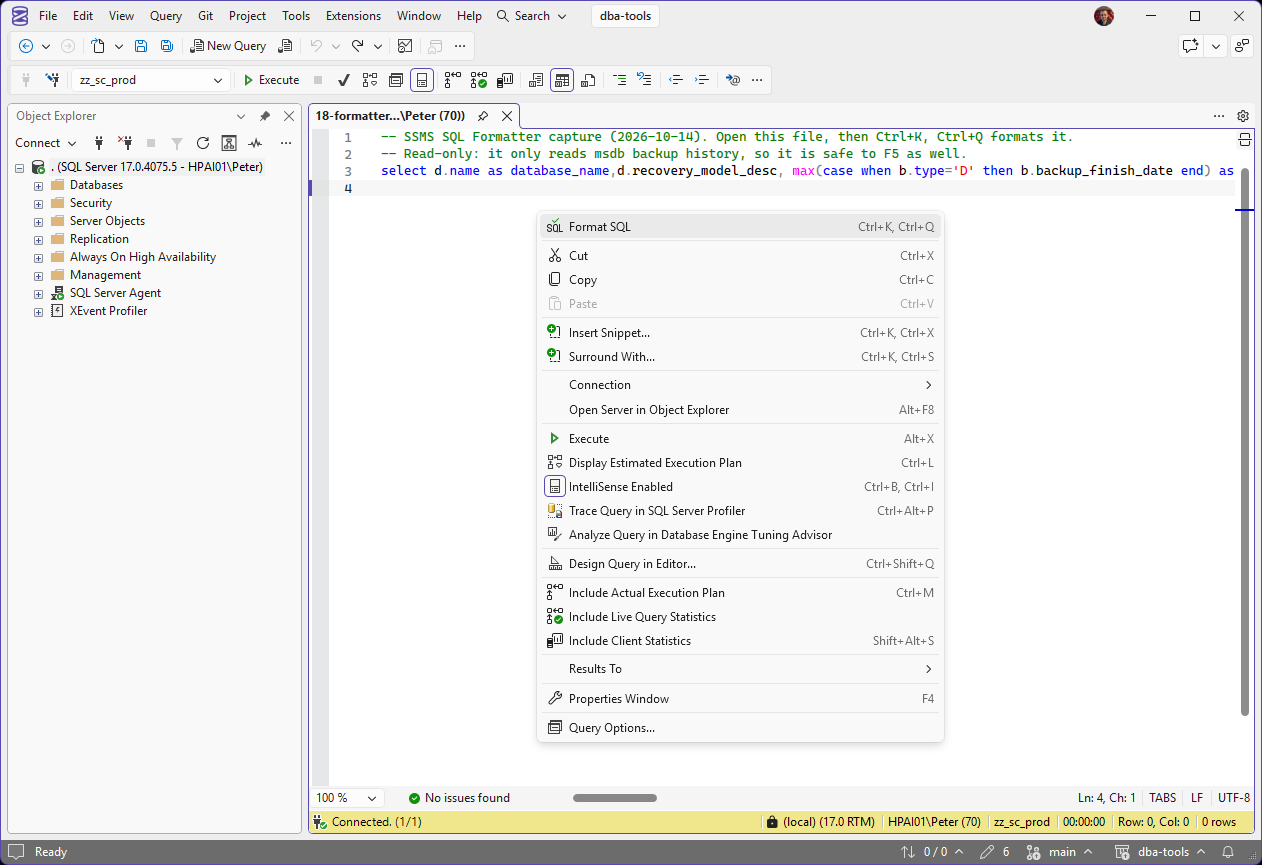
Here is a backup-age query written the way it usually arrives, on one line. Format SQL sits at the top of the right-click menu.
What It Changed
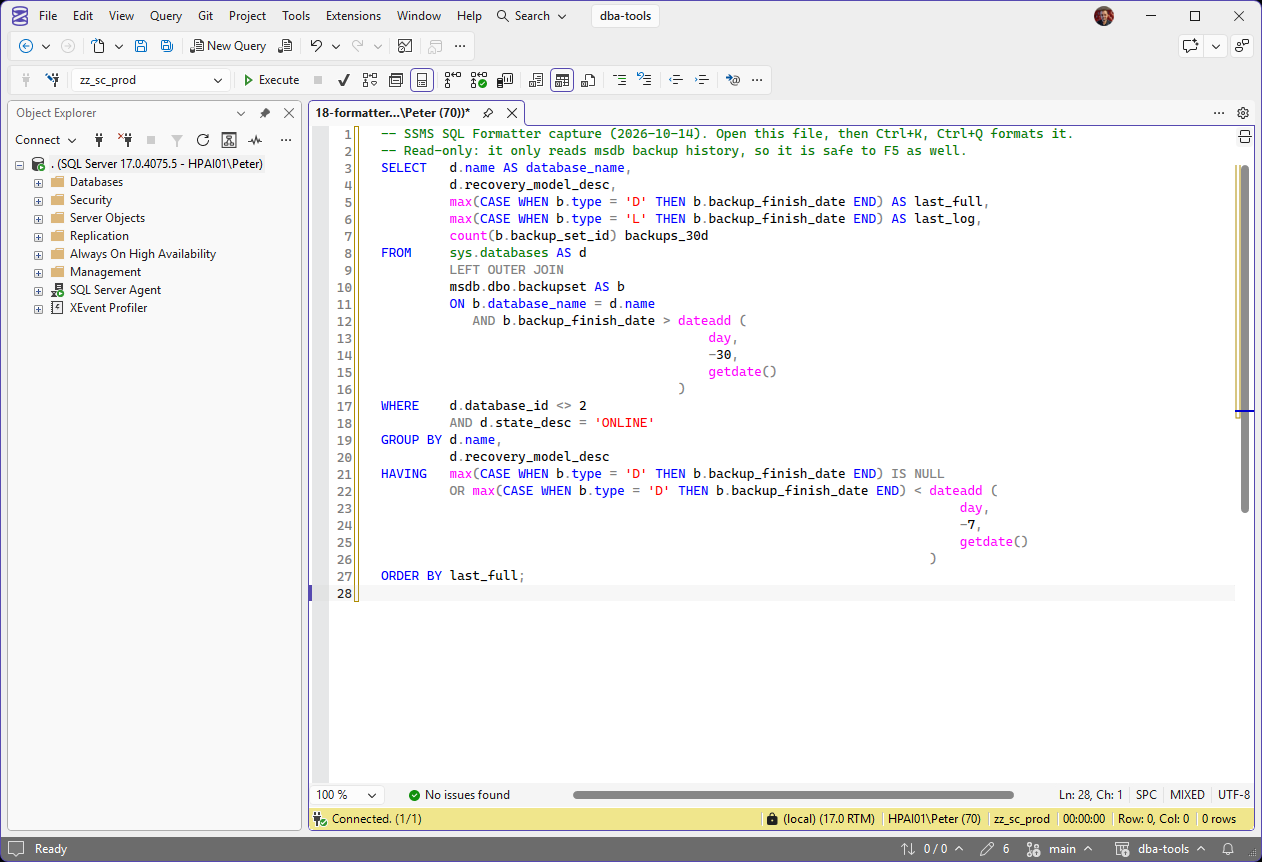
Same query, one keystroke later, on the default settings. Each clause starts its own line and each column gets its own row, which is what makes it readable. It also changed a few things worth knowing before you format someone else’s code:
- Keywords went to upper case:
selectbecameSELECT,casebecameCASE. - Function names did not.
max,countanddateaddstayed lower case, because built-in function casing is set to Preserve. LEFT JOINbecameLEFT OUTER JOIN. Same join, longer spelling.- A semicolon was added after the last statement.
- Each
dateaddargument went onto its own line. Correct, but long for a three-argument function; the Multiline settings control it. - The comments were kept, word for word.
None of that changes what the query does. It only changes how it reads. If you do not like the result, Ctrl+Z puts the original back in one step.
Make It Format Your Way
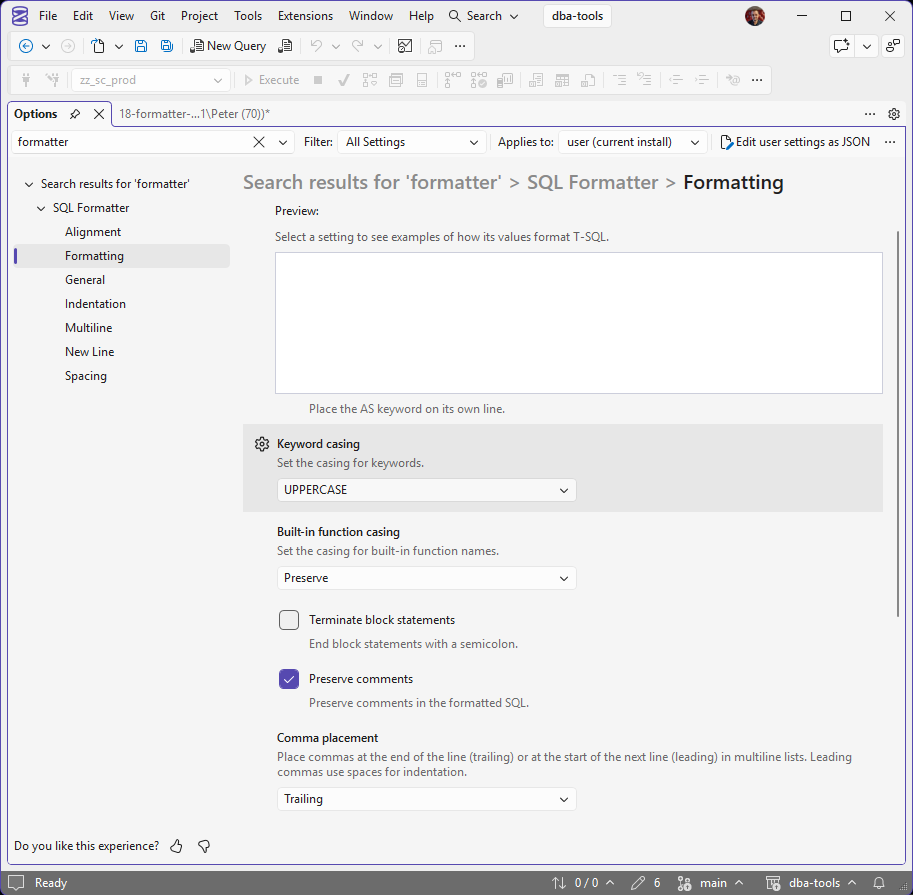
Open Tools → Options and type formatter in the search box. The SQL Formatter settings are split across seven pages: Alignment, Formatting, General, Indentation, Multiline, New Line and Spacing. Select a setting and the Preview box shows example T-SQL with that value applied, so you can see a change before you commit to it.
The settings that decide whether you can live with it:
- Keyword casing and Built-in function casing, on the Formatting page.
- Comma placement, trailing or leading.
- Indent with tabs or spaces, and the indent size.
- Column alias style:
AS, an equals sign, or leave it as written. - New lines around
JOINandON. - Format on Save, on the Formatting page, for saved query files and SQL projects.
For a team, put the same rules in an .editorconfig file next to the scripts (Microsoft’s Format T-SQL in SSMS page has an example). Its values override each person’s SSMS settings for the files it covers, so a shared scripts folder formats the same way on everyone’s machine, and a Git diff shows real changes, not re-indentation.
Why Not Just Use an Online Formatter
Because the query you most want to read is usually the one from production, and pasting it into a website sends your table names, column names and sometimes the literal values in the WHERE clause to somebody else’s server. Formatting used to be a reason to buy an add-in or take that risk. It is now built into the tool you already have open, and it never leaves the machine.
Common Questions
Which SSMS version has the SQL Formatter?
22.7 or later. It was a preview until 22.10.2, when it became generally available. Install and Update SSMS gets you onto the current release.
Can formatting change what my query does?
It should not. It changes layout and casing, and spellings like LEFT JOIN to LEFT OUTER JOIN that mean the same thing. Read the diff before you save over a procedure anyway, the same as any other change.
How do I undo the formatting?
Ctrl+Z, straight after. The whole format is one undo step.
Can I format only part of a script?
Yes. Select the lines first. With nothing selected it formats the whole window.
Related
- SSMS: The Complete Guide, the hub this post belongs to
- What’s New in SSMS 22 for DBAs
- SSMS Query Shortcuts, the other keys worth learning
- SSMS Schema Compare, another job SSMS now does without an add-in
Leave a Reply