
Every DBA has a scripts folder. Most of them live dangerously: a directory on a jump host, copies of copies, a blocking_check_v2_FINAL.sql that is not the final version. Since SSMS 21 the fix has been built into the tool you already have open: native git support, no extra install, working against GitHub or Azure DevOps.
This post is the DBA-shaped walkthrough: get a script repo cloned inside SSMS, and the small daily habits that make it pay off. It is not a git tutorial; if branches and commits are new to you, the workflow below still works, you will just be typing the same three commands’ worth of clicks.
What Git in SSMS Is, and Is Not
It versions files: your .sql scripts, your SQL projects, the folder you already carry from server to server. It does not version the database itself. Schema-as-source workflows are the direction of the separate Database DevOps workload, which is still in preview, and worth watching rather than adopting on a production estate today.
That distinction is the whole value for a DBA. The scripts you run against production are exactly the artefact that deserves history, review, and a diff before execution, and they are files, which is the case git has already solved.
Clone a Script Repo Inside SSMS
Using the DBA-Tools repo that backs the scripts on this site as the example, since it is public and you can follow along with it:
- In SSMS, open the Git menu and choose Clone Repository.
- Repository location:
https://github.com/peterwhyte-lgtm/dba-tools.git - Pick a local path you will remember, and clone.
- The repo’s files are now on disk and SSMS knows about the repo; open any script and the Git menu works against it.
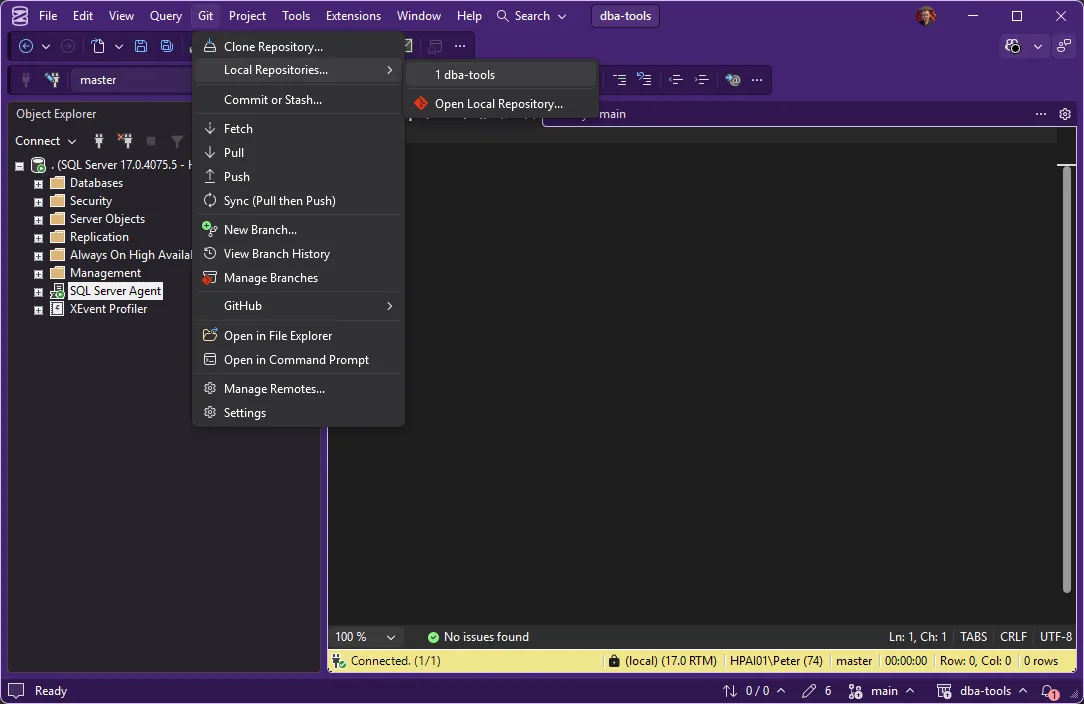
For a private repo, SSMS signs in with the same account flow as Visual Studio, GitHub and Azure DevOps are both supported. For your own scripts folder that has never seen version control, Git > Create Git Repository starts one from the folder you already have.
The Daily Flow That Pays For Itself
- Pull before you use. A one-click fetch beats discovering mid-incident that your copy of a script is three fixes old.
- Diff before you run. This is the habit that matters. A changed script against production deserves one click on the diff first, so it is an informed run instead of an act of faith.
- Branch when you edit. Your tweak to a shared script lives on a branch until it has been run somewhere safe.
- Commit messages say why. “Raised threshold to 500ms after the March incident” is documentation you get for free next year.
Frequently Asked Questions
Do I need git installed separately?
No. The git tooling ships with the SSMS 21 and later install through the Visual Studio Installer, that is the point. If you also use command-line git on the same machine, they work against the same repos.
Can it source-control the database schema itself?
Not by itself. Git in SSMS versions files. The Database DevOps workload (preview in SSMS 22) is building the schema-as-source direction, SQL projects, schema compare and publish flows included.
Does it work with Azure DevOps as well as GitHub?
Yes, both are supported for clone, push and pull, with the standard sign-in flows.
Related
- SSMS: The Complete Guide, the hub this post belongs to
- What’s New in SSMS 22 for DBAs
- DBA Scripts: The Complete Guide, the scripts worth putting under version control
- Install and Update SSMS
Summary
Since SSMS 21, version control for your scripts folder needs no second tool: clone or create a repo from the Git menu, pull before you use, diff before you run, branch when you edit. It versions files rather than schemas, and files are exactly where a DBA’s risk lives. Clone a public repo once and the habit takes ten minutes to form.
Leave a Reply