
SQL Server Management Studio (SSMS) is the primary management tool for SQL Server and Azure SQL, and it’s also the official download and update path for SSMS going forward. In recent releases it’s changed significantly, not in how it looks, but in how it installs, updates, and enforces connection behaviour: it now updates frequently, runs through the Visual Studio Installer, and applies stricter encryption defaults by design. If you still think of SSMS as a tool you install once and forget about, modern versions will surprise you.
This post covers how SSMS works today: what changed, how to install, update, and uninstall it properly, and how to manage it sensibly as a DBA without surprises or unnecessary churn.
Download SSMS
Both links go straight to Microsoft’s own installer. Setting up more than one machine? The scripted version detects what is already installed, updates silently, and adds SSMS to PATH automatically.
Every SSMS Version and Where To Get It
| Version | Latest build | Released | Install it when |
|---|---|---|---|
| SSMS 22CURRENT | 22.9.0 | 11 August 2026 | The default choice. Current GA release, 64-bit, Visual Studio Installer based. |
| SSMS 21 | 21.6.17 | 14 October 2025 | The previous Visual Studio Installer release. Only if something in your estate is pinned to it. |
| SSMS 20 | 20.2.1 | 8 April 2025 | Last of the standalone installer line, and what winget still resolves to. Needed to manage the legacy Integration Services service on SQL Server 2022. |
| SSMS 19 | 19.3 | 10 January 2024 | Legacy. Kept around for the same SSIS service case, and for older tooling that never moved on. |
Install From the Command Line
For SSMS 22 and 21, download the Visual Studio Installer bootstrapper and run it unattended:
# SSMS 22, silent install
$url = 'https://aka.ms/ssms/22/release/vs_SSMS.exe'
Invoke-WebRequest -Uri $url -OutFile "$env:TEMP\vs_SSMS.exe"
Start-Process "$env:TEMP\vs_SSMS.exe" -ArgumentList '--quiet','--norestart','--wait' -Wait
SSMS 20 and earlier use the older standalone installer, which takes different switches:
# SSMS 20, silent install (note the different URL and switches)
$url = 'https://go.microsoft.com/fwlink/?linkid=2313753'
Invoke-WebRequest -Uri $url -OutFile "$env:TEMP\SSMS-Setup-ENU.exe"
Start-Process "$env:TEMP\SSMS-Setup-ENU.exe" -ArgumentList '/install','/quiet','/norestart' -Waitaka.ms/ssmsfullsetup for SSMS 20 any more. That short link used to resolve to the SSMS 20 standalone installer, and plenty of older scripts and blog posts still use it. Checked on 17 August 2026, it now redirects to the SSMS 22 bootstrapper, the same 5.7 MB file as the SSMS 22 link above. Feed that to /install /quiet /norestart and it will not install anything, because those are the old installer’s switches. Use the direct link above for SSMS 20.winget install Microsoft.SQLServerManagementStudio still resolves to SSMS 20, not 22. SSMS 22 is not in the winget catalogue at all, so if you push SSMS through winget across a fleet you are quietly installing a version two majors behind. Use the bootstrapper above for 22.Which Version Do You Need?
- New machine, nothing special about it: SSMS 22. It connects back to older SQL Server versions perfectly well, so there is rarely a reason to install an older client.
- You manage the legacy Integration Services service on SQL Server 2022: keep SSMS 20.2.1 or 19.3 alongside SSMS 22. They install side by side.
- You are already on SSMS 21: update in place through the Visual Studio Installer rather than downloading 22 separately. The Updating SSMS section below covers the update channels.
Running more than one version at once is supported and common. Running Multiple SSMS Versions Side by Side, further down this page, covers how they coexist.
What Changed With Modern SSMS
SSMS is now:
- Installed and updated via the Visual Studio Installer
- Released on a frequent, in-place update cadence
- Available in Release and Preview channels
- Fully 64-bit
- Actively maintained and decoupled from SQL Server engine releases
Side-by-side installation has been supported for years. What changed is that Microsoft now actively encourages parallel Release and Preview installs as part of the supported workflow.
SSMS is no longer tied to SQL Server engine releases. It behaves like a continuously updated client application, and DBAs need to treat it as such.
Permissions and Prerequisites
Before installing or updating SSMS, keep these basics in mind:
- Installation and updates require local administrator permissions
- SSMS must be closed before an update can apply
- Updates are pulled from Microsoft unless you use an internal source (for example, SCCM)
- Windows will prompt for elevation if you’re running as a standard user
Nothing unusual here, but worth stating explicitly, especially on shared servers and jump hosts.
Installing SSMS (Visual Studio Installer Model)
Starting with modern SSMS releases, installation is handled through the Visual Studio Installer. If you were used to the old standalone SSMS installer, this can feel unfamiliar at first, but in practice it’s mostly a wrapper change rather than a functional one: you download a small bootstrapper, the installer opens automatically, and SSMS is installed and updated from there. Visual Studio itself is not required.
Once you’ve used it a few times, installs and updates tend to be more reliable than the older MSI-based SSMS releases.
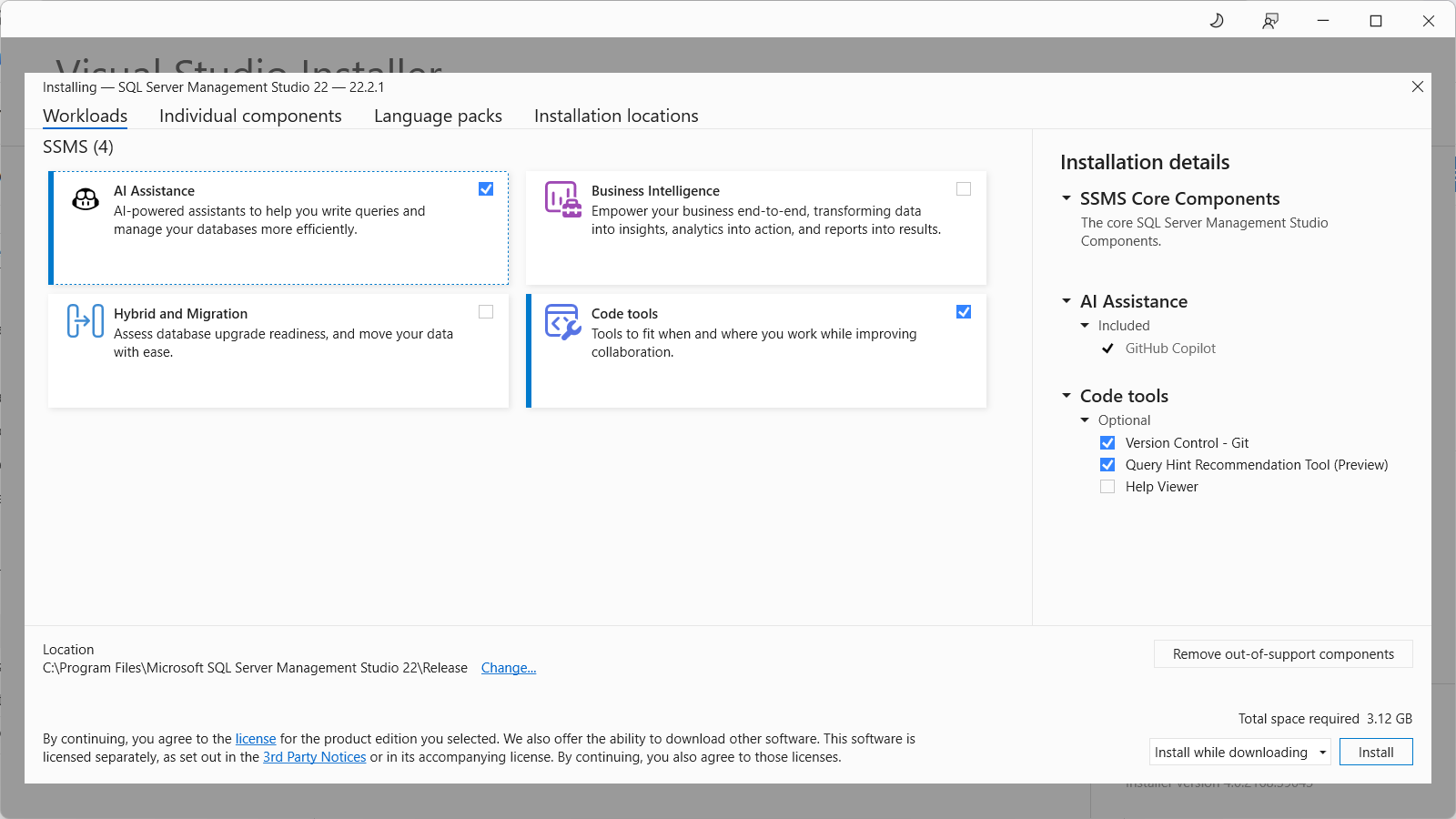
Ready to install? SSMS 22.9.0 is the current release, 11 August 2026.
⬇️ Download SSMS 22First Launch Experience
After installation, SSMS behaves exactly as you’d expect. Launch it from the Start Menu and connect as normal, there’s no functional difference in how you connect to SQL Server, manage databases, or run queries. The biggest changes are behind the scenes.
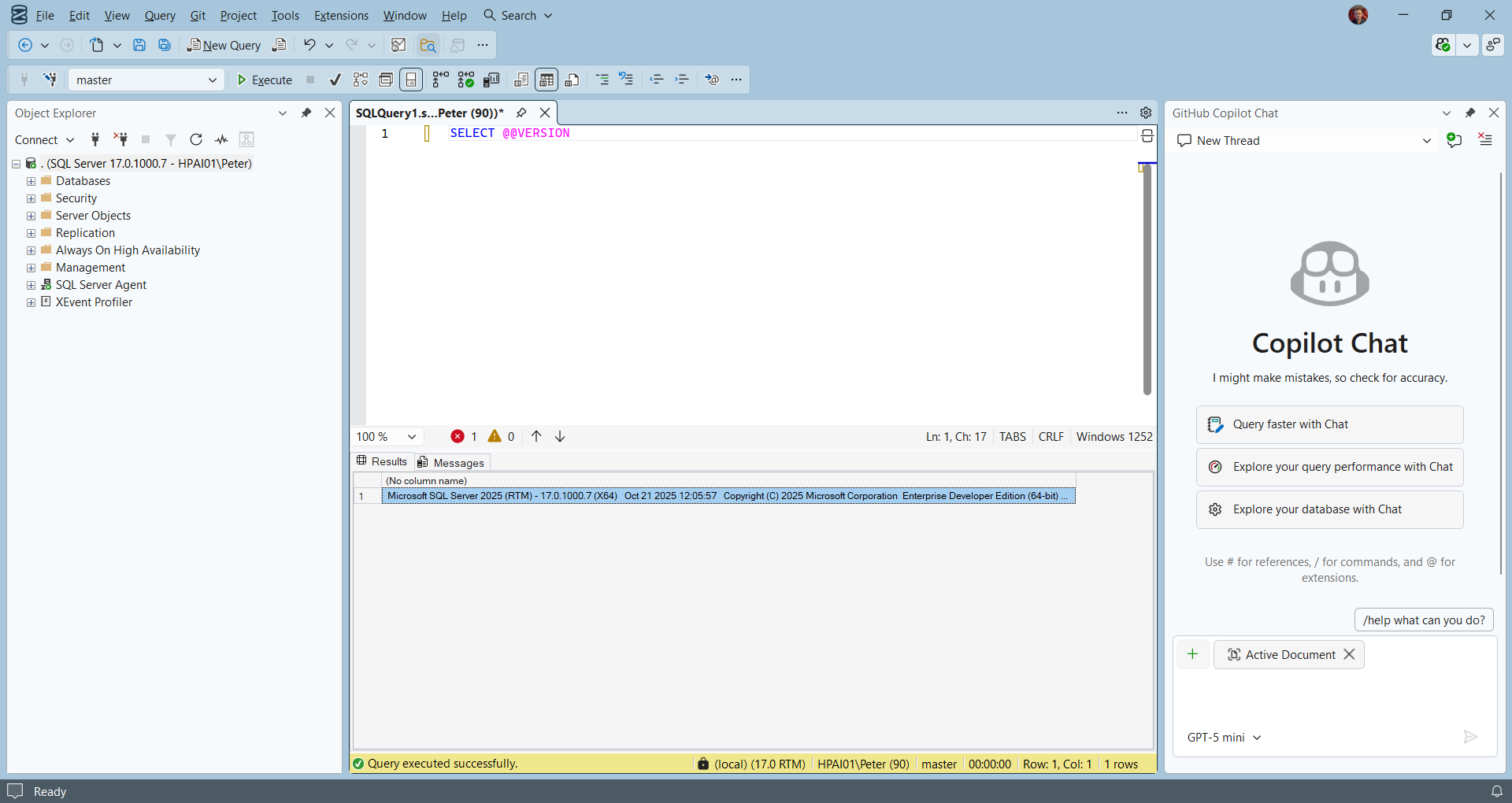
On first launch, many SSMS users go straight to connecting to an existing SQL Server. In newer SSMS versions, this is also where you may first encounter stricter encryption behaviour. If you see a certificate or SSL error at this stage, it’s usually a client-side change rather than a server problem.
Running Multiple SSMS Versions Side by Side
You can safely install SSMS Release and SSMS Preview on the same machine. They update independently and do not interfere with each other. This makes it easy to keep a stable Release build for day-to-day work while testing Preview features on your own terms, for example, stricter encryption defaults in newer versions are easier to test in Preview before rolling into daily use.
If you regularly manage multiple environments, keeping separate Release and Preview installs also reduces the risk of unexpected behaviour changes during critical work. Older SSMS versions can still coexist as well, though if you still have a 2014-era SSMS install hanging around, it’s probably time to let it go.
Updating SSMS
SSMS updates frequently, and Microsoft expects it to stay current. How updates should be handled depends mainly on where SSMS is installed and how that machine is used:
| Method | How it works | Best for |
|---|---|---|
| Visual Studio Installer | Open the installer, locate the SSMS installation, apply the update if one’s available, restart if prompted. Updates only happen when you explicitly choose to apply them. | Jump servers, shared admin hosts, and other controlled environments, avoids surprises and keeps client changes intentional. |
| From within SSMS | A notification on launch, or check manually via Help → Check for Updates. | Personal workstations. On shared hosts it’s easier to lose track of when and why the client changed. |
| Update on close | SSMS downloads updates automatically and applies them when the application closes. Set per installation. | Personal machines only, on shared systems (including jump servers and incident-response hosts) it introduces uncertainty about when client behaviour changes. |
| PowerShell (scripted) | Runs the same bootstrapper unattended. It detects what is already installed, updates in place, and needs no GUI or prompts. | Fleets and rebuilt machines, where clicking through the installer on every host is not realistic. Also the one to use for SSMS 22, which winget cannot update. |
As a rule of thumb: shared or controlled systems update deliberately via the Visual Studio Installer, personal workstations are usually fine with in-app updates. In environments where stability matters more than convenience, treat SSMS like any other client dependency, update intentionally, validate once, then standardise.
Update Channels
SSMS is released through two channels: Release, the stable, supported build intended for everyday DBA work, and Preview, which provides early access to upcoming changes before they land in Release.
Each SSMS installation follows a single channel, and different installations on the same machine can use different channels if needed. Switching channels installs the latest version available on that channel, it does not roll versions backwards. For most DBAs, the sensible default is to run Release and forget about it.
Notable Improvements in Recent Releases
Rather than listing version numbers, these are the changes that actually matter day to day.
64-bit SSMS
SSMS is now fully 64-bit, which improves stability, memory handling, and performance with large result sets. If you regularly work with large environments, this is a meaningful improvement.
UI and Usability Improvements
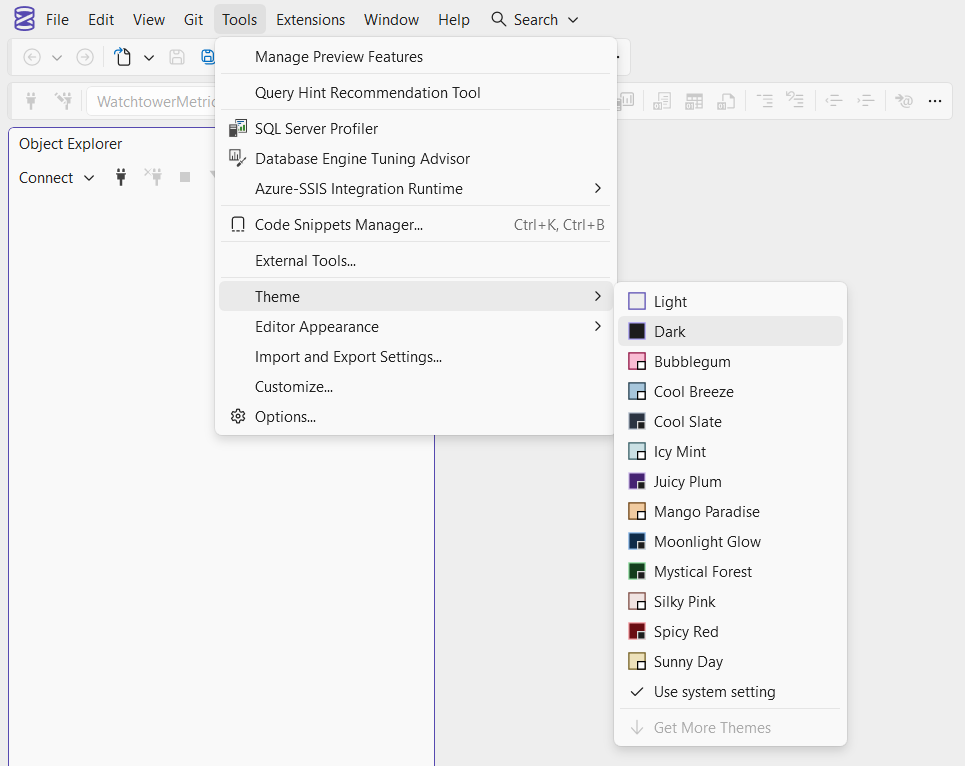
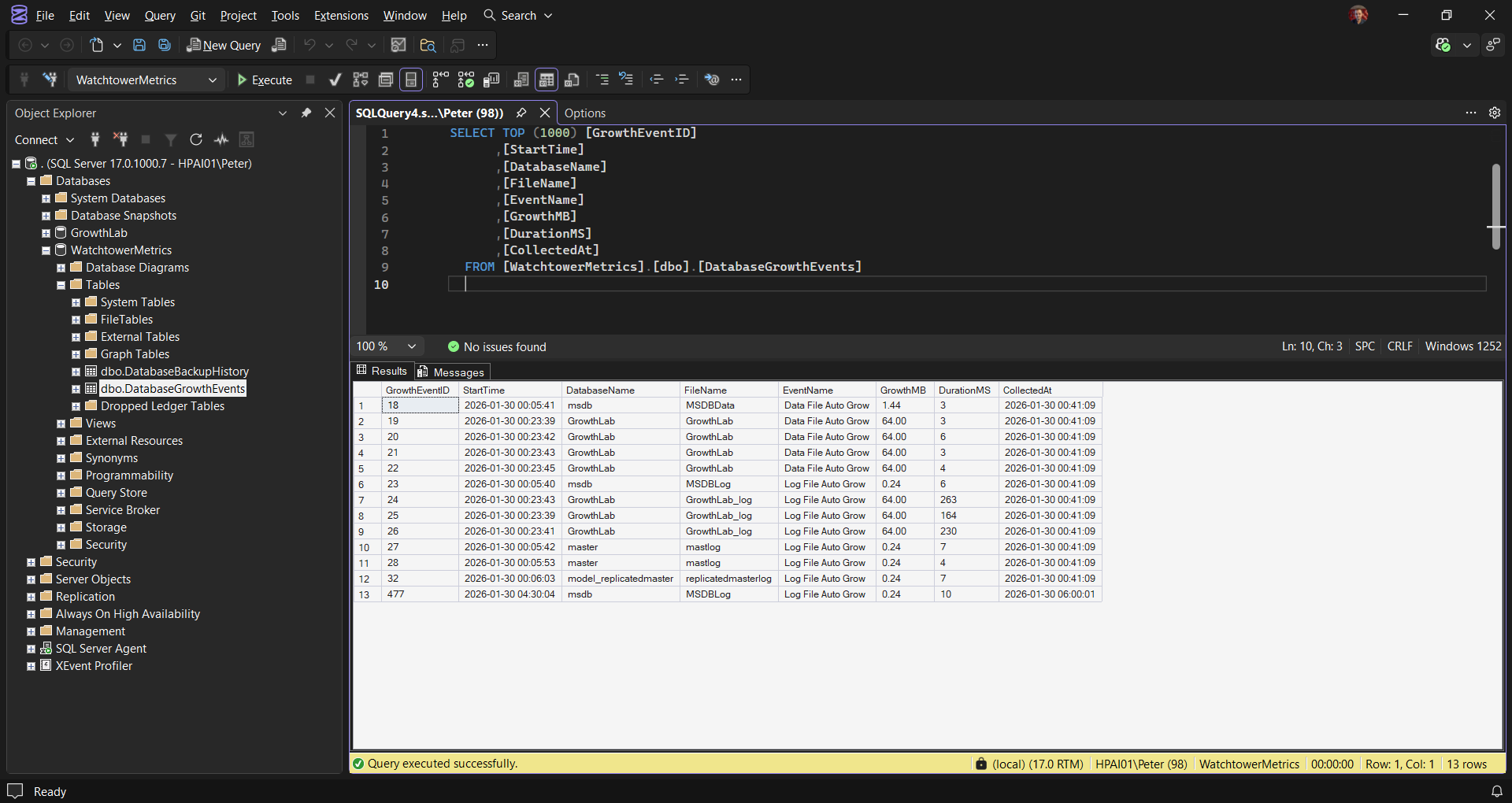
Recent versions introduced refined connection dialogs, better layout customisation, improved high-DPI handling, and expanded theme support (dark mode & more). To change your theme in SSMS, go to Tools → Themes at the top menu bar, or from the same tab inside Options → Environment.
Git Integration and Copilot
SSMS now includes native Git integration and optional AI-assisted features via Copilot. Whether you use them or not, they signal where Microsoft is taking the tooling. They’re optional, not required, and easy to ignore if they don’t fit your workflow.
Copilot is also not the only way to pair SSMS with AI. If you work with Claude or any assistant that speaks MCP, the sqldba MCP server hands it this site’s verified reference for errors, wait types and build levels, so the answers you get alongside SSMS are checked ones.
Uninstalling SSMS
With modern SSMS releases (21+), the Visual Studio Installer is the supported way to uninstall SSMS. To remove it, open the Visual Studio Installer, locate SQL Server Management Studio, select More, and choose Uninstall. The installer cleanly removes SSMS and all associated components.
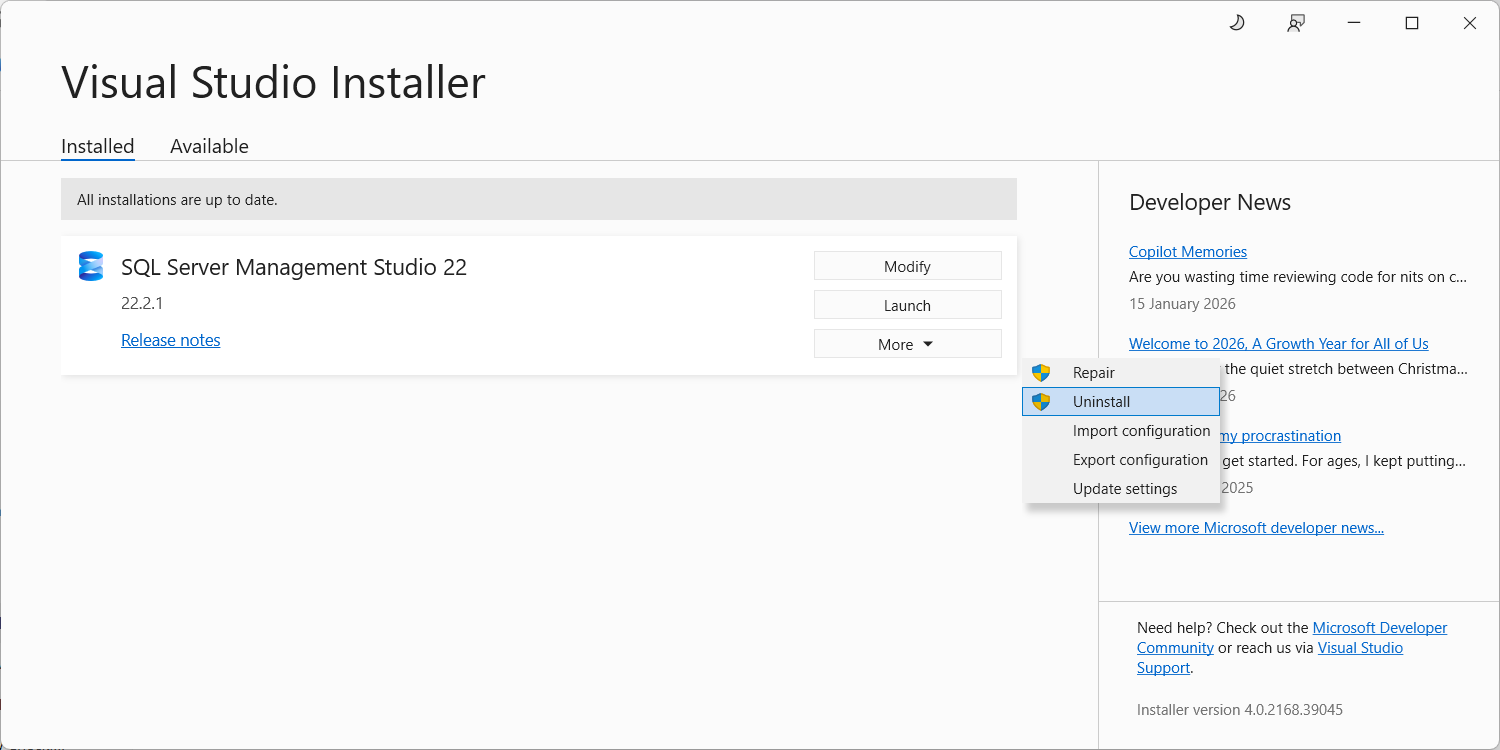
Older methods such as removing SSMS via Add / Remove Programs (appwiz.cpl) only apply to legacy MSI-based versions. For current SSMS releases, the Visual Studio Installer owns the full install and uninstall lifecycle.
Uninstalling several machines, or dealing with a corrupted install the Visual Studio Installer won’t clean up? The scripted version tries three fallback methods and verifies the removal actually stuck.
Final Thoughts
SSMS is no longer a static tool. It behaves like a regularly updated client application, and DBAs should treat it that way. The important decisions aren’t about features, they’re about when updates apply, which channel you follow, and where SSMS is installed. Once you understand the model, SSMS becomes easier to manage, not harder.
Frequently Asked Questions
How do I update SSMS to the latest version?
Open the Visual Studio Installer, find the SSMS entry and click Update. Since SSMS 21 there is no separate download to chase, the installer handles updates, and SSMS 22 ships them roughly monthly. For more than one machine, the scripted install and update does the same thing silently.
Do I need Visual Studio installed to use the Visual Studio Installer?
No. It’s a small bootstrapper that installs and updates SSMS, Visual Studio itself is not required.
Can I run SSMS Release and Preview on the same machine?
Yes, they install and update independently and don’t interfere with each other. Useful for testing Preview features without disturbing your stable day-to-day install.
Do I need administrator rights to install or update SSMS?
Yes, both installing and updating require local administrator permissions, and Windows will prompt for elevation if you’re running as a standard user.
Which update method should I use on a shared or jump server?
The Visual Studio Installer, deliberately, when you choose to. Update-on-close and in-app update prompts are fine for a personal workstation, but on a shared or controlled system they make it easy to lose track of when the client actually changed.
How do I uninstall SSMS?
On SSMS 21+, through the Visual Studio Installer (locate SSMS, select More, choose Uninstall). For a fleet of machines, or a corrupted install the Installer won’t fully clean up, see the scripted uninstall above.
Related
For a full map of SSMS setup, configuration, and troubleshooting content on this site, see the SSMS Complete Guide. For what each release actually changed for a DBA, see What’s New in SSMS 22.
This page covers one part of working with SSMS. The full reference ties the install, configuration and troubleshooting pieces together.
- SSMS Complete Guide, installing it, keeping it updated, and fixing it when it misbehaves.
- DBA Scripts, the SQL Server scripts you will actually run once SSMS is open.
More in this series: DBA Scripts: Install and Update SSMS via PowerShell · DBA Scripts: Uninstall SSMS via PowerShell · Open SSMS as a Different Domain User · How to Show Line Numbers in SSMS · How to Increase Maximum Characters Displayed in SSMS

Leave a Reply