
The Scripted Version of Installing SSMS
SSMS is behind or missing on a box and you want it current without clicking through the installer: this script installs or updates it silently, works out what is already there, and puts ssms on PATH when it is done.
For a one-off install on your own workstation, Install and Update SQL Server Management Studio (SSMS) is the click-through walkthrough.
Why a Scripted SSMS Install Matters
- SSMS 22 does not upgrade an SSMS 17-20 install in place. The old versions use a different installer, and SSMS 22 installs side by side with an earlier major version as a separate product. This script detects which one is there and stops with a plain message pointing at the uninstall script, rather than adding a second copy alongside the old one.
- Silent by default, with a progress window available when you want to watch it. Fleet installs want silent, a one-off on your own machine might not.
- Adds SSMS to
PATHautomatically once installed, sossmslaunches it from any terminal without hunting for the install directory afterward.
When to Run This Script
- Standing up SSMS on a new machine as part of a broader environment setup
- Updating SSMS across several jump hosts or shared admin boxes without clicking through each one by hand
- Automating environment setup where a human clicking “Next” isn’t the workflow
Are You Behind?
The status check from the SQL Server patching post covers SSMS too, one command, no elevation:
.\powershell\patching\patch-summary.ps1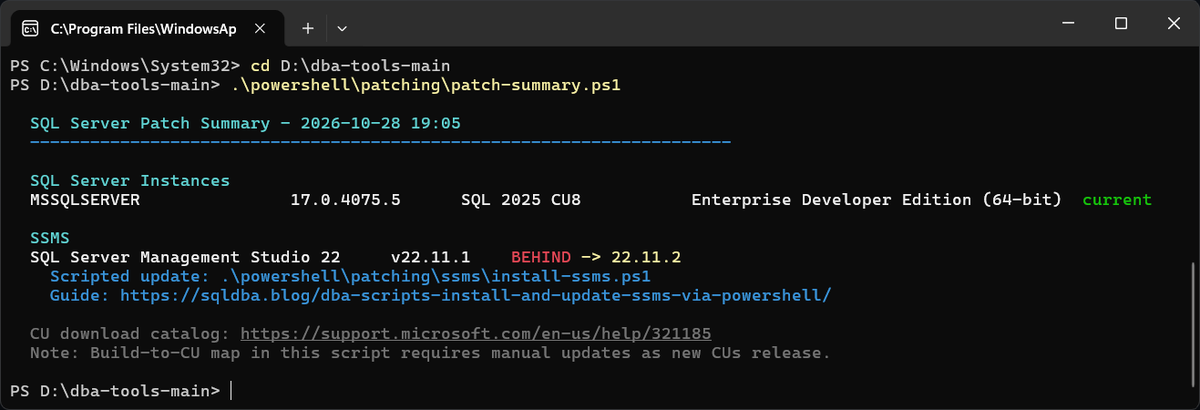
A red BEHIND and the script to fix it, which is the rest of this page.
The Script
# install-ssms.ps1 - Install or update SQL Server Management Studio
# Author      : Peter Whyte (https://sqldba.blog/dba-scripts-install-and-update-ssms-via-powershell/)
# Type        : automation
# Scope       : single server (this machine)
# RiskLevel   : MEDIUM - installs or upgrades SSMS on this machine; does not touch the database engine
# Requires    : elevated PowerShell (not needed for -WhatIf), SSMS closed, internet access
# Guide       : https://sqldba.blog/sql-server-management-studio-complete-guide/
#
# SSMS 22+   (default) : downloads vs_SSMS.exe from aka.ms/ssms/22/release/vs_SSMS.exe
#                        fresh install : vs_SSMS.exe --quiet --norestart --wait
#                        update        : vs_SSMS.exe update --installPath <path> --quiet --norestart --wait
# SSMS 17-20 (winget)  : winget install Microsoft.SQLServerManagementStudio
#
# An existing SSMS 22 needs the 'update' verb plus --installPath. Without them the bootstrapper
# runs a fresh install, which exits 1 with "SQL Server Management Studio 22 is already installed".
# Before installing, the script reads the installed version (vswhere) and the latest version on
# the release channel, prints FROM -> TO, and does nothing when SSMS is already current.
#
# Cannot upgrade SSMS 17-20 in-place to SSMS 22 - run uninstall-ssms.ps1 first.
#
# Parameters:
#   -Method download|winget  : 'download' = SSMS 22 (default), 'winget' = SSMS 20
#   -Url <url>               : override download URL
#   -DownloadDir <path>      : folder to save installer (default: output-files\patches\ssms)
#   -Passive                 : show VS Installer progress window instead of silent
#   -UsePreview              : use winget preview package (winget method only)
#   -WhatIf                  : show the plan (from -> to, command line), no changes
#
# Exit codes: 0 = installed, updated or already current; 1 = stopped before installing
#             (not elevated, SSMS running, download failed); any other value = the
#             installer's own exit code (MS Docs: Install SSMS from the command line).
#
# Examples:
#   .\install-ssms.ps1 -WhatIf                  # dry run: shows from -> to and the command
#   .\install-ssms.ps1                          # install or update SSMS 22
#   .\install-ssms.ps1 -Passive                 # install with progress window
#   .\install-ssms.ps1 -Method winget           # install SSMS 20
param(
    [ValidateSet('winget', 'download')]
    [string]$Method      = 'download',

    [string]$Url,

    [string]$DownloadDir,

    [switch]$UsePreview,

    [switch]$Passive,

    [switch]$WhatIf
)

$ErrorActionPreference = 'Stop'

# -- Admin check ---------------------------------------------------------------
$isAdmin = ([Security.Principal.WindowsPrincipal][Security.Principal.WindowsIdentity]::GetCurrent()).IsInRole(
    [Security.Principal.WindowsBuiltInRole]::Administrator)
if (-not $isAdmin -and -not $WhatIf) {
    Write-Host 'ERROR: This script must be run as Administrator (or use -WhatIf to preview without installing).' -ForegroundColor Red; exit 1
}

# -- Logging -------------------------------------------------------------------
# When run from the repo the log goes to output-files\patches\ssms\.
# When run standalone (copied to any folder) it falls back to a logs\ subfolder
# next to the script. Handles empty $PSScriptRoot (copy-pasted into console).
$_scriptRoot    = if ($PSScriptRoot) { $PSScriptRoot } else { $PWD.Path }
$_repoOutputDir = [System.IO.Path]::GetFullPath((Join-Path $_scriptRoot '..\..\..\output-files'))
$logDir = if (Test-Path $_repoOutputDir) {
    Join-Path $_repoOutputDir 'patches\ssms'
} else {
    Join-Path $_scriptRoot 'logs'
}
New-Item -ItemType Directory -Path $logDir -Force | Out-Null
$ts       = Get-Date -Format 'yyyyMMdd-HHmmss'
$logFile  = Join-Path $logDir "ssms-install-$ts.log"

function Write-DbaLog {
    param([string]$Msg, [string]$Color = 'White')
    $line = "[$(Get-Date -Format 'HH:mm:ss')] $Msg"
    Write-Host $line -ForegroundColor $Color
    Add-Content -Path $logFile -Value $line
}

Write-DbaLog "SSMS install log - $ts$( if ($WhatIf) { ' (WhatIf - no changes)' } )" 'Cyan'

# -- Detect current SSMS version -----------------------------------------------
function Get-InstalledSsms {
    $paths = @(
        'HKLM:\SOFTWARE\Microsoft\Windows\CurrentVersion\Uninstall\*',
        'HKLM:\SOFTWARE\WOW6432Node\Microsoft\Windows\CurrentVersion\Uninstall\*'
    )
    foreach ($p in $paths) {
        $found = Get-ItemProperty $p -ErrorAction SilentlyContinue |
            Where-Object { $_.DisplayName -like '*SQL Server Management Studio*' } |
            Select-Object -First 1
        if ($found) { return $found }
    }
    return $null
}

# SSMS 22+ is a VS Installer product: vswhere gives the install path, channel and exact build.
$vswhere = 'C:\Program Files (x86)\Microsoft Visual Studio\Installer\vswhere.exe'
function Get-SsmsVsInstance {
    if (-not (Test-Path $vswhere)) { return $null }
    try {
        # Assign before piping: Windows PowerShell 5.1 does not enumerate a JSON array from ConvertFrom-Json
        $vsProducts = (& $vswhere -all -prerelease -products '*' -format json 2>$null | Out-String) | ConvertFrom-Json
        return $vsProducts |
            Where-Object { $_.productId -eq 'Microsoft.VisualStudio.Product.Ssms' -or $_.displayName -like '*SQL Server Management Studio*' } |
            Sort-Object { [version]$_.installationVersion } -Descending |
            Select-Object -First 1
    } catch { return $null }
}

# Latest version on a release channel, read from the same channel manifest the installer uses.
function Get-SsmsChannelLatest {
    param([string]$ChannelUri)
    try {
        $ProgressPreference = 'SilentlyContinue'
        $resp = Invoke-WebRequest -Uri $ChannelUri -UseBasicParsing -TimeoutSec 30
        $text = if ($resp.Content -is [byte[]]) { [System.Text.Encoding]::UTF8.GetString($resp.Content) } else { [string]$resp.Content }
        $info = ($text.TrimStart([char]0xFEFF) | ConvertFrom-Json).info
        if ($info.productDisplayVersion -and $info.buildVersion) {
            return [pscustomobject]@{
                DisplayVersion = $info.productDisplayVersion
                BuildVersion   = [version]$info.buildVersion
                ChannelId      = ($info.id -split '/')[0]
            }
        }
    } catch { }
    return $null
}

# Exit codes from MS Docs: Install SSMS from the command line > Error codes
$vsExitCodes = @{
    0           = 'operation completed successfully'
    1           = 'failure - check the installer log'
    740         = 'elevation required'
    1001        = 'Visual Studio Installer process is already running'
    1003        = 'SSMS is in use - close it and re-run'
    1602        = 'operation was canceled'
    1618        = 'another installation is running'
    1641        = 'completed, reboot was initiated'
    3010        = 'completed, reboot required before use'
    5003        = 'bootstrapper failed to download the installer'
    5004        = 'operation was canceled'
    5005        = 'bootstrapper command-line parse error'
    5007        = 'blocked - the computer does not meet the requirements'
    8006        = 'SSMS processes running - close SSMS and re-run'
    -1073720687 = 'connectivity failure'
    -1073741510 = 'Visual Studio Installer was terminated'
}

$current   = Get-InstalledSsms
$currentVs = Get-SsmsVsInstance
$fromVersion = if ($currentVs) { $currentVs.catalog.productDisplayVersion } elseif ($current) { $current.DisplayVersion } else { $null }
if ($currentVs) {
    $currentMajor = 22
    Write-DbaLog "Installed : $($currentVs.displayName)  v$fromVersion  (build $($currentVs.installationVersion))" 'White'
    Write-DbaLog "           (SSMS 22+ - VS Installer framework) $($currentVs.installationPath)" 'DarkGray'
}
elseif ($current) {
    $currentMajor = [int]($current.DisplayVersion -split '\.')[0]
    Write-DbaLog "Installed : $($current.DisplayName)  v$($current.DisplayVersion)" 'White'
    if ($currentMajor -ge 22) {
        Write-DbaLog "           (SSMS 22+ - VS Installer framework)" 'DarkGray'
    }
}
else {
    Write-DbaLog 'SSMS not detected - will perform a fresh install.' 'Yellow'
    $currentMajor = 0
}

# -- winget method -------------------------------------------------------------
if ($Method -eq 'winget') {
    $winget = Get-Command winget.exe -ErrorAction SilentlyContinue
    if (-not $winget) {
        Write-DbaLog 'winget not available - switching to download method.' 'Yellow'
        $Method = 'download'
    }
    else {
        $packageId = if ($UsePreview) {
            'Microsoft.SQLServerManagementStudio.Preview'
        } else {
            'Microsoft.SQLServerManagementStudio'
        }

        # Note: winget 'Microsoft.SQLServerManagementStudio' resolves to SSMS 20 (legacy stable).
        # SSMS 22 has its own winget id (Microsoft.SQLServerManagementStudio.22) that this method
        # does not use - use -Method download for SSMS 22.

        # Use 'install' for fresh installs, 'upgrade' when already present
        $wingetVerb = if ($current) { 'upgrade' } else { 'install' }

        Write-DbaLog "Method    : winget $wingetVerb  ($packageId)" 'Cyan'

        if ($WhatIf) {
            Write-DbaLog "WhatIf: winget $wingetVerb --id $packageId --silent --accept-source-agreements" 'Yellow'
            return
        }

        Write-DbaLog "Running: winget $wingetVerb --id $packageId ..." 'Cyan'
        $wingetArgs = @(
            $wingetVerb,
            '--id', $packageId,
            '--silent',
            '--accept-source-agreements'
        )
        $proc = Start-Process -FilePath $winget.Source -ArgumentList $wingetArgs `
                    -Wait -PassThru -NoNewWindow

        switch ($proc.ExitCode) {
            0            { Write-DbaLog "winget $wingetVerb completed." 'Green' }
            -1978335212  {
                # No package found in winget source
                if ($current) {
                    Write-DbaLog 'winget could not find a newer package. If running SSMS 22+, use -Method download for VS Installer updates.' 'Yellow'
                } else {
                    Write-DbaLog 'winget could not find the package. Use -Method download to install SSMS 22.' 'Yellow'
                }
            }
            -1978335189  {
                # Package found but no newer version in winget catalog
                if ($currentMajor -ge 22) {
                    Write-DbaLog 'SSMS 22+ is not updated via winget. Use -Method download for in-place VS Installer updates.' 'Yellow'
                } else {
                    Write-DbaLog 'SSMS is at the latest version available in the winget catalog.' 'Green'
                }
            }
            default      { Write-DbaLog "winget exited with code $($proc.ExitCode) - check output above." 'Yellow' }
        }
    }
}

# -- Download method -----------------------------------------------------------
$installExitCode = $null
if ($Method -eq 'download') {
    # SSMS 22+ (VS Installer bootstrapper):
    #   URL    : https://aka.ms/ssms/22/release/vs_SSMS.exe  (always latest SSMS 22.x)
    #   Install: --quiet --norestart --wait
    #   Update : update --installPath <path> --quiet --norestart --wait
    #   Ref    : https://learn.microsoft.com/en-us/ssms/install/command-line-parameters
    #
    # SSMS 20 and below (legacy WiX installer):
    #   URL  : https://aka.ms/ssmsfullsetup  (resolves to latest SSMS 20.x)
    #   Flags: /install /quiet /norestart
    $downloadUrl = if ($Url) { $Url } else { 'https://aka.ms/ssms/22/release/vs_SSMS.exe' }

    $saveDir = if ($DownloadDir) { $DownloadDir } else { $logDir }
    New-Item -ItemType Directory -Path $saveDir -Force | Out-Null

    # Preserve the original filename so installer type can be detected from it
    $installerFileName = Split-Path $downloadUrl -Leaf
    if ($installerFileName -notmatch '\.exe$') { $installerFileName = "SSMS-Setup-$ts.exe" }
    $installerPath = Join-Path $saveDir $installerFileName

    # Detect installer type by filename:
    # vs_SSMS.exe = VS Installer bootstrapper (SSMS 22+) -> uses -- style flags
    # SSMS-Setup-ENU.exe = legacy WiX installer (SSMS 20 and below) -> uses / style flags
    $isVsBootstrapper = $installerFileName -like 'vs_*.exe'

    Write-DbaLog "Method    : download" 'Cyan'
    Write-DbaLog "URL       : $downloadUrl"
    Write-DbaLog "Installer : $installerFileName ($( if ($isVsBootstrapper) { 'VS bootstrapper - SSMS 22+' } else { 'legacy WiX - SSMS 20 and below' } ))" 'DarkGray'

    # Cross-framework upgrade check:
    # SSMS 20->22 cannot upgrade in-place - the installer framework changed entirely.
    # SSMS 22->22.x can update in-place via the VS bootstrapper.
    if ($current -and -not $currentVs -and $currentMajor -lt 22 -and $isVsBootstrapper) {
        # Covers SSMS 17, 18, 19, 20 - all use the legacy WiX installer framework.
        # SSMS 22+ (VS Installer) cannot upgrade over the top of any of these.
        Write-DbaLog ''
        Write-DbaLog "SSMS $($current.DisplayName) v$($current.DisplayVersion) is installed (legacy WiX installer - versions 17-20)." 'Yellow'
        Write-DbaLog "SSMS 22+ uses the VS Installer framework and cannot upgrade in-place over a legacy SSMS install." 'Yellow'
        Write-DbaLog "Run .\uninstall-ssms.ps1 first, then re-run this script to install SSMS 22." 'Yellow'
        exit 0
    }

    $isUpdate = [bool]($currentVs -and $isVsBootstrapper)

    # -- Plan: FROM -> TO ------------------------------------------------------
    $target = $null
    if ($isVsBootstrapper) {
        $channelUri = if ($currentVs -and $currentVs.channelUri) { $currentVs.channelUri } else { 'https://aka.ms/ssms/22/release/channel' }
        if ($Url) {
            Write-DbaLog "Latest    : unknown - a custom -Url bootstrapper installs whatever version it was built for." 'Yellow'
        }
        else {
            $target = Get-SsmsChannelLatest -ChannelUri $channelUri
            if ($target) {
                Write-DbaLog "Latest    : SSMS $($target.DisplayVersion)  (build $($target.BuildVersion), channel $($target.ChannelId))" 'White'
            }
            else {
                Write-DbaLog "Latest    : could not be determined - channel manifest unreachable ($channelUri)." 'Yellow'
                Write-DbaLog "            The bootstrapper installs whatever is current on the channel." 'DarkGray'
            }
        }
    }

    if ($isUpdate) {
        $fromBuild = [version]$currentVs.installationVersion
        if ($target -and $fromBuild -ge $target.BuildVersion) {
            Write-DbaLog ''
            Write-DbaLog "RESULT    : already latest - SSMS $fromVersion is the newest release on this channel. Nothing to do." 'Green'
            Write-DbaLog "Log: $logFile"
            exit 0
        }
        $toText = if ($target) { $target.DisplayVersion } else { 'latest (version unknown)' }
        Write-DbaLog "Plan      : UPDATE  SSMS $fromVersion  ->  $toText" 'Cyan'
    }
    elseif ($current -and $isVsBootstrapper) {
        # Registry says SSMS 22+ but vswhere cannot see it: install would exit 1 'already installed'
        Write-DbaLog "Plan      : SSMS $($current.DisplayVersion) is in the registry but vswhere cannot find its install path." 'Yellow'
        Write-DbaLog "            Update it from the Visual Studio Installer app, or repair/uninstall it first." 'Yellow'
        exit 1
    }
    else {
        $toText = if ($target) { "SSMS $($target.DisplayVersion)" } elseif ($isVsBootstrapper) { 'SSMS 22 (latest, version unknown)' } else { 'SSMS (legacy installer)' }
        $kind = if ($current) { 'over the existing install' } else { 'fresh install' }
        Write-DbaLog "Plan      : INSTALL $toText  ($kind)" 'Cyan'
    }

    $installArgs = if ($isVsBootstrapper) {
        $uiFlag = if ($Passive) { '--passive' } else { '--quiet' }
        # --wait is required for the bootstrapper: vs_SSMS.exe launches the real VS Installer
        # as a child process and exits immediately without it. --wait holds it open until done
        # and passes the installer's exit code back.
        if ($isUpdate) {
            # Quotes are added by hand: Start-Process joins -ArgumentList with spaces, unquoted
            @('update', '--installPath', "`"$($currentVs.installationPath)`"", $uiFlag, '--norestart', '--wait')
        } else {
            @($uiFlag, '--norestart', '--wait')
        }
    } else {
        @('/install', '/quiet', '/norestart')
    }
    Write-DbaLog "Command   : $installerFileName $($installArgs -join ' ')" 'DarkGray'

    # The installer refuses to update while SSMS is open (exit 1003 / 8006 in quiet mode)
    $ssmsRunning = @(Get-Process -Name 'ssms' -ErrorAction SilentlyContinue)
    if ($ssmsRunning.Count -gt 0) {
        $msg = "SSMS is running ($($ssmsRunning.Count) process(es)) - close it before installing."
        if ($WhatIf) { Write-DbaLog "Warning   : $msg" 'Yellow' }
        else {
            Write-DbaLog "ERROR: $msg Nothing was changed." 'Red'
            Write-DbaLog "Log: $logFile"
            exit 1
        }
    }

    if ($WhatIf) {
        Write-DbaLog "WhatIf: download '$downloadUrl' -> '$installerPath'" 'Yellow'
        Write-DbaLog "WhatIf: run '$installerPath' $($installArgs -join ' ')" 'Yellow'
        Write-DbaLog "Log: $logFile"
        return
    }

    Write-DbaLog 'Downloading SSMS installer...' 'Cyan'
    try {
        Start-BitsTransfer -Source $downloadUrl -Destination $installerPath -DisplayName "SSMS: $installerFileName"
        $sizeMB = [math]::Round((Get-Item $installerPath).Length / 1MB, 1)
        Write-DbaLog "Downloaded : $installerFileName ($sizeMB MB)" 'Green'
    }
    catch {
        Write-DbaLog "ERROR: Download failed - $($_.Exception.Message)" 'Red'
        exit 1
    }

    $verb = if ($isUpdate) { 'Updating' } else { 'Installing' }
    Write-DbaLog "$verb SSMS - this usually takes 5-15 minutes. Installer logs go to $env:TEMP (dd_*.log)." 'Cyan'
    $installStart = (Get-Date).AddSeconds(-2)
    $proc = Start-Process -FilePath $installerPath -ArgumentList $installArgs -PassThru `
        -RedirectStandardOutput "$logFile.vs-stdout.txt" `
        -RedirectStandardError  "$logFile.vs-stderr.txt"
    # Cache the process handle now. Without it Windows PowerShell 5.1 returns a blank ExitCode
    # for a process started with -PassThru and polled with HasExited.
    $null = $proc.Handle
    $sw   = [System.Diagnostics.Stopwatch]::StartNew()

    # The bootstrapper, VS Installer and setup engine each write their own log; the newest one
    # tells us which stage is running.
    $logPattern = '^(dd|ssms)_(bootstrapper|installer|client|setup)_'
    $stageNames = @{
        bootstrapper = 'bootstrapper: updating the VS Installer'
        installer    = 'VS Installer: checking the channel'
        client       = 'VS Installer: checking the channel'
        setup        = 'setup engine: downloading and installing packages'
    }
    $seenLogs = @{}
    while (-not $proc.HasExited) {
        $runLogs = @(Get-ChildItem -Path $env:TEMP -File -ErrorAction SilentlyContinue |
            Where-Object { $_.Name -match $logPattern -and $_.LastWriteTime -ge $installStart } |
            Sort-Object LastWriteTime)
        foreach ($l in $runLogs) {
            if (-not $seenLogs.ContainsKey($l.FullName)) {
                $seenLogs[$l.FullName] = $true
                Write-Host ''
                Write-DbaLog "Installer log : $($l.FullName)" 'DarkGray'
            }
        }
        $stage = 'starting the bootstrapper'
        if ($runLogs.Count -gt 0 -and $runLogs[-1].Name -match $logPattern) { $stage = $stageNames[$Matches[2]] }
        Write-Host ("`r    ... {0:mm\:ss} elapsed - waiting on {1}{2}" -f $sw.Elapsed, $stage, (' ' * 10)) -NoNewline -ForegroundColor DarkGray
        Start-Sleep -Seconds 2
    }
    $proc.WaitForExit()
    Write-Host ''
    $installExitCode = $proc.ExitCode
    $installElapsed  = '{0:mm\:ss}' -f $sw.Elapsed
    $installLogs     = @(Get-ChildItem -Path $env:TEMP -File -ErrorAction SilentlyContinue |
        Where-Object { $_.Name -match $logPattern -and $_.LastWriteTime -ge $installStart } |
        Sort-Object LastWriteTime | ForEach-Object { $_.FullName })
    Write-DbaLog "Installer finished after $installElapsed with exit code $( if ($null -ne $installExitCode) { $installExitCode } else { '(not reported)' } )." 'DarkGray'
}

# -- Verify new version and report --------------------------------------------
Write-DbaLog ''
Write-DbaLog 'Checking installed SSMS version...' 'Cyan'
$updated   = Get-InstalledSsms
$updatedVs = Get-SsmsVsInstance
$toVersion = if ($updatedVs) { $updatedVs.catalog.productDisplayVersion } elseif ($updated) { $updated.DisplayVersion } else { $null }
$changed   = [bool]($toVersion -and $toVersion -ne $fromVersion)
$scriptExit = 0

if ($Method -eq 'download') {
    $codeText = if ($null -eq $installExitCode) { 'not reported' }
                elseif ($vsExitCodes.ContainsKey([int]$installExitCode)) { "$installExitCode ($($vsExitCodes[[int]$installExitCode]))" }
                else { "$installExitCode (failure - check the installer log)" }
    $logHint = if ($installLogs) { $installLogs[-1] } else { "$env:TEMP\dd_*.log" }

    if ($installExitCode -in 0, 1641, 3010 -and $changed) {
        $what = if ($fromVersion) { "updated  v$fromVersion  ->  v$toVersion" } else { "installed  v$toVersion" }
        Write-DbaLog "RESULT    : SSMS $what" 'Green'
        if ($installExitCode -eq 3010) { Write-DbaLog '            Reboot required before SSMS is used.' 'Yellow' }
    }
    elseif ($installExitCode -in 0, 1641, 3010) {
        $state = if ($toVersion) { "SSMS is still v$toVersion" } else { 'SSMS is not detected' }
        Write-DbaLog "RESULT    : installer reported success but $state - check the installer log." 'Yellow'
        Write-DbaLog "            Log: $logHint" 'Yellow'
    }
    elseif ($null -eq $installExitCode) {
        $state = if ($changed) { "SSMS now v$toVersion (was v$fromVersion)" } else { "SSMS still v$toVersion" }
        Write-DbaLog "RESULT    : installer exit code could not be read; $state." 'Yellow'
        Write-DbaLog "            Log: $logHint" 'Yellow'
    }
    else {
        $state = if ($toVersion) { "SSMS is still v$toVersion" } else { 'SSMS is not installed' }
        Write-DbaLog "RESULT    : FAILED - exit code $codeText. $state." 'Red'
        Write-DbaLog "            Log: $logHint" 'Red'
        $scriptExit = [int]$installExitCode
    }
}
elseif ($toVersion) {
    if ($changed -and $fromVersion) {
        Write-DbaLog "SSMS updated : v$fromVersion  ->  v$toVersion" 'Green'
    }
    else {
        Write-DbaLog "SSMS version : v$toVersion" 'Green'
    }
}
else {
    Write-DbaLog 'Could not read SSMS version from registry - verify manually.' 'Yellow'
}

# -- Add SSMS to PATH ----------------------------------------------------------
$ssmsExe = $null

# SSMS 22+: use the vswhere install path
if ($updatedVs) {
    $candidate = Join-Path $updatedVs.installationPath 'Common7\IDE\Ssms.exe'
    if (Test-Path $candidate) { $ssmsExe = $candidate }
}

# Legacy SSMS (17-20): try registry InstallLocation then known default paths
if (-not $ssmsExe -and $updated -and $updated.InstallLocation) {
    $candidate = Join-Path $updated.InstallLocation 'Common7\IDE\Ssms.exe'
    if (Test-Path $candidate) { $ssmsExe = $candidate }
}
if (-not $ssmsExe) {
    $knownPaths = @(
        'C:\Program Files\Microsoft SQL Server Management Studio 22\Release\Common7\IDE\Ssms.exe',
        'C:\Program Files (x86)\Microsoft SQL Server Management Studio 20\Common7\IDE\Ssms.exe',
        'C:\Program Files (x86)\Microsoft SQL Server Management Studio 19\Common7\IDE\Ssms.exe',
        'C:\Program Files (x86)\Microsoft SQL Server Management Studio 18\Common7\IDE\Ssms.exe'
    )
    $ssmsExe = $knownPaths | Where-Object { Test-Path $_ } | Select-Object -First 1
}

if ($ssmsExe) {
    $ssmsDir     = Split-Path $ssmsExe
    $machinePath = [System.Environment]::GetEnvironmentVariable('PATH', 'Machine')
    if ($machinePath -notlike "*$ssmsDir*") {
        [System.Environment]::SetEnvironmentVariable('PATH', "$machinePath;$ssmsDir", 'Machine')
        $env:PATH += ";$ssmsDir"
        Write-DbaLog "PATH updated  : added $ssmsDir" 'Green'
        Write-DbaLog "              Type 'ssms' to launch (current terminal already updated)." 'DarkGray'
    }
    else {
        Write-DbaLog "PATH          : 'ssms' command already available." 'DarkGray'
    }
}

Write-DbaLog ''
Write-DbaLog 'Done.' 'Green'
Write-DbaLog "Log: $logFile"
exit $scriptExit
Dry Run First
Run with -WhatIf first. It previews the run and installs nothing (it still writes its log file), and it needs no elevation:
.\powershell\patching\ssms\install-ssms.ps1 -WhatIf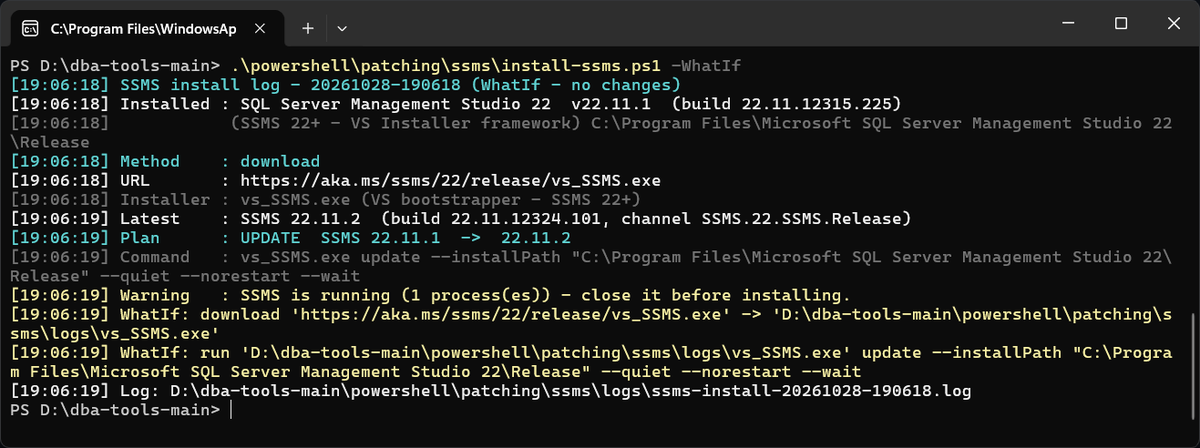
Plan : UPDATE is the good outcome: the installed SSMS is on the same installer framework as the target, so it updates in place, and the Command line is exactly what will run. The yellow Warning is SSMS still open on this machine: -WhatIf only warns, and the real run stops, as shown further down. If the script points you at uninstall-ssms.ps1 instead, that is not an error, it is the script stopping at the SSMS 17-20 to 22 boundary before it installs anything.
Update It
Same command without the switch. It downloads the current bootstrapper and runs the update silently; add -Passive if you want to watch the progress window. SQL Server itself is untouched, SSMS is client tooling, so there is no service restart and no downtime involved.
.\powershell\patching\ssms\install-ssms.ps1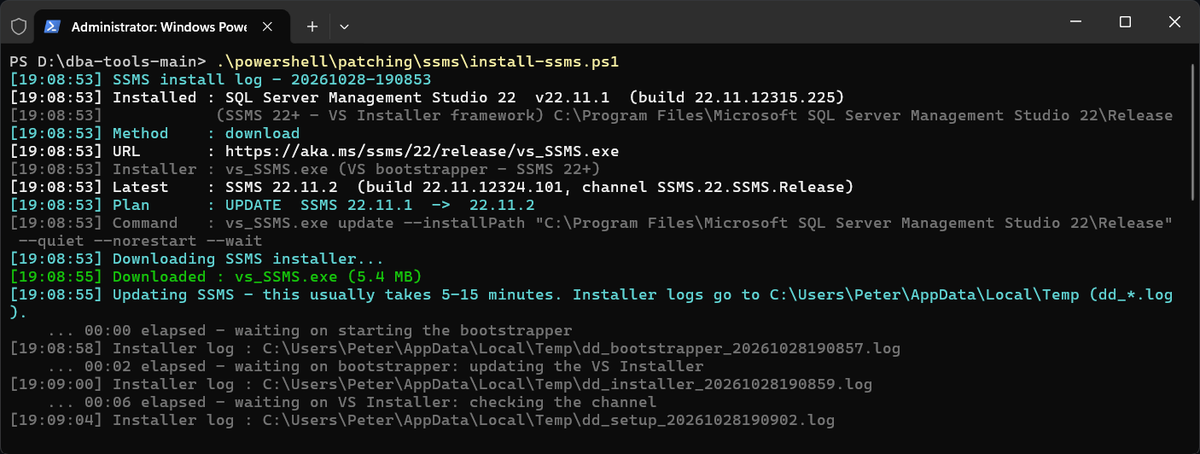
The update runs silently and can take 5 to 15 minutes, depending on the machine, the connection and how big the jump is. This point release, 22.11.1 to 22.11.2, took 2 minutes 39 seconds; a bigger jump from 22.7.0 to 22.11.0 on the same machine took 11 minutes 40 seconds, most of it the setup engine downloading and installing packages. The elapsed lines keep ticking so you know it has not hung.
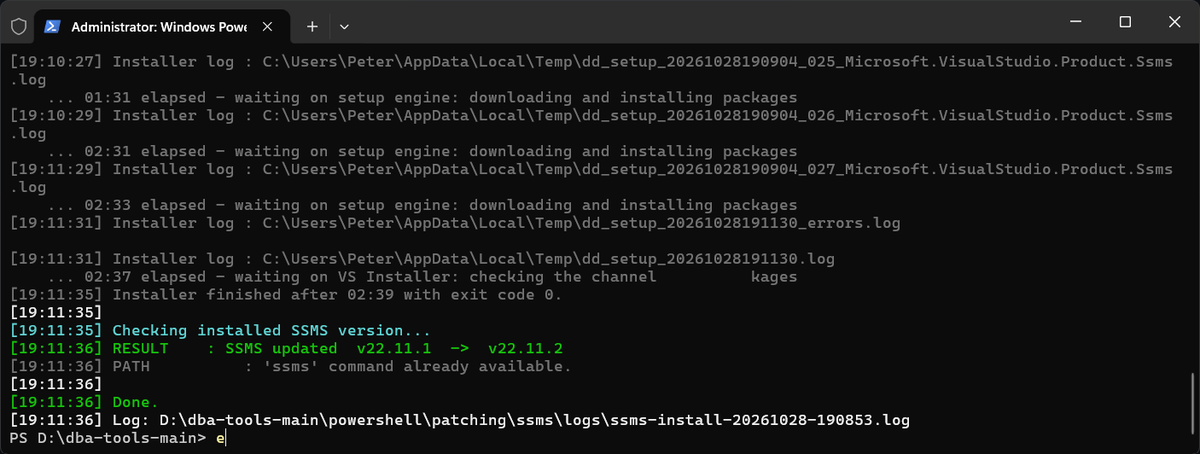
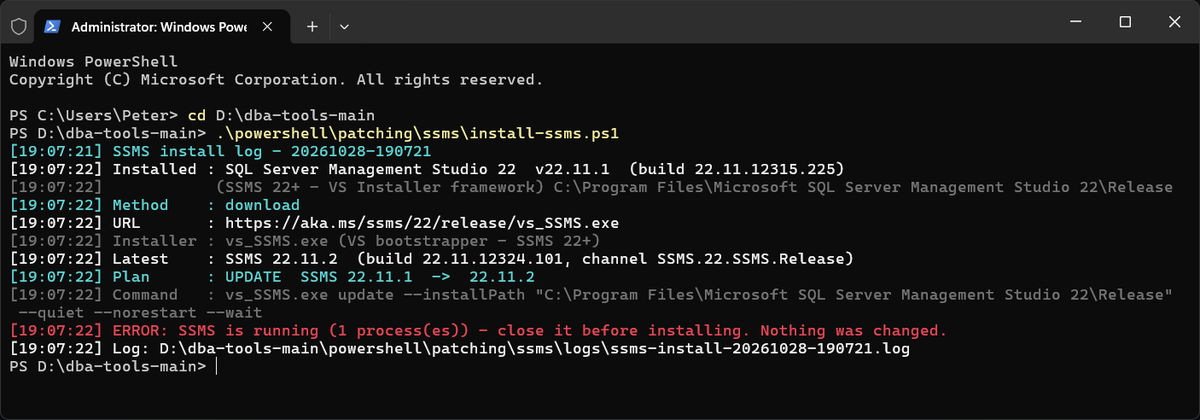
Close SSMS first; the script checks and stops if it is still running. MS Docs lists exit code 1003 (SSMS is in use) and 8006 (SSMS processes running) for exactly that. The script reports 0 as complete and 3010 as complete with a reboot required, and prints any other code for you to look up in the same table. This is what the stop looks like, with SSMS still open:
Prove It
.\powershell\patching\patch-summary.ps1The SSMS line should now read current instead of BEHIND. Or run the dry run again: it compares the installed build with the latest release and stops.
.\powershell\patching\ssms\install-ssms.ps1 -WhatIf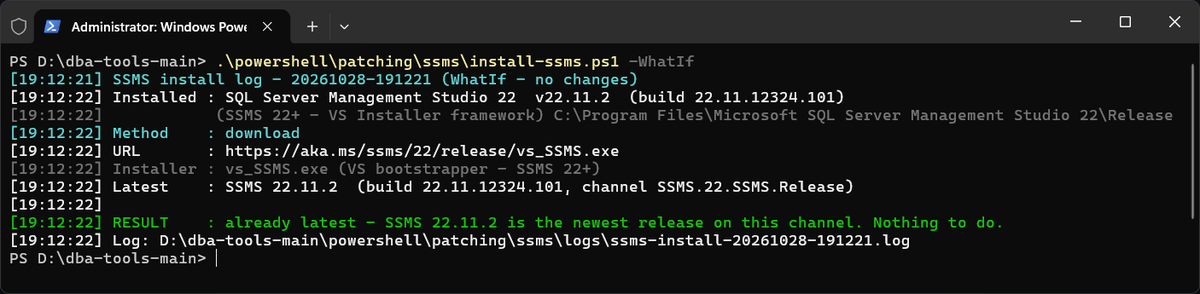
RESULT : already latest is the stop. And ssms launches from any terminal, the script adds it to PATH on the way out.
How To Run From The Repo
git clone https://github.com/peterwhyte-lgtm/dba-tools
cd dba-tools
.\Initialize-Environment.ps1

.\powershell\patching\ssms\install-ssms.ps1 -WhatIf
.\powershell\patching\ssms\install-ssms.ps1
.\powershell\patching\ssms\install-ssms.ps1 -Method winget
One catch on methods: -Method winget installs SSMS 20, not 22. The script asks winget for Microsoft.SQLServerManagementStudio, which is the SSMS 20.2.1 package; SSMS 22 sits in the catalog under its own id (see the FAQ), so for SSMS 22 the default download method is the one. Leave -UsePreview alone: the id it asks for, Microsoft.SQLServerManagementStudio.Preview, is not in the winget catalog, and winget answers “No package found matching input criteria.”
The scripts live in the repo:
Best Practices
- Install SSMS on your workstation or a jump host, not on the SQL Server. Every tool on the database server is more attack surface and one more thing to patch, and nobody, developers included, needs RDP access to the server to run a query. Connect from SSMS on a bastion or admin server instead.
- Run with
-WhatIffirst on any machine you’re not deeply familiar with, confirm which installer framework it’ll use before committing. - Use
-Passiveon your own workstation if you want to watch progress; leave it silent for anything scripted or unattended. - If a machine is still on SSMS 17-20 and you want SSMS 22, expect to run Uninstall SSMS via PowerShell first, this script will tell you so rather than failing silently. SSMS 21 gets the same stop, because the check is on a major version below 22, although its message names 17-20.
- After install, a fresh terminal picks up the PATH update automatically; the current terminal gets it live too,
ssmsshould launch immediately without reopening anything.
Frequently Asked Questions
Should I install SSMS on the SQL Server itself?
Avoid it. SSMS is client tooling, so it does not need to be on the server, and every extra tool there is more attack surface and more patching. Keep it on your workstation or a jump host and connect from there. That also means nobody needs RDP access to the database server to query it, developers included.
Should I use this script or the manual Visual Studio Installer walkthrough?
Use this script for repeatable installs, fleet setups, or anything you want automated. Use the manual walkthrough for a one-off install on your own workstation where clicking through a GUI once isn’t a burden. On your own machine or a single bastion host you may not need either: SSMS 22 shows an update notification in the bottom right corner when a release is out, with an option to update when you close it. The script is for rolling an update out to machines where nobody is there to click it.
Why does the script refuse to upgrade my SSMS 20 install straight to SSMS 22?
SSMS 22 is a Visual Studio Installer product and SSMS 17 through 20 use the older standalone installer, so SSMS 22 never upgrades them in place. Per MS Docs it installs side by side with an earlier major version instead. The script stops rather than add that second copy; run Uninstall SSMS via PowerShell first, then this script.
Does updating SSMS affect SQL Server itself?
No. SSMS is client tooling; updating it touches nothing server-side, no services restart, and no maintenance window is needed. What it does need on the machine itself is SSMS closed and admin rights, and the installer can still ask for a reboot of that machine, which the script reports as exit code 3010.
How do I know when a new SSMS version is out?
The patch-summary status check compares your installed SSMS against the latest release recorded in the script and prints a red BEHIND with this page’s link when you are below it. That version is updated by hand each patch cycle, so when it matters, the SSMS 22 release notes on MS Docs are the authority.
Can I install SSMS 22 with winget?
Yes, with its own package id: winget install Microsoft.SQLServerManagementStudio.22, the form MS Docs documents. It installs the core workload and prompts for elevation. The plain id Microsoft.SQLServerManagementStudio is SSMS 20, and that is the one this script’s -Method winget uses.
Summary
Same job as the manual walkthrough, minus the clicking: detects what’s installed, picks download or winget, and stops at the SSMS 17-20 to 22 boundary instead of installing a second copy alongside the old one.
Reach for it the moment “one more machine” turns into “several.” If a box is still on SSMS 17-20 and you need 22, run Uninstall SSMS via PowerShell first, this script will tell you so rather than pretending it can skip the step. Once it’s done, ssms launches from any terminal, no PATH hunting required.
- SSMS Complete Guide, installing it, keeping it updated, and fixing it when it misbehaves.
- DBA Scripts, the SQL Server scripts you will actually run once SSMS is open.
- DBA Scripts: The Complete Guide, the map across every script on this site.
- Installing Windows Terminal on Windows, a better console to run all of this from.
More in this series: Install and Update SQL Server Management Studio (SSMS) · DBA Scripts: Uninstall SSMS via PowerShell · Open SSMS as a Different Domain User · How to Show Line Numbers in SSMS · How to Increase Maximum Characters Displayed in SSMS
Leave a Reply