
By default, SQL Server Management Studio limits the number of characters displayed per column when using Results to Text. The default limit is 256 characters.
If a query or system stored procedure returns more than that, the output is silently truncated. You get partial results, which is often worse than getting an error.
Why This Happens
The limit applies only when:
- Query output is set to Results to Text
- A column exceeds the configured character limit
- The default SSMS setting is still in place
Results to Grid has its own, separate limit, covered further down.
DBAs often switch to Results to Text when copying scripts, reviewing metadata, or working with system procedures, which is exactly where truncation becomes a problem.
When You’ll Actually Notice It
This usually comes up when:
- Running system stored procedures that generate scripts
- Inspecting dynamic SQL or metadata
- Working with replication tooling
- Copying output into change scripts, tickets, or reviews
A common example is sp_scriptdynamicupdproc, which generates a replication update procedure as text and routinely runs past the default limit.
How to Increase the Limit in SSMS
- In SSMS, open Tools → Options from the menu bar.
- Type results to text into the search box at the top. Current SSMS finds the page for you: Query Results → SQL Server → Results to Text. On older versions there is no search, so open that path in the tree on the left.
- Raise Maximum number of characters displayed in each column above the longest value you expect to read. Current SSMS accepts 30 to 2,097,152 and tells you if you type more, as in the capture below. Older releases capped the field at 8192.
- Close Options. The current settings page saves as you go. Older versions have an OK button to click.
The change only applies to query windows opened after it, so open a new one before you re-run.

Switching to Results to Text
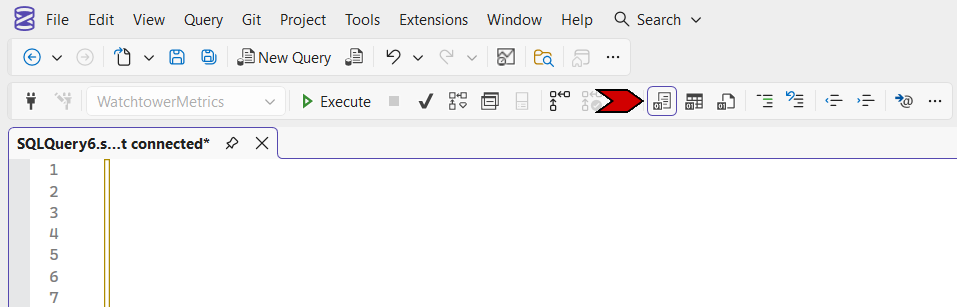
The setting only matters when output goes to Results to Text: press Ctrl+T before you run the query, or use the toolbar button below. Ctrl+D switches back to the grid.
What Truncation Looks Like
When the limit is too low, long text values are cut off without warning.
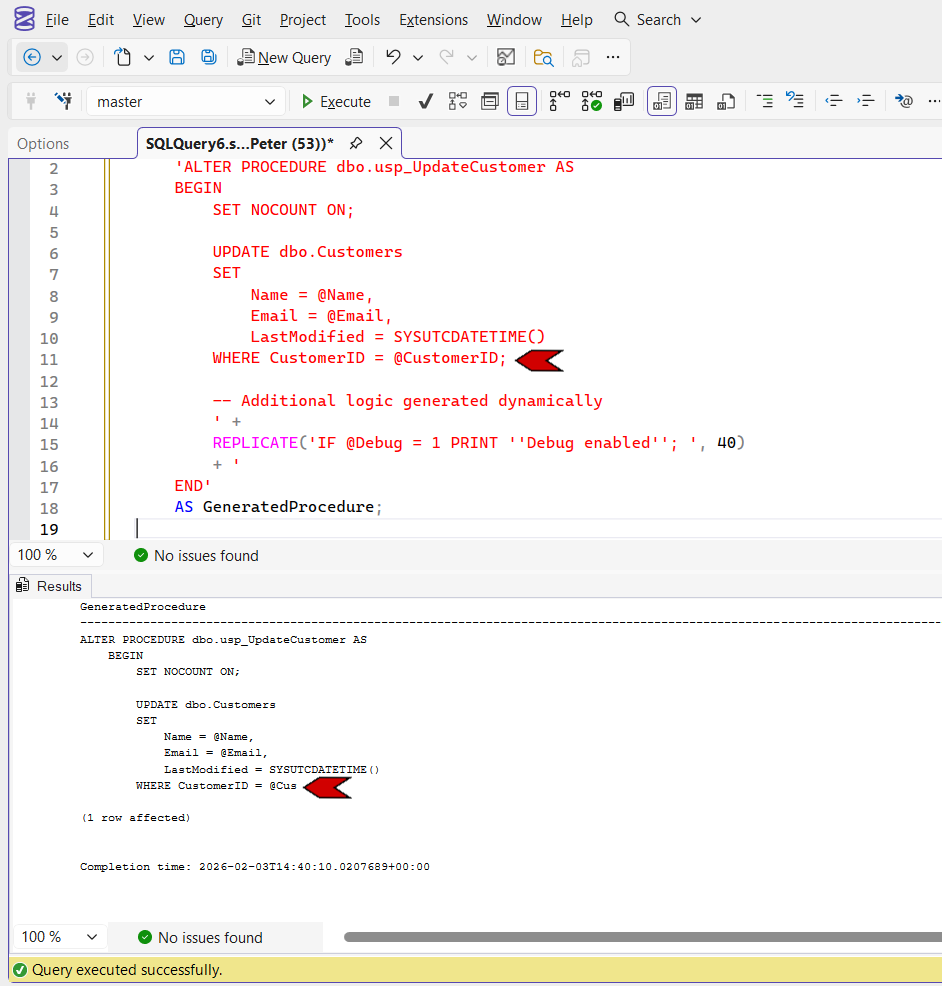
After increasing the limit and re-running the query, the full output is returned.
Results to Grid Has a Separate Limit Too
The 256-character default only affects Results to Text. Results to Grid has its own setting, Maximum Characters Retrieved under Tools → Options → Query Results → SQL Server → Results to Grid, split into Non-XML data (default 65535) and XML data (default 2 MB). Grid mode rarely needs adjusting because of this, but if a grid cell is still showing truncated text at 65535 characters, that is the setting to check, not the Results to Text one covered above.
sqlcmd Has the Same Problem, Different Fix
Running the same query through sqlcmd instead of SSMS hits an equivalent but separate truncation limit, controlled by the -y switch (variable-length data) and the -Y switch (fixed-length data), not by the SSMS setting above. Scripts or scheduled jobs that call sqlcmd directly need the switch on their own command line: -y 0 removes the fixed width, and output is then capped at 1 MB.
Final Notes
This is a client-side SSMS setting, not a SQL Server setting.
If you regularly work with generated scripts, metadata, or system procedures, increasing the Results to Text character limit is a one-time fix that removes a subtle but recurring source of frustration.
In SSMS 22 the results grid can export straight to Excel, JSON or Markdown, which often removes the need for text output altogether. This page covers one part of working with SSMS. The full reference ties the install, configuration and troubleshooting pieces together.
- SSMS Complete Guide, installing it, keeping it updated, and fixing it when it misbehaves.
- DBA Scripts, the SQL Server scripts you will actually run once SSMS is open.
More in this series: Install and Update SQL Server Management Studio (SSMS) · DBA Scripts: Install and Update SSMS via PowerShell · DBA Scripts: Uninstall SSMS via PowerShell
Leave a Reply