
You need to change a service account, switch on TCP/IP or check which port SQL Server listens on, and SQL Server Configuration Manager is not in the Start menu. It never went anywhere. It is a Microsoft Management Console snap-in, not a program, so newer versions of Windows do not list it as an app. You open it by its file name.
SQLServerManager17.msc, Enter. That is SQL Server 2025; use 16 for 2022, 15 for 2019. Change service accounts here, never in Services, and come here to enable TCP/IP and set ports.Open It
- Press Win+R (or type in the Start menu search).
- Type the file name for your version from the table below and press Enter.
- Accept the admin prompt. It changes services and the registry, so it runs elevated.
| SQL Server version | Type this in Win+R | Full path |
|---|---|---|
| SQL Server 2025 | SQLServerManager17.msc | C:\Windows\SysWOW64\SQLServerManager17.msc |
| SQL Server 2022 | SQLServerManager16.msc | C:\Windows\SysWOW64\SQLServerManager16.msc |
| SQL Server 2019 | SQLServerManager15.msc | C:\Windows\SysWOW64\SQLServerManager15.msc |
| SQL Server 2017 | SQLServerManager14.msc | C:\Windows\SysWOW64\SQLServerManager14.msc |
| SQL Server 2016 | SQLServerManager13.msc | C:\Windows\SysWOW64\SQLServerManager13.msc |
| SQL Server 2014 | SQLServerManager12.msc | C:\Windows\SysWOW64\SQLServerManager12.msc |
| SQL Server 2012 | SQLServerManager11.msc | C:\Windows\SysWOW64\SQLServerManager11.msc |
If Win+R cannot find it, open the full path from the table in File Explorer: if the file is not there, that version’s tools are not installed on this machine. On the lab instance there is a copy in C:\Windows\System32 too. To keep it handy, find the file in File Explorer, right-click it and choose Pin to Start or Pin to taskbar.
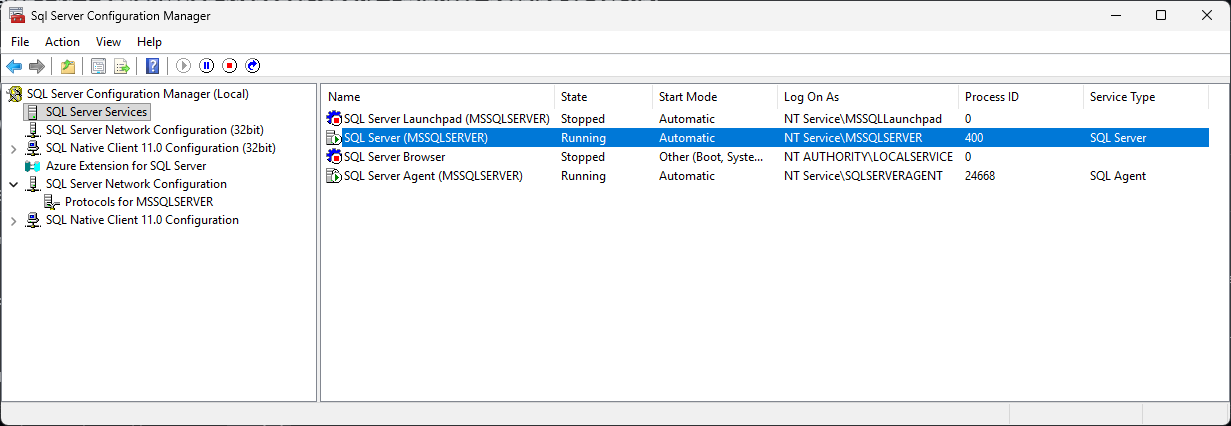
Configuration Manager on the lab instance. The engine and Agent run under their own virtual accounts, NT Service\MSSQLSERVER and NT Service\SQLSERVERAGENT, and this is where you would change either. The Azure Extension for SQL Server node on the left is the SQL Server 2022 and later addition.
What a DBA Uses It For
Changing a service account or its password. This is the one to remember. Configuration Manager does more than set the account: it also grants the new account permission to read SQL Server’s part of the registry. Change the account in Windows Services instead and SQL Server can lose access to its own settings and fail to start. SQL Server Service Will Not Start covers what that looks like. A password changed here takes effect without a restart.
Turning on TCP/IP and setting the port. Under SQL Server Network Configuration, the protocols for each instance. Remote clients need TCP/IP enabled; Enabling TCP Connections walks through it, and SQL Server Default Ports covers 1433, dynamic ports and named instances. Protocol changes need a service restart before they apply.
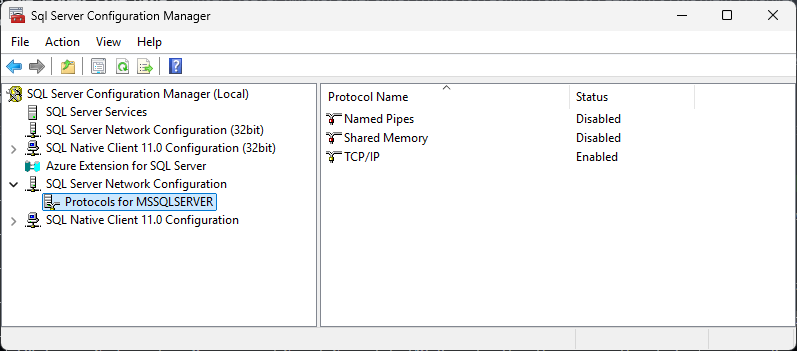
Protocols for the same instance: TCP/IP enabled, Named Pipes and Shared Memory disabled, the same three settings the PowerShell query further down reads. Most installs leave Shared Memory on for local connections; this lab has it off.
Forcing encryption. The certificate and the Force Encryption switch live on the protocol properties. Forcing Encrypted Connections has the steps.
Startup parameters. On the SQL Server service’s properties: trace flags, -m for single-user mode when you need to recover a lost sysadmin, and the paths to master and the error log.
Starting and stopping services, with the right dependencies, including SQL Server Agent and the Browser service that named instances rely on.
One thing it no longer does: from SQL Server 2022, it cannot create client aliases. Microsoft points to the SQL Server Client Network Utility for that.
Read the Same Settings Without the GUI
Configuration Manager reads everything through WMI, and so can PowerShell. Useful on a server you only have a remote shell on, or to check a setting across many servers:
Get-CimInstance -Namespace root\Microsoft\SqlServer\ComputerManagement17 -ClassName SqlService |
    Select-Object ServiceName, DisplayName, State, StartName

Get-CimInstance -Namespace root\Microsoft\SqlServer\ComputerManagement17 -ClassName ServerNetworkProtocol |
Select-Object InstanceName, ProtocolName, EnabledA state of 4 is running and 1 is stopped. The namespace ends in 17 for SQL Server 2025; use 16 for 2022, 15 for 2019. If this fails with Invalid namespace, Configuration Manager will fail to open too, and Cannot Connect to WMI Provider is the fix.
Common Questions
Where is SQL Server Configuration Manager in Windows 11?
SQLServerManager17.msc for SQL Server 2025, 16 for 2022, 15 for 2019. Pin it once you have found it.I have several versions installed. Which file do I open?
Can I change the service account in Services instead?
It opens with “Cannot connect to WMI provider”.
Related
- Enabling TCP Connections in SQL Server
- SQL Server Default Ports, 1433, dynamic ports and the Browser
- How to Get the SQL Server IP Address, the address and port a connection really used
- SQL Server Service Will Not Start
- Microsoft’s SQL Server Configuration Manager page
Leave a Reply