
You want every TCP connection to SQL Server encrypted, every time, with no client able to opt out. That is Force Encryption, and it is a server-wide change that stands or falls on the certificate SQL Server loads and whether clients trust it. Done properly it is stable; done casually it breaks every client at the next restart. This post covers what the setting changes, which certificate SQL Server will pick up, and how to verify the result. For what is on the wire right now, see Check SQL Server Connection Encryption and Protocol.
encrypt_option TRUE.What “Force Encryption” Actually Means
When Force Encryption is enabled:
- SQL Server requires encryption for TCP connections
- Encryption is no longer negotiated with the client
- Clients must trust the certificate SQL Server presents, unless they are set to Trust Server Certificate
- Unencrypted TCP connections are rejected
This is different from modern defaults, where encryption is requested by many clients but not strictly required by the server.
Important clarifications:
- It is set on the Protocols for <instance> node in Configuration Manager, not on TCP/IP, and it applies instance-wide, not per database
- Shared Memory is local to the server, and Microsoft’s own verification query leaves it out with
net_transport <> 'Shared memory'
Force Encryption changes who is in control. The server enforces encryption, not the client.
Why Clients Suddenly Fail After Enabling It
Most “Force Encryption broke everything” incidents are certificate issues, not SQL Server bugs.
When Force Encryption is enabled, SQL Server must present a certificate that the client both accepts and trusts. If that does not happen, the connection fails before authentication.
Common causes include:
- Self-signed certificates not trusted by clients
- Certificate CN or SAN not matching the server name
- Applications connecting via IP address instead of hostname
- Older drivers that cannot validate modern TLS chains
If encryption was previously negotiated, these issues may have existed silently for years.
Certificate Requirements SQL Server Actually Enforces
SQL Server will only use certificates that meet all of the following, which Microsoft lists under certificate requirements for SQL Server:
- Installed in the Local Computer → Personal store (the service account’s own store also works, but Local Computer survives a service account change)
- Contains a private key, and the SQL Server service account has Read on that key
- Created with KeySpec = AT_KEYEXCHANGE, which means a legacy CSP such as Microsoft RSA SChannel, not a Key Storage Provider
- Includes Server Authentication (1.3.6.1.5.5.7.3.1) in Enhanced Key Usage
- Inside its Valid from and Valid to dates when you configure it
- Matches the names clients connect with, the hostname or FQDN in the CN and, better, every name in the Subject Alternative Name
Wildcard certificates are supported, but Configuration Manager cannot select one. You put its thumbprint, without spaces, in the SuperSocketNetLib\Certificate registry value instead.
What happens to a certificate that fails one of these checks depends on whether you selected it. If you picked it in Configuration Manager or set its thumbprint in the registry, SQL Server will not start. If you only installed it and left SQL Server to find it on its own, it is passed over silently and SQL Server falls back to a self-generated certificate.
SQL Server does not prompt you when it passes over a certificate. The only sign is one line in the error log, covered in the next section.
How SQL Server Chooses a Certificate
SQL Server selects a certificate automatically at startup.
The order of precedence is documented, and it is unforgiving:
- The certificate you selected in Configuration Manager, or whose thumbprint sits in the
SuperSocketNetLib\Certificateregistry value, wins - If nothing is selected, SQL Server searches the Local Computer store for a certificate whose subject contains the machine FQDN and whose private key the service account can read, and uses it even though nobody chose it
- If neither exists, SQL Server generates a self-signed certificate at startup and uses that. Encryption is still forced; it is the client that now has nothing to trust
This is why a leftover certificate that happens to match the FQDN gets picked up on a server where nobody remembers installing it, and why Force Encryption then fails every client that never trusted it.
Certificate hygiene matters.
The error log tells you which path SQL Server took at the last start:
-- Which certificate SQL Server loaded for encryption at the last start
EXEC xp_readerrorlog 0, 1, N'loaded for encryption';

A named certificate logs its thumbprint. The fallback logs A self-generated certificate was successfully loaded for encryption., and on a server you meant to force encryption on, that is the line to worry about.
Enabling Force Encryption (Server Side)
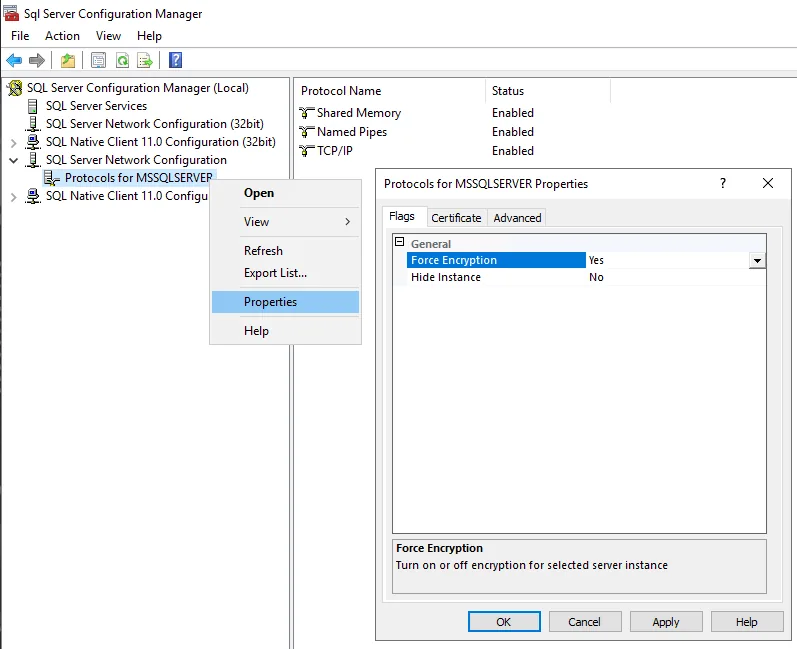
Force Encryption is configured at the SQL Server instance level. These are Microsoft’s Step 2: Configure encryption settings, and they assume the certificate from Step 1 is already in place.
High-level steps:
- Open SQL Server Configuration Manager
- Navigate to SQL Server Network Configuration
- Right-click Protocols for <instance> and open Properties
- On the Flags tab set Force Encryption = Yes (the Certificate tab on the same dialog is where the certificate is selected)
- Restart the SQL Server service
A restart is required. There is no in-place toggle. SQL Server 2022 and later add a separate Force Strict Encryption option on the same tab; that is TDS 8.0 and not what this post covers.
This is the point of no return. If certificates or trust are wrong, clients will fail immediately after restart.
What Breaks First (and Why)
After enabling Force Encryption, these failures are common:
- Applications using IP addresses instead of DNS names
- Older ODBC or JDBC drivers
- Clients without the issuing CA in their trust store
- Availability Group replicas with mismatched certificates
These are not SQL Server failures. They are trust failures being exposed.
This is why Force Encryption should never be enabled without first verifying live connection behaviour.
Verifying Encryption After Enabling It
Do not rely on assumptions. Verify.
The same DMV as the previous post confirms enforcement. net_transport is the column you want. protocol_type reads TSQL for every normal connection and says nothing about the wire:
-- Show transport and encryption for the current session
SELECT
    session_id,
    net_transport,
    encrypt_option,
    auth_scheme
FROM sys.dm_exec_connections
WHERE session_id = @@SPID;
For forced encryption over TCP, encrypt_option must be TRUE.
To validate across all connections:
-- Show encryption usage across all active connections
SELECT
    net_transport,
    encrypt_option,
    COUNT(*) AS connection_count
FROM sys.dm_exec_connections
GROUP BY net_transport, encrypt_option
ORDER BY net_transport, encrypt_option;
This confirms reality, not configuration intent. On a forced instance every TCP row shows TRUE. A TCP row still showing FALSE usually means the service has not been restarted since the change.
For a deeper walkthrough, see Check SQL Server Connection Encryption and Protocol.
Relationship to SSMS Certificate Errors
SSMS 20 and later connect with Encryption set to Mandatory by default, so they validate the server certificate. When Force Encryption is enabled, SSMS must fully trust the server certificate.
If it does not, you may see certificate chain errors.
That scenario is covered in SSMS Certificate Chain Not Trusted Error (Trust Server Certificate Fix).
Force Encryption does not take Trust Server Certificate away from the client. It makes encryption non-negotiable; whether the certificate is validated is still the client’s setting, and ticking Trust Server Certificate skips validation, which is what Microsoft documents as the workaround for self-signed and internal CA certificates.
When Force Encryption Makes Sense
Force Encryption is appropriate when:
- SQL Server is accessed over untrusted networks
- Regulatory or compliance requirements apply
- You want guaranteed encryption consistency
- You control certificate lifecycle centrally
It is not required for every internal instance.
Encryption should be deliberate, not habitual.
What This Post Does Not Cover
This post does not attempt to:
- Walk through certificate creation step by step
- Cover client-side overrides
- Design encryption for Availability Groups in depth
- Force Strict Encryption (TDS 8.0) on SQL Server 2022 and later
Those deserve focused treatment and will be covered separately.
Final Notes
Force Encryption is not about being “more secure”.
It is about removing ambiguity.
Once enabled, SQL Server will only accept encrypted connections, and every client that validates certificates has to trust the one it presents. That clarity is powerful, but unforgiving.
Verify first. Enforce second. Validate always.
Related
- Check Connection Encryption and Protocol, confirm what sessions are really using once you have forced it
- SSMS Certificate Chain Not Trusted, the error this most often produces for clients
- Get Certificates, Keys, and TDE Status, the certificate inventory behind it
- DBA Scripts: Security, the security pillar: privileged access, logins, encryption and audit gaps
- Cannot Connect to SQL Server: The Checks in the Order That Finds It, the router for every connection error, start here when you are not sure which one you have
- A Connection Was Successfully Established, But Then an Error Occurred During Login, the handshake error an older client shows when it cannot complete TLS against a forced instance
- DBA Scripts: The Complete Guide, the map across every script on this site
Leave a Reply