
Which Error Do You Have?
Every “cannot connect” message ends in a number, and the number says which half of this page you need. Find yours first.
| Number | What the client says | What it means | Start at |
|---|---|---|---|
53 | The network path was not found | The name did not resolve, or nothing is reachable at that address | Step 1 |
40 / 10061 | Could not open a connection to SQL Server; target machine actively refused it | The machine answered, nothing is listening on that port | Step 2 |
26 | Error locating server/instance specified | A named instance that the SQL Browser could not resolve | Step 4 |
233 | No process is on the other end of the pipe | Connected, then dropped before login: protocol or encryption, usually the certificate or the handshake | Step 5 |
| pre-login handshake | A connection was successfully established, but then an error occurred | TCP is fine, TLS is not | Step 5 |
17806 | SSPI handshake failed, cannot generate SSPI context | Windows authentication could not get a ticket | Step 5 |
18456 | Login failed for user | Everything up to authentication worked | Step 6 |
18452 | The login is from an untrusted domain or SQL Server login | Windows authentication was refused, not the password | Step 6 |
916 | The server principal is not able to access the database | Logged in, no access to that database | Step 6 |
If the number is 53, 40, 10061 or 26, do not check the password. Nothing has asked for it yet. The full entry for the most common one is error 53 and the named pipes errors, and this page is the route through all of them.
Step 1: Is the Service Running, and Which Instance Is It?
On the server, or from any machine that can reach it over Windows, confirm the SQL Server service for the instance you are connecting to is actually running, and note whether it is a default instance or a named one, because everything after this depends on that. Get Services Information lists every SQL Server service on the box with its state, start mode and account in one run, which also catches the case where the Agent is up and the engine is not, or a service account changed at the last password rotation.
If the service is stopped, start it and read the error log before doing anything else: Get Recent Error Log Entries shows the startup messages, and the reason it stopped is usually in the last few lines before the restart. If it is running, move on: a running service with nobody able to connect is the normal shape of this incident.
Step 2: Is SQL Server Listening on TCP, and on Which Port?
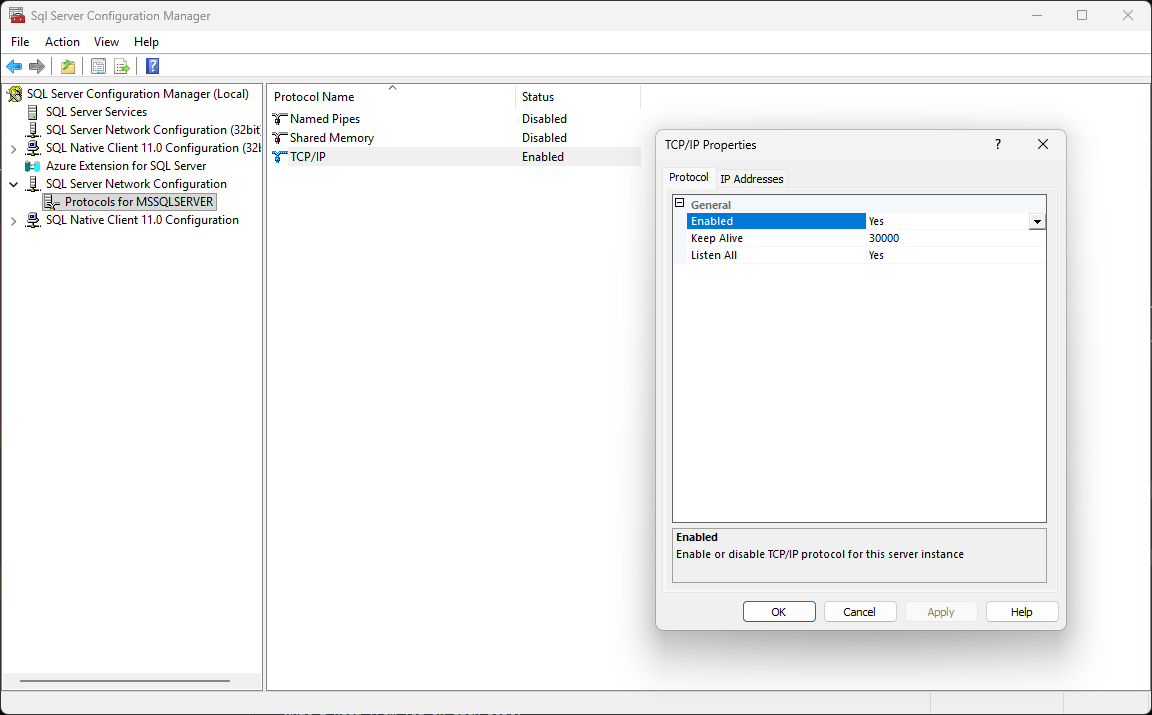
A default instance listens on 1433. A named instance listens on a dynamic port unless somebody fixed it, and on a fresh install TCP/IP may not be enabled at all, which is the single most common cause of “works on the server, fails from anywhere else”. SQL Server Default Ports explains the port model and how to find the port an instance actually chose; Enabling TCP Connections in SQL Server is the fix when the protocol is off.
Two things people get wrong here. Enabling TCP/IP in Configuration Manager does nothing until the SQL Server service is restarted, so the change that “did not work” usually did, it just has not taken effect. And the port SQL Server thinks it is on is not proof anything is bound to it from the outside, which is what the next step checks. On the server, How to Check Listening Ports on Windows shows what is genuinely bound and by which process.
Step 3: Can the Client Reach That Port?
From the machine that cannot connect, test the port itself rather than the SQL Server connection. Testing Remote Server Port Connectivity with PowerShell does it with Test-NetConnection and reads the result for you: a closed port when Step 2 says SQL Server is listening is a firewall, on the server, on the client, or somewhere between. Microsoft’s firewall guide for SQL Server lists the port and program rules each component needs. If the address you are testing is not the one SQL Server is on, How to Get the SQL Server IP Address tells you which address and port an existing session actually connected to, which settles most arguments about DNS and aliases.
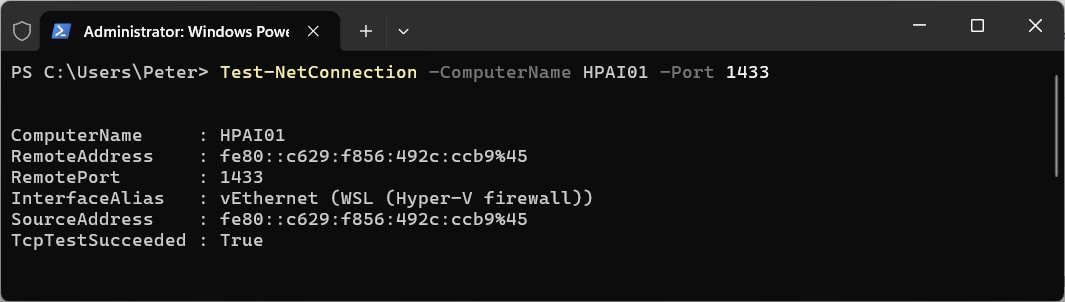
That is the answer you want from the client: TcpTestSucceeded : True means the port is open end to end, and False with SQL Server listening means a firewall is in the way.
Step 4: Named Instances, Error 26 and the SQL Browser
Error 26 is specific to named instances. The client asks the SQL Browser service on UDP 1434 which port SERVER\INSTANCE is using, and if the Browser is stopped, blocked or absent, the client never learns the port and reports that it could not locate the instance. Three fixes, any one of which works: start the SQL Server Browser service and allow UDP 1434 through the firewall, fix the instance to a static port and open that, or connect as SERVER,port and bypass the Browser altogether. The port side of that is covered in SQL Server Default Ports. For the full Error 26 diagnosis and a real capture, see Error Locating Server/Instance Specified (Error 26).
Step 5: It Answered, Then Dropped You: Certificates, Handshakes and Kerberos
From here the network is not the problem. Something on the server accepted the TCP connection and then refused to carry on, and the message tells you which layer.
The certificate chain was issued by an authority that is not trusted. Newer drivers and SSMS releases encrypt by default and validate the server certificate, so a connection that worked last month fails after an upgrade. SSMS Certificate Chain Not Trusted is the fix and the reason, and Check SQL Server Connection Encryption and Protocol shows what the server is actually negotiating so you can decide whether to trust the certificate or give the server a proper one.
A connection was successfully established, but then an error occurred during the pre-login handshake. Same layer, different symptom: TCP connected, TLS did not. The pre-login handshake error walks through the protocol and cipher mismatches that cause it, and why checking the password is the wrong first move.
Cannot generate SSPI context, SSPI handshake failed (17806). Windows authentication could not obtain a Kerberos ticket, almost always a missing or duplicate SPN or a clock or domain trust problem. SSPI Handshake Failed covers the diagnosis, and Kerberos vs NTLM in SQL Server explains which scheme your connections are really using and why it matters.
Step 6: You Reached the Server and It Said No
Login failed for user (18456) is the end of the connection story and the start of a security one: the state number in the error log says exactly why, and the post decodes every state. If the login worked and one database refuses you, that is error 916, a database user problem rather than a connection problem, and the connection was fine all along. If Windows authentication is refused before any of that, with the login is from an untrusted domain (18452), the server answered and then would not accept the Windows identity you offered, which is usually NTLM, a missing SPN or a connection string doing Windows auth when you thought it was doing SQL auth.
Frequently Asked Questions
It works on the server but not from my machine. Why?
I enabled TCP/IP and it still does not work.
What is the difference between error 26 and error 40?
Should I just tick Trust Server Certificate?
Where To Go Next
- SQL Server Is Slow: What to Check First, in Order, the sibling router for when they can connect but everything crawls
- Backup Failed or the Restore Is Stuck, the sibling router for when the connection is fine and the backup is not
- Disk Is Full or the Log Will Not Truncate, the sibling router for when the instance is out of space instead
- Login Failed or Permission Denied, the sibling router for when something did answer and then refused you
- Locked Out of SQL Server: Regain Sysadmin When Nobody Has It, when the connection is fine and it is sysadmin you have lost
- Login Failed: Server Is in Script Upgrade Mode (Error 18401), and How Long to Wait Before You Worry, the one case where every login fails and the server, not the network, is the cause
- How to Rename a Computer That Hosts SQL Server, a renamed host is a connection-string cause the router should name
- The First Hour on a SQL Server You Have Never Seen, the router, for the reader who just got access to an unfamiliar box
- Execution Timeout Expired (Msg -2), the other timeout, for a reader who got connected and then ran out of time
- SQL Server Errors: The Complete Guide, every error number on this site, searchable
- Error 53 and the Named Pipes Errors, the full entry for the family this page routes
- DBA Scripts: Get Services Information, the first script to run on a server nobody can reach
- DBA Scripts: Server and Configuration, the hub for every instance-level check
Leave a Reply