
An application cannot connect to SQL Server, and before anyone goes near a configuration file there is 1 question to settle: is the port reachable from this server, or is something in the path blocking it?
Test-NetConnection -ComputerName <server> -Port 1433. TcpTestSucceeded : True and the port is open from here, so the fault is above the network. False with PingSucceeded : True and the host answered but refused, so nothing is listening on that port. False with no reply at all and the packets are being dropped in the path, which is a firewall, a security group or an ACL. Run the check · Read a False · What to check nextPowerShell answers that faster than PuTTY or telnet, and it is something I use regularly during real production incidents. 2 commands cover it, 1 for modern Windows and 1 for servers too old to have it.
Check a Remote Port Using Test-NetConnection
On modern versions of Windows and PowerShell, this is the simplest and best option. Test-NetConnection is built-in, easy to remember, and gives you a clear success or failure result.
# Test if a remote server can be reached on a specific port
Test-NetConnection -ComputerName lab-sql1.whyte.net -Port 1433

# Same test using IP address and shorthand syntax
tnc 172.31.18.100 -Port 1433

# Just the answer, for a script or a loop
Test-NetConnection -ComputerName lab-sql1.whyte.net -Port 1433 -InformationLevel Quiet
The only field that answers the question is TcpTestSucceeded. Everything above it tells you which address and which interface the test actually used, which matters when a name resolves to more than 1 address. -InformationLevel Quiet drops the lot and returns a bare True or False, which is what you want inside a script.
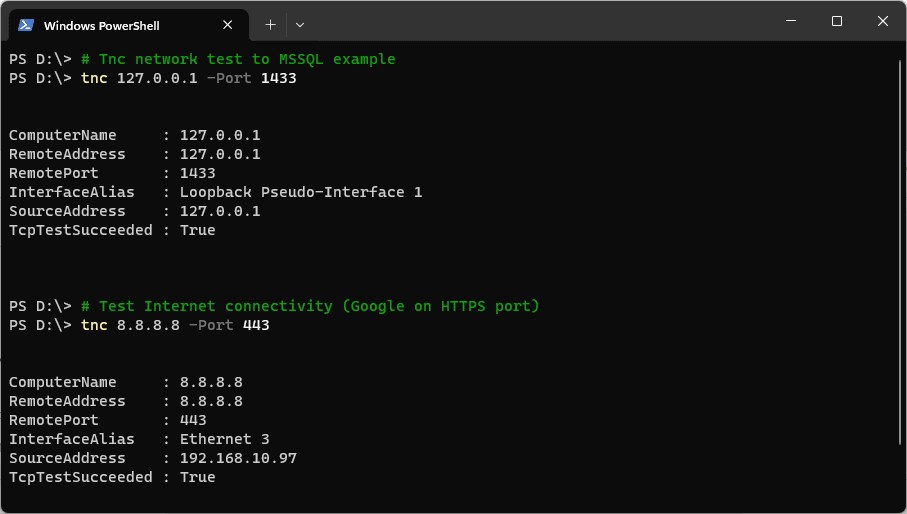
A successful result confirms the port is reachable at the network level. It does not validate application health, authentication, or permissions.
What a False Actually Looks Like
A False is not 1 result, it is 2, and the output tells you which you have. When the destination host answers but the port is shut you get a single warning line and a ping that succeeded:
PingSucceeded : True with TcpTestSucceeded : False means the host is up and reachable and the problem is on that host: nothing is listening on the port, or a local firewall rejected the connection outright.
When the packets are dropped in silence instead, the cmdlet emits a second warning, WARNING: Ping to 10.255.255.1 failed with status: TimedOut, and the result reads PingSucceeded : False. That points at a firewall, security group or ACL somewhere along the path rather than at the destination host.
One caveat before you lean on that field. Plenty of networks block ICMP on purpose, so PingSucceeded : False on its own is not proof the host is unreachable, only that nothing replied to a ping. Where ICMP is blocked by policy the warning lines are the better signal: 1 warning means the TCP connect was answered and refused, 2 means nothing came back at all.
Common Ports DBAs Should Recognise
Some ports come up so often in DBA life that they are worth remembering:
- SQL Server Database Engine, 1433
- SQL Server Browser, UDP 1434
- Availability Group or Mirroring Endpoint, 5022
- PostgreSQL, 5432
- MySQL, 3306
- Oracle, 1521
- Amazon Redshift, 5439
Every one of those is TCP except the SQL Server Browser, which is UDP. Test-NetConnection -Port opens a TCP connection, so it cannot test UDP 1434 and a False there says nothing about the Browser. TCP 1434 on a default instance belongs to the Dedicated Administrator Connection, which listens on loopback only until remote admin connections are enabled.
If you are not sure which port your instance should be on, especially with named instances and dynamic ports, see SQL Server Default Ports before you test anything. Testing the wrong port is the most common way this check gives a confident wrong answer.
Testing Ports Where Test-NetConnection Is Not Available
On older systems, such as Windows Server 2008 R2, Test-NetConnection does not exist. Run Get-Command Test-NetConnection before you rely on it, rather than assuming a version boundary. In those cases, a simple TCP client test still works well and gives a clear answer.
# Test remote port connectivity on older Windows versions
$IpAddress = Read-Host "Enter the IP address"
$Port = Read-Host "Enter the port number"

$TcpClient = New-Object Net.Sockets.TcpClient
$TcpClient.Connect($IpAddress, $Port)

if ($TcpClient.Connected) {
    "Port $Port is operational."
}
else {
    "Port $Port is closed."
}
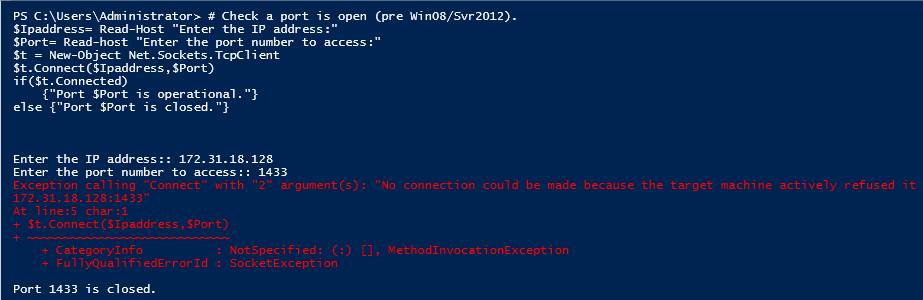
Connect() raises an exception when the port is shut rather than returning false, and that error is not terminating, so the script carries on and the else branch still prints. You get both: a red error record headed Exception calling “Connect” with “2” argument(s): “No connection could be made because the target machine actively refused it”, reported as a MethodInvocationException with FullyQualifiedErrorId : SocketException, and then the closed message. Wrap the Connect() call in try and catch if you are putting this in a scheduled script and want 1 clean line instead.
This block separates the 2 failure cases by itself, because the exception text differs. A refused connection comes back in about 2 seconds saying the target machine actively refused it. A dropped one sits there for about 21 seconds, the Windows TCP connect timeout, and then reports A connection attempt failed because the connected party did not properly respond after a period of time. Read the message, not the clock.
In the example below, port 1433 fails because SQL Server is not installed or not listening on the target machine.
If the Port Test Fails, What to Check Next
A failed port test does not automatically mean the network is broken. It just tells you traffic is not making it through. Things I normally check next:
- Service listening
Ensure something is actually listening on that port on the destination server, see How to Check Listening Ports on Windows. - TCP/IP enabled on the instance
A SQL Server with the TCP/IP protocol disabled is listening on nothing, see Enabling TCP Connections in SQL Server. - Local firewalls
Windows Firewall rules on both source and destination servers. - Network controls
Firewalls, ACLs, security groups, or cloud networking rules. - Name resolution
Test using both hostname and IP address to rule out DNS. If the name fails and the IP works you are looking at Error 53, the network path was not found.
In more complex environments, traffic may pass through multiple firewalls, NAT gateways, or load balancers. This test gives you a clear starting point before involving network or cloud teams.
Final Notes
For day-to-day DBA work, Test-NetConnection is usually all you need. It is fast, reliable, and avoids reaching for heavier tools unless you really need them. When troubleshooting production issues, being able to quickly prove whether a port is reachable can save a lot of time and unnecessary guesswork.
A failed port test tells you traffic is not getting through. These narrow down why.
- How to Check Listening Ports on Windows, confirm what the destination is actually listening on.
- SQL Server Ports: 1433, Dynamic Ports and Firewall Rules, the port may not be the one you tested.
- Enabling TCP Connections in SQL Server, the usual cause when nothing is listening.
- How to Get the SQL Server IP Address, confirm the IP and port a session actually reaches.
- sqlcmd Examples for SQL Server, once the port answers, connect and run something.
- Cannot Connect to SQL Server: The Checks in the Order That Finds It, the router for every connection error, start here when you are not sure which one you have.
- DBA Scripts: Server and Configuration, the hub this sits in, every instance-level check that establishes what a server is and how it is configured.
Leave a Reply