
A remote client cannot connect and the instance is running. The application reports Named Pipes Provider, error: 40 or SQL Network Interfaces, error: 26, and the first thing to rule out is the server not listening on TCP/IP at all.
Check it with one query, turn it on in SQL Server Configuration Manager or PowerShell, then restart the SQL Server service. The change does nothing until that restart.
What the Client Sees
Both messages open with the same sentence, so read the bracket at the end.
Error 40 names the last protocol the client tried, not necessarily the one that matters. With no prefix on the server name the client tries its enabled protocols in order until one succeeds (MS Docs), so a server that is not listening on TCP can surface as a Named Pipes failure. The 40 above was forced with an np: prefix against an instance whose Named Pipes protocol is off. The Named Pipes side has its own page: Error 53 and Named Pipes Error 40.
Error 26 fails before any TCP connection is attempted. The client asked the SQL Server Browser service on UDP 1434 for a named instance's port and got no answer, and in the capture the Browser service was stopped. On a named instance, check the Browser and UDP 1434 first and the TCP setting second.
Check Whether TCP/IP Is Enabled
Run this from a session on the server itself. A local connection can use Shared Memory, so it still works while TCP is off. The query reads the registry values SQL Server Configuration Manager writes:
-- Which server protocols are enabled, and the port TCP/IP is set to use
SELECT SUBSTRING(registry_key, CHARINDEX(N'SuperSocketNetLib\', registry_key) + 18, 50) AS protocol,
       value_name,
       CAST(value_data AS nvarchar(50)) AS value_data
FROM sys.dm_server_registry
WHERE (registry_key LIKE N'%SuperSocketNetLib\Tcp'
    OR registry_key LIKE N'%SuperSocketNetLib\Np'
    OR registry_key LIKE N'%SuperSocketNetLib\Sm'
    OR registry_key LIKE N'%SuperSocketNetLib\Tcp\IPAll')
  AND value_name IN (N'Enabled', N'ListenOnAllIPs', N'TcpPort', N'TcpDynamicPorts')
ORDER BY protocol, value_name;Tcp Enabled = 0 is the fault: enable it below. 1 means TCP is configured, but the value is only acted on when the service starts, so a change nobody has restarted for still reads 1 while the instance is not listening. The ERRORLOG check settles that. With ListenOnAllIPs = 1 the port comes from Tcp\IPAll: TcpPort is a fixed port, and a TcpDynamicPorts value means the instance picks a port at startup, which is how a named instance is configured by default (MS Docs).
The view needs VIEW SERVER PERFORMANCE STATE on SQL Server 2022 and later, VIEW SERVER STATE before that (MS Docs), and a login without it gets Msg 300. If you cannot connect at all, the same values are in the registry under HKLM\SOFTWARE\Microsoft\Microsoft SQL Server\<instance id>\MSSQLServer\SuperSocketNetLib\Tcp, and the instance id is listed under ...\Microsoft SQL Server\Instance Names\SQL: MSSQL17.MSSQLSERVER for a SQL Server 2025 default instance.
Enable TCP/IP Using SQL Server Configuration Manager
The standard route on a server with a desktop. If Configuration Manager will not open, MS Docs lists where each version keeps it.
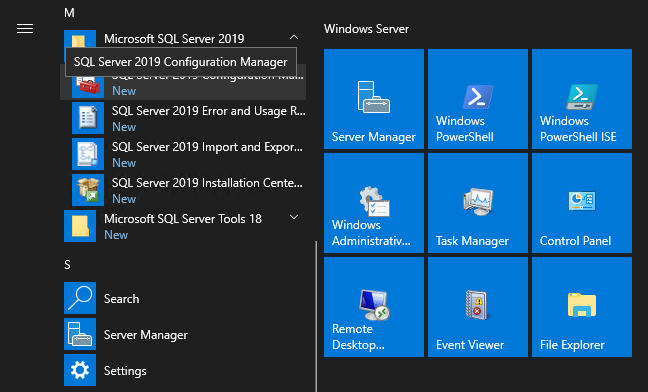
Step 1: Open SQL Server Configuration Manager
Launch SQL Server Configuration Manager from the Start menu.
Step 2: Locate TCP/IP Protocol
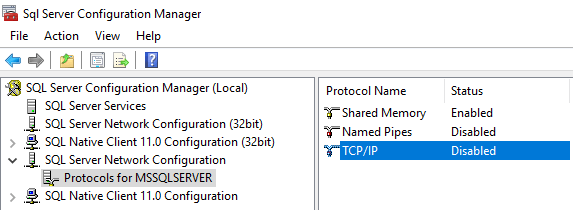
Navigate to:
SQL Server Network Configuration → Protocols for <InstanceName> → Double-click TCP/IP.
Step 3: Enable TCP/IP
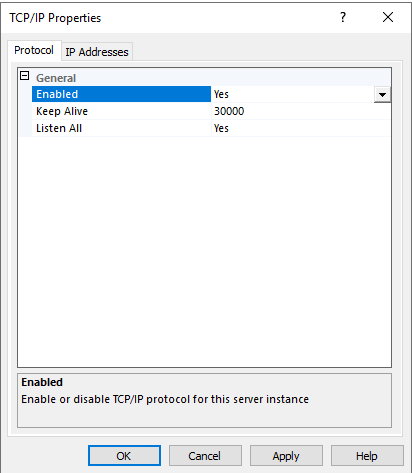
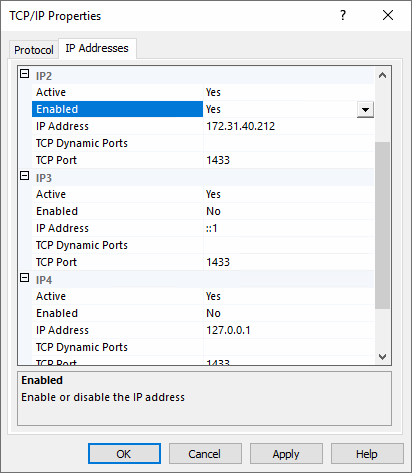
On the Protocol tab set Enabled to Yes and select Apply. Leave Listen All at Yes unless you mean to bind specific addresses: while it is Yes, only the IPAll port settings on the IP Addresses tab are used and the individual IP entries are ignored (MS Docs). A fixed port goes in the IPAll TCP Port box, and SQL Server Ports covers which port to give the firewall team.
Step 4: Restart the SQL Server Service
Nothing changes until the SQL Server service restarts. The Database Engine must be stopped and restarted for a protocol change to take effect (MS Docs). In SQL Server Services, right-click SQL Server (<InstanceName>) and select Restart.
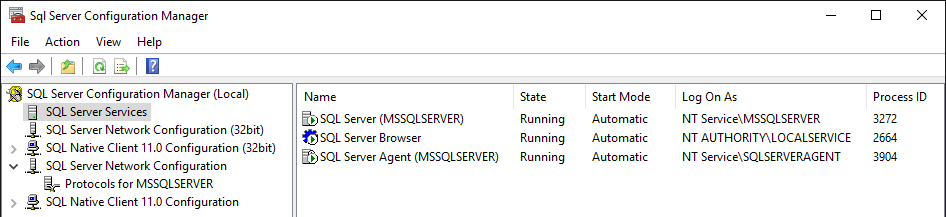
A restart drops every connection and rolls back open transactions, so on a production server it is a change window, not a click. On a named instance, restart the SQL Server Browser service as well. If the service does not come back, the reason is in the ERRORLOG or the Windows event log, not in Configuration Manager: SQL Server Service Will Not Start.
Enable TCP/IP Using PowerShell
For a server without the GUI, or the same change across many servers. Run it from an elevated session with the SqlServer module installed.
It restarts the SQL Server service. It also enables Named Pipes as well as TCP/IP, the same as the MS Docs sample, so delete the Named Pipes block if you only want TCP.
# Enable TCP and Named Pipes for default instance

Import-Module SqlServer

$smo = 'Microsoft.SqlServer.Management.Smo.'
$wmi = New-Object ($smo + 'Wmi.ManagedComputer')

# Enable TCP/IP
$tcpUri = "ManagedComputer[@Name='$env:COMPUTERNAME']/ServerInstance[@Name='MSSQLSERVER']/ServerProtocol[@Name='Tcp']"
$tcp = $wmi.GetSmoObject($tcpUri)
$tcp.IsEnabled = $true
$tcp.Alter()

# Enable Named Pipes
$npUri = "ManagedComputer[@Name='$env:COMPUTERNAME']/ServerInstance[@Name='MSSQLSERVER']/ServerProtocol[@Name='Np']"
$np = $wmi.GetSmoObject($npUri)
$np.IsEnabled = $true
$np.Alter()

# Restart SQL Server service, waiting for the stop to finish
$service = $wmi.Services['MSSQLSERVER']
$service.Stop()
do {
    Start-Sleep -Seconds 2
    $service.Refresh()
} while ($service.ServiceState -ne 'Stopped')
$service.Start()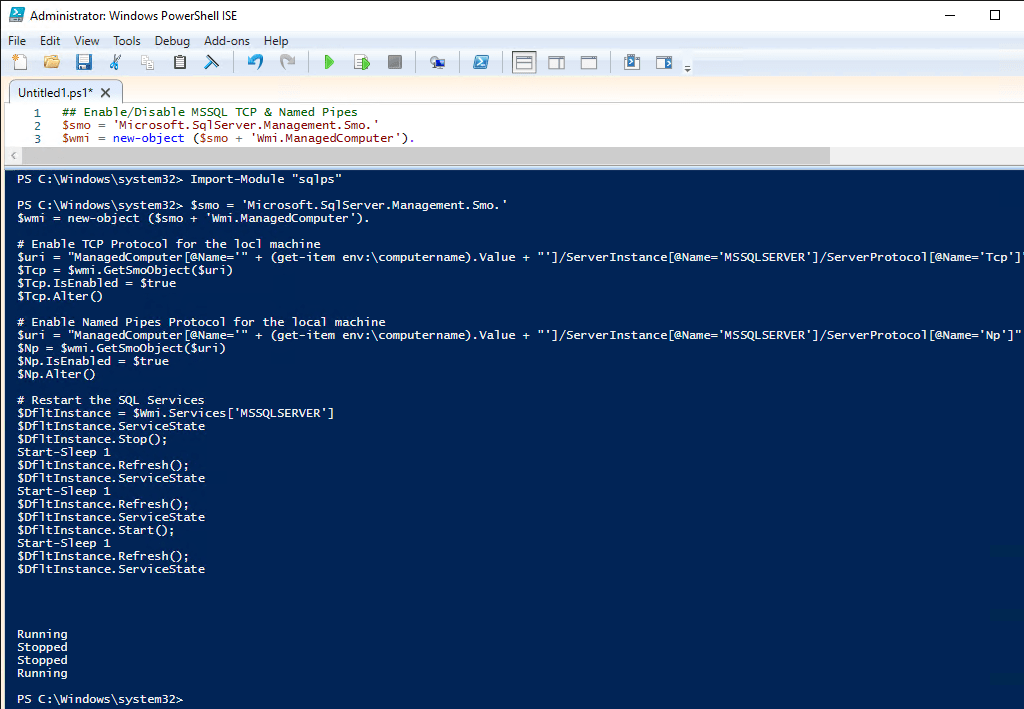
Stop() returns as soon as the stop has been requested, not when the service has stopped, so a fixed sleep is a guess. On a busy instance the shutdown takes as long as it takes to roll back what is in flight, and calling Start() too early fails. Poll ServiceState until it reads Stopped.
For a named instance, replace MSSQLSERVER with the instance name in both URIs, and the service name becomes MSSQL$<InstanceName>. Do not assume MSSQLSERVER applies everywhere.
Confirm It Is Listening
After the restart, the ERRORLOG records every address and port the instance opened. Run it as sysadmin: xp_readerrorlog is refused with Msg 229 to a login holding only VIEW SERVER PERFORMANCE STATE.
-- Every address and port the instance opened at its last start
EXEC sys.xp_readerrorlog 0, 1, N'Server is listening on';'any' <ipv4> 1433 is the line that matters: TCP is on, on every address, on port 1433. The loopback lines on 1434 are the Dedicated Administrator Connection, and the 49677 pair is a Service Broker listener on a dynamic loopback port (sys.dm_tcp_listener_states names it), so neither needs a firewall rule. No 'any' line and no address line at all since the restart means TCP is still not listening.
Then prove it from the client side with the protocol forced: tcp:<server> for a default instance, tcp:<server>\<instance> for a named one. Testing Remote Server Port Connectivity with PowerShell tests the port without a SQL client, How to Check Listening Ports on Windows confirms which process owns it on the server, and How to Get the SQL Server IP Address confirms the address and port a working session actually reached.
Frequently Asked Questions
Can TCP/IP be enabled without restarting SQL Server?
TCP/IP is enabled, so why do I still get error 26?
server,port) so the Browser is not needed. Without the Browser, connecting to a named instance without the port does not work (MS Docs).Why did my named instance change port after the restart?
Do I need Named Pipes enabled as well?
sys.dm_exec_connections arrived over TCP.It connects on the server but not from another machine.
tcp: on the server itself: if that fails, TCP is the problem, and if it works the fault is the firewall or the route, so the port test is the next check (MS Docs).TCP enabled is only the first link. These are the rest of the connectivity chain.
- SQL Server Ports: 1433, Dynamic Ports and Firewall Rules, which port it listens on once TCP is on.
- How to Get the SQL Server IP Address, the address clients should be pointed at.
- How to Check Listening Ports on Windows, confirm the host is listening on that port, and which process owns it.
- Testing Remote Server Port Connectivity with PowerShell, confirm the route end to end from the client.
- sqlcmd Examples for SQL Server, connect and prove it, without needing SSMS.
- Cannot Connect to SQL Server: The Checks in the Order That Finds It, the router for every connection error, start here when you are not sure which one you have.
- DBA Scripts: Server and Configuration, the hub this sits in, every instance-level check that establishes what a server is and how it is configured.
Leave a Reply