
VLF count is one of those checks that doesn’t show up in most performance reviews, doesn’t raise an alert, and doesn’t slow down any single query you can point to. What it does is make the work that reads the transaction log take longer than it should: database startup, crash recovery, restores, and redo on an Availability Group secondary.
Day to day, I’m not often worrying about VLFs, and I haven’t seen a high count be the route to a major issue on a server. It’s a proactive check, one I reach for when I’m diagnosing server performance. The more important the server, the more you’ll care about it.
The check takes seconds. The fix is a log shrink and one regrow, best done in a quiet window.
Why It Matters
Every SQL Server transaction log is divided into sections called Virtual Log Files (VLFs). SQL Server uses VLFs to manage which parts of the log are active, which can be overwritten, and where recovery needs to start from. Dozens to a few hundred is common and usually harmless. Thousands is where startup, recovery and restore times start to stretch: Microsoft’s transaction log architecture guide puts it simply, the more VLFs, the longer recovery takes.
High VLF counts accumulate silently, almost always from the same cause: a transaction log that started small and grew through many small autogrowth events. Each autogrowth event creates new VLFs. Every growth adds at least one VLF, so a log that grew in small steps a thousand times over the years has at least a thousand of them.
What actually gets slower with high VLF counts:
- Database startup and crash recovery. Recovery has to work through the log VLF by VLF before the database comes online, so more VLFs means a longer wait.
- Restores. Restoring the database, and each log backup in a chain, pays the same cost.
- Availability Group redo. Secondaries replay the same log, and on a busy AG a heavily fragmented log can add to redo time.
The Script
SET NOCOUNT ON;

IF EXISTS (SELECT 1 FROM sys.system_objects WHERE name = 'dm_db_log_info' AND type = 'IF')
BEGIN
    -- SQL Server 2016 SP2+ / 2017 CU4+
    SELECT
        d.name AS database_name,
        COUNT(*) AS vlf_count,
        CAST(SUM(li.vlf_size_mb) AS DECIMAL(10,2)) AS log_size_mb,
        CASE
            WHEN COUNT(*) > 1000 THEN 'HIGH'
            WHEN COUNT(*) >= 100 THEN 'ELEVATED'
            ELSE 'OK'
        END AS status
    FROM sys.databases d
    CROSS APPLY sys.dm_db_log_info(d.database_id) li
    WHERE d.state_desc = 'ONLINE'
      AND d.database_id > 4
    GROUP BY d.name, d.database_id
    ORDER BY vlf_count DESC;
END
ELSE
BEGIN
    -- SQL Server 2012 – 2016 SP1 fallback using DBCC LOGINFO
    -- (see repo for full cursor-based version)
    PRINT 'Run the repo script for a version-compatible implementation.';
END
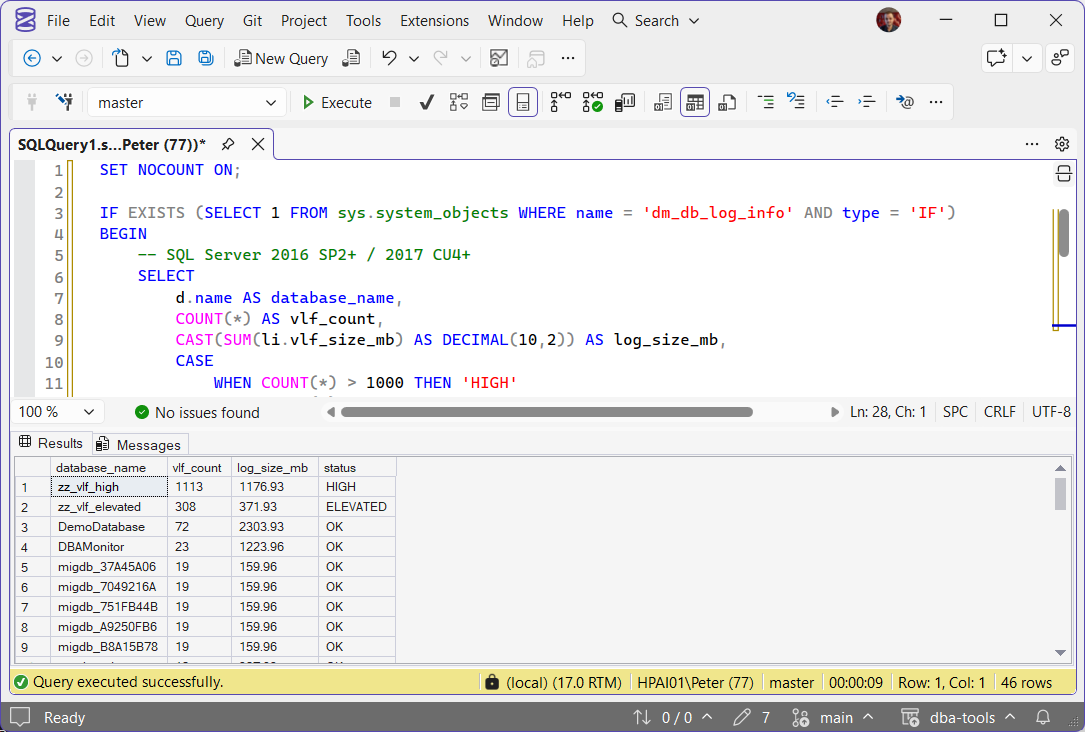
The full version of this script in the repo handles both code paths automatically and works from SQL Server 2012 onwards. The
sys.dm_db_log_infopath (2016 SP2+) is a single query with no dynamic SQL; the fallback iterates each database via a cursor.
How To Run From The Repo
The full script has its own page, Get VLF Counts, with example output and what each column means. Copy the T-SQL from that page and run it in SSMS. From a clone of dba-tools, the Get-VlfCount wrapper runs the same script, with -OutputFormat Csv to save the result for baselining.
Reading The Output
| Column | What It Means |
|---|---|
database_name | The database being assessed |
vlf_count | Total number of VLFs in the transaction log |
log_size_mb | Total log file size, the context for whether the count is expected |
status | OK (under 100), ELEVATED (100 to 1,000), HIGH (over 1,000) |
Read the labels as a baseline to monitor, not alarms. Under 100 matches the line Microsoft’s own sys.dm_db_log_info example draws. There’s no universal safe number above that: a 200GB log can legitimately carry more VLFs than a 2GB one. What matters is a count out of proportion to the file size, and a HIGH count almost always comes from years of small autogrowth.
Production Notes
status = HIGH on an important server. Note it, keep an eye on it, and plan the fix for a quiet window. It’s not an emergency, and on a quiet server it may never matter. It matters most where recovery and failover time matter: the servers you would be called about, and Availability Group primaries. That’s where I’d put it on the list.
A large log file with a high VLF count. A 50GB log shouldn’t have 8,000 VLFs. It grew in tiny increments. The fix is the same as for a small log: shrink then grow once.
A small log file with a very high VLF count. Worse in a way: the log is very active and has outgrown then been shrunk repeatedly, each cycle creating more VLFs. Run Get Transaction Log Size and Usage to see whether the log is sized for its workload.
A database in an Availability Group with elevated VLF count. It can add to redo time on the secondary, which replays the same log. Fix it on the primary: the shrink and regrow flow through to the secondaries.
How To Fix It
The fix is: shrink the log, then grow it in one large step to its expected working size.
-- Step 1: check current log usage before shrinking
-- (only shrink the FREE space, don't shrink below what's actually in use)
SELECT
    name,
    log_size_mb = size * 8.0 / 1024,
    log_used_mb = FILEPROPERTY(name, 'SpaceUsed') * 8.0 / 1024
FROM sys.database_files
WHERE type_desc = 'LOG';

-- Step 2: shrink the log file (substitute your database and log file name)
USE [YourDatabase];  -- replace with your database
DBCC SHRINKFILE (YourDatabase_log, 1);   -- shrink to 1MB minimum

-- Step 3: grow it in one large increment (e.g. 10GB for a busy database)
ALTER DATABASE [YourDatabase]
    MODIFY FILE (NAME = YourDatabase_log, SIZE = 10240MB);

-- Step 4: set a sensible fixed growth increment (not percent-based)
ALTER DATABASE [YourDatabase]
    MODIFY FILE (NAME = YourDatabase_log, FILEGROWTH = 1024MB);
After this, check the VLF count again. A 10GB log grown in one step will have a handful of VLFs (typically 8–16 depending on size). A log grown in 1MB steps would have had thousands.
Right-sizing the log: Run Get Transaction Log Size and Usage first. Look at the peak log usage percentage during a normal business period. Size the log to that peak usage plus a safety margin (typically 20–30%). Set a fixed growth increment (e.g. 1GB) as a fallback, not as the primary sizing mechanism. How to right-size SQL Server database files covers the data files too.
Other Considerations
- Don’t shrink a log that’s actively in use. Check log space used before shrinking. Shrinking a log that’s 80% active will fail to reclaim space and leave you with the same fragmentation.
- DBCC SHRINKFILE doesn’t always shrink to the target immediately. If there are active transactions or the log is in FULL recovery with a pending backup, the virtual log at the end can’t be freed until after the next log backup.
- In the FULL recovery model, take a log backup first. The shrink cannot free space the log still holds, and until a log backup truncates it, that is most of it. If it still will not shrink, log_reuse_wait_desc says what the log is waiting on.
- SIMPLE recovery model databases: The log truncates automatically at each checkpoint. Shrink and resize is straightforward.
- After the fix, monitor autogrowth events. If the log grows again quickly in small increments, the sizing is still wrong. Use Get Autogrowth History to track growth events over time.
Related Scripts
- Get VLF Counts, the full script, both code paths, from SQL Server 2012
- Get Transaction Log Size and Usage, log space used against allocated; use it to right-size before fixing VLFs
- Get Autogrowth History, how often and how much the log has been growing, which is the root cause
- Get Database Sizes and Free Space, the wider sizing picture
Leave a Reply