
VLFs – The Hidden Log Performance Problem
Virtual Log File (VLF) count is one of those SQL Server health checks that is often overlooked. It rarely generates alerts, doesn’t usually slow down a single query, and most users never know it exists. Yet an excessive number of VLFs can quietly impact many transaction log operations, including log backups, restores, crash recovery, Availability Groups, replication, and Change Data Capture (CDC).
Over time, poor transaction log growth settings or repeated auto-growth events can cause the log file to become fragmented into thousands of small Virtual Log Files. SQL Server must process these VLFs during recovery and log scanning operations, increasing overhead and extending recovery times.
This script quickly identifies databases with high VLF counts so they can be reviewed and corrected before they become an operational problem.
Why VLF Count Matters
The SQL Server transaction log is divided internally into Virtual Log Files (VLFs). SQL Server automatically creates these whenever the log file is created or grows.
Having multiple VLFs is completely normal. The problem occurs when a transaction log grows repeatedly in very small increments over months or years, eventually creating hundreds or even thousands of VLFs.
While normal query performance is usually unaffected, many SQL Server components must scan VLFs when processing the transaction log. As the number of VLFs increases, these operations become less efficient.
High VLF counts can affect:
- Database startup after an unexpected shutdown
- Crash recovery time
- Database restore operations
- Transaction log backups
- Always On Availability Group log processing
- Transactional Replication
- Change Data Capture (CDC)
- Log shipping
- Any feature that continuously scans the transaction log
Large transaction logs are not necessarily a problem. A well-sized 500 GB log file may contain relatively few VLFs, while a poorly managed 20 GB log file could contain thousands.
Common Symptoms
Databases with excessive VLF counts may experience:
- Longer SQL Server startup after an outage
- Slow database recovery following a restart
- Longer restore times
- Slower transaction log backups
- Increased Availability Group synchronization delays
- Replication latency
- CDC processing delays
- Databases that have experienced years of uncontrolled log growth
Because these symptoms often develop gradually, VLF fragmentation frequently goes unnoticed until recovery operations take much longer than expected.
When to Run This Script
This script is useful during:
- Routine SQL Server health checks
- Performance reviews
- Before production migrations
- After significant transaction log growth
- Following storage changes
- Availability Group health assessments
- Disaster recovery planning
- Database onboarding reviews
Many DBAs include VLF count as part of their regular server health assessment.
The Script
Run the following script against your SQL Server instance.
- Tested on: SQL Server 2025 (RTM CU5), Windows lab instance
- Last verified: 2026-07-16 (saved output from a real run, Get-VlfCount-20260716-122318.csv)
- Permissions: VIEW SERVER STATE
- Safety: read-only, impact low
/*
Script Name : Get-VlfCount
Category    : monitoring
Purpose     : Reports virtual log file (VLF) count per database transaction log,
              ranked by severity. High VLF counts degrade recovery time, log backup
              performance, and redo during AG synchronisation. Often caused by many
              small autogrowth events accumulating over time.
Author      : Peter Whyte (https://sqldba.blog/dba-scripts-get-vlf-counts/)
Requires    : VIEW SERVER STATE
HealthCheck : Yes
Notes       : Target: < 50 VLFs per database. > 200 is elevated. > 1000 is severe.
              Fix: shrink the log to near-zero, then grow it in one large fixed-MB
              increment matching expected steady-state size.
              Run Get-TransactionLogSizeAndUsage first to size the target correctly.
              sys.dm_db_log_info path: SQL Server 2016 SP2+ / 2017 CU4+.
              Fallback cursor path (DBCC LOGINFO): SQL Server 2012+.
*/
-- SAFE:ReadOnly
-- IMPACT:Low
SET NOCOUNT ON;

IF EXISTS (SELECT 1 FROM sys.system_objects WHERE name = 'dm_db_log_info' AND type = 'IF')
BEGIN
    -- SQL Server 2016 SP2+ / 2017 CU4+: single query
    SELECT
        d.name AS database_name,
        d.recovery_model_desc AS recovery_model,
        COUNT(*) AS vlf_count,
        CAST(SUM(li.vlf_size_mb) AS DECIMAL(10,2)) AS log_size_mb,
        CASE
            WHEN COUNT(*) > 1000 THEN 'CRITICAL'
            WHEN COUNT(*) > 200 THEN 'HIGH'
            WHEN COUNT(*) > 50  THEN 'ELEVATED'
            ELSE 'OK'
        END AS status
    FROM sys.databases d
    CROSS APPLY sys.dm_db_log_info(d.database_id) li
    WHERE d.state_desc = 'ONLINE'
      AND d.database_id > 4
    GROUP BY d.name, d.database_id, d.recovery_model_desc
    ORDER BY vlf_count DESC;
END
ELSE
BEGIN
    -- SQL Server 2012 – 2016 SP1 fallback: cursor + DBCC LOGINFO
    CREATE TABLE #vlf (
        database_name    sysname      NOT NULL,
        recovery_model   VARCHAR(20)  NOT NULL,
        vlf_count        INT          NOT NULL,
        log_size_mb      DECIMAL(10,2) NOT NULL,
        status           VARCHAR(10)  NOT NULL
    );

    CREATE TABLE #loginfo (
        RecoveryUnitId INT NULL,
        FileId         INT NOT NULL,
        FileSize       BIGINT NOT NULL,
        StartOffset    BIGINT NOT NULL,
        FSeqNo         BIGINT NOT NULL,
        [Status]       TINYINT NOT NULL,
        Parity         TINYINT NOT NULL,
        CreateLSN      NUMERIC(25,0) NULL
    );

    DECLARE @dbname SYSNAME;
    DECLARE @cmd    NVARCHAR(512);

    DECLARE db_cur CURSOR LOCAL FAST_FORWARD FOR
        SELECT name
        FROM sys.databases
        WHERE state_desc = 'ONLINE'
          AND database_id > 4;

    OPEN db_cur;
    FETCH NEXT FROM db_cur INTO @dbname;

    WHILE @@FETCH_STATUS = 0
    BEGIN
        TRUNCATE TABLE #loginfo;

        SET @cmd = N'USE ' + QUOTENAME(@dbname) + N'; DBCC LOGINFO WITH NO_INFOMSGS;';

        BEGIN TRY
            INSERT INTO #loginfo
            EXEC (@cmd);

            INSERT INTO #vlf (database_name, recovery_model, vlf_count, log_size_mb, status)
            SELECT
                @dbname,
                (SELECT recovery_model_desc
                 FROM sys.databases
                 WHERE name = @dbname),
                COUNT(*),
                CAST(SUM(FileSize) / 1048576.0 AS DECIMAL(10,2)),
                CASE
                    WHEN COUNT(*) > 1000 THEN 'CRITICAL'
                    WHEN COUNT(*) > 200 THEN 'HIGH'
                    WHEN COUNT(*) > 50  THEN 'ELEVATED'
                    ELSE 'OK'
                END
            FROM #loginfo;
        END TRY
        BEGIN CATCH
            -- Skip inaccessible databases
        END CATCH;

        FETCH NEXT FROM db_cur INTO @dbname;
    END

    CLOSE db_cur;
    DEALLOCATE db_cur;

    SELECT
        database_name,
        recovery_model,
        vlf_count,
        log_size_mb,
        status
    FROM #vlf
    ORDER BY vlf_count DESC;

    DROP TABLE #vlf;
    DROP TABLE #loginfo;
END
The script queries each database and returns the current number of Virtual Log Files.
How To Run From The Repo
Clone DBA Tools, initialize and run the script:
# Clone dba-tools repo:
git clone https://github.com/peterwhyte-lgtm/dba-tools

# Initialize environment:
cd dba-tools
.\Initialize-Environment.ps1

# Check VLF counts across all user databases:
.\run.ps1 Get-VlfCount

# To run against a remote sql server:
.\run.ps1 Get-VlfCount -ServerInstance SQLSERVER01
This script lives in the repo at:
sql/monitoring/disk-space/Get-VlfCount.sqlpowershell/wrappers/monitoring/disk-space/Get-VlfCount.ps1
Example Output
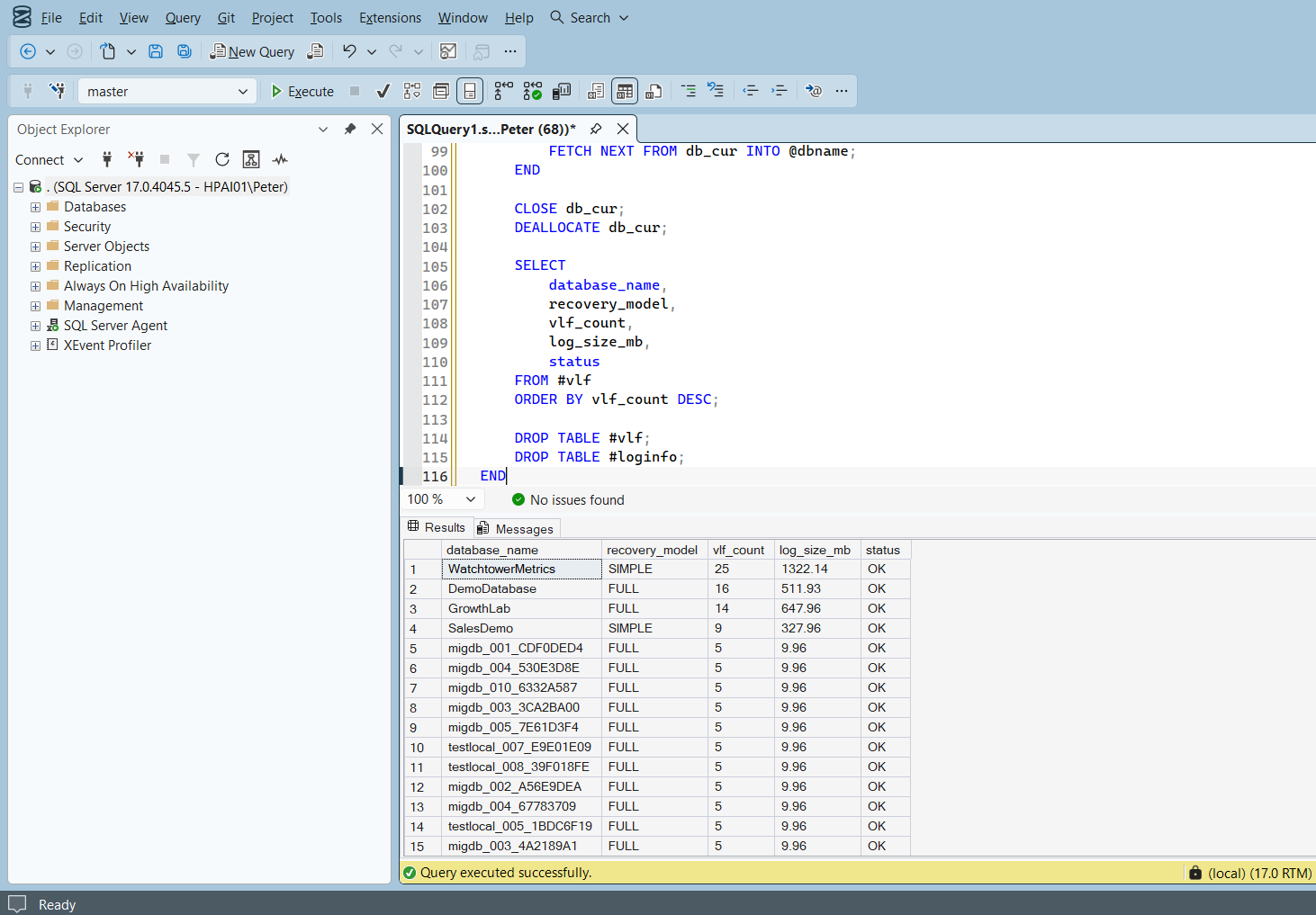
The exact columns may vary depending on the version of the script, but the VLF count is the primary value to review.
Understanding the Results
There is no documented Microsoft limit for VLF count, so the script applies its own bands and reports them in the status column. Every column it returns, and what it is telling you:
database_namerecovery_modelvlf_countlog_size_mbstatusvlf_count alone: OK up to 50, ELEVATED above 50, HIGH above 200, CRITICAL above 1000. These are the script’s own thresholds, not a Microsoft limit, and they are tighter than the rules of thumb that circulate: a database sitting at 72 VLFs comes back ELEVATED, not healthy.Act when a row reads CRITICAL. Above 1000 VLFs the thing that usually finds the problem is an unplanned restart, so fix the log sizing before then. ELEVATED and HIGH are a sizing review, not an incident.Very large production databases may naturally have higher counts, but thousands of VLFs should still be reviewed.
Common Causes
High VLF counts are usually caused by one or more of the following:
- Very small transaction log auto-growth settings
- Repeated log growth over many months or years
- Frequent index maintenance causing repeated expansion
- Large data loads without adequate log sizing
- Shrinking the transaction log repeatedly
- Databases that have never had their log file properly sized
- Long-running workloads requiring continuous log growth
Repeated cycles of growing and shrinking the transaction log often create the worst VLF fragmentation.
How to Fix High VLF Counts
The goal is not simply to reduce the VLF count, but to create a transaction log that grows predictably and efficiently.
A typical remediation process is:
- Verify that shrinking the transaction log is appropriate.
- Perform a transaction log backup if using the FULL recovery model.
- Shrink the log only if necessary.
- Grow the transaction log back to its expected operating size using large growth increments.
- Configure sensible auto-growth settings to minimise future fragmentation.
Avoid repeatedly shrinking the transaction log as part of regular maintenance. This often recreates the same problem over time.
Here is that process in T-SQL. Substitute your own database name, log file name, and target size:
-- Step 1: check current log usage before shrinking
-- (only shrink the FREE space, don't shrink below what's actually in use)
SELECT
    name,
    log_size_mb = size * 8.0 / 1024,
    log_used_mb = FILEPROPERTY(name, 'SpaceUsed') * 8.0 / 1024
FROM sys.database_files
WHERE type_desc = 'LOG';

-- Step 2: shrink the log file
USE [YourDatabase];  -- replace with your database
DBCC SHRINKFILE (YourDatabase_log, 1);   -- shrink to 1MB minimum

-- Step 3: grow it back in one large increment (e.g. 10GB for a busy database)
ALTER DATABASE [YourDatabase]
    MODIFY FILE (NAME = YourDatabase_log, SIZE = 10240MB);

-- Step 4: set a sensible fixed growth increment (not percent-based)
ALTER DATABASE [YourDatabase]
    MODIFY FILE (NAME = YourDatabase_log, FILEGROWTH = 1024MB);
After this, run the VLF count script again. A 10 GB log grown in one step will contain only a handful of VLFs, typically 8 to 16 depending on size. The same log grown in 1 MB steps would have had thousands.
To right-size the log, look at peak log usage during a normal business period and size the log to that peak plus a safety margin of around 20 to 30 percent. Set a fixed growth increment such as 1 GB as a fallback, not as the primary sizing mechanism.
A few things to watch out for when applying the fix:
- Do not shrink a log that is actively in use. Check log space used first. Shrinking a log that is 80% active will fail to reclaim space and leave the same fragmentation in place.
- DBCC SHRINKFILE does not always reach the target immediately. If there are active transactions, or the log is in FULL recovery with a pending backup, the end of the log cannot be freed until after the next log backup.
- In the FULL recovery model, take a log backup first to truncate the log, then shrink.
- SIMPLE recovery model databases truncate the log automatically at each checkpoint, so shrink and resize is straightforward.
- After the fix, monitor autogrowth events. If the log quickly grows again in small increments, the sizing is still wrong.
Best Practices
To keep VLF counts under control:
- Pre-size transaction log files appropriately.
- Use fixed auto-growth sizes rather than percentage growth.
- Avoid very small auto-growth values.
- Monitor transaction log growth history.
- Review VLF counts during routine health checks.
- Avoid unnecessary transaction log shrink operations.
- Size transaction logs based on business workload rather than current usage.
Good transaction log management is preventative rather than reactive.
Microsoft’s reference covers sys.databases and sys.dm_db_log_info in full.
Related Scripts
You may also find these scripts useful:
- Disk Is Full or the Log Will Not Truncate, step 7 of the space router, stopping it recurring
- Storage and Capacity (hub)
- Database Sizes & Free Space
- Database Files Detail
- Transaction Log Size and Usage
- Database Free Space Summary
- Filegroup Space
- Disk Space
- Database Growth Risk and Forecast
- Log Backup History
- Log Growth History
- Log Reuse Waits
- Active Transactions
- Recovery Model Audit
- Availability Group Health Check
- How to Right-Size SQL Server Database Files, size the files before growth becomes an incident
- DBA Scripts: The Complete Guide, the map across every script on this site
Frequently Asked Questions
What is a Virtual Log File (VLF)?
A Virtual Log File is an internal section of a SQL Server transaction log. SQL Server automatically divides log files into multiple VLFs whenever they are created or expanded.
Does a high VLF count slow down queries?
Usually not.
High VLF counts primarily affect operations that read or process the transaction log, such as crash recovery, restores, log backups, replication, and Availability Groups.
Does shrinking the transaction log permanently fix VLF fragmentation?
No.
Shrinking may temporarily reduce the VLF count, but unless the log is regrown correctly and auto-growth settings are configured appropriately, excessive VLFs will eventually return.
Is a large transaction log always bad?
No.
A large transaction log that has been correctly sized can perform perfectly well. The number of VLFs is generally more important than the overall file size.
Should I monitor VLF count regularly?
Yes.
VLF count is a valuable health check that helps identify poor transaction log growth patterns before they affect recovery times and operational performance.
Summary
Virtual Log File count is one of the simplest transaction log health checks you can perform, yet it is often ignored until recovery operations become unexpectedly slow.
Monitoring VLF count helps identify databases with inefficient transaction log growth before they impact backups, restores, high availability features, or disaster recovery. Combined with sensible transaction log sizing and appropriate auto-growth settings, maintaining healthy VLF counts contributes to faster recovery, more predictable performance, and a more resilient SQL Server environment.
Run this script regularly as part of your SQL Server health checks, investigate databases with unusually high VLF counts, and address transaction log growth issues before they become production incidents.
Leave a Reply