
Understanding SQL Server Database File Layout
A disk alert has fired, or a log file has grown again, and you need to know which file it is, where it lives and whether anything stops it growing. The same questions come up in every health check and migration:
- Where are my database files stored?
- How large are my data and log files?
- Are files configured with sensible growth settings?
- Which databases are consuming storage?
Get-DatabaseFilesDetail answers all of them in one grid: every data and log file of every user database, with its path, size, growth setting and maximum.
Why Database File Details Matter
Storage is behind more SQL Server incidents than almost anything else, and the file settings decide how it fails. The issues this grid shows up most often:
- Data and log files stored on the same volume
- Very small growth increments causing repeated expansion events
- Percentage based growth on large databases
- Unlimited file growth consuming available disk space
When To Run This Script
Run this script during:
- Routine SQL Server health checks
- Storage capacity reviews
- Database migrations
- SQL Server upgrades
- Performance investigations
- Unexpected disk growth incidents
- Reviewing new database deployments
The Script
Run the following script against your SQL Server instance.
- Tested on: SQL Server 2025 (RTM CU8), Windows lab instance
- Last verified: 2026-10-12 (real run; the screenshot below is from it)
- Permissions: VIEW ANY DATABASE
- Safety: read-only, impact low
/*
Script Name : Get-DatabaseFilesDetail
Category    : storage-capacity-management
Purpose     : Show per-file details for all user databases: path, size, max size, growth settings.
Author      : Peter Whyte (https://sqldba.blog/dba-scripts-get-sql-server-database-file-details/)
Requires    : VIEW ANY DATABASE
HealthCheck : Yes
*/
-- SAFE:ReadOnly
-- IMPACT:Low
SET NOCOUNT ON;
SET QUOTED_IDENTIFIER ON;

SELECT
    d.name AS database_name,
    d.state_desc AS db_state,
    d.recovery_model_desc AS recovery_model,
    mf.file_id,
    mf.name AS logical_name,
    mf.type_desc AS file_type,
    LEFT(mf.physical_name, 1) AS drive_letter,
    mf.physical_name AS physical_path,
    CAST(mf.size * 8.0 / 1024 AS DECIMAL(12,2)) AS current_size_mb,
    -- NULL = no maximum. An unlimited log file is stored as 268435456 pages (the 2 TB log
    -- ceiling), not -1, so it is mapped to NULL as well; otherwise logs read 2097152.00.
    CASE
        WHEN mf.max_size = -1 THEN NULL
        WHEN mf.type = 1 AND mf.max_size = 268435456 THEN NULL
        WHEN mf.max_size = 0 THEN CAST(mf.size * 8.0 / 1024 AS DECIMAL(12,2))
        ELSE CAST(mf.max_size * 8.0 / 1024 AS DECIMAL(12,2))
    END AS max_size_mb,
    CASE mf.is_percent_growth
        WHEN 1 THEN CAST(mf.growth AS VARCHAR(10)) + '%'
        ELSE CAST(CAST(mf.growth * 8.0 / 1024 AS INT) AS VARCHAR(20)) + ' MB'
    END AS auto_growth,
    mf.is_percent_growth AS growth_is_percent,
    mf.state_desc AS file_state
FROM sys.master_files AS mf
INNER JOIN sys.databases AS d ON d.database_id = mf.database_id
WHERE d.database_id > 4
ORDER BY d.name, mf.type, mf.file_id;
The script queries sys.master_files and returns database file information for all user databases on the SQL Server instance.
How To Run From The Repo
Clone DBA Tools, initialize and run the script:
git clone https://github.com/peterwhyte-lgtm/dba-tools

cd dba-tools
.\Initialize-Environment.ps1

.\run.ps1 Get-DatabaseFilesDetail

.\run.ps1 Get-DatabaseFilesDetail -ServerInstance SQLSERVER01
This script lives in the repo at:
sql/monitoring/disk-space/Get-DatabaseFilesDetail.sql- powershell/wrappers/monitoring/disk-space/Get-DatabaseFilesDetail.ps1
Example Output
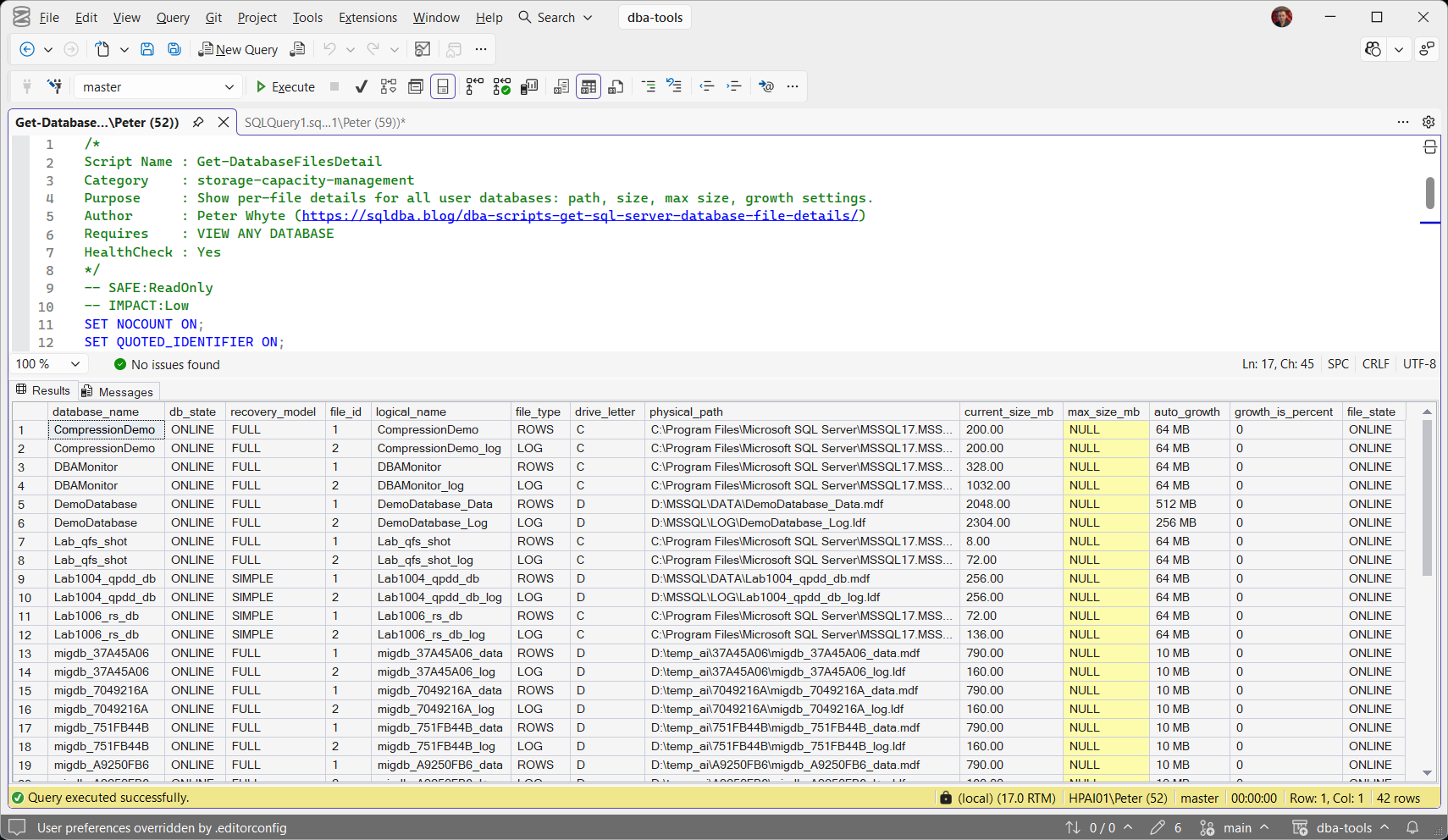
Run against the lab instance: 42 files across 21 user databases, and max_size_mb is NULL on every one of them, data and log, so nothing on this instance stops a file growing until its volume is full.
Understanding The Results
Read max_size_mb and auto_growth first: together they say whether each file can still grow, and how.
max_size_mbauto_growthgrowth_is_percentdb_statefile_statedrive_letterphysical_pathcurrent_size_mbrecovery_modeldatabase_namelogical_namefile_idfile_typeBest Practices
Regularly review database file configuration as part of SQL Server health checks.
Recommended checks:
- Keep data and log files on appropriate storage
- Use sensible fixed-size growth increments
- Monitor free disk capacity
- Avoid unlimited growth without monitoring
- Review transaction log sizing separately
Microsoft’s reference covers sys.master_files, sys.databases and sys.database_files in full.
Related Scripts
You may also find these scripts useful:
- Storage and Capacity (hub)
- Database Sizes and Free Space
- Database Free Space Summary
- Transaction Log Size and Usage
- VLF Count
- Disk Space
- Filegroup Space
- Autogrowth History
- Could Not Allocate Space Because the Filegroup Is Full (Error 1105), what a growth of 0 or a max_size cap turns into
- Unable to Open the Physical File (Error 5120), the first check when the operating system error is 5
- How to Right-Size SQL Server Database Files, size the files before growth becomes an incident
- DBA Scripts: The Complete Guide, the map across every script on this site
Frequently Asked Questions
How do I find SQL Server database file locations?
Querying sys.master_files provides the physical paths for all database files on an instance.
How do I check SQL Server database file sizes?
Database file sizes can be reviewed using sys.master_files, sys.database_files, or monitoring scripts such as this one.
Should SQL Server database files use percentage growth?
Generally no. Fixed MB growth settings are easier to predict and manage, especially for larger databases.
Does this work on Azure SQL Database?
No. sys.master_files is not available on Azure SQL Database, so run a sys.database_files query inside each database instead. Azure SQL Managed Instance has sys.master_files and runs the script as it is.
Summary
Knowing your SQL Server database file layout is a basic but important part of database administration.
This script gives DBAs a quick view of database files, storage locations, sizing, and growth configuration across an entire SQL Server instance.
Run it regularly as part of your SQL Server health checks to catch storage risks before they become production incidents.
Leave a Reply