
Auto-growth is not the problem. Unplanned, reactive growth is. When a file is undersized SQL Server extends it repeatedly under load, every extension is a pause, and if those pauses land in the peak hour they show up as latency, I/O pressure and the occasional application timeout. Right-sizing is about making growth rare, predictable and yours.
Check Every File’s Size and Growth Setting
Start with what the instance actually has. This reads sys.master_files, so one run covers every database, and it sorts the percentage-growth files to the top because those are the usual offenders.
-- Every data and log file on the instance: current size, growth setting, and whether growth is a percentage
SELECT
    DB_NAME(mf.database_id)                                   AS database_name,
    mf.name                                                   AS logical_name,
    mf.type_desc                                              AS file_type,
    CAST(mf.size / 128.0 AS DECIMAL(12,1))                    AS size_mb,
    CASE WHEN mf.is_percent_growth = 1
         THEN CAST(mf.growth AS VARCHAR(10)) + ' %'
         ELSE CAST(mf.growth / 128 AS VARCHAR(10)) + ' MB' END AS growth_setting,
    CASE WHEN mf.max_size = -1 THEN 'Unlimited'
         WHEN mf.max_size = 0  THEN 'No growth'
         ELSE CAST(mf.max_size / 128 AS VARCHAR(20)) + ' MB' END AS max_size,
    mf.physical_name
FROM sys.master_files AS mf
WHERE mf.database_id > 4
ORDER BY mf.is_percent_growth DESC, size_mb DESC;
Three things to look for. A percentage in growth_setting, which means the increment gets bigger every time and the pause with it. A tiny fixed increment on a file that is already large, 1 MB was the data file default before SQL Server 2016 and 10 percent the log default, and either means hundreds of growth events a month on a busy database. And a max_size that the file is close to, because that is a hard stop rather than a slowdown. The WHERE skips the system databases; drop it when tempdb is the one growing. For the same list with free space per file, use Get Database File Details, and for how often each file has actually grown, and when, Get Autogrowth History reads the default trace.
Work Out How Fast It Grows
Before changing anything, know how much the database grows per week and per month, whether that growth is steady or arrives in bursts, and whether it is the data file or the log that is doing the growing. The autogrowth history answers most of that on its own. If a database grows 40 GB a month, that is roughly 10 GB a week, and with a 64 MB increment SQL Server will fire about 160 growth events a month just to keep up. That is not capacity management, it is the engine doing your job for you badly. Look for repeated small increments, growth that tracks a business cycle, and log growth tied to a maintenance window or a batch job, because each of those points at a different fix.
Pick a Target Size and a Growth Increment
Once you know the growth rate, size forward. Estimate three to six months of growth, add 10 to 20 percent of headroom, and pre-grow the file to that size during a maintenance window. If a database is 500 GB today and grows 40 GB a month, plan for at least 120 GB of future growth, which puts the target around 650 to 700 GB. Growing once, deliberately, is far better than hundreds of small expansions on the engine’s schedule.
The increment matters as much as the size. It should be a fixed number of megabytes, never a percentage, large enough that growth is rare and small enough that a single growth does not stall the workload for long.
Data Files
Use fixed MB increments and align them with the observed growth rate. For a multi-terabyte database 1 GB or more per growth is reasonable; for smaller systems 256 MB to 512 MB is more typical. With instant file initialization enabled a data file growth is close to free, which is one more reason to make sure it is on. The right value depends on your workload, not on a number copied from the internet, including this one.
Log Files
Logs need stricter control, for one reason: log growth is always zero-initialised, instant file initialization does not apply to it, so every log growth is a real pause. Small increments also create a large number of virtual log files, and an excessive VLF count slows recovery, restores and log backups. Use a meaningful fixed MB increment, keep the growth predictable, and count the VLFs separately with Get VLF Counts. If a log is growing every day, look at the transaction volume and the log backup frequency before you make the file bigger, because a log that is not being backed up will grow regardless of how you size it.
Pre-Grow the Files
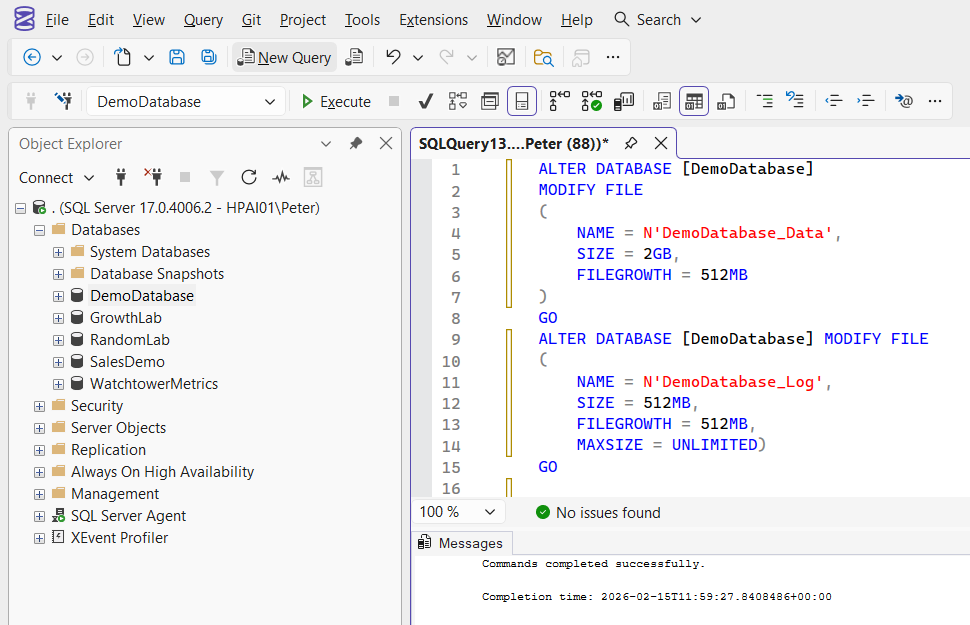
With the target size and increment decided, apply both in a low-activity window. This example sizes a data file to 700 GB and a log to 200 GB, with 1 GB growth on each:
ALTER DATABASE YourDatabase
MODIFY FILE
(
    NAME = 'YourDatabase_Data',
    SIZE = 700GB,
    FILEGROWTH = 1024MB
);

ALTER DATABASE YourDatabase
MODIFY FILE
(
    NAME = 'YourDatabase_Log',
    SIZE = 200GB,
    FILEGROWTH = 1024MB
);
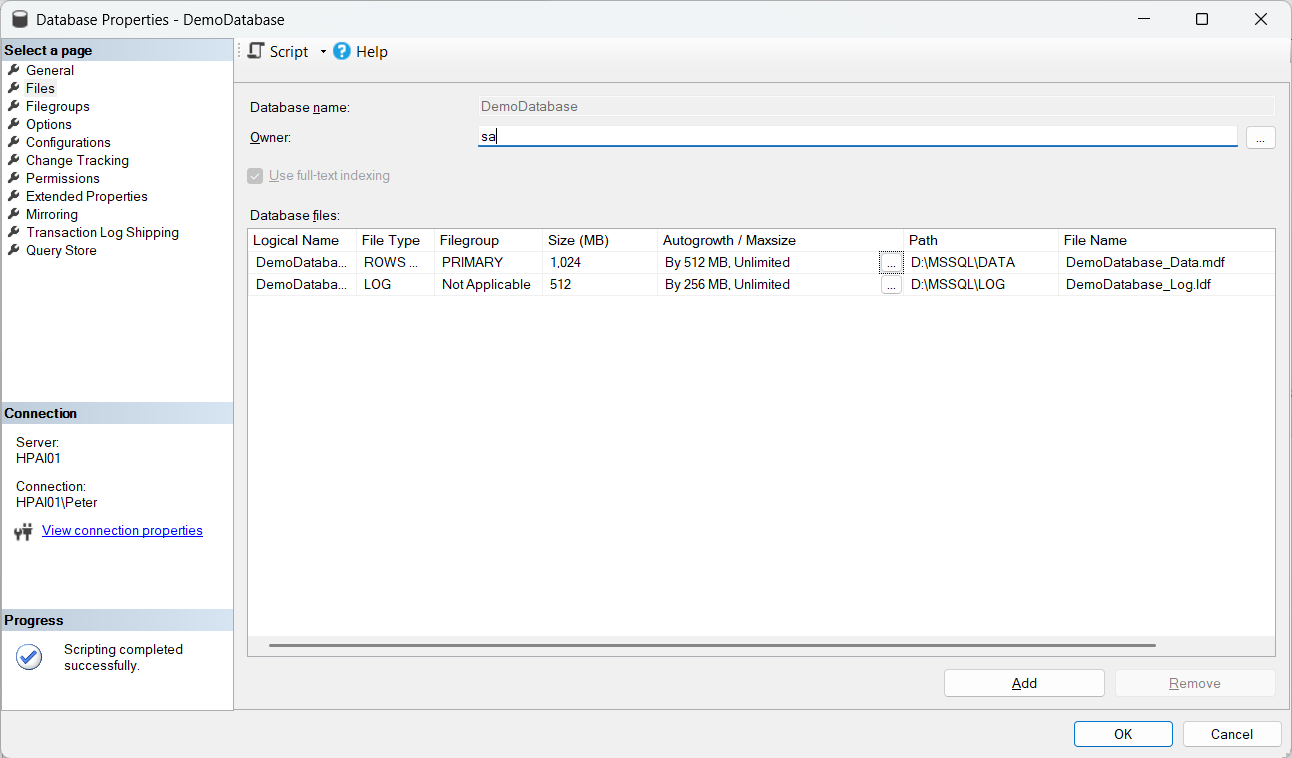
Before you run it, confirm the disk has the space, confirm the window, and watch I/O while the growth happens, because a large data file growth without instant file initialization is a large write. Afterwards, run the check at the top of this post again and confirm the settings took. The same change can be made in SSMS on the database’s Properties, Files page, and T-SQL is the better option when the change has to be reviewed or repeated.
Healthy Versus Poorly Sized
Growth should happen because the business grew, not because the file was too small on the day it was created.
Poorly sized
Reactive configuration, the engine sizing the file for you
- Daily or hourly growth events, often in the peak hour
- Percentage growth, or repeated 1 MB and 10 MB extensions
- A log growing every day, with a VLF count in the thousands
- Disk alerts caused by growth nobody planned
- A file sitting a few MB from its
max_size
Well sized
Planned capacity, growth as an event you expect
- Growth events are rare and never in the peak hour
- Fixed MB increments, large enough to matter
- No repeated daily log growth, a stable VLF count
- Free space in the file that you decided on
- Disk headroom reviewed on a schedule, not on an alert
Keep It That Way
Right-sizing is not a one-off. Keep monitoring growth trends, review disk capacity quarterly, and adjust the increments as the workload changes. In a larger estate it is worth taking growth away from the engine entirely: a scheduled SQL Agent job that checks free space inside each file, grows the file by your fixed increment when it drops below a threshold such as 10 percent, refuses to grow it when the disk cannot take it, and raises an alert either way. Auto-growth then becomes what it should always have been, a safety net that never fires. Get Disk Space and Get Database Growth Risk and Forecast are the two checks that job would be built on.
Related
- DBA Scripts: Get Autogrowth History, the growth history this whole method reads from
- DBA Scripts: Get Database Growth Risk and Forecast, turn the history into a target size
- DBA Scripts: Get Database File Details, the full version of the check above, every file with its free space
- DBA Scripts: Get VLF Counts, the log-side damage small increments do, counted
- Instant File Initialization, why data file growth can be instant and log growth never is
- Shrink Database Files in Chunks, the other direction, when a file is already too big
- The Filegroup Cannot Be Removed Because It Is Not Empty (Error 5042), the error you meet when tidying a filegroup out of existence
- DBA Scripts: Storage and Capacity, the hub for every space and growth script on this site
Leave a Reply