
Press Ctrl+1 in a query window and SSMS runs sp_who. Press Ctrl+2 and you get sp_lock. Most people know those two exist and stop there, which means missing the actual feature: the mechanism behind them is configurable, and mapping your own diagnostic procedure to a hotkey is the cheapest productivity win in the tool.
The classic setup is sp_whoisactive on Ctrl+3. Mid-incident, that is the difference between typing a proc name from memory and having the answer on screen before you have finished forming the question.
Keyboard Shortcuts Worth Knowing
The handful that save real time every single session, straight from the Complete Guide. The rest of this post is about the query-window layer underneath them: what a query shortcut actually is, and the mappings worth adding yourself.
| Shortcut | What it does |
|---|---|
F5 |
F5, Ctrl+E, and Alt+X all execute. Alt+X is the one I use. |
Ctrl+R |
Toggle the Results pane, useful to reclaim screen space while writing a long query |
Alt+F1 |
Run sp_help against whatever object name the cursor is sitting on |
Ctrl+L / Ctrl+M |
Display the estimated execution plan / include the actual plan with the next execute. The two shortcuts a DBA uses more than anyone else |
Ctrl+F5 |
Parse the query without running it, the cheap sanity check before executing against production |
Ctrl+1 / Ctrl+2 |
Run sp_who / sp_lock against the current connection |
Ctrl+K, Ctrl+C |
Comment out the selected lines |
Ctrl+K, Ctrl+U |
Uncomment the selected lines |
Ctrl+Shift+U / Ctrl+Shift+L |
Uppercase / lowercase the selected text, handy for normalizing keyword casing |
Shift+Alt+Arrow |
Column (box) selection, select a vertical block instead of full lines, useful for editing a list of similar values in place |
Ctrl+Shift+R |
Refresh the IntelliSense local cache, the fix when IntelliSense is showing objects that no longer exist or missing ones that do |
How Query Shortcuts Work
A query shortcut runs a stored procedure against your current connection. The part that makes them genuinely powerful: if you have text selected when you press the shortcut, the selection is passed to the procedure as its parameter. That is exactly how Alt+F1 works, it runs sp_help against whatever object name you have selected. Select a table name, press the key, get the structure.
So a shortcut mapped to sp_whoisactive gives you the current activity, and one mapped to sp_help or a custom proc becomes a select-and-press lookup.
Map Your Own
- Open Tools > Options > Environment > Keyboard > Query Shortcuts. From SSMS 22.6 these settings live in the new Unified Settings experience, same content, new home.
Ctrl+1andCtrl+2come pre-filled withsp_whoandsp_lock. The slots fromCtrl+3onward are yours.- Type the procedure name into a free slot, for example
sp_whoisactive, and select OK. - Open a new query window. Existing windows keep the shortcut set they opened with; new ones pick up your changes.
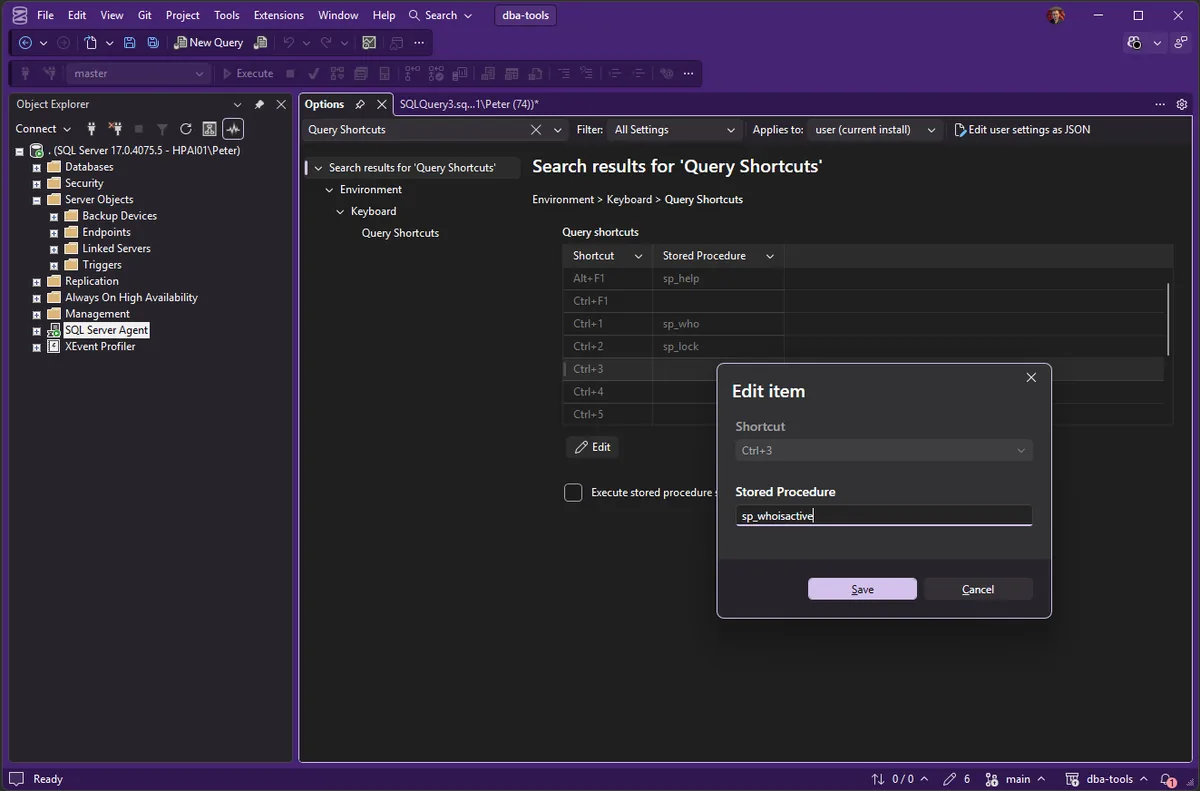
Mappings Worth Having
| Slot | Procedure | Why |
|---|---|---|
Ctrl+3 | sp_whoisactive | The first question in every incident: what is running right now. |
Ctrl+4 | sp_helptext | Select a proc name, get its definition. |
Ctrl+5 | A custom blocking or health proc of your own | Your most-typed diagnostic deserves a key. |
Keep the set small. Three shortcuts you remember beat eight you have to look up.
Frequently Asked Questions
Why does my new shortcut do nothing?
Almost always the window: query windows keep the shortcut set they opened with, so open a new one after saving changes. Also check the procedure exists in the database your connection is pointed at, the shortcut runs against the current connection.
Can a shortcut run a whole script file?
No, the mechanism runs a procedure (or a short statement typed into the slot), not a file. For script libraries, keep them in a repo and see Use Git in SSMS.
Related
- View the Definition of a Stored Procedure, and why a NULL result usually means permissions, not a missing object
- SSMS: The Complete Guide, including the keyboard shortcuts worth knowing
- Use Git in SSMS
- What’s New in SSMS 22 for DBAs
Summary
Query shortcuts run a procedure against the current connection, pass your selected text as the parameter, and are fully mappable from Ctrl+3 onward under Tools, Options, Keyboard, Query Shortcuts. Put sp_whoisactive on Ctrl+3, open a new window, and the most useful diagnostic in the ecosystem is one keypress away.
Leave a Reply