
Dark mode in SQL Server Management Studio is finally a supported setting rather than a registry hack. It arrived with SSMS 21 and carries through SSMS 22, where theming has been extended release by release. If you are on SSMS 18 or 19, the honest answer is that dark mode was never properly supported there, and the fix is the upgrade, not the workaround.
The Steps
- Open Tools > Options.
- Go to All Settings > Visual Experience.
- Set Color theme to Dark.
- Select OK. The change applies immediately to the editor and Object Explorer.
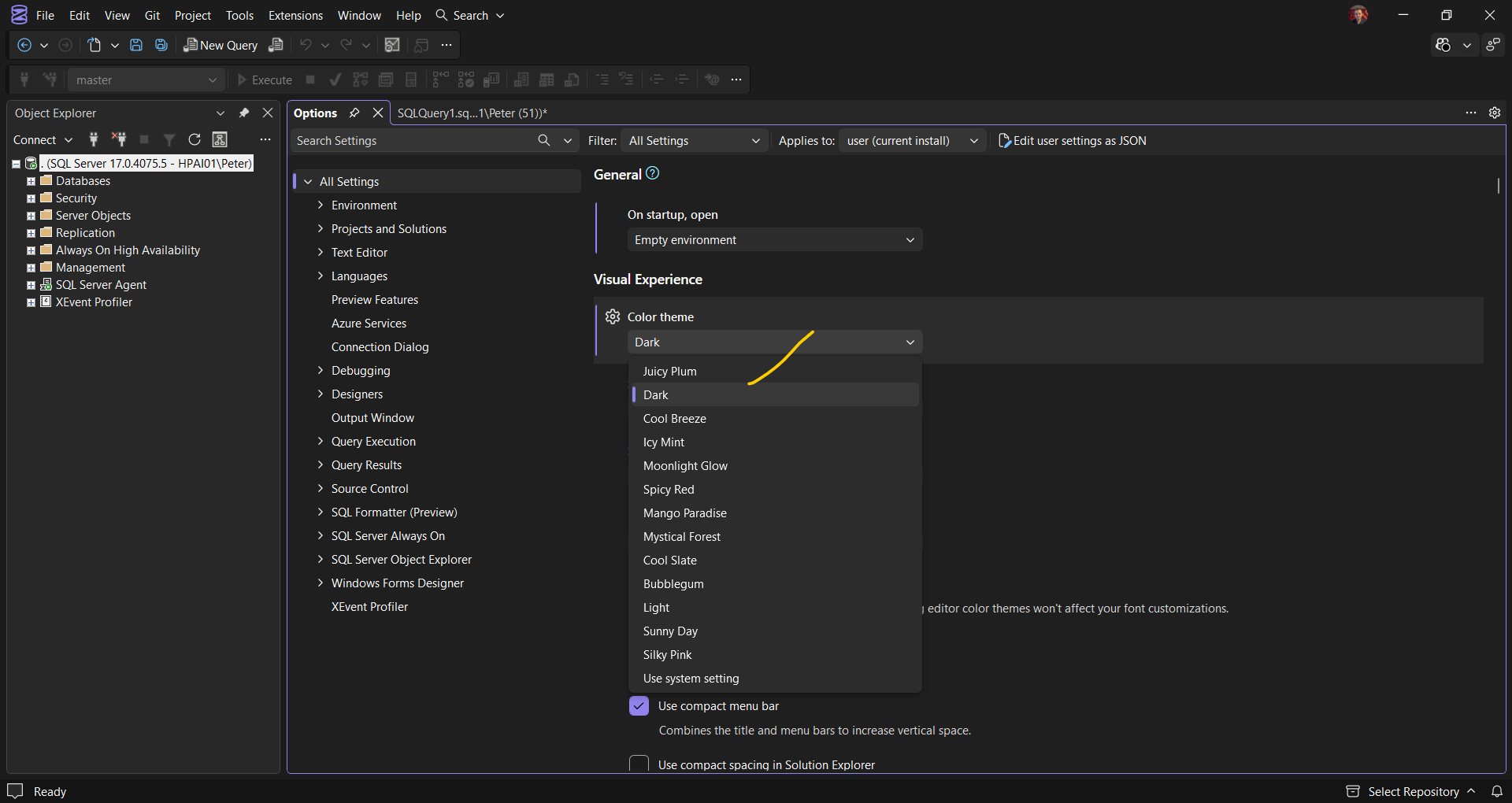
SSMS 22 also retired the old Blue theme and added new themes in its place, so the same dropdown is where you pick any of them. Dark is not the only answer either. The same dropdown carries the rest of them, and it is worth spending a minute finding the one you actually like looking at all day. I change mine every few months, usually at the same time as a desktop tidy, and the switch on its own is enough to stop the tool feeling stale.
Why Some Dialogs Are Still Light
Dark theme coverage is being worked through the product dialog by dialog rather than switched on everywhere at once. The query editor and Object Explorer are themed straight away, the results grid follows after a restart, and some dialogs at the edges still come up light.
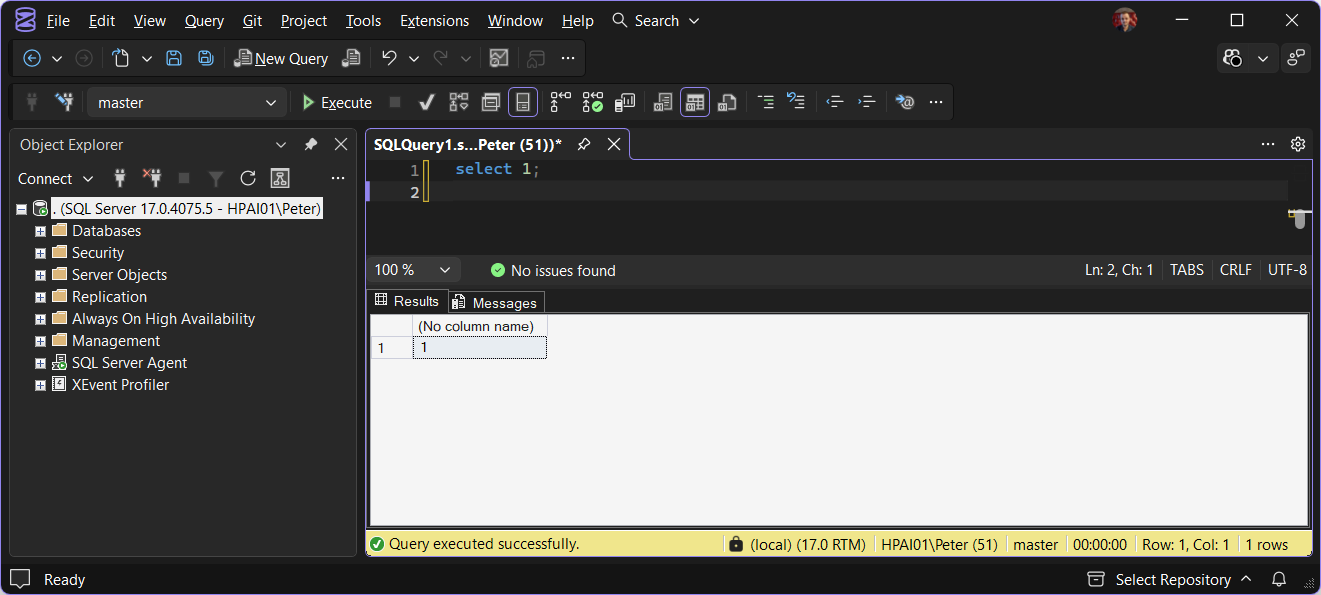
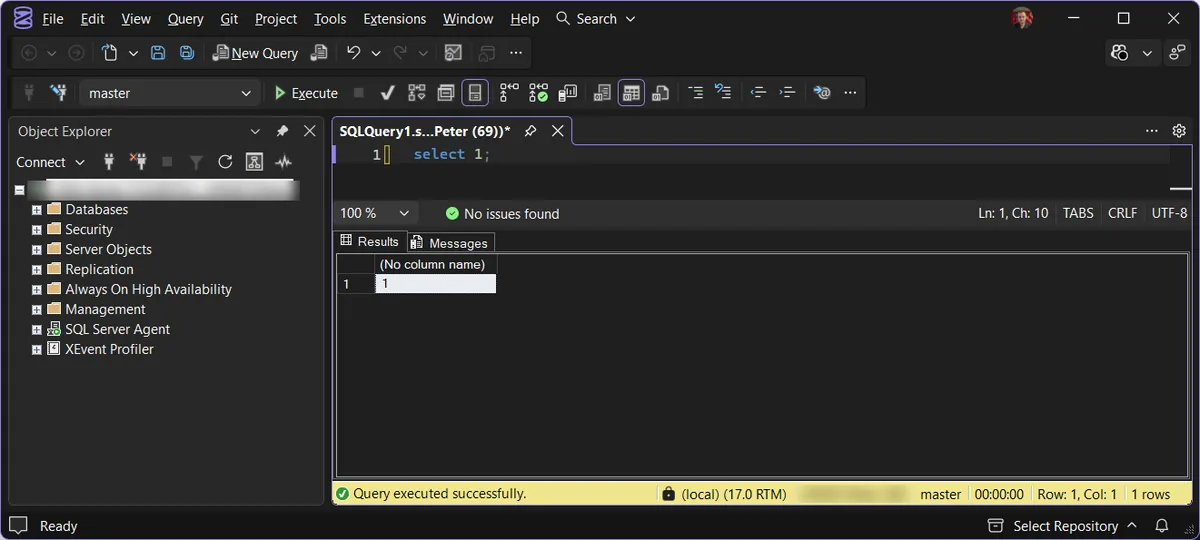
Coverage has improved through the 22.x releases, 22.0 extended it to the Azure Storage connection and Registered Servers dialogs and 22.9 improved theming in the connection dialog and the Database DevOps dialogs, so the odd white flash is a known state, not a broken install.
Frequently Asked Questions
Can I get dark mode in SSMS 18 or 19?
Not supported. The old community workaround edited a package definition file to unhide the theme, and it left many dialogs unusable. SSMS 21 is free, installs alongside your instance tooling, and does dark mode properly, that is the fix.
Does dark mode change the results grid?
Yes, in SSMS 21 and later, but not until you restart it. Set the theme and the grid stays white in the session you are in; restart SSMS and it comes up dark. That catches people out and reads like the theme is broken when it is not. If you want the grid larger rather than darker, SSMS 22 also lets you zoom the results grid independently of the editor.
Related
- SSMS: The Complete Guide, the hub this post belongs to
- What’s New in SSMS 22 for DBAs
- How to Show Line Numbers in SSMS
- Install and Update SSMS
Summary
Tools, Options, Environment, General, Color theme, Dark. Supported since SSMS 21, extended through SSMS 22, applied instantly. A few edge dialogs still render light while Microsoft works through the surface area, and anything older than SSMS 21 should be upgraded rather than hacked.
Leave a Reply