
Azure Data Studio was retired on 28 February 2026. No more updates, no security fixes, no support, and the GitHub repository is archived read-only. If it is still on your machine it still opens, but it is now unpatched software holding your saved connections. Most of what it did now lives in two places: SSMS 22 for administration, and VS Code with the MSSQL extension for everything cross-platform.
Production DBAs or DBA Developers: Who Actually Lost Something
For a production DBA, like me, losing ADS is no loss. We never moved across. The work that fills a production DBA’s day was always in SSMS, and most of it never reached ADS at all:
- Maintenance Plans. No designer in ADS, ever.
- SQL Server Agent. Only a preview extension, never the job, operator and alert management SSMS has.
- The Properties dialogs. Server, database and login properties, the right-click on everything in Object Explorer.
- Activity Monitor, the Tuning Advisor, the Always On and replication wizards. SSMS only.
If you look after production estates, nothing changes. Keep SSMS current and carry on.
DBA developers are the ones who had a reason to use it. The people writing the schema changes, the deployment scripts and the release pipeline got real things from ADS:
- It ran on a Mac and on Linux, so a developer laptop did not need Windows.
- Notebooks. The queries, the notes and the last results saved together in one file. This is the one a production DBA could have used too, as an incident runbook, and SSMS still has nothing like it.
- Git, themes and Schema Compare, years before SSMS. SSMS only got Git and themes in version 21, and Schema Compare in 22.
- It was light. Quick to start, with PostgreSQL extensions alongside SQL Server in the same window.
That is who has the real move to make. Their new home is VS Code with the MSSQL extension, which is where Microsoft has put the notebooks, the projects and the cross-platform work.
Where Each Job Went
| What you used ADS for | Where it lives now | Worth knowing |
|---|---|---|
| SQL Server Agent jobs | SSMS | No Agent tooling in the MSSQL extension. SSMS is the supported home for Agent. |
| Profiler, watching live activity | SSMS XEvent Profiler, or Query Profiler in VS Code | Both sit on Extended Events, not the old trace. |
| Schema Compare | SSMS 22, Schema Compare | Generally available since SSMS 22.10.2. The MSSQL extension has its own too. |
| SQL database projects | SSMS 22 Database DevOps workload, or VS Code | The workload became generally available in 22.10.2. Existing projects open without conversion. |
| Notebooks | SQL Notebooks in the MSSQL extension for VS Code | SSMS has no notebooks. Your .ipynb files open in VS Code. |
| Git on your scripts | SSMS 22, Git in SSMS, or VS Code | Both have it built in now. |
| Themes | SSMS 22, themes, dark included | One of the reasons people ran ADS. SSMS has them now. |
| Working from a Mac or Linux | VS Code with the MSSQL extension | SSMS is Windows only, so this is the one job SSMS cannot take. |
| DACPAC and BACPAC import/export | SSMS, VS Code, or SqlPackage | SqlPackage is the one to script. |
| Flat-file import | SSMS Import Flat File, or the MSSQL extension | BULK INSERT and PowerShell for anything repeatable. |
| Azure SQL migration extension | Azure Arc migration assessment, DMS | Retired with ADS. |
| MySQL, Cosmos DB migration | Nothing yet | Microsoft lists both as pending. PostgreSQL has a VS Code extension. |
Microsoft’s own list is on What’s Happening with Azure Data Studio. The table above is the same mapping, sorted by what a DBA reaches for first.
Which One to Install
- You administer SQL Server on Windows: SSMS 22, and you probably have it already. Install and Update SSMS gets you to the current release, which matters because Schema Compare and the Database DevOps workload only became generally available in 22.10.2.
- You work from a Mac or Linux, or you lived in notebooks: VS Code with the MSSQL extension. It covers queries, backup and restore, Schema Compare, Query Profiler and SQL Notebooks. It has no SQL Server Agent, so jobs still need SSMS on a Windows box.
- You used ADS for PostgreSQL or MySQL as well: PostgreSQL has its own VS Code extension. MySQL has no replacement yet.
Moving to VS Code, Step by Step
I installed the extension on the lab to see exactly what someone leaving ADS lands in today, version 1.46.0. This is the route in order, and what turned up on the way. SSMS has no ADS import at all, so if SSMS is your new home, add the servers there by hand and skip this section.
1. Install the Right Extension
Open Extensions with Ctrl+Shift+X, search for sql server, and install SQL Server (mssql) by Microsoft, the one with the verified badge. Watch the list: SQL Server Client (mssql) sits right under it, struck through, and is a different, deprecated extension.
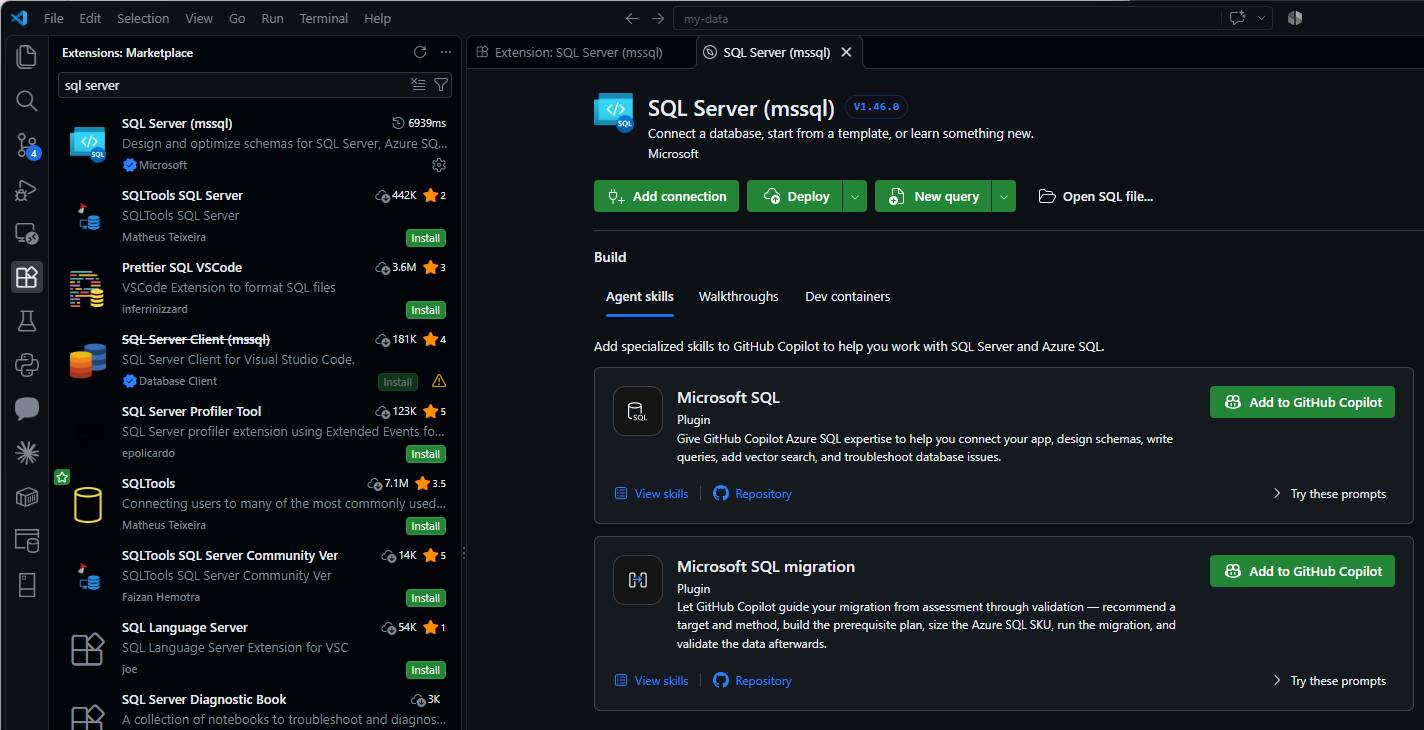
Once it is installed its own page opens: Add connection, New query, Open SQL file and Deploy along the top, and a Build area underneath that offers GitHub Copilot agent skills. More on those in step 3.
2. Bring Your ADS Connections Across
If this machine had Azure Data Studio, Microsoft documents an import inside the extension: an Azure Data Studio Migration dialog, reached from the Command Palette (Ctrl+Shift+P, type Azure Data Studio) or from the notification after install. It reads your ADS settings file and brings over:
- Connection groups, with their names and colours.
- Connections, with server, database and authentication details.
- Your editor settings, and the MSSQL Database Management Keymap so F5, Ctrl+L and Ctrl+M do what your fingers expect. Key bindings you customised yourself do not come across.
On the lab it did not offer the import, so do not hunt for it. Start from Add connection on the extension page and add your servers there; it takes a minute per server.
3. Optional: the Copilot Migration Skills
If you use GitHub Copilot, the Build area offers two plugins. Microsoft SQL helps with everyday work: connecting, schemas, queries. Microsoft SQL migration is the interesting one for an ADS user, because it covers the ground the retired ADS migration extension did. Add it and it gives you four ready prompts, each one Open in Copilot away:
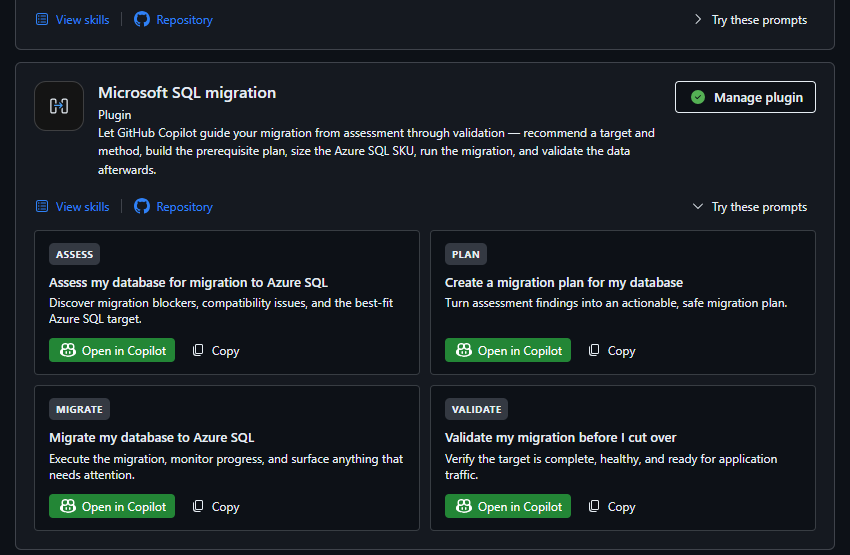
- Assess: find migration blockers, compatibility issues and the best-fit Azure SQL target.
- Plan: turn the assessment into a migration plan.
- Migrate: run the migration and watch its progress.
- Validate: check the target is complete and healthy before you cut over.
It is AI guidance, not a migration tool with its own guarantees. Treat what it produces like any plan someone hands you: check it against a test migration first. For the moves this site covers, the standalone migration runbook is the checklist to hold it against.
Before You Uninstall It
- Open your notebooks in VS Code once and check they run. Saved results go with the file; the connection does not.
- List the extensions you had installed. Anything outside the table above, a MySQL connection for example, has no home yet.
- Check for scheduled tasks or shortcuts that launch
azuredatastudio.exe.
Common Questions
Does Azure Data Studio stop working after 28 February 2026?
An installed copy still opens and connects. It gets no updates or security fixes, so the risk grows with every month it stays installed. The final release was 1.52.
Is SSMS being retired too?
No. SSMS is where Microsoft is putting the investment: version 22 added Schema Compare, Git integration and GitHub Copilot. Microsoft calls it the supported home for SQL Server Agent and administration.
Do my SQL database projects need converting?
No. They open as they are in VS Code with the SQL Database Projects extension, in Visual Studio with SSDT, or in SSMS 22 with the Database DevOps workload.
Can I still download Azure Data Studio?
Microsoft keeps the last build as an unsupported archive. Use it to recover a setting or a notebook, not as a daily tool.
Related
- SSMS: The Complete Guide, the hub this post belongs to
- What’s New in SSMS 22 for DBAs
- SSMS Schema Compare, the feature most people kept ADS for
- GitHub Copilot in SSMS
- sqlcmd Examples, for the jobs no editor needs to do
Leave a Reply