
Copilot in SSMS is signed in to the wrong GitHub account: your personal one instead of the work one that holds the Copilot licence, or an account whose free allowance has run out. The chat window has no sign-out button, so it is not obvious where to change it. The switch lives on your profile picture at the top right of SSMS, and it takes a couple of minutes including a restart.
Switch the Account
- Click your profile picture at the top right of the SSMS window, next to the minimise button. The card lists the accounts SSMS knows, with GitHub accounts in their own section.
- Click Add another account and choose GitHub. A browser window opens for the GitHub sign-in. Sign in with the account that has Copilot.
- Back in SSMS the new account appears on the card.
- Click the … beside the new account and choose Set as active account. It now carries the blue Active badge.
- Send a message in Copilot Chat. If it asks you to sign in, sign in with the same account, then restart SSMS. On the lab, Copilot only answered as the new account after the restart.
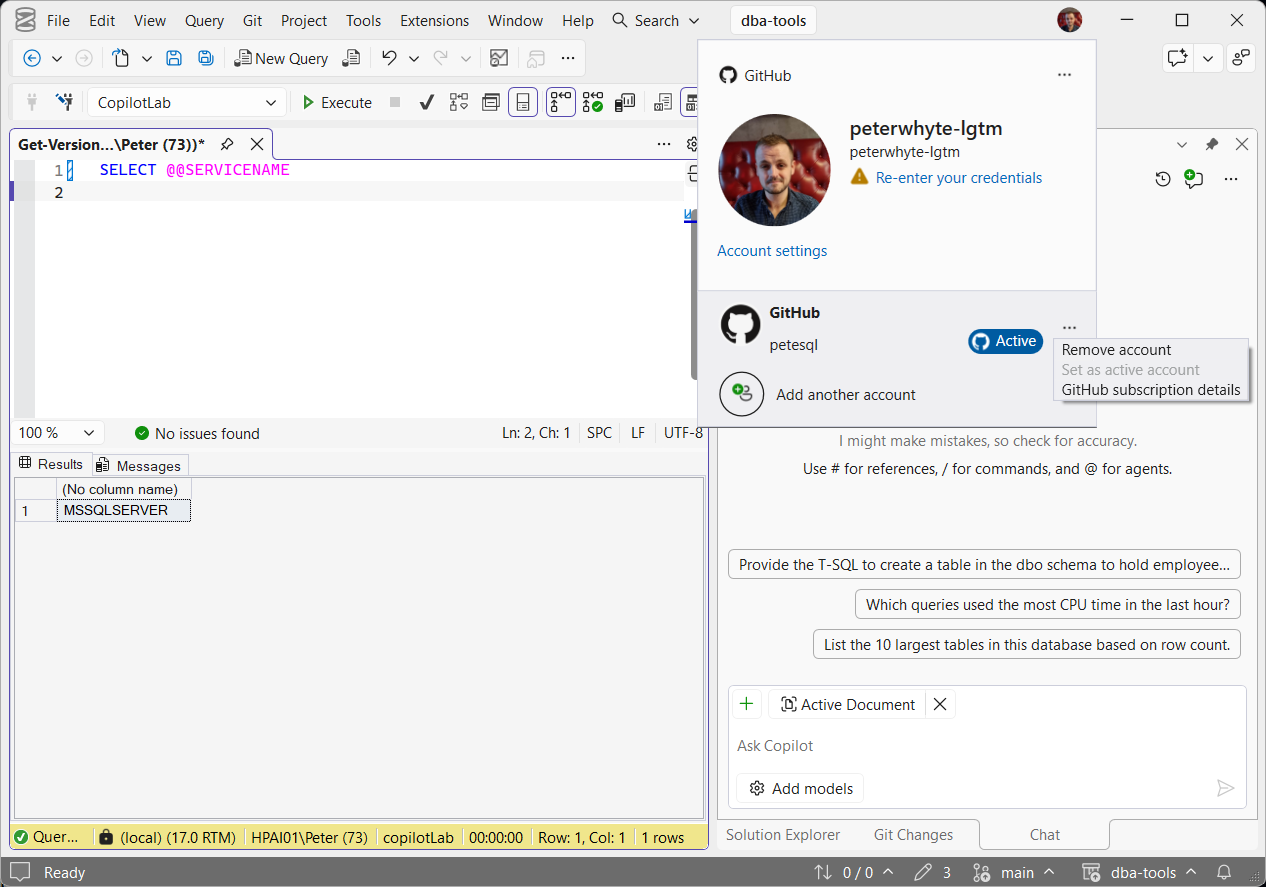
Set as active account is greyed out on the account that is already active, as in the capture. The same menu has Remove account to drop the old one, and GitHub subscription details to check which plan an account is on before you make it active.
What the Profile Card Tells You
| On the card | What it means | What to do |
|---|---|---|
| Active badge | The account Copilot uses. Only one GitHub account is active at a time. | Make sure it is the one with the Copilot licence. |
| Re-enter your credentials | That account’s sign-in has expired. It happens on a timeout and is expected. | Click it and sign in again, or switch to another account. |
| Set as active account greyed out | This account is already the active one. | Nothing. |
| Account settings | The full list of accounts SSMS has signed in with. | Use it when an account will not refresh: remove it and add it back (below). |
Copilot Still Inactive or Not Answering
The Copilot button at the top right of SSMS shows Copilot’s state, and its dropdown has the fixes. Microsoft’s install and status page and troubleshooting page list these causes:
| What you see | Likely cause | Fix |
|---|---|---|
| Badge inactive | Not signed in, or the active account has no Copilot subscription. | Switch to the account that has one (above), or sign up for Copilot Free in the chat window. |
| Copilot is temporarily unreachable | Network, the Copilot service being down, credentials needing a refresh, or Copilot disabled by an administrator. | Copilot button → Refresh your credentials. Check GitHub Status. Ask IT if Copilot is disabled for your licence. |
| No refresh option for the account | A known SSMS and Visual Studio issue. | Remove the GitHub account and add it again (Developer Community report). |
| Badge green, but chat stops answering | Copilot Free’s monthly chat allowance is used up. The badge stays green. | Copilot button → Copilot Free Status to confirm. Switch to a licensed account, or wait for the monthly reset. |
The last row is the easy one to miss: nothing looks broken, the answers just stop. If a free personal account and a work licence are both signed in, check which one is active first.
Copilot’s logs are in %TEMP%\VSGitHubCopilotLogs, %LOCALAPPDATA%\ssmscopilot and %LOCALAPPDATA%\Microsoft\SSMS\22.0_*\SSMSGitHubCopilot if you need to raise it with Microsoft (Help → Send Feedback → Report a Problem).
Free Plan or a Licence
Copilot Free works in SSMS with a limited number of chat responses a month: in the chat window choose Sign up for Copilot Free. It is not available to an account that already gets Copilot through an organisation, or that has Copilot Pro. GitHub’s plans page has the current limits. For work on company databases, the account to make active is usually the one your organisation licenses, because that is where its Copilot policies apply.
This Is Not Your SQL Server Login
The GitHub account only decides who Copilot is licensed to. Queries Copilot runs on SQL Server use your database connection, and by default your permissions. To run SSMS itself as another Windows account, see Open SSMS as a Different Domain User.
Frequently Asked Questions
Do I need to restart SSMS after switching?
Expect to. The account shows on the profile card as soon as the sign-in finishes, but the first chat message asked for a sign-in again, and Copilot needed a restart of SSMS after that. Restart, then start a new chat.
Where is the sign-out button?
There is not one in the chat window. Use the profile picture at the top right: Remove account takes an account off, and Set as active account changes which one Copilot uses.
Can I keep two GitHub accounts signed in?
Yes. Both stay on the profile card, and only the one marked Active is used by Copilot.
Copilot is not installed at all. Where do I start?
If the Copilot button offers Install Copilot, it is not installed: click Install Copilot and the Visual Studio Installer opens with GitHub Copilot ticked. GitHub Copilot in SSMS covers setup and what to use it for.
Does the GitHub account change what Copilot can see in my databases?
No. Database access comes from your SQL Server connection, not from GitHub.
Related
- GitHub Copilot in SSMS: Setup, and What a DBA Should Let It Do
- GitHub Copilot Tools, Skills and MCP Servers in SSMS
- The sqldba MCP Server, checked SQL Server answers for AI assistants
- Use Git in SSMS to Version Control Your DBA Scripts
- What’s New in SSMS 22 for DBAs
- Install and Update SSMS
- Azure Data Studio Is Retired: What Replaces It
- SSMS: The Complete Guide, the hub this post belongs to
Leave a Reply