
Most backup checks answer one question: what’s the latest backup. That’s the right question most of the time, but it hides everything that happened before it. A backup job that ran reliably for a year and then quietly changed behaviour 3 weeks ago still passes a “latest backup is recent” check.
This script skips the summary and gives you the raw history instead: every backup event across every database for the trailing 2 months, in one list. That’s what you actually need to spot a pattern, not just a snapshot.
It’s the detail view behind the summary scripts. When something looks wrong in backup coverage or chain integrity, this is where you go to see exactly what happened and when.
Why Database Backup History Matters
A single point-in-time check tells you the current state. History tells you the trend, and trends catch problems that a snapshot can’t:
- A backup job that used to run nightly and now runs every other night, without anyone changing the schedule on purpose
- Backup duration creeping upward over weeks, an early signal of I/O contention or a growing database outrunning its backup window
- Backup size trends that don’t match expected data growth, worth investigating either way
- A gap in the timeline that a “most recent backup” check would never reveal, because the most recent one still looks fine
Raw history is also the evidence a compliance review or post-incident investigation actually wants: not “is it fine right now,” but “show me what actually happened.”
When to Run This Script
- Investigating whether a backup job’s behaviour has changed over time
- Audits or compliance reviews that need historical evidence, not a current snapshot
- After a backup job or schedule change, to confirm the new pattern is what you expect
- Capacity planning, using backup size trends as a proxy for data growth
- Incident investigation, to reconstruct exactly what backup activity happened around a specific time
The Script
Run the following script against your SQL Server instance.
- Tested on: SQL Server 2025 (RTM CU8), Windows lab instance
- Last verified: 2026-10-23 (run on the lab instance)
- Permissions: db_datareader on msdb
- Safety: read-only, impact low
/*
Script Name : Get-DatabaseBackupHistory
Category    : backups-and-recovery
Purpose     : Review detailed backup history for all databases over the last 2 months.
Author      : Peter Whyte (https://sqldba.blog/dba-scripts-get-database-backup-history/)
Requires    : db_datareader on msdb
*/
-- SAFE:ReadOnly
-- IMPACT:Low
SET NOCOUNT ON;

DECLARE @MonthsBack INT = 2;

SELECT
    bs.server_name,
    bs.database_name,
    bs.user_name,
    bs.backup_start_date,
    bs.backup_finish_date,
    bs.type,
    CAST(bs.backup_size / 1024.0 / 1024 AS DECIMAL(18,2)) AS backup_size_mb,
    bs.recovery_model
FROM msdb.dbo.backupset AS bs
WHERE bs.backup_start_date >= DATEADD(MONTH, -@MonthsBack, GETDATE())
ORDER BY bs.backup_finish_date DESC;
The script returns one row per backup event recorded in msdb.dbo.backupset over the trailing 2 months, newest first.
How To Run From The Repo
Clone DBA Tools, initialize and run the script:
# Clone dba-tools repo:
git clone https://github.com/peterwhyte-lgtm/dba-tools

# Initialize environment:
cd dba-tools
.\Initialize-Environment.ps1

# Review backup history for the last 2 months across all databases:
.\run.ps1 Get-DatabaseBackupHistory

# To run against a remote sql server:
.\run.ps1 Get-DatabaseBackupHistory -ServerInstance SQLSERVER01
This script lives in the repo at:
Example Output
Run against a lab instance, newest backup first.
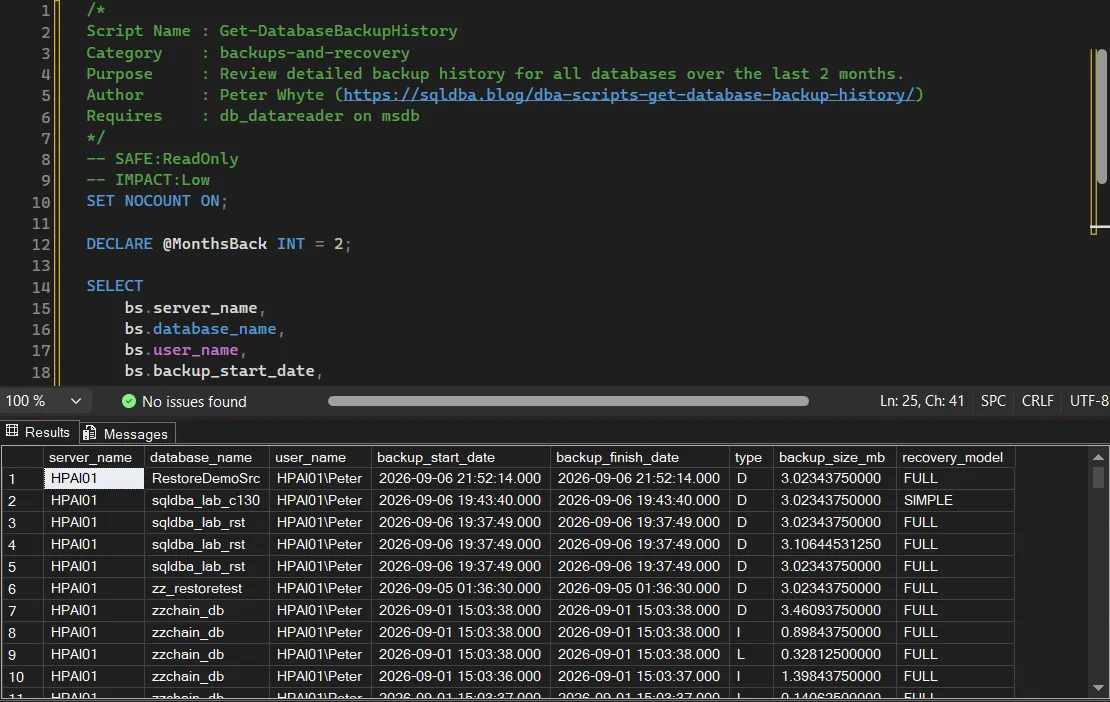
Every row is one backup event, so the same database repeats down the list. The zzchain_db rows carry all three types against one database, a full (D) with differentials (I) and log backups (L) around it, while the databases above them show full backups only. Read down one database’s rows for the cadence rather than across a single row.
Understanding the Results
server_namedatabase_nameuser_namebackup_start_datebackup_finish_datetypebackup_size_mbbackup_size. This is the size of the data backed up, not the file on disk: with backup compression on, the on disk figure is compressed_backup_size, which this script does not return.recovery_modelThere’s no severity banding here; this is a timeline, not a health check. Read it for pattern, not for pass/fail:
A steady, regular cadence is what you want to see: full backups on schedule, differentials and log backups filling the gaps between them at consistent intervals.
A single cluster of activity followed by silence is a real problem even though no individual row looks wrong. It usually means a scheduled job stopped running, or was only ever run once manually and never actually scheduled.
Backup size or duration drifting upward over successive rows for the same database is worth tracking even when nothing is currently broken. It’s an early signal, not an incident.
Common Causes
- A backup job that ran once as a manual or one-time task and was never actually put on a schedule
- A scheduled job that started failing silently, with no failure alerting configured to catch it
- A change to server or storage that stopped the job (a disabled SQL Agent, a moved backup target, a changed service account) without anyone connecting the dots back to backup history
- Migration or lab databases seeded once and never folded into a real recurring backup schedule
Best Practices
- Review backup history, not just latest backup status, on a regular cadence
- Alert on backup job failures directly rather than relying on someone noticing a gap in history later
- Track backup duration and size trends per database, not just presence or absence of a recent backup
- When onboarding an inherited server, pull the full history first; it tells you what the backup regime has actually been doing, not just what it’s configured to do
Frequently Asked Questions
Where does SQL Server store backup history?
In msdb, mainly backupset, backupmediafamily, and backupfile. This history persists until a cleanup job or maintenance plan prunes it with sp_delete_backuphistory (MS Docs), since SQL Server never trims it on its own, so it’s usually available well beyond the 2 months this script defaults to.
How far back can I query backup history?
As far as msdb retention allows, which depends on whether history cleanup jobs are running and how they’re configured. Change the @MonthsBack variable at the top of the script to look further back if your instance retains more.
Does this replace a backup monitoring tool?
Not for alerting. This is a manual, on-demand history query, not a scheduled check with notifications. Pair it with proper job failure alerting; use this script when you need to see the actual pattern behind a concern, not to be told one exists.
Summary
A recent backup and a healthy backup regime aren’t the same thing. This script trades the reassuring single-row snapshot for the full timeline, because the timeline is what actually shows whether a backup job is behaving the way you think it is.
Pull this whenever “latest backup” isn’t enough, whether that’s an audit, an investigation, or just getting to know a server you’ve inherited. The pattern tells you more than any single row ever will.
Related
You may also find these useful:
- DBA Scripts: Backups and Recovery
- Generate Backup and Restore Scripts
- Get Backup Chain Integrity
- Get Backup Coverage
- Get Backup Encryption Status
- Get Backup Restore Duration Estimate
- Get Backup Size Trend
- Get Last Database Backup Times
- Get Backup Restore Progress
- msdb Is Growing: Purge Backup, Job and Mail History Safely, what to do when the table behind this report is the thing filling the drive
- Get Last Restore History
- DBA Scripts: The Complete Guide, the map across every script on this site
Leave a Reply