
Checking the last backup times is one of the first things worth doing when you sit down at a SQL Server instance, whether it’s one you’ve owned for years or one you inherited an hour ago. Before making changes, running maintenance, or troubleshooting an issue, you need to know whether a reliable recovery point actually exists.
This script shows the most recent full, differential, and log backup for every user database in one pass, so you can see the instance’s backup posture at a glance rather than checking databases one at a time. Note the word user: it filters on database_id > 4, so master and msdb are not in the result. Those two are worth backing up and are the ones most often forgotten on an inherited instance, so check them separately rather than reading a clean report here as an all-clear.
Why Last Database Backup Times Matters
Backups are easy to assume exist and expensive to discover missing:
- Taking ownership of a new or inherited instance is the moment you most need an honest answer, not an assumed one
- Investigating recovery options during an incident starts here, before anything else
- Verifying backup jobs after a change or a reported failure needs a direct check, not a dashboard that might be stale
- Confirming coverage before maintenance or a migration avoids finding out about a gap at the worst possible time
If a database has no recent full backup, everything else on the list is a secondary priority.
When to Run This Script
- Routine SQL Server health checks
- Taking ownership of a new or inherited instance
- Investigating recovery options during an incident
- Verifying backup jobs after changes or a reported failure
- Confirming backup coverage before maintenance or a migration
The Script
Run the following script against your SQL Server instance.
- Tested on: SQL Server 2025 (RTM CU8), Windows lab instance
- Last verified: 2026-08-30 (saved output from a real run, Get-LastDatabaseBackupTimes-20260830-215910.csv)
- Permissions: db_datareader on msdb
- Safety: read-only, impact low
Any thresholds in this script are operational heuristics; claim types are labelled where they appear in the text.
/*
Script Name : Get-LastDatabaseBackupTimes
Category    : backups-and-recovery
Purpose     : Display the latest backup timestamp per type (Full, Differential, Log) per database.
Author      : Peter Whyte (https://sqldba.blog/get-last-database-backup-times-in-sql-server/)
Requires    : db_datareader on msdb
HealthCheck : Yes
Notes       : last_log_backup means "the latest log backup that TRUNCATED the log", not simply
              the latest log backup: copy-only log backups are excluded (see the CTE below).
              That is the right signal for "is this log being managed", and it is deliberately
              not the same question as "is this database recoverable to a point in time" — a
              database whose only log backups are copy-only shows NULL here and still has
              restorable log records. Read it alongside Get-RecoveryModelAudit.

              Only ONLINE databases are reported: an offline database cannot be backed up, and
              including it produced a row that looked like a database with no backups at all.
*/
-- SAFE:ReadOnly
-- IMPACT:Low
SET NOCOUNT ON;

WITH latest_backups AS (
    SELECT
        bs.database_name,
        bs.type,
        bs.backup_finish_date,
        CAST(bs.backup_size / 1024.0 / 1024 AS DECIMAL(18,2)) AS backup_size_mb,
        ROW_NUMBER() OVER (
            PARTITION BY bs.database_name, bs.type
            ORDER BY bs.backup_finish_date DESC
        ) AS rn
    FROM msdb.dbo.backupset AS bs
    /* Copy-only LOG backups are excluded, so last_log_backup means "latest log backup that
       truncated the log" rather than "latest log backup". Review-HealthCheckOutput.ps1 turns
       this column straight into the "log will grow unbounded" finding, and a copy-only log
       backup would make that finding vanish while the log kept growing. Copy-only FULL
       backups are kept: a copy-only full is a valid restore base. */
    WHERE bs.type <> 'L' OR bs.is_copy_only = 0
)
SELECT
    d.name AS database_name,
    d.recovery_model_desc,
    MAX(CASE WHEN lb.type = 'D' THEN lb.backup_finish_date END) AS last_full_backup,
    MAX(CASE WHEN lb.type = 'D' THEN DATEDIFF(HOUR, lb.backup_finish_date, GETDATE()) END) AS full_backup_age_hours,
    MAX(CASE WHEN lb.type = 'D' THEN lb.backup_size_mb END) AS full_backup_size_mb,
    MAX(CASE WHEN lb.type = 'I' THEN lb.backup_finish_date END) AS last_diff_backup,
    MAX(CASE WHEN lb.type = 'I' THEN DATEDIFF(HOUR, lb.backup_finish_date, GETDATE()) END) AS diff_backup_age_hours,
    MAX(CASE WHEN lb.type = 'L' THEN lb.backup_finish_date END) AS last_log_backup,
    MAX(CASE WHEN lb.type = 'L' THEN DATEDIFF(HOUR, lb.backup_finish_date, GETDATE()) END) AS log_backup_age_hours
FROM sys.databases AS d
LEFT JOIN latest_backups AS lb
    ON d.name = lb.database_name
   AND lb.rn = 1
WHERE d.database_id > 4
  AND d.state_desc = 'ONLINE'
GROUP BY d.name, d.recovery_model_desc
ORDER BY d.name;
The script returns one row per database, with the most recent full, differential, and log backup timestamps and ages side by side.
How To Run From The Repo
Clone DBA Tools, initialize and run the script:
# Clone dba-tools repo:
git clone https://github.com/peterwhyte-lgtm/dba-tools

# Initialize environment:
cd dba-tools
.\Initialize-Environment.ps1

# Show last full, differential, and log backup times for all databases:
.\run.ps1 Get-LastDatabaseBackupTimes

# To run against a remote sql server:
.\run.ps1 Get-LastDatabaseBackupTimes -ServerInstance SQLSERVER01
This script lives in the repo at:
sql/backups/Get-LastDatabaseBackupTimes.sqlpowershell/wrappers/backups/Get-LastDatabaseBackupTimes.ps1
Example Output
Run against a lab instance.
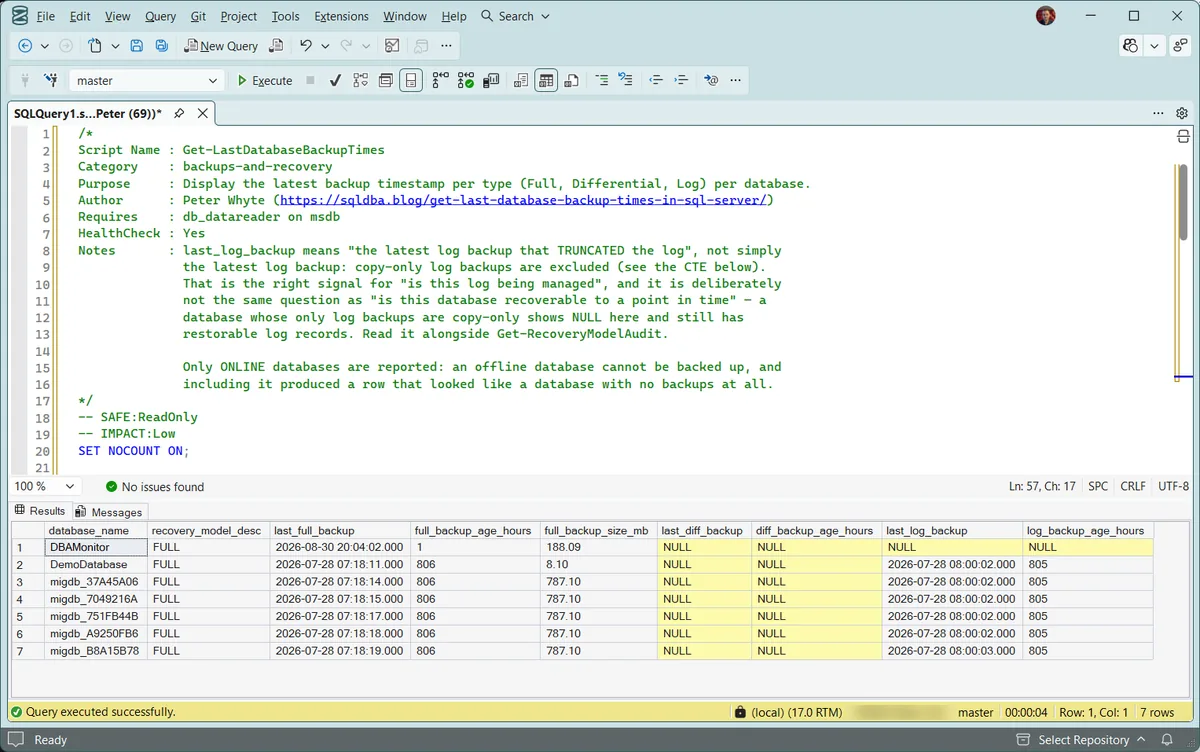
The top row has a full backup from that morning and nothing in either log column, so its log has never been truncated. Every other row has a full and a log backup from the same July morning and nothing since, which is a backup schedule that stopped rather than one that never existed. No row here has a differential backup at all.
Understanding the Results
There is no single pass or fail column here. Read the three backup columns together for each database, and read last_log_backup knowing exactly what it counts.
database_namerecovery_model_desclast_log_backup is correct and expected, because its log truncates at every checkpoint. A FULL or BULK_LOGGED database with the same gap is the finding below.last_full_backuplast_log_backupfull_backup_age_hourslog_backup_age_hoursdiff_backup_age_hourslast_diff_backupfull_backup_size_mbmsdb.dbo.backupset is local to the instance that ran the backup, not shared across the group. If log backups run on a secondary, the primary shows an empty last_log_backup while truncation is happening perfectly well elsewhere — and connecting through the listener means you may not be looking at the replica you think you are. The same applies after msdb history cleanup or an msdb restore: the backups happened, the rows did not survive.Best Practices
- Check this on every new or inherited instance before doing anything else
- Don’t stop at the full backup column; a FULL recovery model database with no log backups is still exposed
- Cross-check any surprising result against
msdbretention settings, since aggressive history cleanup can make a genuinely backed-up database look worse than it is - For a scored, worst-first view instead of a flat list, pair this with Get Backup Coverage, which adds a status flag on top of the same underlying data
- For full historical detail rather than just the latest backup, pair this with Get Database Backup History
Microsoft’s reference covers backupset and sys.databases in full.
Related Scripts
You may also find these scripts useful:
- Recovery Model Audit — the page to open when
last_log_backupis empty on a FULL recovery database - Backup Coverage
- Database Backup History
- Backup Chain Integrity
- Backup Encryption Status
- Backup and Restore Duration Estimate
- Generate Backup and Restore Scripts
- Backup and Restore Progress
Frequently Asked Questions
How often should I check last backup times?
As part of every routine health check, and always as a first step on any server you didn’t personally configure. It takes one query and answers the single most important question about a database’s recoverability.
Does a recent full backup mean the database is fully protected?
Not on its own. A FULL recovery model database also needs regular log backups for point-in-time recovery. Check all three columns, full, differential, and log, not just the full backup date.
Why would msdb show no backup for a database I know was backed up?
Backup history in msdb can be pruned by cleanup jobs or maintenance plans. If a result looks wrong, check the actual backup files on disk before assuming the backup never happened.
Summary
A quick “last backup times” check is one of the simplest, highest-value things you can run against a SQL Server instance. It catches most coverage problems early and takes one query to run.
Make it part of your baseline health checks, and treat any missing or unexpectedly old result as something to chase down immediately, not something to note and move past. Recovery is only possible before you find out the hard way, never after.
Leave a Reply