
Planning a maintenance window is a guessing game if you don’t know how long your own backups actually take. “It usually takes about an hour” is a guess. A throughput figure calculated from your own backup history, applied to the size of what you’re about to back up or restore, is a real estimate.
This is a different question from watching a backup that’s already running. Get Backup and Restore Progress answers “how much longer does this one have.” This script answers “how long should I plan for,” before anything has started, using the throughput your own instance has actually produced in the past.
The script pulls every database’s backup history from msdb and calculates size, duration, and MB/sec throughput per database, giving you a real baseline instead of a guess.
Why Backup Restore Duration Estimate Matters
Maintenance windows have hard edges. Knowing roughly how long a backup or restore will take, before you start it, is what makes a window plannable instead of hopeful:
- A multi-terabyte database’s backup duration is what determines whether a nightly maintenance window is realistic at all
- Restore duration planning for a disaster recovery exercise needs a real number, not an assumption carried over from a database that’s since doubled in size
- Throughput (MB/sec) is a more useful baseline than raw duration, since it survives a database growing between now and the next time you need the estimate
- A throughput figure that’s dropped sharply over time is itself a signal worth investigating, disk contention, a changed backup target, or a compression setting that stopped working
When to Run This Script
- Before planning a maintenance window for a large backup or restore
- Ahead of a disaster recovery exercise, to set a realistic time expectation
- When a database has grown significantly and the old “it takes about an hour” estimate no longer holds
- As a periodic check on backup throughput trends, not just a one-off calculation
The Script
Run the following script against your SQL Server instance.
- Tested on: SQL Server 2025 (RTM CU5), Windows lab instance
- Last verified: 2026-08-13 (saved output from a real run, Get-BackupRestoreDurationEstimate-20260813-184205.csv)
- Permissions: db_datareader on msdb
- Safety: read-only, impact low
/*
Script Name : Get-BackupRestoreDurationEstimate
Category    : backups-and-recovery
Purpose     : Analyze backup duration and throughput metrics from msdb for performance baseline.
Author      : Peter Whyte (https://sqldba.blog/dba-scripts-get-backup-restore-duration-estimate/)
Requires    : db_datareader on msdb
*/
-- SAFE:ReadOnly
-- IMPACT:Low
SET NOCOUNT ON;

SELECT
    bs.database_name,
    MAX(bs.backup_size / 1024.0 / 1024) AS backup_size_mb,
    MAX(DATEDIFF(SECOND, bs.backup_start_date, bs.backup_finish_date)) AS duration_seconds,
    MAX(bs.backup_size / 1024.0 / 1024 / NULLIF(DATEDIFF(SECOND, bs.backup_start_date, bs.backup_finish_date), 0)) AS mb_per_second
FROM msdb.dbo.backupset AS bs
GROUP BY bs.database_name
ORDER BY backup_size_mb DESC;
The script returns one row per database, with the largest recorded backup size, its duration, and the resulting MB/sec throughput, calculated from full msdb backup history with no date limit.
How To Run From The Repo
Clone DBA Tools, initialize and run the script:
# Clone dba-tools repo:
git clone https://github.com/peterwhyte-lgtm/dba-tools

# Initialize environment:
cd dba-tools
.\Initialize-Environment.ps1

# Baseline backup duration and throughput per database:
.\run.ps1 Get-BackupRestoreDurationEstimate

# To run against a remote sql server:
.\run.ps1 Get-BackupRestoreDurationEstimate -ServerInstance SQLSERVER01
This script lives in the repo at:
sql/backups/Get-BackupRestoreDurationEstimate.sqlpowershell/wrappers/backups/Get-BackupRestoreDurationEstimate.ps1
Example Output
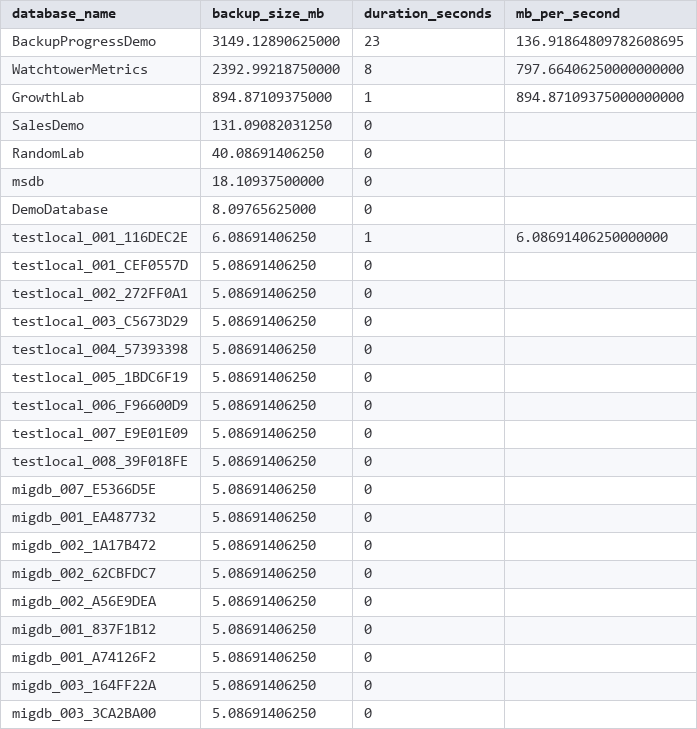
Real output, captured against a local lab instance. BackupProgressDemo was a purpose-built ~3GB test database used for another post’s screenshot and has since been dropped, but its backup history remains in msdb, since this script has no date filter and no filter on whether the source database still exists. msdb itself shows up too, since there’s no exclusion for system databases either. Both are worth knowing about before trusting a row at face value.
Understanding the Results
There’s no severity banding here; this is a baseline, not a health check. Read mb_per_second as the number to actually use:
mb_per_second is the throughput figure to apply to a future backup or restore estimate. Multiply the size of the database you’re planning for by this rate to get a rough duration.
duration_seconds of 0 means the backup completed inside a single second, too fast for DATEDIFF(SECOND, ...) to register a duration, so mb_per_second divides by zero and comes back NULL. This isn’t a data problem; it just means that particular backup is too small to produce a meaningful throughput figure on its own.
A single row per database with no date filter means this pulls the largest backup ever recorded for that database, not the most recent, and not an average. A database that grew significantly since its largest historical backup will have a throughput figure that no longer reflects its current size, even though the number itself is accurate for what it measured.
Common Causes
A throughput number that looks wrong for a database usually traces back to one of these:
- The backup being measured happened on a busier server, a slower disk, or a different backup target than what you’re planning against
- Compression enabled on some backups and not others, since compressed and uncompressed throughput aren’t directly comparable
- A very small database’s duration rounding to 0 seconds, producing a NULL or misleadingly high MB/sec figure
- A now-dropped database’s history still counted, as with
BackupProgressDemoin the example output, quietly skewing an average if you’re aggregating across databases
Best Practices
- Use
mb_per_second, not raw duration, as your baseline; it survives a database changing size between now and the next estimate - Re-run this periodically rather than trusting a single old baseline indefinitely, especially after storage or workload changes
- Treat any database with
duration_secondsat 0 as too small to have a reliable estimate; the query isn’t wrong, there just isn’t enough signal - Cross-check a throughput figure against current conditions before betting a maintenance window on it; disk and network conditions can and do change
Related Scripts
You may also find these scripts useful:
- Backups and Recovery (hub)
- Generate Backup and Restore Scripts
- Backup Chain Integrity
- Backup Coverage
- Backup Encryption Status
- Backup and Restore Progress
- Backup Size Trend
- Database Backup History
- Last Database Backup Times
- Last Restore History
- DBA Scripts: The Complete Guide, the map across every script on this site
Frequently Asked Questions
How is this different from watching a backup that’s currently running?
This script is a planning tool, used before anything starts, based on your own historical throughput. Watching a live operation’s actual progress is a different question, answered by Get Backup and Restore Progress instead.
Why does mb_per_second show as blank for some databases?
The backup completed in under a second, too fast for DATEDIFF(SECOND, ...) to register a duration. Dividing by zero duration returns NULL rather than a number. It’s not an error, just not enough elapsed time to calculate a rate from.
Can I use this to estimate restore time as well as backup time?
As a rough starting point, yes, though restore throughput and backup throughput aren’t always identical on the same hardware. Treat the figure as a reasonable baseline for both, and refine it with real restore timings if you run test restores regularly.
Summary
A maintenance window built on “it usually takes about an hour” is a guess dressed up as a plan. This script replaces the guess with a throughput figure calculated from your own instance’s actual backup history, giving you something real to multiply against the size of whatever you’re about to back up or restore.
Re-run it periodically rather than trusting an old baseline forever, especially after storage changes or significant database growth, and use it as a starting estimate to sanity-check against, not a guarantee.
Leave a Reply