
Max Degree of Parallelism is one of the first things worth checking on any server, and one of the most commonly wrong. The default of 0 lets a single query use every scheduler on the box, which sounds efficient until 20 concurrent OLTP queries all decide to go parallel at once and end up fighting each other for CPU. Cost Threshold for Parallelism, MAXDOP’s quieter partner, is left at its ancient default of 5 in most environments, a number tuned for hardware from two decades ago.
This script reports both settings alongside the actual CPU topology, so you can tell at a glance whether the configuration matches the hardware it’s running on.
Why MAXDOP Configuration Matters
Both settings control when and how aggressively SQL Server splits a query across multiple CPU cores:
- MAXDOP set too high (or left at 0 on a many-core box) lets individual queries consume more CPU than they should, starving concurrent workloads
- MAXDOP set too low forces genuinely large queries to run single-threaded when they’d benefit from parallelism
- Cost Threshold for Parallelism left at the default of 5 means even cheap, everyday queries go parallel, adding scheduling overhead for no real benefit
- Misconfigured MAXDOP is one of the most common findings in any SQL Server performance review, and one of the cheapest to fix
When to Run This Script
- Routine SQL Server health checks
- After migrating to new hardware, a VM resize, or a core-count change
- When diagnosing CXPACKET or CXCONSUMER waits
- Reviewing a server you’ve just inherited
The Script
Run the following script against your SQL Server instance.
/*
Script Name : Get-MaxdopConfiguration
Category    : configuration-and-environment
Purpose     : Show MAXDOP and cost threshold settings alongside current CPU topology.
Author      : Peter Whyte (https://sqldba.blog/dba-scripts-get-maxdop-configuration/)
Requires    : VIEW SERVER STATE
*/
-- SAFE:ReadOnly
-- IMPACT:Low
SET NOCOUNT ON;

/* RECOMMENDED MAXDOP IS COMPUTED, NOT GUESSED. The rule below is Microsoft's published table
   on "Configure the max degree of parallelism Server Configuration Option", for SQL Server
   2016 and later, verified against the live page 2026-09-01:

     single NUMA node, <= 8 logical processors  -> at or under the logical processor count
     single NUMA node,  > 8 logical processors  -> 8
     multiple NUMA nodes, <= 16 per node        -> at or under the logical processors per node
     multiple NUMA nodes,  > 16 per node        -> half the processors per node, capped at 16

   NOTE the 2016 change. Through SQL Server 2014 the multi-NUMA branch simply capped at 8, and
   a great deal of advice still in circulation quotes that older table. This computes the
   CURRENT rule.

   Cost threshold deliberately gets no recommended number. Microsoft does not publish one:
   "The default value of 5 is a starting point, not a recommendation. On modern SQL Server
   systems, raising it can help to keep smaller OLTP queries executing with serial plans."
   The widely repeated "set it to 50" is community advice, not documentation, so this script
   reports the value and says whether it is still the default rather than inventing a target. */
SELECT
    (SELECT value_in_use FROM sys.configurations WHERE name = 'max degree of parallelism')     AS maxdop,
    (SELECT value_in_use FROM sys.configurations WHERE name = 'cost threshold for parallelism') AS cost_threshold_for_parallelism,
    osi.cpu_count                                                                               AS logical_cpu_count,
    osi.hyperthread_ratio,
    osi.cpu_count / osi.hyperthread_ratio                                                       AS physical_cpu_count,
    osi.scheduler_count                                                                         AS online_schedulers,
    osi.numa_node_count,
    osi.cpu_count / NULLIF(osi.numa_node_count, 0)                                              AS logical_cpus_per_numa_node,
    CASE
        WHEN osi.numa_node_count <= 1 THEN
            CASE WHEN osi.cpu_count <= 8 THEN osi.cpu_count ELSE 8 END
        ELSE
            CASE
                WHEN osi.cpu_count / osi.numa_node_count <= 16
                    THEN osi.cpu_count / osi.numa_node_count
                ELSE CASE WHEN (osi.cpu_count / osi.numa_node_count) / 2 > 16
                          THEN 16
                          ELSE (osi.cpu_count / osi.numa_node_count) / 2 END
            END
    END                                                                                         AS recommended_maxdop,
    CASE
        WHEN (SELECT value_in_use FROM sys.configurations WHERE name = 'max degree of parallelism')
             = CASE
                 WHEN osi.numa_node_count <= 1 THEN
                     CASE WHEN osi.cpu_count <= 8 THEN osi.cpu_count ELSE 8 END
                 ELSE
                     CASE
                         WHEN osi.cpu_count / osi.numa_node_count <= 16
                             THEN osi.cpu_count / osi.numa_node_count
                         ELSE CASE WHEN (osi.cpu_count / osi.numa_node_count) / 2 > 16
                                   THEN 16
                                   ELSE (osi.cpu_count / osi.numa_node_count) / 2 END
                     END
               END
        THEN 'OK: matches the current Microsoft guidance table'
        WHEN (SELECT value_in_use FROM sys.configurations WHERE name = 'max degree of parallelism') = 0
        THEN 'REVIEW: MAXDOP 0 lets one query use every processor. Microsoft: not recommended for most cases'
        ELSE 'REVIEW: does not match the guidance table for this CPU topology'
    END                                                                                         AS maxdop_verdict,
    CASE
        WHEN (SELECT value_in_use FROM sys.configurations WHERE name = 'cost threshold for parallelism') = 5
        THEN 'REVIEW: still the default 5. Microsoft calls 5 "a starting point, not a recommendation"'
        ELSE 'OK: moved off the default. Microsoft publishes no target value, so tune and measure'
    END                                                                                         AS cost_threshold_verdict
FROM sys.dm_os_sys_info AS osi;
The script reads the current MAXDOP and cost threshold values from sys.configurations, alongside logical/physical CPU counts, hyperthread ratio, scheduler count, and NUMA node count from sys.dm_os_sys_info, in a single row.
How To Run From The Repo
Clone DBA Tools, initialize and run the script:
# Clone dba-tools repo:
git clone https://github.com/peterwhyte-lgtm/dba-tools

# Initialize environment:
cd dba-tools
.\Initialize-Environment.ps1

# Check MAXDOP and cost threshold against actual CPU topology:
.\run.ps1 Get-MaxdopConfiguration

# To run against a remote sql server:
.\run.ps1 Get-MaxdopConfiguration -ServerInstance SQLSERVER01
This script lives in the repo at:
sql/monitoring/instance/Get-MaxdopConfiguration.sqlpowershell/wrappers/monitoring/instance/Get-MaxdopConfiguration.ps1
Example Output
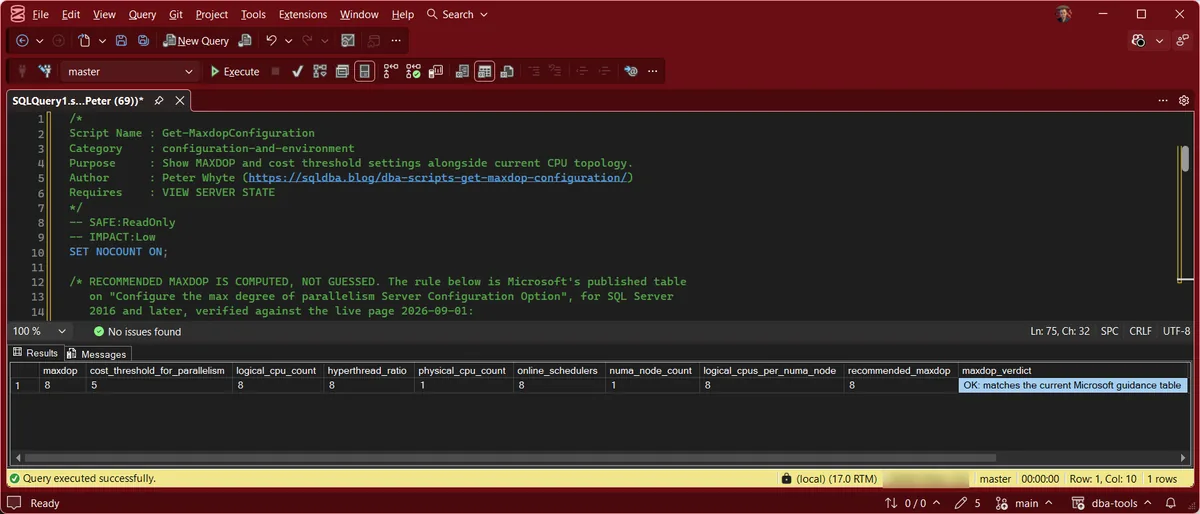
One row, describing the whole instance. The lab box below has 8 logical CPUs on a single NUMA node with a hyperthread ratio of 8, so one physical core, and MAXDOP is set to 8. The script computes recommended_maxdop as 8 for that topology and returns maxdop_verdict of “OK: matches the current Microsoft guidance table”, while cost_threshold_verdict reports the threshold is still the default 5.
Understanding the Results
maxdopcost_threshold_for_parallelismsys.configurations as value_in_use, so this is what the engine is running with rather than what was last configured.logical_cpu_counthyperthread_ratiophysical_cpu_countonline_schedulersphysical_cpu_count is derived, logical divided by the hyperthread ratio, so it is the real core count rather than the logical one hyperthreading reports.Act when online_schedulers is lower than logical_cpu_count. Some processors are not available to SQL Server, through an affinity mask or licensing, and the topology you are tuning against is not the one the engine sees.numa_node_countlogical_cpus_per_numa_noderecommended_maxdopmaxdop_verdictrecommended_maxdop and returns one of three things: OK when they match, a REVIEW for MAXDOP 0, which lets one query use every processor, or a REVIEW when the value does not match the table for this topology.Act when it reads REVIEW. It is a prompt to look, not an instruction to change. A deliberate non-standard value on a well-understood workload is a legitimate answer.cost_threshold_verdictHow to Fix MAXDOP Configuration
-- Set MAXDOP (example: 8 logical CPUs or fewer per NUMA node)
EXEC sp_configure 'show advanced options', 1;
RECONFIGURE;
EXEC sp_configure 'max degree of parallelism', 8;
RECONFIGURE;

-- Raise cost threshold for parallelism from the outdated default of 5
EXEC sp_configure 'cost threshold for parallelism', 50;
RECONFIGURE;
Both changes take effect immediately, no restart required. Start conservatively, monitor CXPACKET/CXCONSUMER waits and query duration, then adjust.
Best Practices
- Re-run this check after any hardware change: VM resize, core reassignment, new server.
- Don’t copy a MAXDOP value from a blog post or another server without checking your own core count and NUMA layout first.
- Review cost threshold alongside MAXDOP. Fixing one without the other often doesn’t move the needle.
Microsoft’s reference covers sys.configurations, sp_configure and sys.dm_os_sys_info in full.
Frequently Asked Questions
What’s a good default MAXDOP value?
It follows NUMA layout, not raw core count. On SQL Server 2016 and later Microsoft’s guidance is: a single NUMA node with 8 or fewer logical processors, set MAXDOP to that count; a single node with more than 8, set it to 8. With multiple NUMA nodes, use the logical processors per node up to 16, and above 16 per node use half the per-node count with a ceiling of 16. The familiar “cap it at 8 per node” line is the SQL Server 2014 and earlier table, which is why it is still quoted so often. Check the topology first with CPU Topology and OS Configuration Checks, because soft-NUMA changes the answer on bigger boxes.
Does raising Cost Threshold for Parallelism disable parallelism?
No. It just raises the bar for when SQL Server considers a query “expensive enough” to justify going parallel. Cheap queries stay single-threaded; genuinely expensive ones still parallelize.
Summary
MAXDOP and cost threshold are two of the cheapest, lowest-risk configuration changes available, and two of the most commonly left at defaults that don’t match the hardware they’re running on.
Run this script as part of routine health checks, and always after a hardware or core-count change, since a MAXDOP value that was correct on the old server is rarely correct on the new one.
Related
You may also find these scripts useful:
- Instance Configuration Score
- Instance Configuration Snapshot
- MAXDOP and Cost Threshold for Parallelism
- Memory Configuration and Usage
- OS Configuration Checks
- Resource Governor Config
- SQL Server CPU Topology and Scheduler Details
- Trace Flags
- DBA Scripts: The Complete Guide, the map across every script on this site
Leave a Reply