
Max Server Memory is the single most important memory setting on any SQL Server instance, and it’s astonishing how often it’s left unconfigured. Without a cap, SQL Server will happily consume nearly all available RAM for its buffer pool, leaving too little for the OS, and on a box running other services, that ends in memory pressure and paging for everyone.
This script reports the configured min and max server memory limits alongside actual physical memory and current SQL Server memory consumption, so you can see in one query whether the configuration matches the hardware.
Why Memory Configuration and Usage Matters
SQL Server’s buffer pool is what keeps frequently-read data pages in memory instead of going back to disk for every query. How much memory it’s allowed to use directly affects:
- Buffer cache hit ratio, and therefore how much of your workload is served from memory versus disk
- Whether the OS and any other services on the box (monitoring agents, backup software, a second instance) have enough memory to run without contention
- Plan cache size, which shares the same memory budget as the buffer pool
An unconfigured Max Server Memory (left at the default, effectively unlimited) is one of the most common findings on servers nobody has tuned since installation.
When to Run This Script
- Routine SQL Server health checks
- After a hardware change, VM resize, or memory reallocation
- Investigating OS-level memory pressure or paging on a shared server
- Reviewing a server you’ve just inherited or migrated
The Script
Run the following script against your SQL Server instance.
- Tested on: SQL Server 2025 (RTM CU8), Windows lab instance
- Last verified: 2026-10-23 (run on the lab instance)
- Permissions: VIEW SERVER STATE
- Safety: read-only, impact low
/*
Script Name : Get-MemoryConfigurationAndUsage
Category    : configuration-and-environment
Purpose     : Show configured memory limits alongside current SQL Server memory consumption.
Author      : Peter Whyte (https://sqldba.blog/dba-scripts-get-memory-configuration-and-usage/)
Requires    : VIEW SERVER STATE
HealthCheck : Yes
*/
-- SAFE:ReadOnly
-- IMPACT:Low
SET NOCOUNT ON;

SELECT
    (SELECT value_in_use FROM sys.configurations WHERE name = 'min server memory (MB)') AS min_server_memory_mb,
    (SELECT value_in_use FROM sys.configurations WHERE name = 'max server memory (MB)') AS max_server_memory_mb,
    CAST(osi.physical_memory_kb / 1024.0 / 1024 AS DECIMAL(10,2))                      AS server_physical_memory_gb,
    pm.physical_memory_in_use_kb / 1024                                                 AS sql_memory_in_use_mb,
    pm.large_page_allocations_kb / 1024                                                 AS large_page_allocations_mb,
    pm.locked_page_allocations_kb / 1024                                                AS locked_page_allocations_mb,
    pm.total_virtual_address_space_kb / 1024                                            AS total_virtual_address_mb,
    CAST(osi.committed_kb / 1024.0 AS DECIMAL(12,2))                                   AS sql_committed_mb,
    osi.sqlserver_start_time                                                             AS sql_start_time
FROM sys.dm_os_process_memory AS pm
CROSS JOIN sys.dm_os_sys_info AS osi;
The script combines configured memory limits from sys.configurations with actual memory usage from sys.dm_os_process_memory and hardware totals from sys.dm_os_sys_info, returning one row for the instance.
How To Run From The Repo
Clone DBA Tools, initialize and run the script:
# Clone dba-tools repo:
git clone https://github.com/peterwhyte-lgtm/dba-tools

# Initialize environment:
cd dba-tools
.\Initialize-Environment.ps1

# Check configured memory limits against actual usage:
.\run.ps1 Get-MemoryConfigurationAndUsage

# To run against a remote sql server:
.\run.ps1 Get-MemoryConfigurationAndUsage -ServerInstance SQLSERVER01
This script lives in the repo at:
sql/monitoring/instance/Get-MemoryConfigurationAndUsage.sqlpowershell/wrappers/monitoring/instance/Get-MemoryConfigurationAndUsage.ps1
Example Output
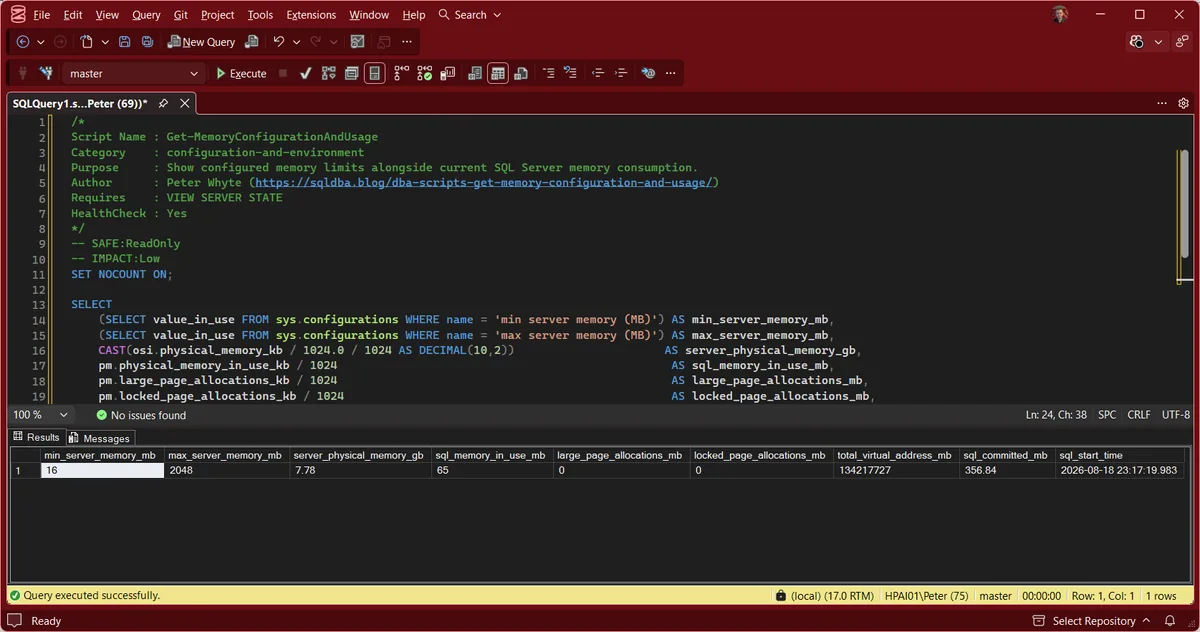
Run against the lab instance. It reports 7.78GB of physical memory, Max Server Memory set to 2,048MB, and 65MB in the SQL Server process working set at the moment of the reading. min_server_memory_mb comes back as 16 because the script reads value_in_use; the configured value on the same instance is 0. Worth knowing before anyone records 16 as a setting somebody chose.
Understanding the Results
max_server_memory_mbvalue_in_use. Microsoft documents the default as 2,147,483,647 MB, which is no practical cap at all, and recommends setting it explicitly (Server memory configuration options).Act when this still reads 2147483647. An uncapped instance will claim memory the operating system needs and everything else on the box pays for it.min_server_memory_mbvalue_in_use, which reported 16 on the lab instance while the configured value read 0. Microsoft documents that pair as expected on 64-bit (MS Docs), so read the two together before calling a number a change.server_physical_memory_gbsys.dm_os_sys_info. It is here so you can compare it against the cap in one glance rather than two queries.Act when the cap is close to the whole box. Leave room for the operating system, for anything else installed, and for the parts of SQL Server that sit outside the cap.sql_memory_in_use_mbsys.dm_os_process_memory. This is what the process actually holds, not what it is allowed to hold.Act when this sits at the cap on a busy instance, or far below it on one you believe is under pressure. Either way the cap and the workload disagree.large_page_allocations_mblocked_page_allocations_mbtotal_virtual_address_mbsql_committed_mbsys.dm_os_sys_info. It is a different measure from the working set above and the two do not have to agree.sql_start_timeHow to Fix Memory Configuration
-- Set Max Server Memory (example: 6GB on an 8GB box, leaving 2GB for the OS)
EXEC sp_configure 'show advanced options', 1;
RECONFIGURE;
EXEC sp_configure 'max server memory (MB)', 6144;
RECONFIGURE;
Takes effect immediately for new memory grants, no restart required, though SQL Server won’t release already-allocated memory instantly if you’re lowering the cap.
A starting point for standalone instances: leave 4GB or 10% of total RAM (whichever is larger) for the OS, and cap SQL Server at the rest. On a server also running SSAS, SSRS, a monitoring agent, or a second SQL instance, leave more headroom.
Best Practices
- Always set Max Server Memory explicitly. Never leave it at the default on a production instance.
- Re-check after any hardware change; a memory cap sized for the old server is rarely correct on the new one.
- On a shared box, size the cap around every service that needs memory, not just SQL Server.
Microsoft’s reference covers sys.configurations, sys.dm_os_process_memory and sys.dm_os_sys_info in full.
Frequently Asked Questions
What happens if Max Server Memory is left at the default?
SQL Server can consume nearly all available RAM, leaving little for the OS and any other processes on the box. On a dedicated SQL Server, this is sometimes tolerated; on a shared server, it’s a common cause of memory pressure elsewhere.
Does lowering Max Server Memory immediately free up RAM?
Not necessarily right away. SQL Server releases memory back gradually, not instantly, when the cap is lowered.
Summary
Memory configuration is one of the first things worth checking on any SQL Server instance, and one of the cheapest to fix once you know what’s wrong. An unconfigured Max Server Memory is a silent risk until the day something else on the box needs RAM SQL Server has already claimed.
Run this script as part of routine health checks, and always after any hardware or memory change, to confirm the configuration still matches reality.
Related
You may also find these useful:
- Get Instance Configuration Score
- Get Instance Configuration Snapshot
- Get MAXDOP Configuration
- Get CPU Topology and OS Configuration Checks
- Get Trace Flags and Resource Governor Configuration
- Troubleshoot RESOURCE_SEMAPHORE Waits in SQL Server (Memory Grant Pressure)
- Get Unused Indexes, indexes with no reads still occupy the buffer pool inside the cap you just set
- DBA Scripts: The Complete Guide, the map across every script on this site
Leave a Reply