
TempDB on the C: drive is a problem waiting for a busy day. It can grow very large, very quickly, sometimes within minutes under the right workload, and when it fills the OS drive it takes the whole server down with it. Moving the tempdb files to their own drive is a standard best practice, and the move itself is four statements and a service restart.
This post walks through the whole job: seeing what you have, generating the ALTER statements for every file at once, the one trap that can stop SQL Server starting, and the cleanup people forget. A planned maintenance window is required, the change only applies on a service restart.
Step 1: See What TempDB Files You Have
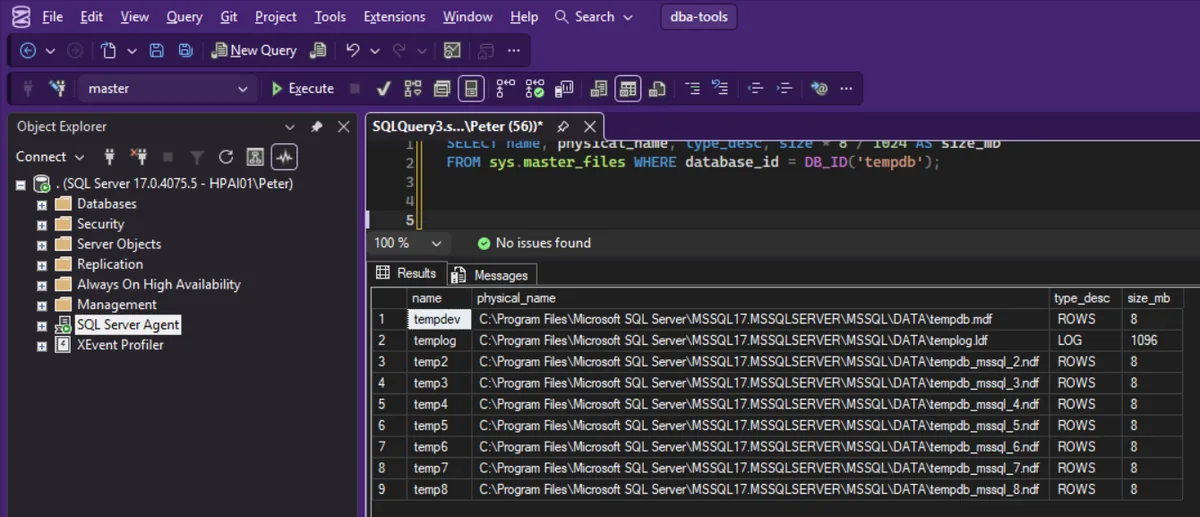
Modern SQL Server setups create multiple tempdb data files by default, one per core up to eight, so you are probably moving more files than you think. sys.master_files shows them all with their current paths:
SELECT name, physical_name, type_desc, size * 8 / 1024 AS size_mb
FROM sys.master_files
WHERE database_id = DB_ID('tempdb');
On a default SQL Server 2025 install that returns something like this, eight data files plus the log:
name      physical_name                                          type_desc
tempdev   C:\...\MSSQL17.MSSQLSERVER\MSSQL\DATA\tempdb.mdf        ROWS
templog   C:\...\MSSQL17.MSSQLSERVER\MSSQL\DATA\templog.ldf       LOG
temp2     C:\...\MSSQL17.MSSQLSERVER\MSSQL\DATA\tempdb_mssql_2.ndf ROWS
...
Step 2: Generate the ALTER Statements for Every File
Rather than hand-writing a MODIFY FILE statement per file, generate them. This emits one statement for each tempdb file, keeping its filename and pointing it at the new folder, change D:\TempDB\ to your target:
SELECT 'ALTER DATABASE tempdb MODIFY FILE (NAME = [' + name + '], FILENAME = ''D:\TempDB\'
       + RIGHT(physical_name, CHARINDEX('\', REVERSE(physical_name)) - 1) + ''');'
FROM sys.master_files
WHERE database_id = DB_ID('tempdb');
Copy the output into a new query window and run it. Each statement responds with the same message: the file change is recorded, and it takes effect the next time the database is started. For tempdb that means the next service restart.
Step 3: The Difference That Makes TempDB the Easy Case
Here is what makes this simpler than moving a user database: you never copy the physical files. TempDB is recreated from scratch every time the SQL Server service starts. Change the paths, restart the service, and SQL Server creates brand-new files at the new location. The old files just get left behind, which is Step 5.
Step 4: The Trap, Then the Restart
The one way this goes wrong: if the new path does not exist, or the SQL Server service account cannot write to it, the service will not start. TempDB is required for startup, so a typo here is not a degraded state, it is a down server. Before restarting:
- Create the target folder, and double-check the generated paths character by character.
- Confirm the SQL Server service account has Full Control on the folder.
If it does happen, the recovery is documented and calm: start the instance with the -f startup parameter (minimal configuration), fix the file paths with the same ALTER DATABASE statements, remove the parameter and restart normally.
Then restart the service in your window, and verify by running the Step 1 query again. The paths should show the new location, and the files exist on the new drive.
Step 5: Delete the Old Files
The old tempdb files remain in the original folder, dead weight now, and if the point of the move was freeing the C: drive they are the space you came for. Delete them. If Windows refuses because a file is in use, you are looking at files from the currently running service, check the paths and the last-modified dates before removing anything.
Frequently Asked Questions
Do I need to copy the tempdb files to the new location myself?
No, and this is the key difference from moving a user database. TempDB is recreated at every service start, so SQL Server builds fresh files at the new paths on the next restart. You only clean up the old ones.
How many tempdb data files should I have?
Setup’s default is right for most servers: one data file per logical core, up to eight. Adding more than that is a response to measured allocation contention, not a starting point.
Can I do this without downtime?
No. The path change only applies when the service restarts, which is Step 4, so this is a planned-window job. The window can be short, the restart itself is the only downtime the move needs.
SQL Server will not start after the change, what now?
Almost always the new path: it does not exist or the service account cannot write to it. Start the instance with the -f startup parameter (minimal configuration), correct the paths with the same ALTER DATABASE ... MODIFY FILE statements, then remove the parameter and restart normally.
Summary
List the files with sys.master_files, generate a MODIFY FILE statement per file, run them, restart the service in a window, verify, and delete the leftovers. TempDB never needs its files copied because it is rebuilt at every startup, and the only real risk is a path the service account cannot use, which is a check that takes ten seconds before the restart.
Moving tempdb buys you the drive back. Sizing is what stops you needing to do it again.
- How to Right-Size SQL Server Database Files, pick a size and a growth increment rather than reacting to the next alert.
- Get Database Sizes and Free Space, see what the new drive is actually carrying.
- Shrink Database Files in Chunks, when a user database is the thing filling the drive.
- Run a Full SQL Server Health Check, confirm the instance came back clean after the restart.
- Storage and Capacity, the rest of the storage scripts.
Leave a Reply