
In an Availability Group, the databases fail over. Your SQL logins do not.
For Windows domain logins, the SID is owned by AD, so you just create the login on each replica and it syncs up.
For SQL logins, the SID is generated inside SQL Server. If the SID differs between replicas, the database user becomes orphaned after failover and you get login failures.
This post shows the clean, repeatable way to create a SQL login on the primary and recreate it on every replica with the same SID (and the same password hash), then apply permissions consistently.
What Actually Needs to Match
For SQL logins across AG replicas, these must match:
- SID (this is the critical part)
- Password hash (so the password works on every node)
- Default database / language (optional, but nice to keep consistent)
- Any server-level permissions (must be granted on each replica)
Database users and role memberships live in the database and move with the AG, but they only work if the login SID matches.
Step 1: Create the SQL Login on the Primary
On the primary replica, create the SQL login:
CREATE LOGIN [AppLogin]
WITH PASSWORD = 'UseARealStrongPasswordHere';
If you already have the login and just need to sync it, skip this and go straight to the scripting step below. Not sure which replica is primary right now? Check AG Replica Role and Synchronization State shows the role of every replica.
Step 2: Script the Login with SID and Password Hash
Run this on the primary. It outputs a ready-to-run CREATE LOGIN statement you can copy onto each secondary.
/*
Purpose: Script a SQL login with matching SID + password hash for AG replicas
Notes: Keep output secure. Password hash is still sensitive.
*/
DECLARE @Login sysname = N'Pete';

SELECT
    'CREATE LOGIN ' + QUOTENAME(sl.name) +
    ' WITH PASSWORD = ' + CONVERT(varchar(max), sl.password_hash, 1) +
    ' HASHED, SID = ' + CONVERT(varchar(max), sp.sid, 1) +
    ', CHECK_POLICY = ' + CASE WHEN sl.is_policy_checked = 1 THEN 'ON' ELSE 'OFF' END +
    ', CHECK_EXPIRATION = ' + CASE WHEN sl.is_expiration_checked = 1 THEN 'ON' ELSE 'OFF' END + ';'
    AS create_login_script
FROM sys.sql_logins sl
JOIN sys.server_principals sp
    ON sl.principal_id = sp.principal_id
WHERE sl.name = @Login;
Why this is the correct approach: it guarantees the SID matches and the password works everywhere without you manually retyping it.
Operational note: treat the output like a secret. Don’t paste it into tickets or chat threads.
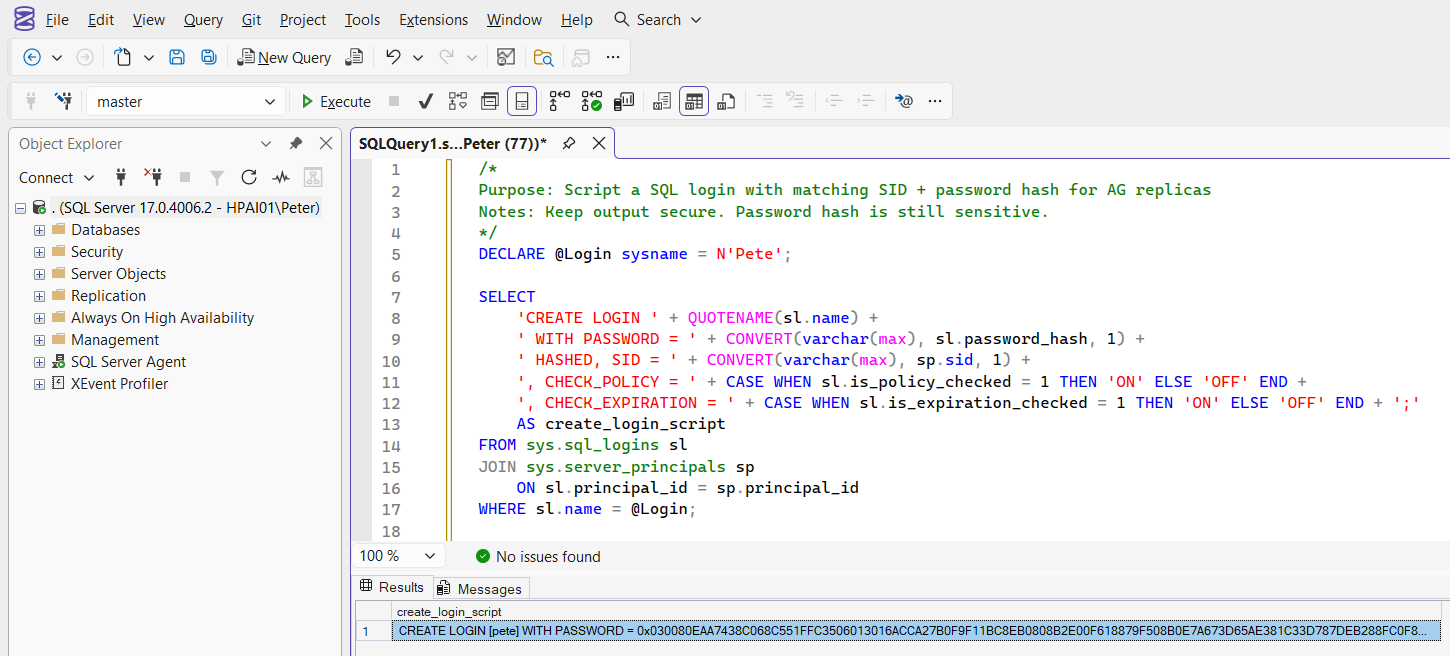
Step 3: Create the Login on Each Secondary Replica
Connect to each secondary replica and run the generated CREATE LOGIN ... PASSWORD = 0x... HASHED, SID = 0x... script.
Repeat for every replica in the AG.
Step 4: Verify the SID Matches on all Replicas
Run this on each replica to show the SID of a SQL login:
-- Using SUSER_SID function
SELECT SUSER_SID('AppLogin') AS LoginSID;

-- Alternatively, retrieve it from sys.server_principals
SELECT sid AS LoginSID
FROM sys.server_principals
WHERE name = 'AppLogin';
You want the exact same SID everywhere.
Step 5: Database Permissions and Server Permissions
Database Permissions
If the database user already exists in the AG database, you usually do nothing here once the SID matches.
If you are setting it up for the first time, create the user in the database (run on the primary, it will replicate with the DB):
USE [YourDatabaseName];  -- replace with your database
CREATE USER [AppLogin] FOR LOGIN [AppLogin];
ALTER ROLE db_datareader ADD MEMBER [AppLogin];
ALTER ROLE db_datawriter ADD MEMBER [AppLogin];
Server-Level Permissions
Server permissions do not replicate with an Availability Group. They are instance-level, so you must apply them on every replica.
A common example is granting membership in a fixed server role like securityadmin. See Microsoft docs for more on the built-in server-level roles.
-- Instance-level role membership
-- Run on every AG replica
ALTER SERVER ROLE [securityadmin] ADD MEMBER [AppLogin];
Choose that role deliberately. The same Microsoft page says securityadmin should be treated as equivalent to sysadmin, because a member who can grant access to the engine can assign most server permissions to themselves. From SQL Server 2022 there is a narrower option, ##MS_LoginManager##, which can create and modify logins but cannot grant privileges.
Another common server-level permission is VIEW SERVER STATE, which most DMV-based monitoring and troubleshooting relies on. Same rule: grant it on each replica because it does not sync through the Availability Group. If you’re granting that permission, my post Grant VIEW SERVER STATE in SQL Server explains the scope and how to audit it.
Quick Test
After you’ve created the login on every replica:
- Connect via the AG listener using the login.
- Run a simple query in the target database to confirm the user mapping works.
This is the query. Run it through the listener, in the database the login is meant to reach:
-- Confirm who you connected as and which database user you landed on
SELECT ORIGINAL_LOGIN() AS connected_as,
       SUSER_SNAME()    AS current_login,
       DB_NAME()        AS current_database,
       USER_NAME()      AS database_user;
database_user should come back as the user you created, not dbo and not guest. If the login cannot reach the database at all, the SID did not match and you are looking at an orphaned user.
If you already have planned failover / DR tests, include this as a checkpoint:
- After failover, reconnect via the listener and confirm the login still works.
You don’t need to force a failover just to validate a login. You do want it verified the next time you perform a controlled failover.
Summary
- Windows / domain logins: create them on each replica. The identity stays consistent via AD.
- SQL logins: recreate them on each replica with the same SID, or you’ll get orphaned users after failover.
- If you want the login to be truly portable, create it using
SID = 0x...(andPASSWORD = 0x... HASHEDif you’re cloning the password rather than resetting it). - Server-level permissions and role memberships do not replicate. Apply them on every replica.
Frequently Asked Questions
Why does a login work on the primary and fail after failover?
The database user travels with the AG and the login does not. If the secondary’s login was created by name, it has a new SID, so the user in the database maps to nothing on that replica. Trying to fix it with CREATE USER fails with error 15023, because the user already exists. Remap it, or better, recreate the login with the original SID as above.
Does a contained availability group remove this step?
On SQL Server 2022 and later, mostly yes. A contained AG has its own master and msdb, so logins, users and permissions created while connected through the contained AG listener replicate with it. Logins created at the instance level do not, and users that relied on them lose access when the database joins the contained AG.
How do I check the logins match across replicas?
Run Get Login Migration Parity against each replica and compare. It fingerprints every login by SID, password hash, policy settings, default database and server roles, so a login recreated by name stands out even when the names all match.
Where To Go Next
A login that works on the primary and fails after failover is a SID problem, not a password problem. These are the pages that check the SID, the permissions around it, and the rest of the security surface.
- Login Failed or Permission Denied, the router for a login that fails after a failover.
- Fix Orphaned Users, for the SID mismatch this article exists to prevent.
- Get Login and Job Inventory, confirm what actually exists on each replica.
- Get Login Security Audit, failed logins and weak settings across the instance.
- DBA Scripts: Security, the security pillar: privileged access, logins, encryption and audit gaps.
- DBA Scripts: The Complete Guide, the map across every script on this site.
Leave a Reply