
A database file has filled a shared disk, or an insert failed with Msg 1105 saying a file reached “the maximum allowed size”. Either way the first check is the same: what max_size each file has today. Below is that query, the ALTER DATABASE to set or remove a cap, and the errors SQL Server raises when a file hits one.
A cap is a tactical move, not a strategy: most databases should grow when they need to, and you should hear about it when they do. It earns its place on a shared volume where one runaway process or ad hoc query must not take the disk, on a server hosting hundreds of small databases, or to hold a file in place while you find what is growing it. Every result here was run on SQL Server 2025.
Find the Caps You Already Have
Check before adding anything. sys.database_files stores max_size in 8 KB pages, with -1 meaning unlimited, so divide by 128 for MB:
-- current size and max size per file, in MB (run in the database)
SELECT name,
       type_desc,
       size_mb = size / 128,
       max_size_mb = CASE
                       WHEN max_size = -1 THEN 'UNLIMITED'
                       WHEN type_desc = N'LOG' AND max_size = 268435456 THEN 'UNLIMITED (2 TB log limit)'
                       ELSE CAST(max_size / 128 AS varchar(20)) + ' MB'
                     END
FROM sys.database_files;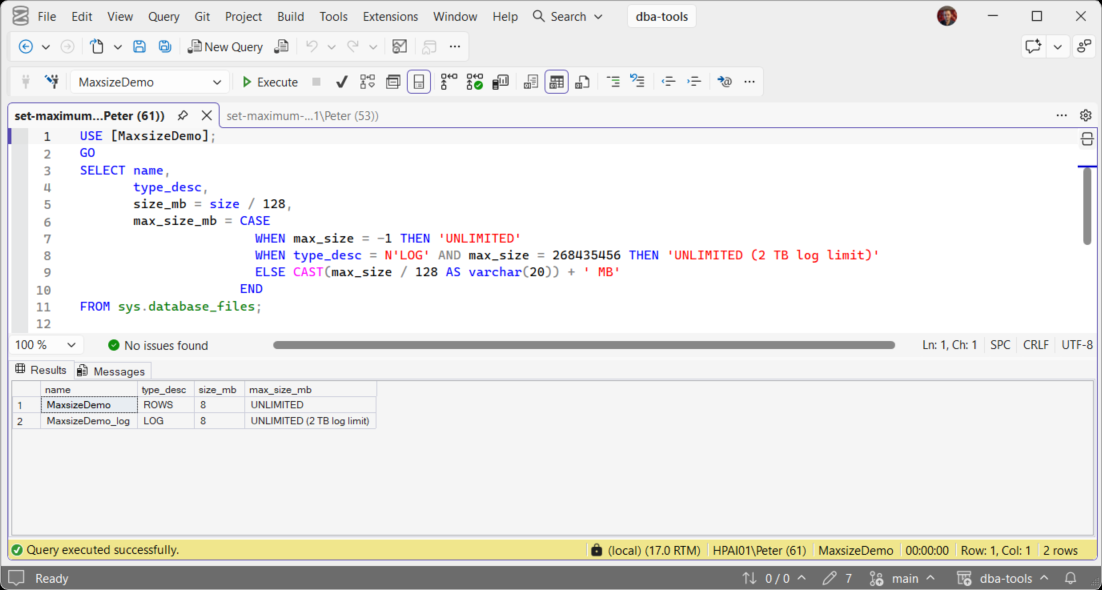
A log file created without a MAXSIZE does not store -1: it stores 268435456 pages, the 2 TB ceiling on a log file, so the query labels that as unlimited rather than showing it as a cap. Any other number is a real cap, and an inherited one sits silent until the file reaches it. For every database at once, use Get Database Sizes and Free Space.
Set MAXSIZE With T-SQL
-- cap the data file at 100 GB
ALTER DATABASE [SalesDB]
MODIFY FILE (NAME = N'SalesDB', MAXSIZE = 100GB);

-- cap the log at 20 GB
ALTER DATABASE [SalesDB]
MODIFY FILE (NAME = N'SalesDB_log', MAXSIZE = 20GB);

-- remove a cap
ALTER DATABASE [SalesDB]
MODIFY FILE (NAME = N'SalesDB', MAXSIZE = UNLIMITED);
NAME is the logical file name from the query above, not the path on disk. Sizes take KB, MB, GB or TB. Setting UNLIMITED on the data file puts max_size back to -1.
Set It in SSMS
Right-click the database, Properties, then the Files page. The … button in the Autogrowth / Maxsize column opens the growth dialog for that file, where the maximum file size can be limited to a value in MB. The Script button at the top of Database Properties gives you the same ALTER DATABASE, which is the version worth keeping.
What Happens When a Data File Hits the Cap
Tested with an 8 MB data file capped at 10 MB and filled with 8 KB rows. Once the file could not grow, the insert failed with:
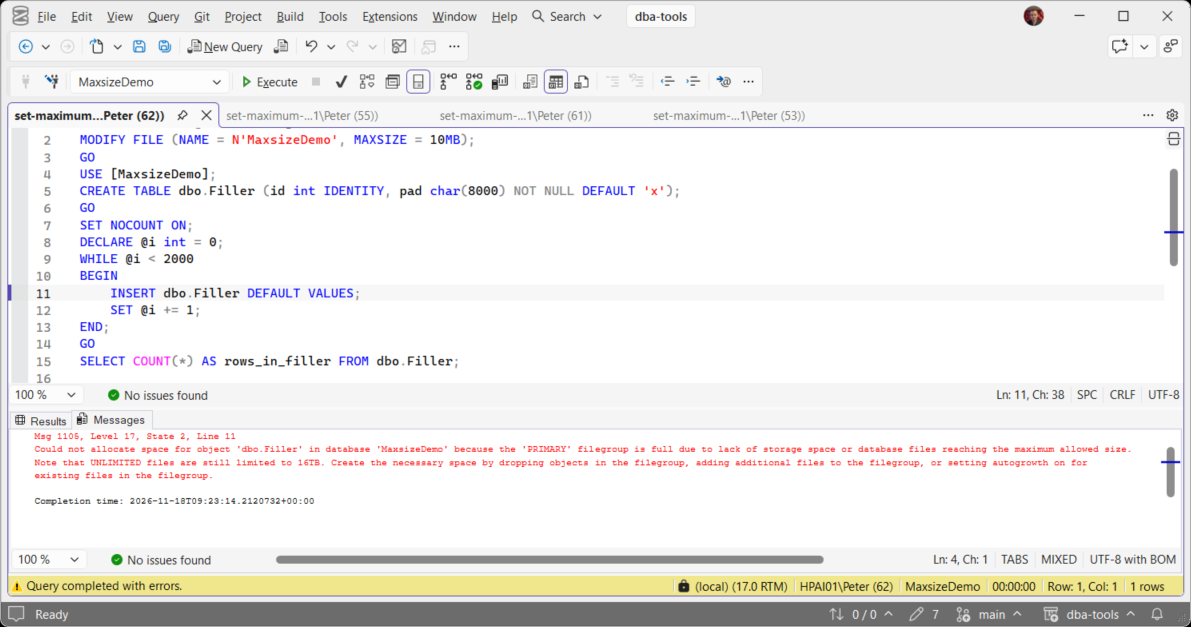
The message never says MAXSIZE. A cap, autogrowth switched off and a full disk all raise the same 1105, and the way to tell them apart is in Could Not Allocate Space Because the Filegroup Is Full (Error 1105). Level 17 also ends the batch, so a loop or a multi-statement job step stops at the first failed insert.
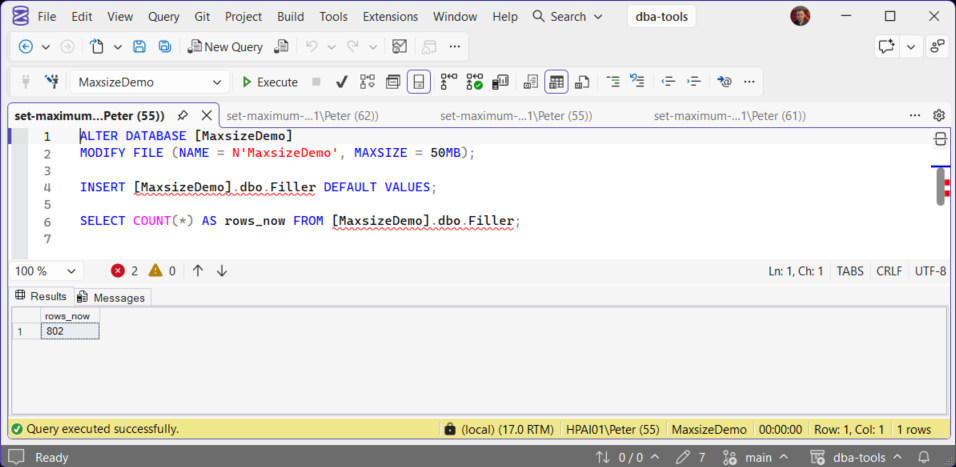
Raising the cap is immediate and online. In the same test, MODIFY FILE (MAXSIZE = 50MB) went straight through and the next insert succeeded with no restart and nothing else changed.
A Capped Log Raises 9002 Instead
Cap the log and fill it inside one open transaction, and the error is the log full message, not 1105:
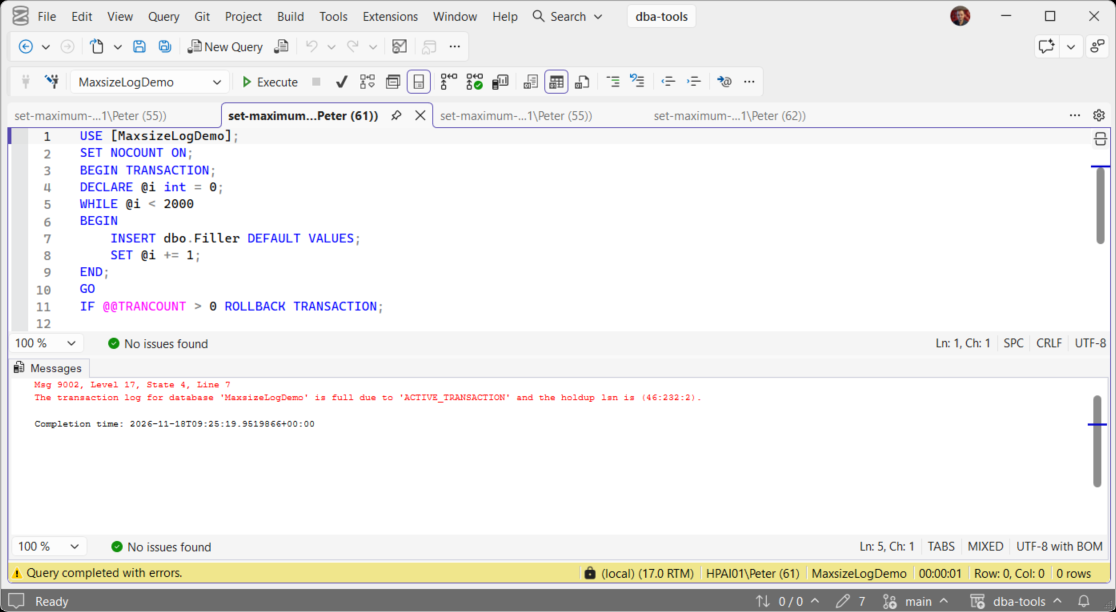
The reason in the quotes changes with whatever is holding the log, so read it rather than assuming. SQL Server Disk Is Full or the Log Will Not Truncate covers each one.
You Cannot Cap a File Below Its Current Size
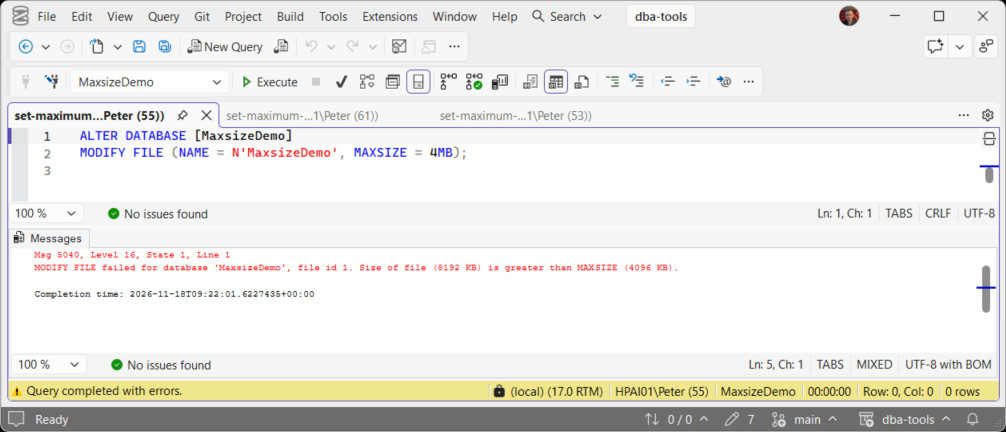
Capping a file smaller than it is today means shrinking it first, and shrinking brings its own problems. The order is shrink, then cap: How to Shrink SQL Server Database Files in Chunks.
A Cap Does Not Warn You
A file with normal autogrowth and a cap grows in ordinary-looking steps and then stops dead. If you cap files, watch the growth as well: Get Autogrowth History shows growth events speeding up, and that is the early warning. Alerting on error 1105 is the last line, not the first.
Frequently Asked Questions
Is MAXSIZE the same as the Express edition size limit?
Should I cap tempdb?
Does raising MAXSIZE need downtime?
Related
- How to Right-Size SQL Server Database Files, sizes and growth set so a cap is rarely needed
- Get Database Growth Risk and Forecast, which files are heading for their limit
- Add a Filegroup to a SQL Server Database, the other way out of 1105
- Get Disk Space on SQL Server, free space on every volume the instance uses
- DBA Scripts: The Complete Guide, the whole scripts library
Leave a Reply