
Line numbers sit down the left margin of every query window in SSMS 21 and later, with nothing to switch on (Install and Update SSMS if you are on an older version). If yours are missing, or you want them gone, tick or untick Line numbers under Tools → Options. They matter most when an error message names a line, which most syntax errors do.
Turn Line Numbers On or Off
- In SSMS, open Tools → Options.
- Type line numbers into the search box at the top, or open Languages → Defaults → General in the tree.
- Tick or untick Line numbers. The settings page saves as you go, so just close it.
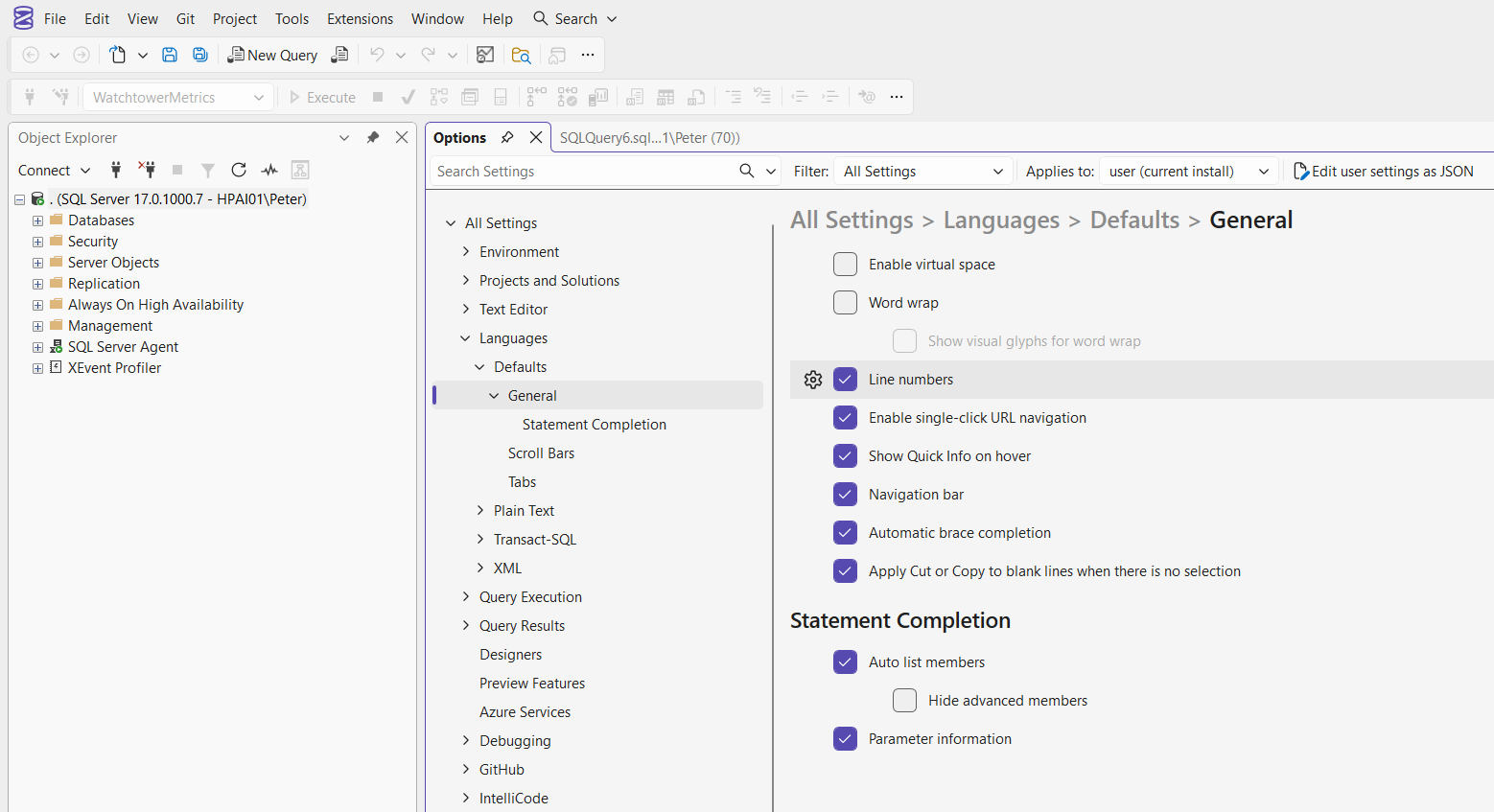
Defaults is the global setting for every language. If line numbers still do not appear in query windows, open Languages → Transact-SQL → General: each language has its own copy of the setting (Display line numbers, the Visual Studio page SSMS inherits this from).
SSMS 21 and earlier use the older Options dialog: Text Editor → Transact-SQL → General (or All Languages → General for every language), then OK. SSMS 20 and earlier had line numbers off by default.
Using Line Numbers With Errors
Most syntax errors name the line where the parser gave up. This five-line query has a stray bracket on line 4:
SELECT name
FROM sys.databases
WHERE database_id > 4
  AND name = 'master')
ORDER BY name;
Msg 102, Level 15, State 1, Line 4
Incorrect syntax near ')'.Line 4 is where the bracket is, so you go straight there instead of counting. The number counts from the start of the batch, not the file: in a script split by GO, the same error after one earlier batch still reports Line 4 even though it sits further down the editor. Error 102 explains why the quoted token is where the parser stopped rather than where the mistake is.
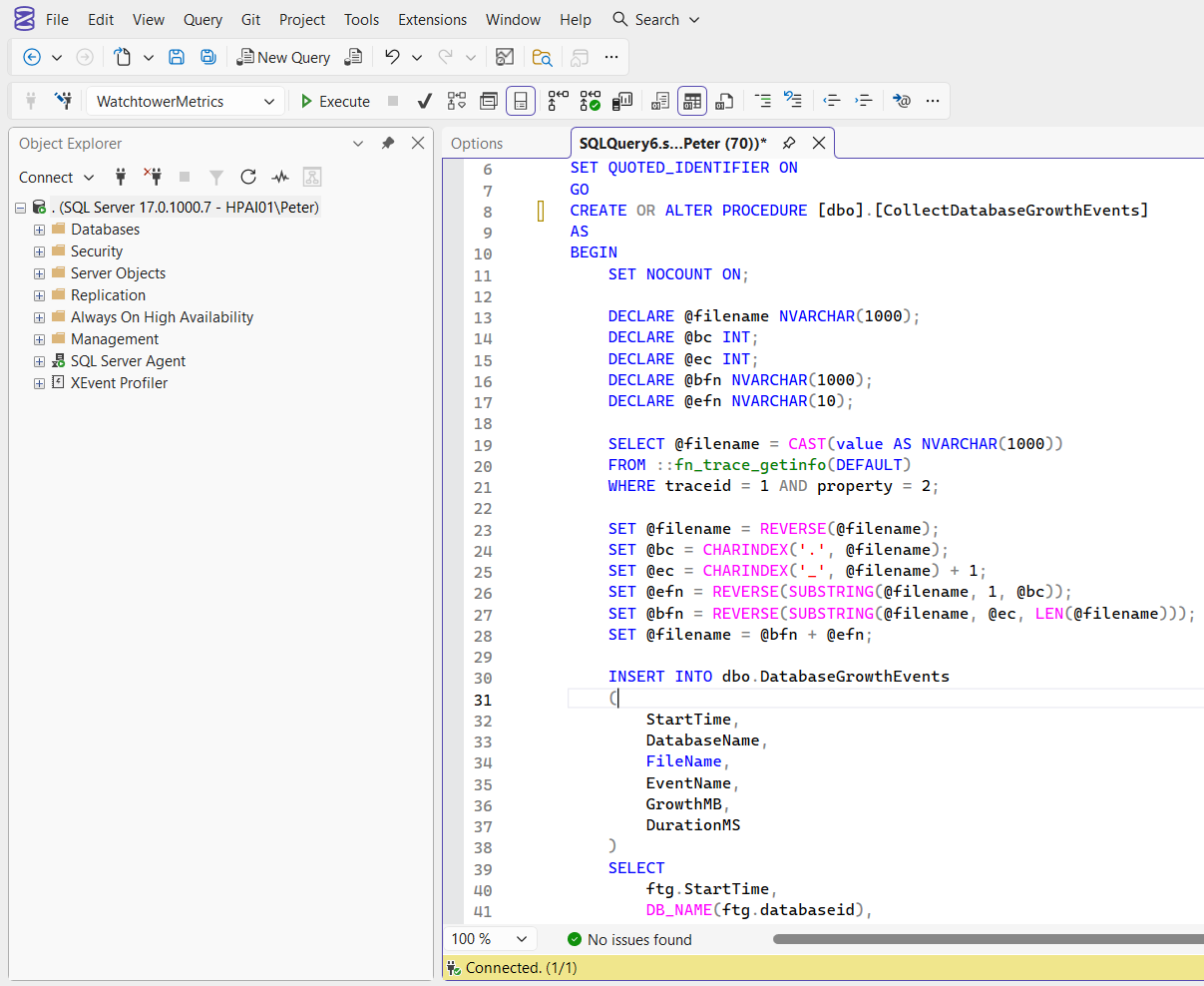
Navigating to a Specific Line
- Double-click an error in the Messages pane to jump to the line it names.
- Press Ctrl + G to go to a line number directly.
- When someone on a call says “look at line 42”, everyone lands on the same line.
Final Notes
Line numbers change nothing about how SQL runs. On current SSMS they are on by default, and the only time you need the setting is when an install or an imported settings file has turned them off.
Dark mode is the other editor quality-of-life switch worth flipping: here is where it lives. This page covers one part of working with SSMS. The full reference ties the install, configuration and troubleshooting pieces together.
- Incorrect Syntax Near in SQL Server (Error 102), the error you will most often be chasing to a line number
- SSMS Complete Guide, installing it, keeping it updated, and fixing it when it misbehaves.
- DBA Scripts, the SQL Server scripts you will actually run once SSMS is open.
More in this series: Install and Update SQL Server Management Studio (SSMS) · DBA Scripts: Install and Update SSMS via PowerShell · DBA Scripts: Uninstall SSMS via PowerShell
Leave a Reply