
There are two ways to get a CSV into SQL Server, and picking the wrong one costs you either an afternoon or a silent data loss.
The Import Flat File wizard in SSMS is the right answer for a one-off. It guesses your column types, shows you a preview, and gets a file into a table in about a minute. What it cannot do is run again tomorrow without you.
BULK INSERT is the answer for anything repeatable. It is also where the quiet problems live: by default it will discard bad rows and still report success.
This post covers both. Everything in the T-SQL half was run against SQL Server 2025 using a CSV built to contain the things that actually break imports, and three of the results surprised me.
Which One To Use
| Method | Reach for it when |
|---|---|
| Import Flat File wizard | One file, one time. Creates the table and guesses the types. Not repeatable. |
| Import and Export Wizard | Several sources, or you want an SSIS package out of it. Creates the table. |
BULK INSERT |
Anything scheduled, or anything you will do twice. The table must already exist. |
bcp |
Very large files, or the file is not on the server. The table must already exist. |
OPENROWSET(BULK) |
You want to filter or transform the file mid-import. |
One thing worth knowing before you start: BULK INSERT reads the file from the server, not from your machine. The path is resolved by the SQL Server service account, so C:\Users\you\Desktop\data.csv will not work against a remote instance. bcp reads the file client-side, which is often the deciding factor.
Part 1: The Import Flat File Wizard
The Import Flat File feature arrived in SSMS in December 2017 (14.0.17213.0). It is a stripped-down version of the older Import and Export Data wizard, with far fewer prompts. The trade-off is that it cannot be saved as an SSIS package, so it is a one-off tool by design.
The walkthrough below imports into a fresh, empty database.
Step 1: Start The Wizard
Right-click the destination database, then Tasks → Import Flat File.
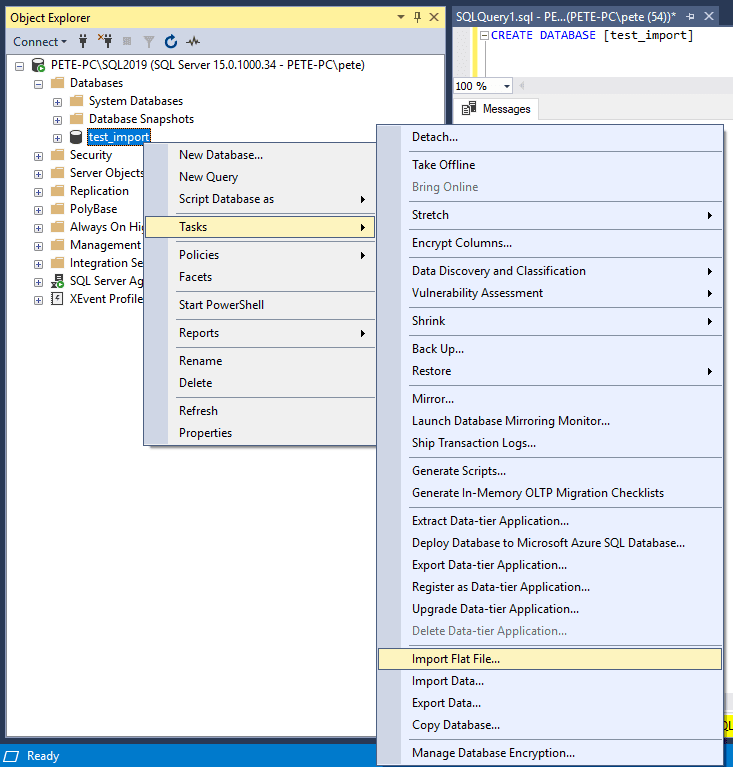
Note that it is the database you right-click, not the Tables folder. This is the single most common reason people say they cannot find the option.
Step 2: Choose The File And Table
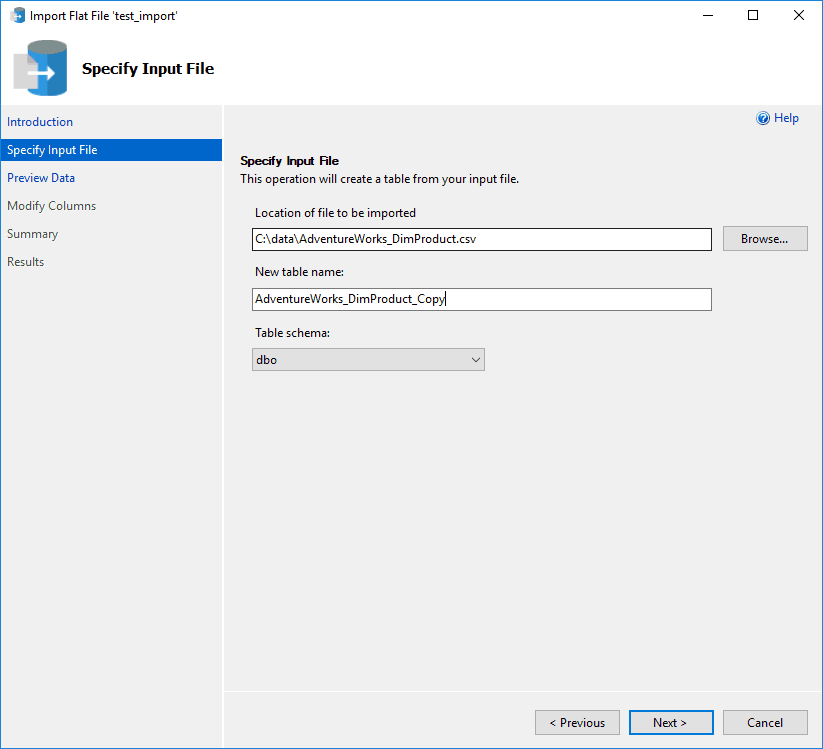
Browse to the CSV, then set the table name and schema. The wizard defaults the table name to the filename, which is rarely what you want in a real database.
Step 3: Preview The Data
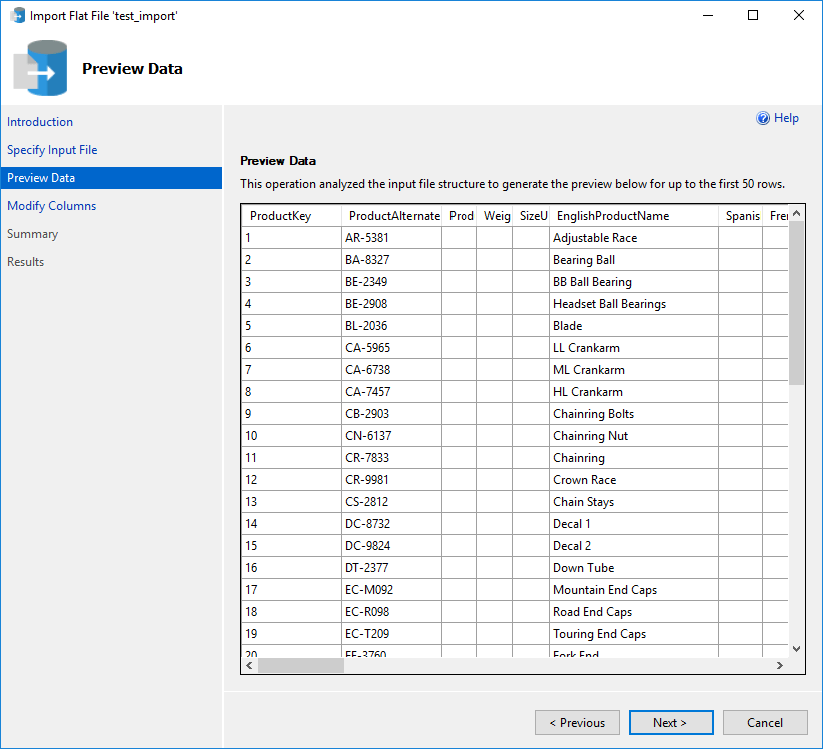
The preview is worth more than a glance. This is where you catch a file that has been read with the wrong delimiter, because the columns will visibly not line up.
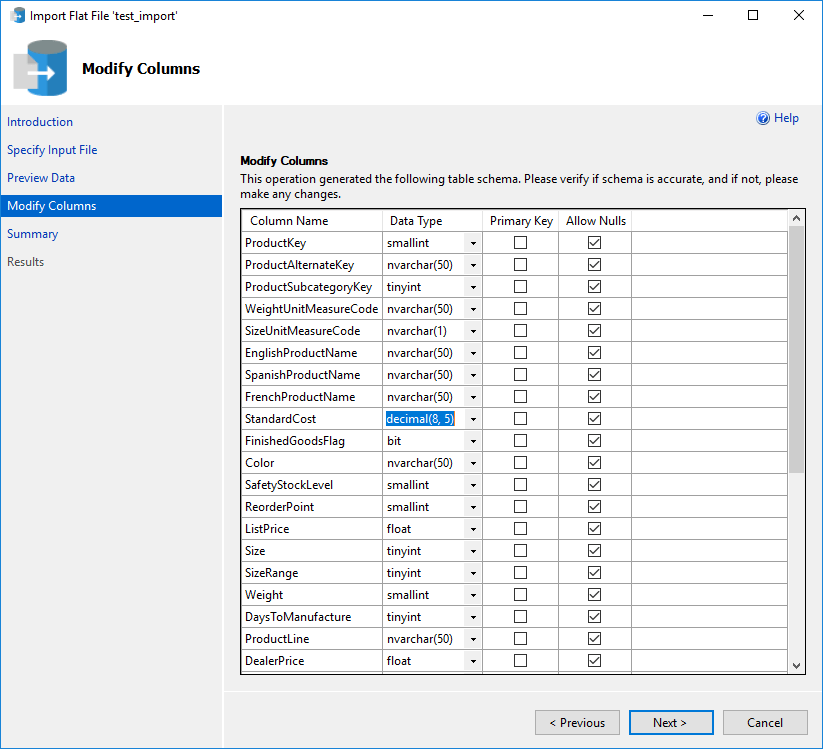
Step 4: Check The Data Types Carefully
This screen is the one that matters, and the one people click through.
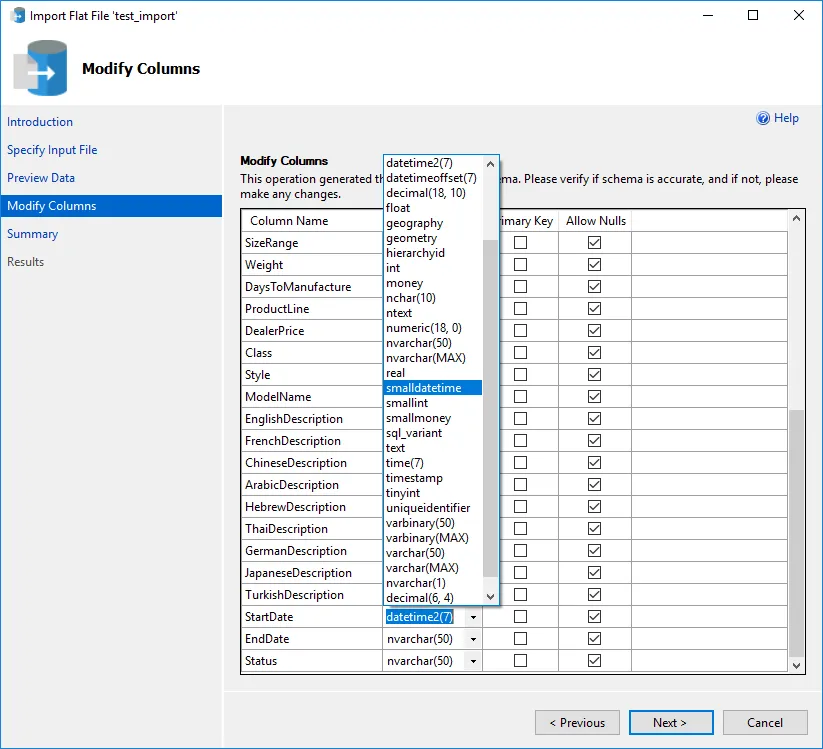
The wizard infers each column’s type by sampling the file. It is usually sensible and it is occasionally wrong in ways that only surface at the end, so spend your time here rather than in the error dialog later. Two habits worth having:
- Widen text columns. An inferred
nvarchar(50)will reject the one 60-character row sitting near the bottom of the file. - Check numeric precision. This is the one that bites, and it is exactly what happens next.
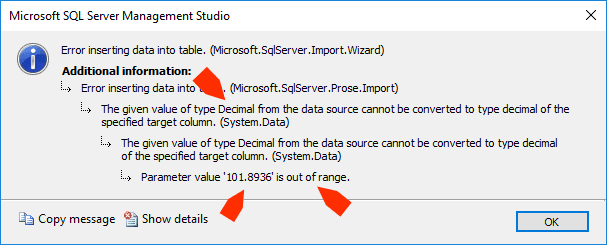
Step 5: When It Fails
The message is more useful than most:
Error inserting data into table. (Microsoft.SqlServer.Import.Wizard)
The given value of type Decimal from the data source cannot be converted
to type decimal of the specified target column. (System.Data)
Parameter value '101.8936' is out of range.
It gives you the offending value, which is the thread to pull: search the CSV for it to find which column it belongs to.
Step 6: Fix The Type And Re-run
Go back to Modify Columns and give the column the precision it needs.
Step 7: Verify
Never trust “success”. Select the data and look at it.
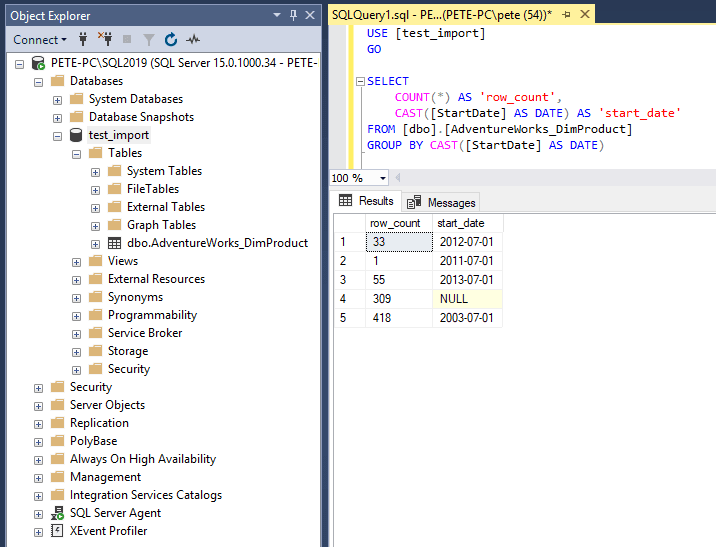
Check the row count against the file, and spot-check the column that caused the error. A wizard that completes after you widened a type has not necessarily kept the precision you expected.
Part 2: BULK INSERT, And Its Three Silent Failures
The wizard is fine until you need the same import next Tuesday. This is the T-SQL version, and it needs the table to exist first:
CREATE TABLE dbo.Sales (
    id      int,
    Company nvarchar(60),
    Amount  decimal(5,2),
    Joined  date
);

BULK INSERT dbo.Sales
FROM 'C:\Imports\sales.csv'
WITH (FORMAT = 'CSV', FIRSTROW = 2);
FIRSTROW = 2 skips the header. It is a row number, not a header switch, which matters if your file has a preamble.
That is the happy path. Here is what I found when I fed it a file containing the things real CSVs contain: a quoted value with a comma in it, a number with more decimal places than the target column, and an empty field.
Trap 1: Without FORMAT=’CSV’, Quoting Is Ignored
Most tutorials still show the older syntax:
BULK INSERT dbo.Sales
FROM 'C:\Imports\sales.csv'
WITH (FIRSTROW = 2, FIELDTERMINATOR = ',', ROWTERMINATOR = '0x0d0a');
Against a three-row file, that reported success and landed two rows:
| id | Company | Amount |
|---|---|---|
| 1 | "Acme Ltd" |
10.50 |
| 3 | "Nulltown" |
NULL |
Two separate defects in one import. The double quotes are stored as part of the data, so every text value is now wrong. And row 2, the company called Smith, Jones and Co, is gone entirely with no error raised.
FORMAT = 'CSV' fixes both. It understands quoting, strips the quotes, and keeps the embedded comma inside the field where it belongs. Use it, and treat the older FIELDTERMINATOR syntax as something to migrate away from.
Trap 2: MAXERRORS Defaults To 10, So Bad Rows Vanish Quietly
This is the one to take away from the whole post.
I pointed the same file at a table whose Amount column was decimal(3,2), too small for two of the three values. The import reported no error at all and landed one row. Two thirds of the data was discarded silently.
The reason is that MAXERRORS defaults to 10. BULK INSERT will throw away up to ten offending rows, import the rest, and report success. On a file with a handful of dirty rows, that is a data loss you will not notice until someone asks why the totals are wrong.
Set it to zero so the import fails instead of guessing:
BULK INSERT dbo.Sales
FROM 'C:\Imports\sales.csv'
WITH (FORMAT = 'CSV', FIRSTROW = 2, MAXERRORS = 0);
Msg 7330, Level 16, State 2
Cannot fetch a row from OLE DB provider "BULK" for linked server "(null)".Loud, and nothing imported. That is the correct outcome for a bad file.
Better still, keep the rejected rows so you can see what was wrong with them:
BULK INSERT dbo.Sales
FROM 'C:\Imports\sales.csv'
WITH (FORMAT = 'CSV', FIRSTROW = 2, ERRORFILE = 'C:\Imports\rejects.txt');
ERRORFILE writes the offending rows out verbatim, and creates a companion rejects.txt.Error.Txt alongside it with a line per failure:
Row 2 File Offset 26 ErrorFile Offset 0 - HRESULT 0x80004005
Row 3 File Offset 57 ErrorFile Offset 31 - HRESULT 0x80004005
The HRESULT is not informative, but the row numbers and the rejected rows themselves are exactly what you need. Note that the file is not overwritten between runs, so a stale ERRORFILE will cause the next import to fail. Delete or timestamp it.
Trap 3: Unix Line Endings Give You A Nonsense Error
A CSV produced on Linux or macOS, or one that has been through Git, will often have bare LF line endings rather than Windows CRLF. Feed one to BULK INSERT with default settings and you get this:
Msg 7301, Level 16, State 2
Cannot obtain the required interface ("IID_IColumnsInfo") from OLE DB
provider "BULK" for linked server "(null)".
Nothing in that message mentions line endings. I verified the cause by importing byte-identical files that differed only in their terminators: the CRLF file imported cleanly, the LF file failed every time.
The fix is one option:
BULK INSERT dbo.Sales
FROM 'C:\Imports\sales.csv'
WITH (FORMAT = 'CSV', FIRSTROW = 2, ROWTERMINATOR = '0x0a');
0x0a is LF, 0x0d0a is CRLF. If an import that worked yesterday starts failing with 7301, ask what produced the file rather than what changed in SQL Server.
And One Rounding Behaviour Worth Knowing
The value 101.8936 going into a decimal(5,2) column does not error and does not get rejected. It lands as 101.89. The column is wide enough to hold the number, just not the scale, so SQL Server rounds it and says nothing.
This is the same value the wizard refused outright. Two tools, same file, one errors and one silently changes your data. If precision matters, check the scale of the target column rather than trusting either.
Verifying Any Import
Whichever method you used, three checks take a minute and catch nearly everything:
-- 1. row count against the file, minus the header
SELECT COUNT(*) AS RowsImported FROM dbo.Sales;

-- 2. did anything land as NULL that should not have?
SELECT COUNT(*) AS NullAmounts FROM dbo.Sales WHERE Amount IS NULL;

-- 3. does a total match the source?
SELECT SUM(Amount) AS Total FROM dbo.Sales;
The row count is the one that catches MAXERRORS silently eating rows, and it is the check most people skip.
Frequently Asked Questions
Why can I not find Import Flat File in SSMS?
Right-click the database, not the Tables folder, then Tasks. The feature needs SSMS 17.3 or later (December 2017). If you are on an older build, the Import and Export Data wizard is in the same Tasks menu and does the same job with more prompts.
Why does BULK INSERT say it cannot find my file when the path is correct?
Because it is looking on the server, not on your machine. The path is resolved by the SQL Server service account, so a local drive letter refers to the server’s drive. Use a UNC path the service account can reach, or use bcp, which reads the file client-side.
My import succeeded but rows are missing.
MAXERRORS defaults to 10, so up to ten rows that fail conversion are discarded while the import still reports success. Re-run with MAXERRORS = 0 to make it fail loudly, and add ERRORFILE to capture exactly which rows were rejected and why.
What does Msg 7301, IID_IColumnsInfo, mean?
In my testing it was line endings: a file with bare LF terminators against the default CRLF expectation. Add ROWTERMINATOR = '0x0a'. The message itself gives no hint of this, so it is worth checking what produced the file.
Why are quotes appearing in my imported data?
You are using FIELDTERMINATOR without FORMAT = 'CSV', so SQL Server is treating the quote characters as ordinary data. Switch to FORMAT = 'CSV', which understands quoting properly. Watch for missing rows too: the same setting causes values containing commas to break their row entirely.
What permission do I need?
INSERT on the target table plus ADMINISTER BULK OPERATIONS at server level, or membership of the bulkadmin server role. The wizard needs the same rights plus CREATE TABLE in the target database, since it creates the table for you.
Summary
Use the Import Flat File wizard when the table does not exist yet and you are doing this once. Spend your time on the data types screen, because that is where the failures come from, and verify the row count afterwards.
Use BULK INSERT for anything you will run twice, and set three options every time: FORMAT = 'CSV' so quoting is handled, MAXERRORS = 0 so bad rows fail the import instead of disappearing, and ERRORFILE so you can see what was rejected. The default behaviour of quietly discarding up to ten rows and reporting success is the single most dangerous thing about it.
And whichever route you take, count the rows. Both tools will tell you they succeeded while your data is wrong.
Getting data in is half the job. These cover the other half and the tooling around it.
- How to Export SQL Server Query Results to CSV, the other direction, with its own quoting traps.
- SSMS Results Grid Export Options, what the grid will and will not give you.
- Generate Test Databases, build somewhere safe to practise an import.
- SSMS: The Complete Guide, the rest of what the tool does.
- DBA Scripts: The Complete Guide, the full script library.
Leave a Reply