
Generating RESTORE … WITH MOVE for a Different Drive Layout
Restoring onto a server whose drives do not match the source means naming a WITH MOVE clause for every database file. This script writes them for you: it reads each database’s latest full backup out of msdb and relocates every file in it to the data and log folders you name.
Run it on the source server. It only ever SELECTs, and returns one row of ready-to-review T-SQL per database.
When to Use This Script
Use it when the data or log paths differ on the target: a migration onto different drive letters, a consolidation onto a standard layout, or a DR box built on different storage. If the layout is identical you need no WITH MOVE at all, and Generate-RestoreScript.sql is the one you want.
It is a generator, not a migration platform. It does not take backups, copy .bak files, create folders, or run the restore.
The Script
One row per database, like this:
Set the two target roots at the top, optionally list the databases you want, and run it on the source. Backup paths and logical file names both come from msdb, so nothing is guessed and no filename convention is assumed.
/*
Script Name : Generate-RestoreWithMoveScript
Category    : migration
Purpose     : Generate RESTORE DATABASE ... WITH MOVE statements from each database's latest
              full backup, relocating every file to a new data and log folder on the target.
              Run on the SOURCE server. Review the output, then run it on the TARGET.
Author      : Peter Whyte (https://sqldba.blog/dba-scripts-generate-restore-with-move-script/)
Requires    : VIEW ANY DEFINITION, plus read access to msdb backup history
*/
-- SAFE:ReadOnly
-- IMPACT:Low
SET NOCOUNT ON;

DECLARE @NewDataRoot   nvarchar(260) = N'D:\SQLData';   -- data files land here on the TARGET
DECLARE @NewLogRoot    nvarchar(260) = N'L:\SQLLogs';   -- log files land here on the TARGET
DECLARE @Databases     nvarchar(max) = NULL;            -- NULL = all; else 'DB1,DB2'
DECLARE @WithReplace   bit           = 0;               -- 1 overwrites a same-named target database
DECLARE @WithRecovery  bit           = 1;               -- 0 for NORECOVERY when a diff/log chain follows
DECLARE @StatsInterval int           = 5;

IF RIGHT(@NewDataRoot, 1) = N'\' SET @NewDataRoot = LEFT(@NewDataRoot, LEN(@NewDataRoot) - 1);
IF RIGHT(@NewLogRoot, 1)  = N'\' SET @NewLogRoot  = LEFT(@NewLogRoot,  LEN(@NewLogRoot)  - 1);

;WITH latest AS (
    -- The most recent full backup of each database that still exists and is online.
    SELECT bs.database_name, bs.backup_set_id, bs.media_set_id,
           ROW_NUMBER() OVER (PARTITION BY bs.database_name
                              ORDER BY bs.backup_finish_date DESC, bs.backup_set_id DESC) AS rn
    FROM msdb.dbo.backupset AS bs
    INNER JOIN sys.databases AS d ON d.name = bs.database_name
    WHERE bs.type = 'D'
      AND d.database_id > 4
      AND d.state_desc = N'ONLINE'
      AND (@Databases IS NULL
           OR bs.database_name IN (SELECT LTRIM(RTRIM(value)) FROM STRING_SPLIT(@Databases, ',')))
),
device AS (   -- one DISK clause per media family, so striped backups are handled
    SELECT l.database_name,
           STRING_AGG(CAST(N'DISK = N''' + mf.physical_device_name + N'''' AS nvarchar(max)),
                      N', ') AS disks
    FROM latest AS l
    INNER JOIN msdb.dbo.backupmediafamily AS mf ON mf.media_set_id = l.media_set_id
    WHERE l.rn = 1
    GROUP BY l.database_name
),
moves AS (
    -- Logical names come from the BACKUP, not from the live instance, so a file added since the
    -- backup was taken cannot produce "Logical file is not part of database" (error 3234).
    -- Each file keeps its own name and moves to the new root.
    SELECT l.database_name,
           STRING_AGG(CAST(
               N'    MOVE N''' + REPLACE(bf.logical_name, N'''', N'''''') + N''' TO N'''
               + CASE WHEN bf.file_type = 'L' THEN @NewLogRoot ELSE @NewDataRoot END + N'\'
               + REVERSE(LEFT(REVERSE(bf.physical_name),
                              CHARINDEX(N'\', REVERSE(bf.physical_name) + N'\') - 1))
               + N'''' AS nvarchar(max)), N',' + CHAR(13) + CHAR(10))
               WITHIN GROUP (ORDER BY bf.file_type, bf.logical_name) AS move_list
    FROM latest AS l
    INNER JOIN msdb.dbo.backupfile AS bf ON bf.backup_set_id = l.backup_set_id
    WHERE l.rn = 1
    GROUP BY l.database_name
)
SELECT x.restore_script
FROM (
    -- A database with no full backup cannot be scripted, and dropping it silently is the one
    -- way this script could lose you a database. One line, and only when it happens.
    SELECT 0 AS seq, N'' AS name,
           CAST(N'-- NO FULL BACKUP IN msdb, NOT SCRIPTED BELOW: '
                + STRING_AGG(CAST(d.name AS nvarchar(max)), N', ')
                  WITHIN GROUP (ORDER BY d.name) AS nvarchar(max)) AS restore_script
    FROM sys.databases AS d
    WHERE d.database_id > 4 AND d.state_desc = N'ONLINE'
      AND (@Databases IS NULL
           OR d.name IN (SELECT LTRIM(RTRIM(value)) FROM STRING_SPLIT(@Databases, ',')))
      AND NOT EXISTS (SELECT 1 FROM msdb.dbo.backupset AS bs
                      WHERE bs.database_name = d.name AND bs.type = 'D')
    HAVING COUNT(*) > 0

    UNION ALL

    SELECT 1, m.database_name,
        CAST(N'RESTORE DATABASE [' + m.database_name + N'] FROM ' + d.disks + CHAR(13) + CHAR(10)
        + N'  WITH ' + CASE WHEN @WithReplace = 1 THEN N'REPLACE, ' ELSE N'' END
                     + CASE WHEN @WithRecovery = 0 THEN N'NORECOVERY, ' ELSE N'' END
                     + N'STATS = ' + CAST(@StatsInterval AS nvarchar(3)) + N',' + CHAR(13) + CHAR(10)
        + m.move_list + N';' AS nvarchar(max))
    FROM moves AS m
    INNER JOIN device AS d ON d.database_name = m.database_name
) AS x
ORDER BY x.seq, x.name;
How To Run From The Repo
# Clone dba-tools repo:
git clone https://github.com/peterwhyte-lgtm/dba-tools

# Initialize environment:
cd dba-tools
.\Initialize-Environment.ps1

# Set the source server for the session:
.\tools\local-sql\Set-SqlConnection.ps1 -ServerInstance PROD01\SQL2019

# Generate the DDL, review the output before running it on the target:
.\powershell\migration\Generate-RestoreWithMoveScript.ps1

# Output: output-files\migration\*.sql
This script lives in the repo at:
Understanding the Results
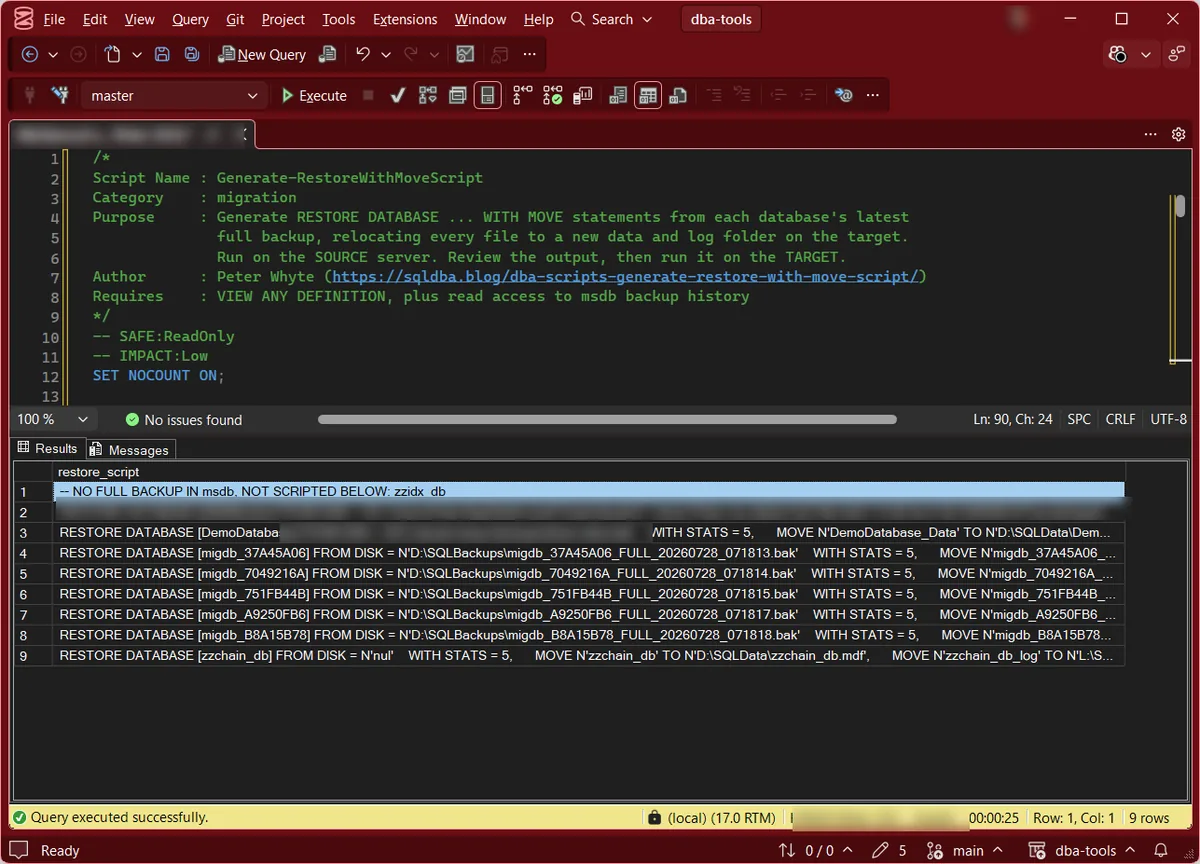
RESTORE DATABASE ... WITH MOVE statement, one MOVE line per file. Copy the column, review it, run it on the target.FROM DISK pathmsdb, so it is the path that backup was actually written to. A striped backup produces one DISK clause per file.Act when the path is on the source’s local disk. The target has to be able to reach it.-- NO FULL BACKUP linemsdb. It cannot be scripted, so it is named rather than dropped silently.Act when you see it. That database is not in the output and will not be migrated by this script.Before You Run the Output on the Target
None of this is checked for you, and each one fails the restore rather than warning first:
RESTORE creates files, not folders. A missing one fails with Directory lookup for the file … failed (5133) and File … cannot be restored to … (3156), which reads like a bad backup and is not.RESTORE pre-allocates the full data and log file sizes, so a nearly empty database can still want gigabytes.@WithRecovery = 0 when differential or log backups have to be restored afterwards. The last restore in the sequence is the one that uses WITH RECOVERY.@WithReplace defaults to 0. Set it to 1 only when replacing a same-named database on the target is intended, and note it applies to every row.state_desc in sys.databases on the target, then confirm users still map to logins with Fix Orphaned Users.What It Will Not Do
- It needs backup history. Everything comes from
msdbon the server you run it against, so it cannot script a database whose backups were taken elsewhere, or whose history has been purged. - It scripts the latest full backup only. Differentials and log backups are not chained for you; set
@WithRecovery = 0and add them yourself. - It does not check the backup file exists. It reports the path
msdbrecorded, which may since have been moved or deleted.
Microsoft’s reference covers backupset, backupfile and sys.databases in full.
Related Scripts
You may also find these scripts useful:
- Restore From a Newer SQL Server Version (Error 3169), the error this script’s output hits cold when the backup was taken on a newer version
- Error 3154: The Backup Set Holds a Backup of a Different Database, the mismatch this script can avoid by restoring alongside with new file paths.
- SQL Server Migration Script Generators (hub)
- Generate User Mapping Script
- Generate Login Script
- Database Files Detail
- Get Migration Risk Assessment
- DBA Scripts: Get Last Restore History
- DBA Scripts: The Complete Guide, the map across every script on this site
Frequently Asked Questions
Do I run this on the source server or the target?
On the source. It reads that server’s msdb backup history and the file layout recorded in the backups, so running it on the target would describe the wrong machine. It only SELECTs, so it is safe on a production source.
Does it cover system databases, or databases that are offline?
Neither. It filters on database_id > 4 and state_desc = N'ONLINE'. If a database you expected is missing from the output, check its state, and check the -- NO FULL BACKUP line at the top.
What about a database with more than two files?
Handled. It writes one MOVE per file recorded in the backup, however many there are, with data files going to @NewDataRoot and log files to @NewLogRoot.
Why read the logical names from msdb instead of the live database?
Because the backup is the authority on what is inside it. If a file was added to the database after the backup was taken, a MOVE built from the live layout names a file the backup does not contain, and the restore fails with Logical file 'X' is not part of database 'Y' (error 3234). Reading msdb.dbo.backupfile avoids that without needing access to the .bak.
Can I restore just a few databases?
Yes. Set @Databases to a comma-separated list, for example N'Sales,Payroll'. Leave it NULL for every online user database.
Summary
One generator, one job: write the RESTORE ... WITH MOVE statements for a target whose drive layout differs from the source. Backup paths and logical names both come from msdb, so nothing is constructed or guessed. Set the two roots, review the output, and check the first row in case a database had no full backup to script.
Leave a Reply