
Exporting a query to CSV looks like a solved problem. Set a comma as the delimiter, save the file, done. Then somebody opens it in Excel, a column has shifted, and a customer called Smith, Jones and Co has quietly turned into two fields.
That is not a hypothetical. Everything below was run against a SQL Server 2025 instance using a table built specifically to contain the three things that break CSV exports: a value with a comma in it, a value with double quotes in it, and a NULL. Most of the methods people reach for corrupt that data silently, and the export still reports success.
This post covers the five ways to get query results into a CSV, what each one does to awkward data, and which to use when.
The Methods, Up Front
| Method | Handles commas in data | Headers |
|---|---|---|
| SSMS grid, Save Results As | Yes, quotes them | Optional |
| SSMS Results To File | No | Yes |
| sqlcmd | No | Yes, plus a dashes row |
| bcp | No | No |
| PowerShell Export-Csv | Yes, properly | Yes |
Short version: if the data is all numbers and dates, any of these work. If it contains free text, use the SSMS grid export for a one-off and PowerShell for anything repeatable.
The Test Data, So You Can Reproduce This
Four rows, each one a different CSV trap.
CREATE TABLE dbo.CsvDemo (
    id      int,
    Company nvarchar(60),
    Note    nvarchar(60),
    Amount  decimal(10,2)
);

INSERT dbo.CsvDemo VALUES
 (1, N'Acme Ltd',            N'plain row',              10.50),
 (2, N'Smith, Jones and Co', N'name contains a comma',  20.00),
 (3, N'The "Big" One',       N'contains double quotes', 30.25),
 (4, N'Nulltown',            NULL,                      40.00);
Row 2 is the one that matters. Keep an eye on it.
Method 1: Save Results As, From The Grid
The quickest route, and better than its reputation. Run the query, right-click anywhere in the results grid, choose Save Results As, and save as CSV.
SSMS quotes any value containing a delimiter here, so row 2 survives. The one thing to check first is headers, because they are off by default:
Tools → Options → Query Results → SQL Server → Results to Grid → Include column headers when copying or saving the results.
That setting only applies to new query windows, so open a fresh tab after changing it or you will wonder why nothing happened.
Method 2: Results To File
For results too large to be worth rendering in the grid, switch the output destination with Ctrl+Shift+F, then run the query. SSMS prompts for a filename and writes straight to disk.
Two things need changing before this gives you a CSV.
First, the format. By default this produces column-aligned text, not comma separated:
Tools → Options → Query Results → SQL Server → Results to Text → Output format → Comma delimited.

Again, new query windows only.
Second, the file extension. The save dialog defaults to .rpt, which is SSMS’s own report format as far as Windows is concerned, so the file will not open in Excel on a double click. Type the full name with .csv in the save dialog rather than accepting the default. This catches almost everyone the first time, and the file is perfectly good CSV underneath, just misnamed.
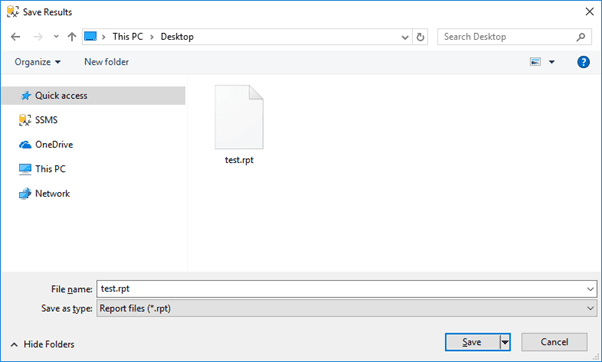
With both set, this is still where the trouble starts. Comma delimited here means “put a comma between the columns”, nothing more. There is no quoting, so row 2 breaks.
Method 3: sqlcmd
The scriptable equivalent, and the one that turns up in scheduled jobs.
sqlcmd -S SQLPROD01 -E -C -d SalesDB ^
  -Q "SET NOCOUNT ON; SELECT id, Company, Note, Amount FROM dbo.CsvDemo;" ^
  -s"," -W -h-1 ^
  -o "C:\Exports\customers.csv"
The flags that matter: -s"," sets the separator, -W trims trailing spaces (without it every column is padded to its full width), -h-1 suppresses the header row and the dashes separator under it, and -C trusts the server certificate, which ODBC Driver 18 now requires unless you have a trusted certificate installed. If you drop -C on a default install you get a certificate chain error rather than a connection.
Here is what it actually wrote:
1,Acme Ltd,plain row,10.50
2,Smith, Jones and Co,name contains a comma,20.00
3,The "Big" One,contains double quotes,30.25
4,Nulltown,NULL,40.00
Two problems, and neither raises an error. Row 2 now has five fields where every other row has four. And the NULL in row 4 has been written as the literal text NULL, which will import as a four-character string rather than an empty value.
To see how bad the first one is, read the file back:
$rows = Import-Csv "C:\Exports\customers.csv" -Header id,Company,Note,Amount
$rows[1].Note
That returns Jones and Co. The Note column for row 2 should read name contains a comma. Every field after the embedded comma has shifted one place left, the last one has fallen off the end, and nothing anywhere reported a failure. This is how a bad export reaches a finance spreadsheet.
For the wider set of sqlcmd flags, there is a fuller writeup in sqlcmd Examples for SQL Server.
Method 4: bcp
bcp is the bulk copy utility, and it is the fastest option by a distance when the row count gets serious.
bcp "SELECT id, Company, Note, Amount FROM SalesDB.dbo.CsvDemo" ^
  queryout "C:\Exports\customers.csv" ^
  -c -t"," -S SQLPROD01 -T -u
-c means character data, -t"," sets the field terminator, -T uses Windows authentication, and -u trusts the server certificate. That last flag is the bcp equivalent of sqlcmd‘s -C and it catches people out, because the error it gives without it talks about establishing a connection rather than about certificates.
The output:
1,Acme Ltd,plain row,10.50
2,Smith, Jones and Co,name contains a comma,20.00
3,The "Big" One,contains double quotes,30.25
4,Nulltown,,40.00
bcp handles NULL better than sqlcmd, writing an empty field rather than the word NULL. It still does not quote anything, so row 2 is corrupt in exactly the same way, and there is no header row at all.
You can force a header by unioning one in as text, but at that point you are fighting the tool. Use bcp for volume and clean data, not for a report someone is going to open.
Method 5: PowerShell, Which Actually Gets It Right
Export-Csv follows the CSV standard properly. It quotes fields, escapes embedded quotes by doubling them, and writes a header.
Import-Module SqlServer

Invoke-Sqlcmd -ServerInstance SQLPROD01 -Database SalesDB -TrustServerCertificate `
    -Query "SELECT id, Company, Note, Amount FROM dbo.CsvDemo" |
  Select-Object id, Company, Note, Amount |
  Export-Csv -Path "C:\Exports\customers.csv" -NoTypeInformation -Encoding UTF8
The result:
"id","Company","Note","Amount"
"1","Acme Ltd","plain row","10.50"
"2","Smith, Jones and Co","name contains a comma","20.00"
"3","The ""Big"" One","contains double quotes","30.25"
"4","Nulltown","","40.00"
Row 2 is intact because the value is quoted. Row 3’s internal quotes are doubled, which is the standard escape. NULL became an empty string. Reading it back with Import-Csv returns four rows with every field in the right column.
Two details worth keeping. Select-Object is not decoration: without it, Export-Csv can pick up extra properties that Invoke-Sqlcmd attaches to its output rows. And -Encoding UTF8 matters the moment any non-ASCII character appears, which in practice means the first time a customer has an accent in their name.
If the SqlServer module is not present, install it once with Install-Module SqlServer -Scope CurrentUser.
When The File Is Going To Excel
Two things bite regularly, and neither is SQL Server’s fault.
Excel reads a plain UTF-8 file as ANSI unless the file carries a byte order mark, so accented characters arrive mangled. Writing with -Encoding UTF8BOM in PowerShell 7 fixes it.
Excel also reformats anything that looks like a number or a date on open. Long numeric reference codes lose leading zeros, and values like 03-04 become dates. Nothing in the export can prevent that. Either import the file through Data → From Text/CSV and set the column types, or rename the extension so Excel does not auto-parse it.
Automating It On A Schedule
For a recurring export, the PowerShell method goes into a SQL Agent job step of type PowerShell, or into a Windows scheduled task. The account running it needs read permission on the data and write permission on the destination folder, which is worth stating explicitly because a job that works interactively and fails on a schedule is nearly always this.
Stamp the filename with a date so runs do not overwrite each other:
$stamp = Get-Date -Format 'yyyyMMdd'
$out   = "C:\Exports\customers_$stamp.csv"
If the export is feeding another system rather than a person, consider whether CSV is the right format at all. For machine-to-machine transfer, bcp in native mode is faster and lossless, and it does not have any of the delimiter problems above.
Frequently Asked Questions
Why does my CSV have extra columns on some rows?
A value in the data contains the delimiter, and the export method did not quote it. This is the single most common CSV export defect and it does not raise an error. Use the SSMS grid export or PowerShell Export-Csv, both of which quote correctly, or switch to a delimiter that cannot appear in the data such as a pipe or a tab.
Why is every column padded with spaces in my sqlcmd output?
Add the -W flag, which trims trailing whitespace. Without it sqlcmd pads each column to its full declared width, so an nvarchar(200) column produces very wide rows.
Why do I get a certificate error running sqlcmd or bcp?
ODBC Driver 18 encrypts by default and will not accept a self-signed certificate silently. Add -C to sqlcmd or -u to bcp to trust the server certificate. The proper fix is installing a trusted certificate, which is covered in the certificate chain not trusted fix.
How do I include column headers?
The grid export needs the option enabled under Tools, Options, Query Results, Results to Grid, and it only applies to query windows opened afterwards. sqlcmd includes headers by default. bcp cannot produce them at all. PowerShell Export-Csv always writes them.
What is the fastest way to export a very large table?
bcp, comfortably. It bypasses the result rendering that SSMS and sqlcmd do per row. For a table of millions of rows the difference is minutes against hours. Just accept that you get no headers and no quoting, so it suits clean data going into another system rather than a report.
Related
- How to Import a CSV File into SQL Server, the same journey in the other direction
- SSMS Results Grid Export Options
- sqlcmd Examples for SQL Server
- SSMS: The Complete Guide
- SSMS Certificate Chain Not Trusted Fix
- DBA Scripts: The Complete Guide
Summary
Five methods, and the choice comes down to what is in the data rather than how many rows there are. The SSMS grid export and PowerShell Export-Csv quote their output and survive commas, quotes and NULLs. sqlcmd, bcp and the Results To File option all produce broken rows the moment a text value contains a comma, and none of them warn you.
If you take one thing from this: after any export of text data, read the file back and count the fields on a row you know contains a comma. That check takes ten seconds and it is the difference between a clean handover and a corrupted spreadsheet nobody notices for a month.
Leave a Reply