
Dark mode is what DBAs were hoping for in SQL Server Management Studio for a long time. Now we have it, and more: SSMS ships with a set of built-in themes, dark included, and switching between them is one menu click. A theme covers the query editor, Object Explorer and the results grid, though some panels only pick it up fully after a restart of SSMS.
Switch to Dark Mode
- Open Tools in the top menu bar.
- Point at Theme.
- Pick Dark.
That is it. The editor and Object Explorer switch straight away.
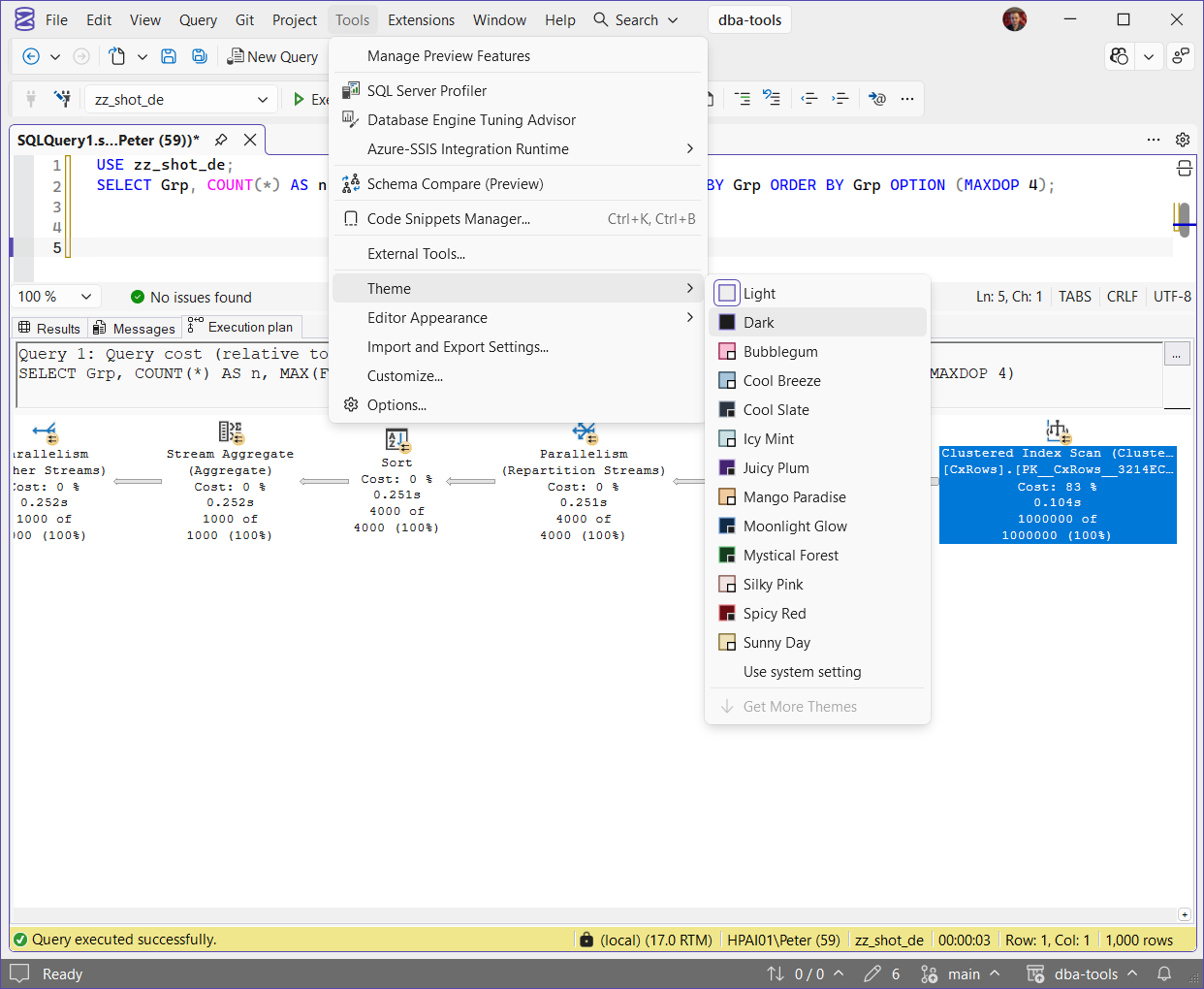
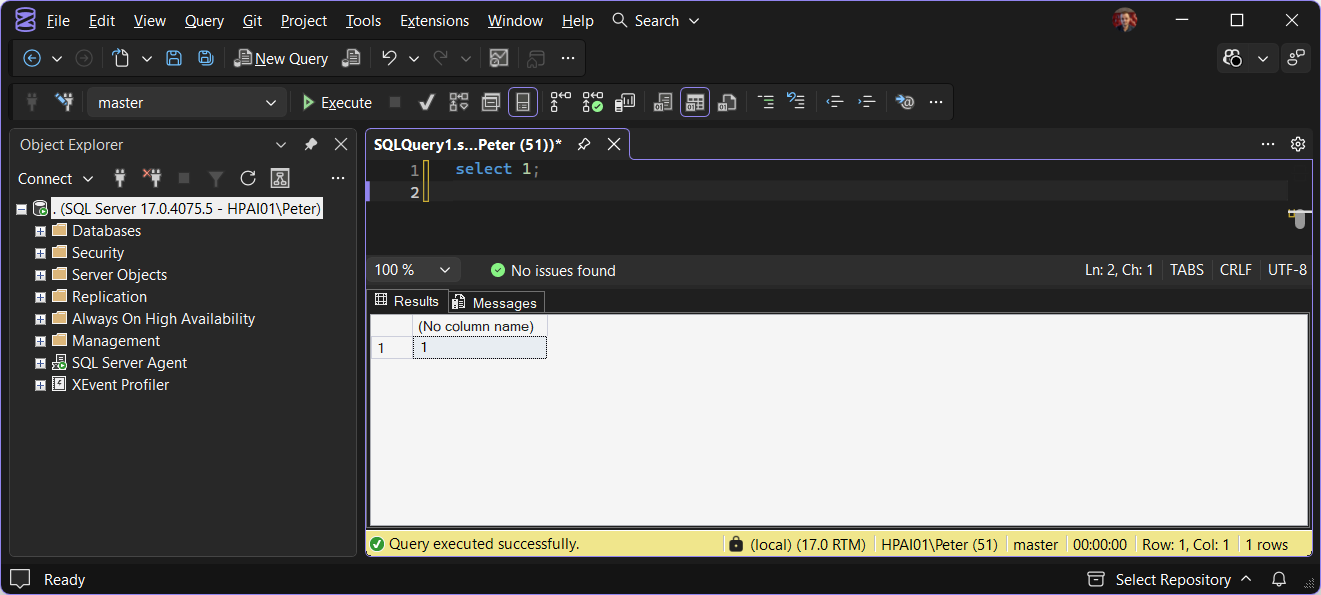
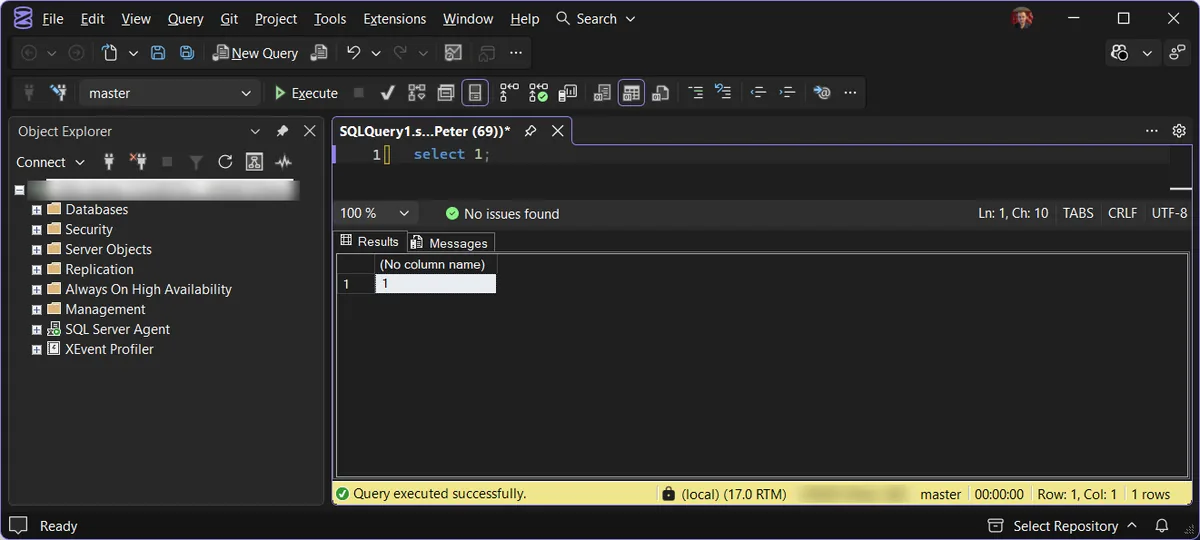
The Results Grid, Before and After a Restart
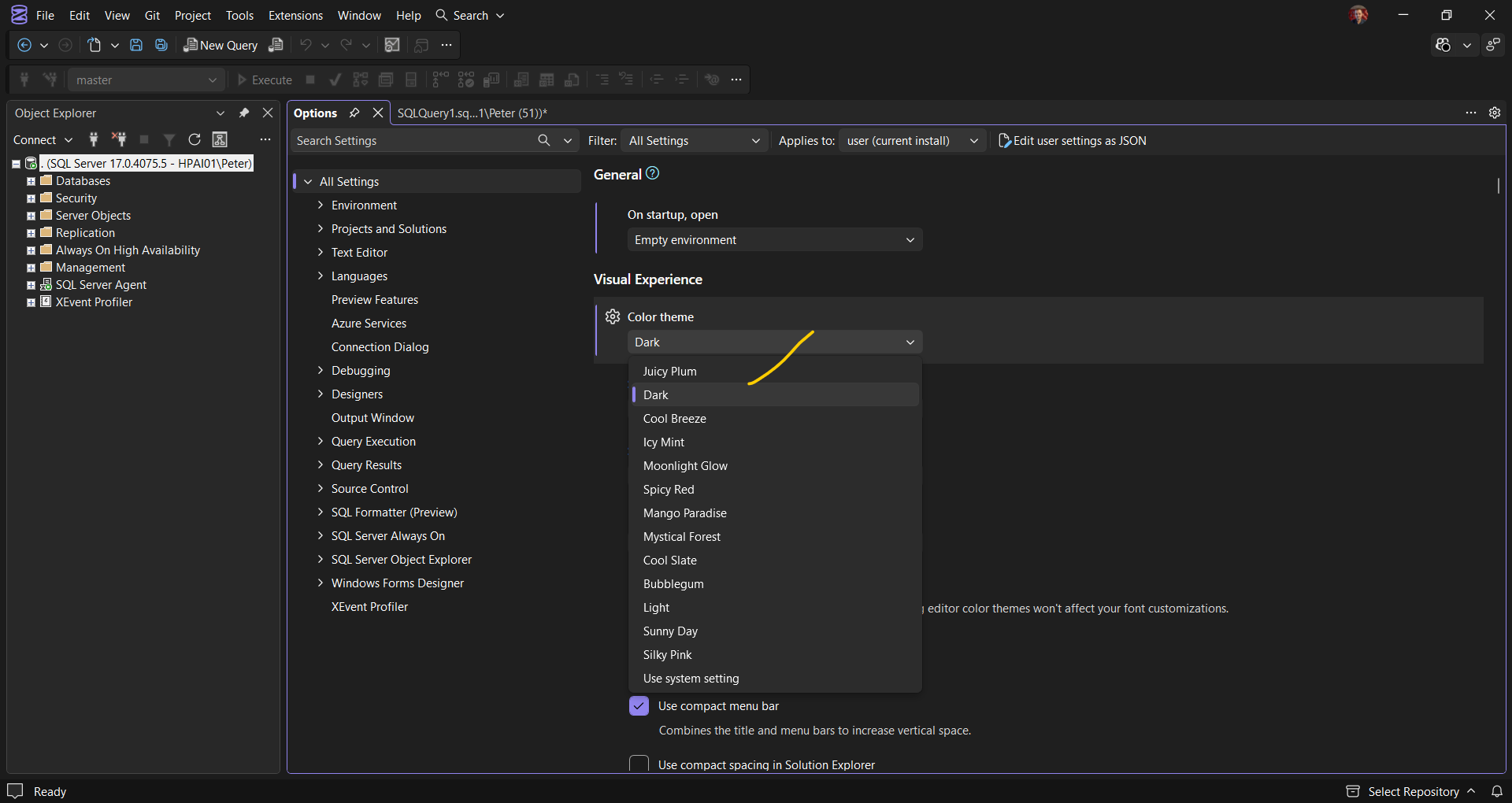
The Same Setting in Options
The theme also lives in Tools → Options: type color theme into the search box at the top, or open Environment → General and look under Visual Experience.
More Than Dark: The Other Themes
Dark is not the only choice. The Theme menu carries 13 themes, from Cool Slate to Mango Paradise, plus Use system setting, which follows Windows. It is worth a minute finding the one you like looking at all day.
Frequently Asked Questions
Why is the results grid still white?
It picks up the theme on the next start. Close and reopen SSMS and it comes up dark.
Why is one dialog still light?
Microsoft is bringing dialogs into the theme a few at a time, and each SSMS update covers more of them. A light dialog is a known gap, not a broken install, and the SSMS 22 release notes list each batch of dialogs brought into the theme. Keeping SSMS updated closes them.
Can I make the results grid bigger instead?
Yes. SSMS 22 zooms the results grid on its own, separately from the editor, so you can make it bigger without changing the theme.
Summary
Tools → Theme, then pick one: Dark, the one DBAs waited years for, or any of the others. The editor and Object Explorer switch at once, the results grid and a few other panels follow after a restart of SSMS, and the same setting sits in Tools → Options if you prefer it there.
Related
- SSMS: The Complete Guide, the hub this post belongs to
- What’s New in SSMS 22 for DBAs
- How to Show Line Numbers in SSMS
- Install and Update SSMS
Leave a Reply