
Get SQL Agent Job Overview answers “what’s the current state of every job.” This script answers a narrower, more urgent question: “what actually failed recently, and why.” Job history in msdb holds the error message for every failed step, but it’s not somewhere anyone looks unless they already suspect a problem, which means a job can fail quietly for days before anyone notices.
This script pulls every SQL Agent job failure from the last 7 days, with the actual error message from the job step, so there’s no need to dig through SSMS job history one job at a time.
Why SQL Agent Job Failure Summary Matters
A failed backup job, a failed maintenance job, or a failed data pipeline job is exactly the kind of thing that should never go unnoticed, but without alerting configured, nothing surfaces it automatically:
- Surfaces every job failure in the window, not just the ones you happened to check
- Includes the actual error message, so root cause investigation starts immediately instead of requiring a second trip into SSMS
- A pattern of repeated failures on the same job/step is easy to spot once they’re all in one place
- Complements Get SQL Agent Job Overview‘s single “last run outcome” column with full history and error detail
When to Run This Script
- Routine SQL Server health checks
- Investigating a suspected backup or maintenance gap
- After being alerted to a single failure, to check whether it’s isolated or part of a pattern
- Reviewing a server you’ve just inherited, to see its recent operational history
The Script
Run the following script against your SQL Server instance.
- Tested on: SQL Server 2025 (RTM CU8), Windows lab instance
- Last verified: 2026-08-30 (saved output from a real run, Get-SqlAgentJobFailureSummary-20260830-171321.csv)
- Permissions: db_datareader on msdb
- Safety: read-only, impact low
/*
Script Name : Get-SqlAgentJobFailureSummary
Category    : configuration-and-environment
Purpose     : Show SQL Agent job failures from the last 7 days with readable timestamps and error messages.
Author      : Peter Whyte (https://sqldba.blog/dba-scripts-get-sql-agent-job-failure-summary/)
Requires    : db_datareader on msdb
HealthCheck : Yes
*/
-- SAFE:ReadOnly
-- IMPACT:Low
SET NOCOUNT ON;

SELECT
    j.name AS job_name,
    h.step_id,
    h.step_name,
    /* Inline yyyymmdd/HHmmss conversion - agent_datetime() is a scalar UDF that
       db_datareader cannot EXECUTE, so using it would break the stated Requires */
    CONVERT(DATETIME,
        STUFF(STUFF(CAST(h.run_date AS CHAR(8)), 7, 0, '-'), 5, 0, '-') + ' ' +
        STUFF(STUFF(RIGHT('000000' + CAST(h.run_time AS VARCHAR(6)), 6), 5, 0, ':'), 3, 0, ':')
    ) AS run_datetime,
    CAST(h.run_duration / 10000 AS VARCHAR(4)) + 'h '
    + RIGHT('0' + CAST(h.run_duration / 100 % 100 AS VARCHAR(2)), 2) + 'm '
    + RIGHT('0' + CAST(h.run_duration % 100 AS VARCHAR(2)), 2) + 's' AS run_duration,
    h.message
FROM msdb.dbo.sysjobhistory AS h
JOIN msdb.dbo.sysjobs AS j ON h.job_id = j.job_id
WHERE h.run_status = 0
  AND h.run_date >= CONVERT(INT, CONVERT(CHAR(8), DATEADD(DAY, -7, GETDATE()), 112))
ORDER BY h.instance_id DESC;
The script queries msdb.dbo.sysjobhistory for failed steps (run_status = 0) in the last 7 days, joined to the job name, with the raw run duration converted to a readable h/m/s format and the actual failure message included.
How To Run From The Repo
Clone DBA Tools, initialize and run the script:
# Clone dba-tools repo:
git clone https://github.com/peterwhyte-lgtm/dba-tools

# Initialize environment:
cd dba-tools
.\Initialize-Environment.ps1

# List every SQL Agent job failure from the last 7 days:
.\run.ps1 Get-SqlAgentJobFailureSummary

# To run against a remote sql server:
.\run.ps1 Get-SqlAgentJobFailureSummary -ServerInstance SQLSERVER01
This script lives in the repo at:
sql/monitoring/jobs/Get-SqlAgentJobFailureSummary.sqlpowershell/wrappers/monitoring/jobs/Get-SqlAgentJobFailureSummary.ps1
Example Output
116 rows over seven days on a single lab instance, which is the first thing worth saying about this script: on a server with collectors and maintenance running, failures are rarely a short list. The capture is scrolled into the middle of them.
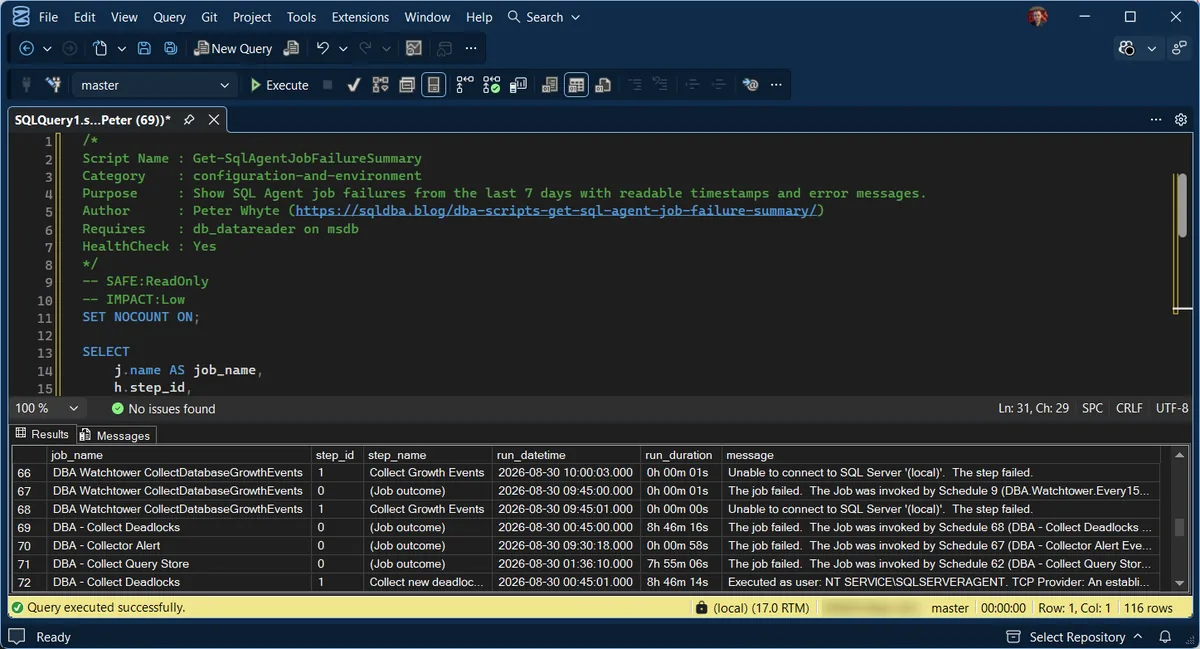
Two patterns are visible without reading a single message in full. The same job appears twice for one failure, once at step_id 1 for the step that broke and once at step_id 0 for the job outcome, so the row count is roughly double the number of distinct failures. And the repeated Unable to connect to SQL Server text across several collector jobs is a shared cause, not several unrelated bugs, which is exactly the kind of thing a list of job names alone would hide.
An empty result is the healthy outcome, but read it with care: no failures and no runs look identical here. If the list is empty, confirm SQL Agent is actually running (see Get Services Information) before calling it good news.
Understanding the Results
job_namestep_namestep_id0 is the job outcome summary; 1 and above are the individual steps. Each failure usually produces one of each, so a long result set is not as many separate incidents as it first looks.run_datetimerun_durationmessageBest Practices
- Configure SQL Agent alerts or an external monitoring check for job failures; don’t rely on manually running this script to catch them.
- Investigate same-timestamp failures across multiple jobs as a single incident, not several unrelated ones.
- A failure summary is only meaningful if the Agent service was up to attempt the jobs at all, and an empty list proves nothing on a server where nothing ran. Confirm the service state with Get Services Information, then read the job-by-job picture in SQL Agent Job Overview.
Microsoft’s reference covers dbo.sysjobhistory and dbo.sysjobs in full.
Related Scripts
You may also find these scripts useful:
- SQL Agent and Jobs (hub)
- Agent Alerts and Operators
- Job Schedules and Duration Trends
- SQL Agent Job Overview
- DBA Scripts: Get Maintenance Job Status
- SQL Server Error Severities Explained
- SQL Agent Job Failed: Finding the Step That Actually Broke, the router for when all you have is “The job failed” and no cause with it
- DBA Scripts: The Complete Guide, the map across every script on this site
Frequently Asked Questions
How far back does job history go?
As far as msdb.dbo.sysjobhistory retains it, controlled by the SQL Agent job history retention settings (row count and per-job caps by default). This script only looks at the last 7 days; adjust the DATEADD filter for a longer window if needed.
Why would a job fail with no error message?
Rare, but it happens when a step is killed externally (server restart mid-job, manual cancellation) rather than failing on its own. The absence of a specific error is itself a clue worth investigating.
Summary
A job failure that nobody notices is functionally the same as not having that job at all, whether it’s a backup, a maintenance task, or a data pipeline. This script exists to close that visibility gap without waiting for someone to configure proper alerting first.
Run this script as part of routine health checks, and treat any result here as worth investigating immediately rather than filing away for later.
Leave a Reply