
You connect to production as sysadmin or db_owner because the job needs it, and GitHub Copilot in SSMS runs every query it generates with exactly those rights. Copilot has no permissions of its own: whatever you can do, it can do. Since SSMS 22.7 you can give it a smaller identity, per database, with one line of front matter in a database extended property called CONSTITUTION.md. This page sets that up, shows what the restricted identity can and cannot see, and gives the exact errors you hit on the way.
agentExecuteAsUser: ThatUser in the front matter of a database extended property named CONSTITUTION.md (step 2), and GRANT IMPERSONATE on that user to everyone who uses Copilot (step 3). Then connect with Connect to database set to that database (step 4): Copilot uses your Connect dialog history, not your query window. Needs SSMS 22.7 or later.On this page
- Why Copilot Has Your Permissions
- Before You Start: Install Copilot in SSMS
- Step 1: Create the User Copilot Runs As
- Step 2: Write the CONSTITUTION.md Property
- Step 3: Grant IMPERSONATE to Copilot Users
- Step 4: Check It in Copilot
- Still Running as You? Check Which Database It Connected To
- See What Copilot Ran
- What the Restricted User Cannot See
- Copied the Script From the Announcement?
- Change It or Turn It Off
- Known Issues on SSMS 22.11
- Frequently Asked Questions
- Related
Why Copilot Has Your Permissions
Every query Copilot generates and runs, in Ask mode and in Agent mode, runs under the login you connected with. If you can read a table, so can Copilot. If you can drop it, so can Copilot. Agent mode asks before it runs each query, but Microsoft is explicit that the approval prompt is not a security boundary. SQL Server permissions are.
Setting agentExecuteAsUser changes that. When Copilot connects to the database, SSMS reads the constitution and runs EXECUTE AS USER = N'GHCP_DatabaseUser' WITH NO REVERT on Copilot’s connection before each query, so the query cannot switch back to you. Your own rights in the query editor and Object Explorer do not change. Only what Copilot runs on your behalf is restricted. Microsoft’s reference is Execution context for GitHub Copilot.
Before You Start: Install Copilot in SSMS
You need SSMS 22.7 or later (Install and Update SSMS gets you current) and Copilot itself, which is not in a default install. If the Copilot button at the top right of SSMS offers Install Copilot, it is not installed yet:
- Click the Copilot button at the top right of the SSMS window, then Install Copilot.
- The Visual Studio Installer opens with GitHub Copilot ticked under Individual components. Click Install. On the lab it was a 460 MB download and 1.44 GB on disk.
- When it finishes, open the chat with View, GitHub Copilot Chat, and sign in with your GitHub account. GitHub Copilot in SSMS covers the sign-in and the free plan.
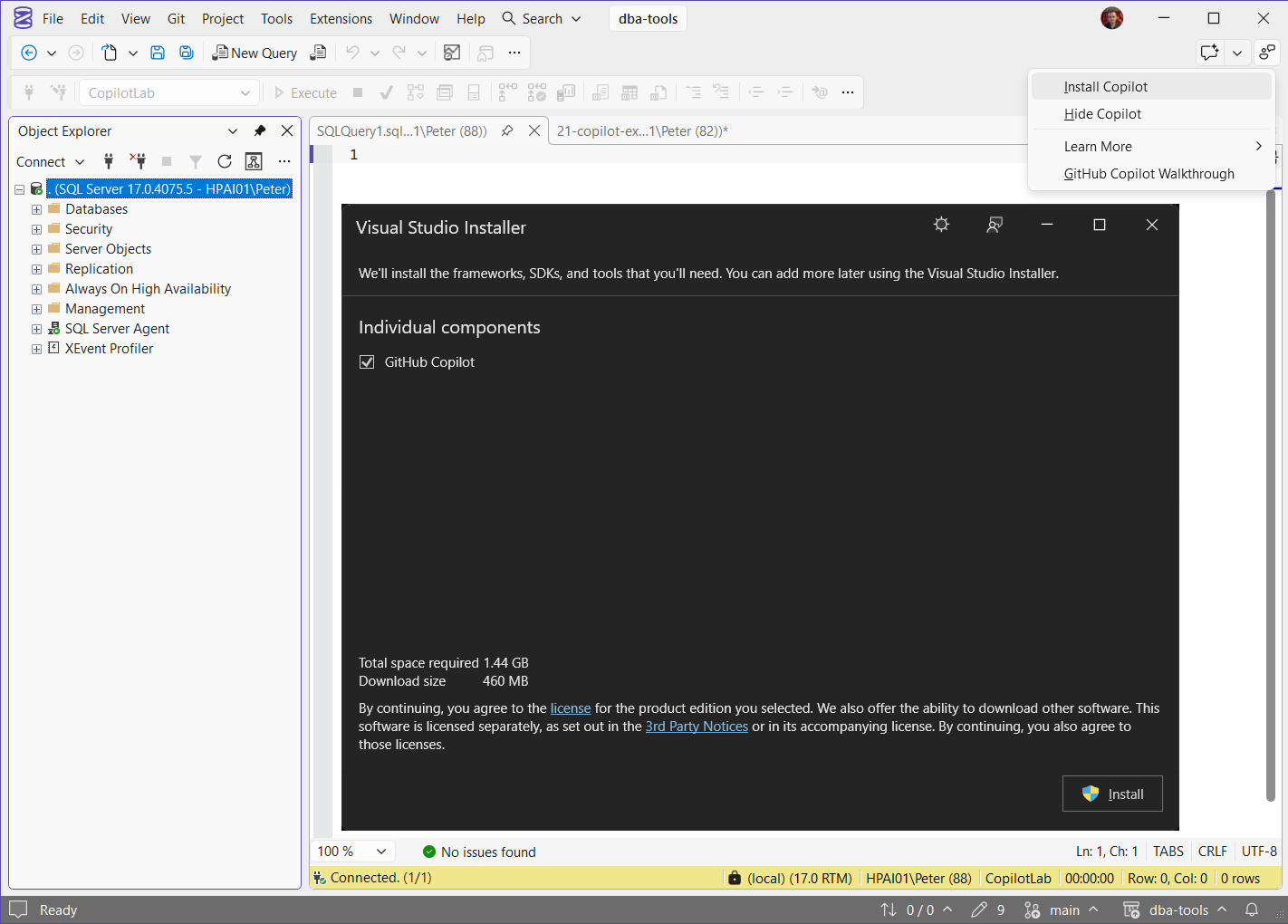
Microsoft’s install page calls this the AI Assistance workload. Opened from SSMS, the installer shows it as the single GitHub Copilot component.
One thing to check afterwards: I had to clone my scripts repo again in SSMS after the install. With it cloned (Use Git in SSMS walks through it with the dba-tools repo), Solution Explorer’s Folder View puts every script one click away. Click a file and it opens in a query window, ready to run:
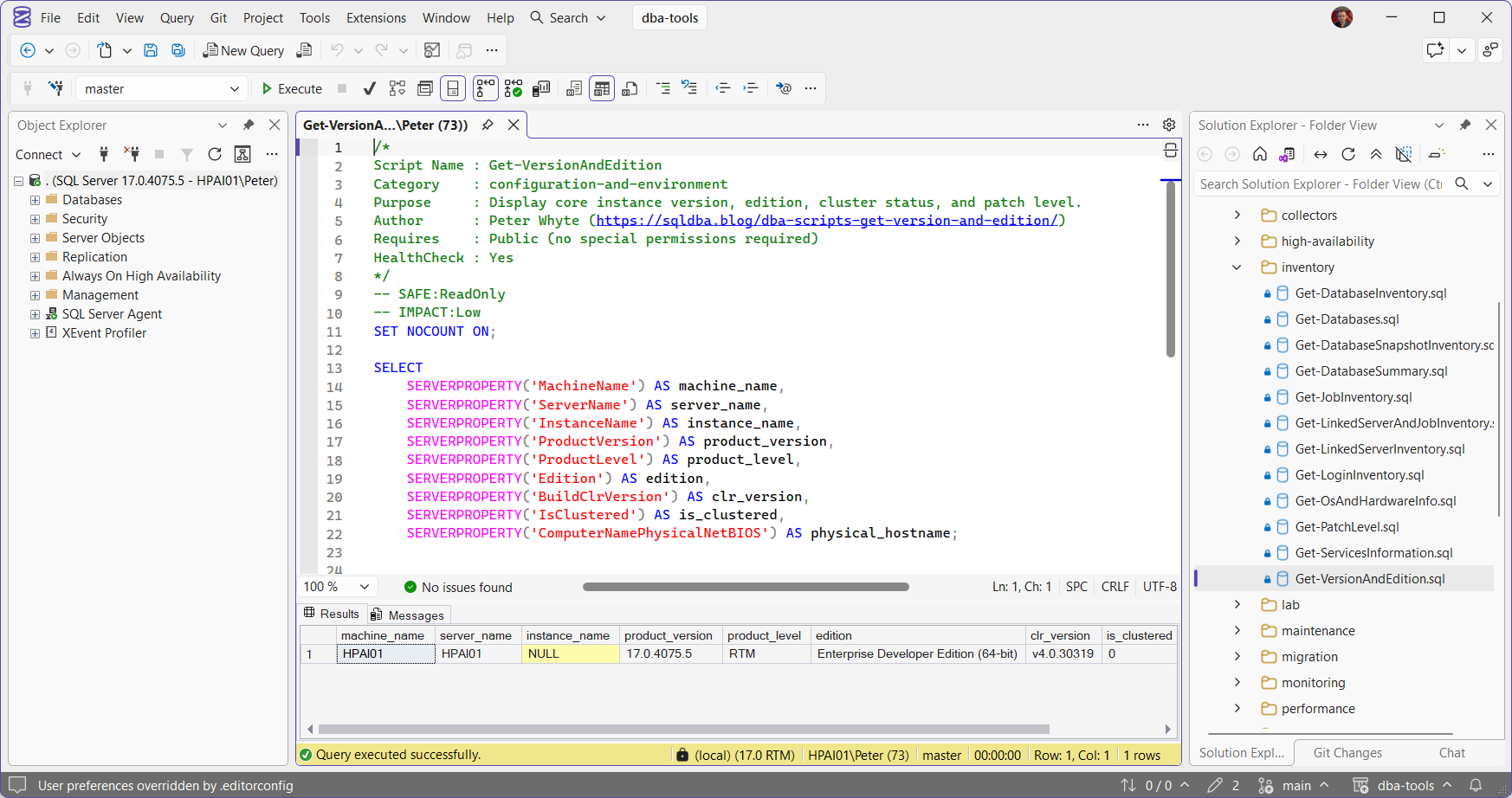
The examples below use a lab database, CopilotLab, with a Sales.Orders table Copilot may read and a Sales.CustomerPayments table it must never see. You need a login that can create users and extended properties there, such as db_owner.
Step 1: Create the User Copilot Runs As
A dedicated user without a login. It cannot connect to anything on its own, and it exists only for Copilot to run as. Grant it the least it needs: here, read access to one schema with one table carved out.
USE CopilotLab;

/* The identity Copilot will run as: no login, so it cannot connect on its own */
CREATE USER GHCP_DatabaseUser WITHOUT LOGIN;

/* Read the Sales schema, never the payments table */
GRANT SELECT ON SCHEMA::Sales TO GHCP_DatabaseUser;
DENY SELECT ON Sales.CustomerPayments TO GHCP_DatabaseUser;
db_datareader plus the same DENY also works. Start read-only and add rights deliberately. Never point agentExecuteAsUser at dbo, sa or any account people already use.
Step 2: Write the CONSTITUTION.md Property
The constitution is not a file on disk. It is a database-level extended property named CONSTITUTION.md, and its value is Markdown. The agentExecuteAsUser line must sit inside the --- front matter at the very top, or Copilot ignores it. Everything after the closing --- is guidance for Copilot. This version adds the property or updates it, so it is safe to run twice:
USE CopilotLab;

DECLARE @constitution nvarchar(3750) = N'---
agentExecuteAsUser: GHCP_DatabaseUser
---
## CopilotLab
Reporting database. Read only. Never generate DROP or TRUNCATE.';

IF EXISTS (SELECT 1 FROM sys.extended_properties WHERE class = 0 AND name = N'CONSTITUTION.md')
    EXEC sp_updateextendedproperty @name = N'CONSTITUTION.md', @value = @constitution;
ELSE
    EXEC sp_addextendedproperty @name = N'CONSTITUTION.md', @value = @constitution;

/* Check what Copilot will read */
SELECT name, CAST(value AS nvarchar(max)) AS ConstitutionContent
FROM sys.extended_properties
WHERE class = 0 AND name = N'CONSTITUTION.md';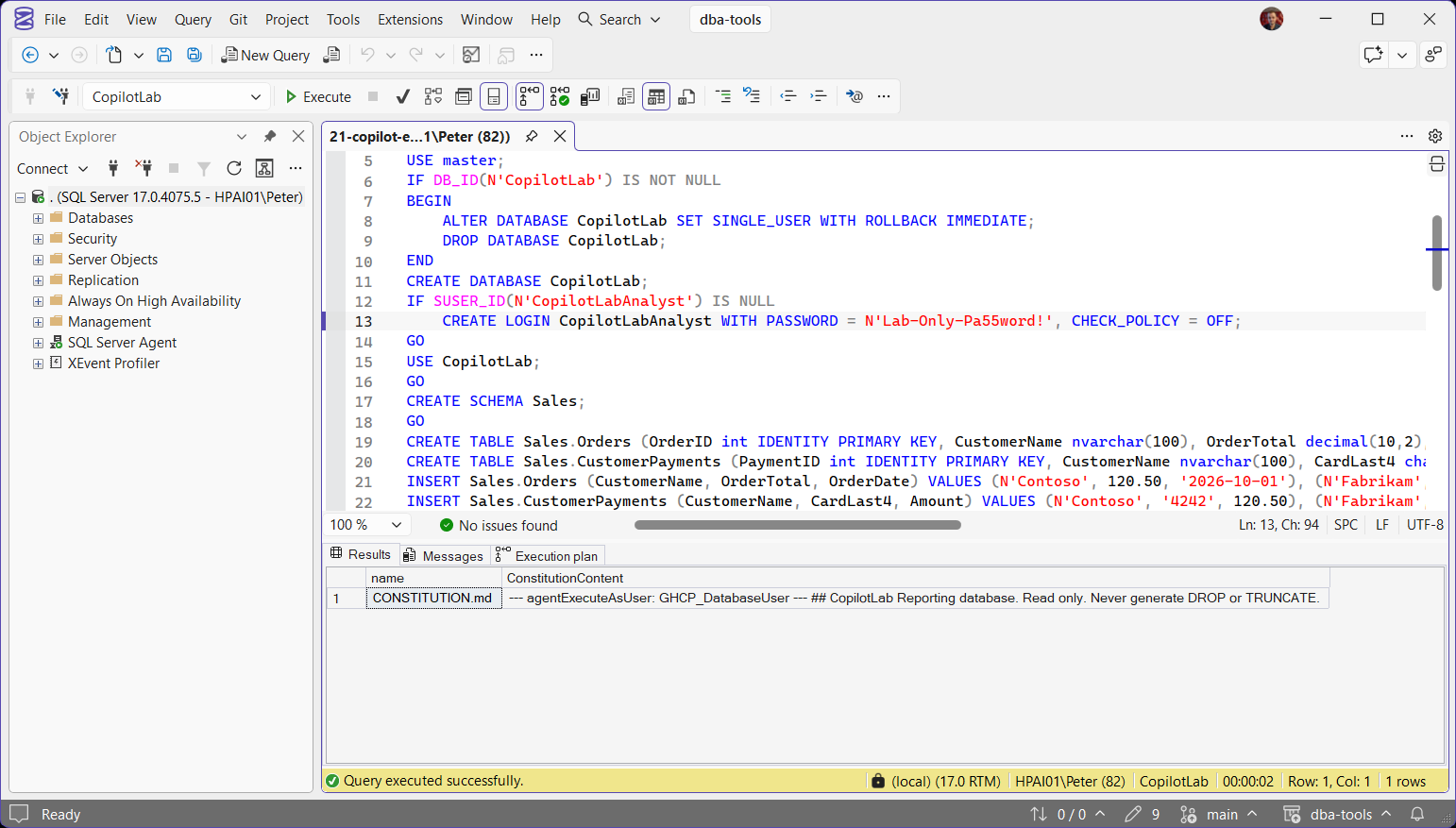
The whole constitution must fit in 3,750 characters. An extended property holds at most 7,500 bytes (sp_addextendedproperty) and nvarchar uses two bytes a character. Above that, the write fails:
Keep the rules short, and keep the coding standards that do not need to be enforced somewhere else.
Step 3: Grant IMPERSONATE to Copilot Users
Anyone using Copilot against this database now needs IMPERSONATE on the Copilot user. That is deliberate: when the grant is missing, Copilot does not quietly fall back to the person’s own, wider rights. Grant it to a role rather than to each person (GRANT on database principals):
USE CopilotLab;

/* One role for everyone allowed to use Copilot on this database */
CREATE ROLE CopilotUsers;
GRANT IMPERSONATE ON USER::GHCP_DatabaseUser TO CopilotUsers;

ALTER ROLE CopilotUsers ADD MEMBER CopilotLabAnalyst;
Without the grant, the EXECUTE AS that SSMS runs for Copilot fails with (Msg 15517 in full):
In Copilot Chat it looks like this. Connected as a user without the grant, every query on that connection fails with the same error, and Copilot cannot even report which login it is:

Note what Copilot offers next: to run the query on another saved connection that uses your own Windows login. SSMS did not fall back, but the chat suggests it. Decline when the point is to work as the restricted identity.
Who needs the grant was measured on the lab, and it is not everyone:
| Who | Needs the grant? | To block them |
|---|---|---|
| sysadmin | No, maps to dbo | Not possible inside the database |
| db_owner member | No, can already impersonate any user in the database | DENY IMPERSONATE (tested: returns Msg 15517) |
| Everyone else | Yes | Leave them out of the role |
So leaving someone out of the role does nothing against a db_owner. Use an explicit DENY:
/* A db_owner member needs no grant, so blocking them takes a DENY */
DENY IMPERSONATE ON USER::GHCP_DatabaseUser TO SomeDbOwnerUser;
To list who can use Copilot on a database, read the grants on the Copilot user. Role members inherit them:
USE CopilotLab;

SELECT pr.name AS grantee, pe.permission_name, pe.state_desc
FROM sys.database_permissions AS pe
JOIN sys.database_principals AS pr ON pr.principal_id = pe.grantee_principal_id
WHERE pe.class = 4
AND pe.major_id = USER_ID(N'GHCP_DatabaseUser');Get Permissions and Role Membership shows who sits in that role, and the user permissions audit lists every IMPERSONATE grant in the database.
Step 4: Check It in Copilot
Copilot does not use your query window’s connection. In Agent mode it picks from the recent connections in your Connect dialog, and the constitution it applies is the one in the database that connection opens in. So connect the right way first:
- In SSMS, Connect → Database Engine, click Options, and on the Connection Properties tab set Connect to database to the database with the constitution (here
CopilotLab). - Open Copilot Chat (View, GitHub Copilot Chat), start a new chat and set the mode to Agent.
- Ask Copilot to use that connection and identify itself, then click Allow on each step:
List my database connections, connect to the one whose database is CopilotLab, then run SELECT DB_NAME() AS database_name, SUSER_SNAME() AS login_name, USER_NAME() AS user_name;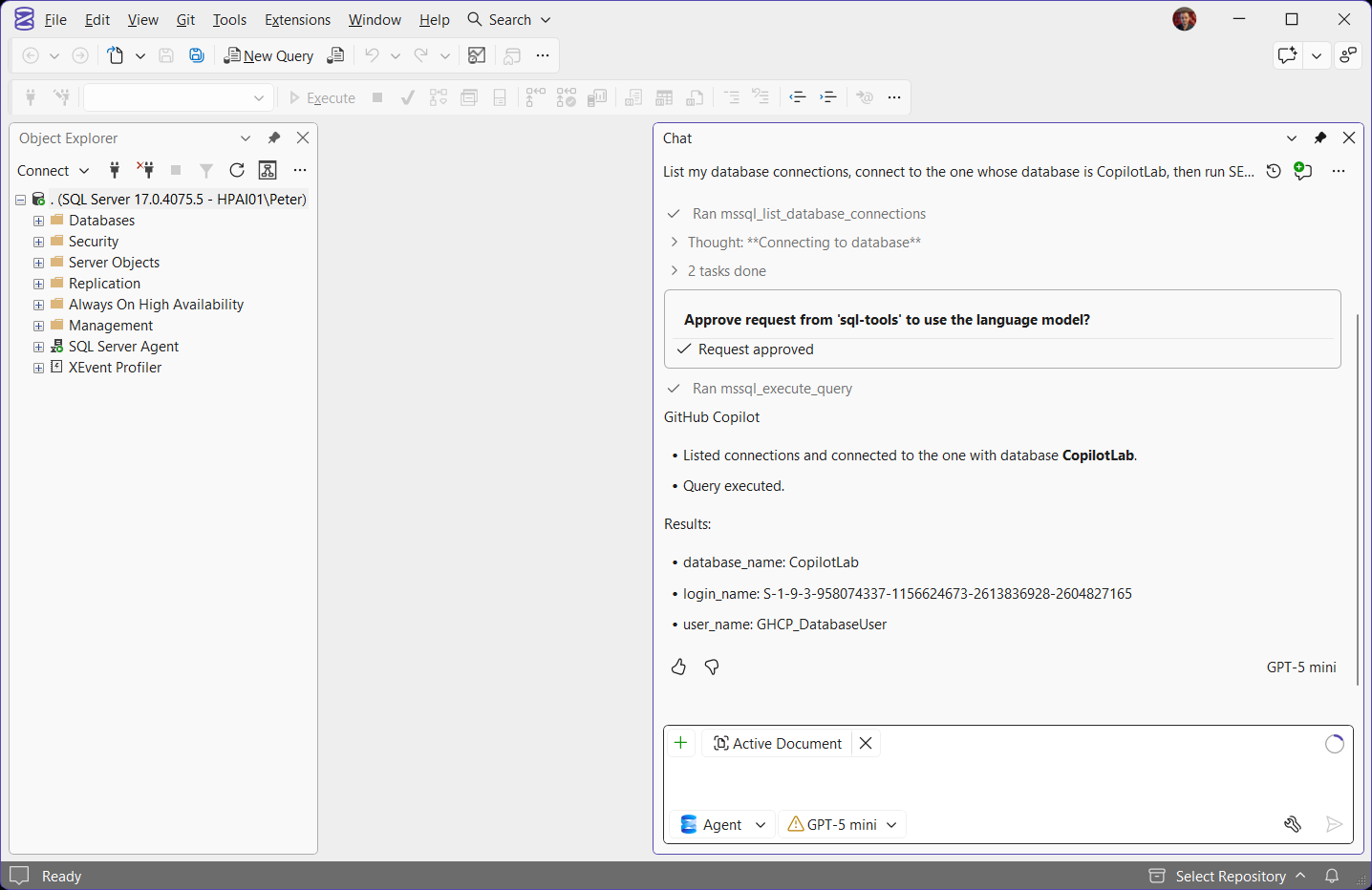
user_name is GHCP_DatabaseUser. login_name is a SID rather than a name because that user has no login. Now ask for the table it must not see:
Using the CopilotLab connection, run SELECT * FROM Sales.CustomerPayments;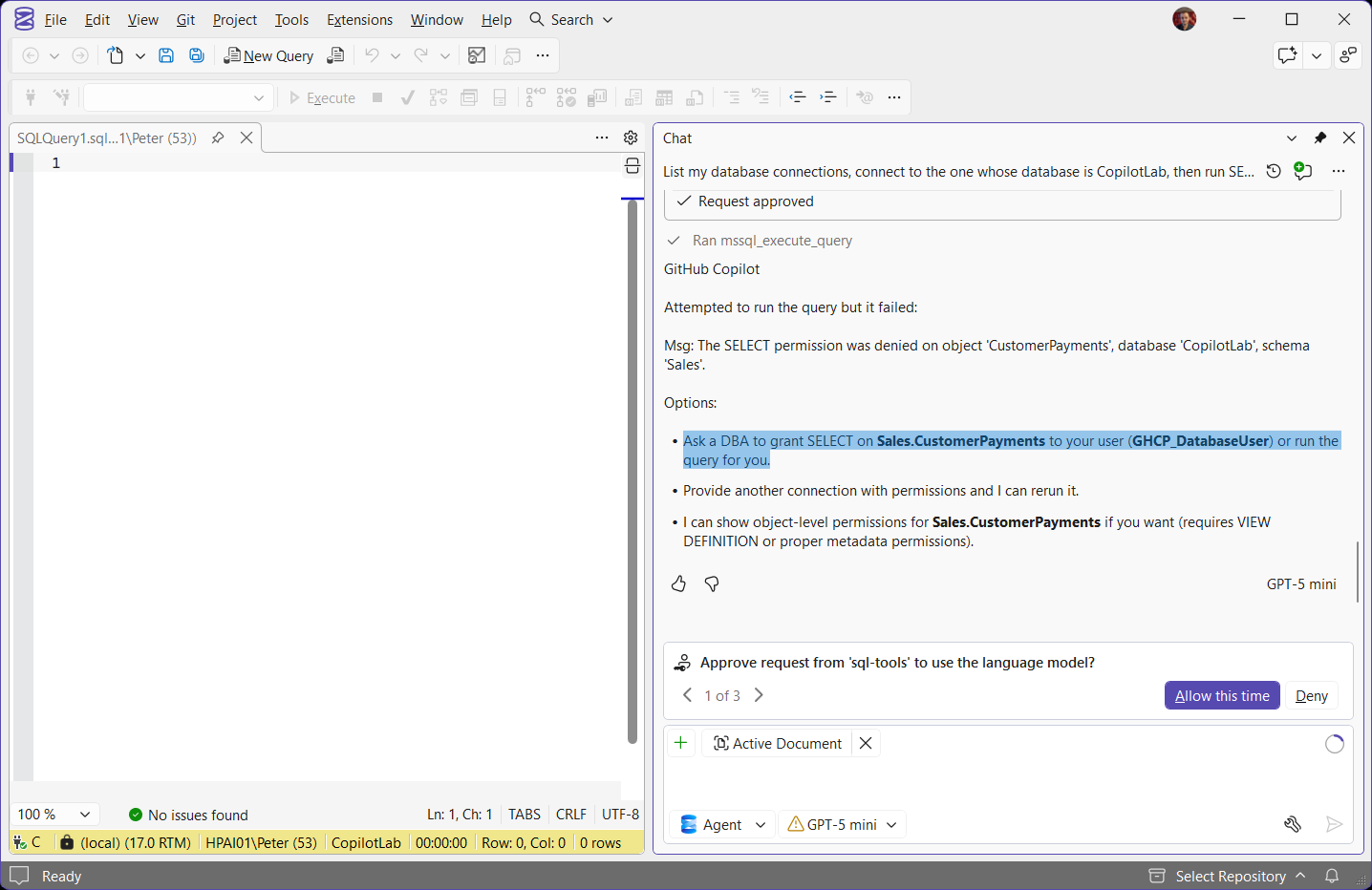
It fails with the same error any user without the permission gets, while your own query window still reads the table. Copilot even names the user it ran as when it suggests the fix:
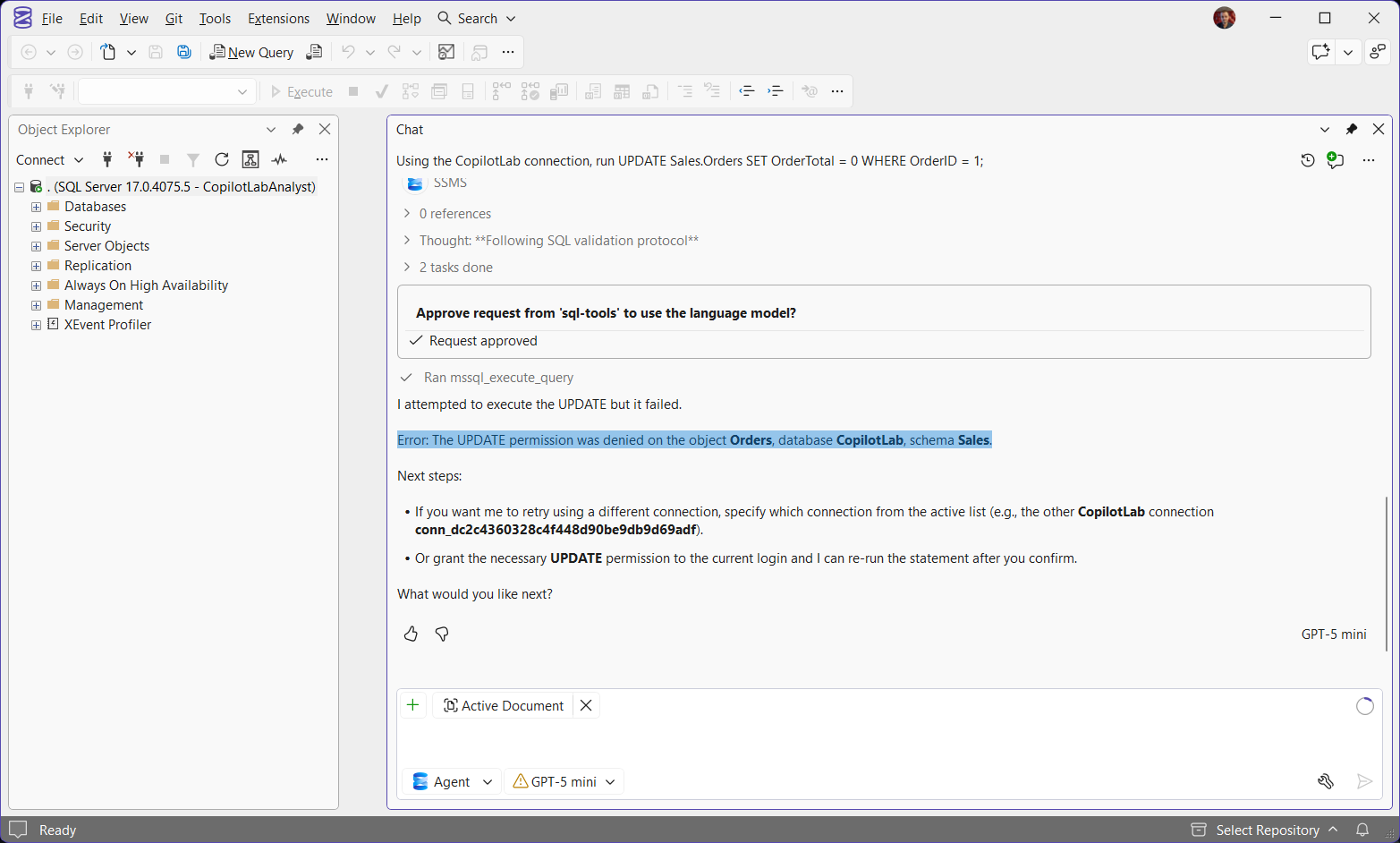
Writes stop the same way. Asked to run an UPDATE, Agent mode checked once that I meant it, sent it to SQL Server, and the restricted user’s missing UPDATE permission refused it:
Still Running as You? Check Which Database It Connected To
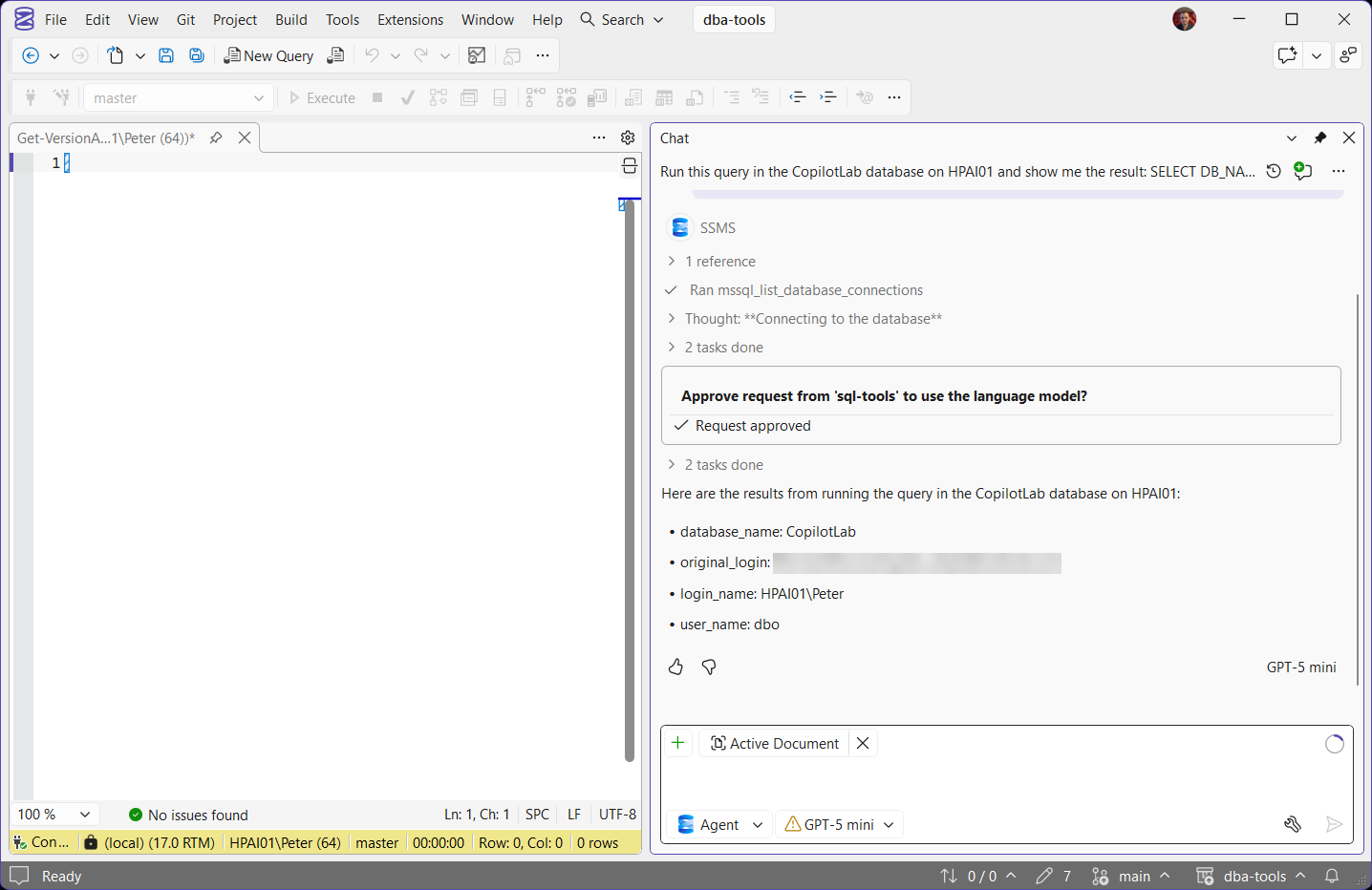
If USER_NAME() comes back as dbo or your own name, Copilot connected somewhere else. Naming the database in the prompt is not enough. Here the prompt said CopilotLab and the query ran in CopilotLab, but the connection Copilot picked had opened in another database, so no constitution applied and it ran with my rights:
- Check the connection list. Copilot’s list is your Connect dialog history. If every entry for the server opens in another database, connect once with Connect to database set, as in step 4.
- Restart SSMS if it is stuck. Copilot keeps its connection open between chats, so a new chat can still land on the old database.
- Check the constitution yourself. Asked whether the database had one, Copilot answered from the wrong connection and said no. In another chat it said it had used one connection while the server shows it used another. The query in step 2, or the trace below, is the reliable answer.
The same behaviour is the limit of the feature. The constitution sets the identity for Copilot connections that open in that database. A Copilot connection opened in another database on the same server reaches it by three-part name with your own rights. Treat it as a guard on the normal path, and keep the permissions that really matter on the people, not only on Copilot.
See What Copilot Ran
Copilot’s queries are ordinary sessions, so Extended Events shows every one: the database, the user it ran as, and the text. On SSMS 22.11 they arrive with the application name SQL Server Management Studio. Microsoft’s troubleshooting page gives Microsoft SQL Server Management Studio - GitHub Copilot, and a filter on that name caught nothing on the lab. Your own query windows use a longer name, so this filter keeps them out:
CREATE EVENT SESSION CopilotQueries ON SERVER
ADD EVENT sqlserver.sql_batch_completed (
    ACTION (sqlserver.database_name, sqlserver.username, sqlserver.session_id)
    WHERE sqlserver.client_app_name = N'SQL Server Management Studio'),
ADD EVENT sqlserver.rpc_completed (
    ACTION (sqlserver.database_name, sqlserver.username, sqlserver.session_id)
    WHERE sqlserver.client_app_name = N'SQL Server Management Studio')
ADD TARGET package0.ring_buffer
WITH (MAX_DISPATCH_LATENCY = 1 SECONDS);

ALTER EVENT SESSION CopilotQueries ON SERVER STATE = START;

/* Done? */
DROP EVENT SESSION CopilotQueries ON SERVER;
Watch it in SSMS (more on sessions like this in Extended Events Tracing): Object Explorer, Management, Extended Events, Sessions, right-click CopilotQueries, Watch Live Data. With a constitution in place you see the lookup of CONSTITUTION.md, the EXECUTE AS USER, then the query under the restricted user. Without one, the query runs straight under your login. That is the quickest way to prove which database Copilot connected to. When you are done, drop it, or use Remove XE Session.
What the Restricted User Cannot See
A user without a login is held inside its database. That is the point, and it also blinds the built-in troubleshooting skills, which need server-wide DMVs. Measured as GHCP_DatabaseUser on the lab:
| Ask | As you (sysadmin) | As the Copilot user |
|---|---|---|
Sessions in sys.dm_exec_sessions | 73 | 1, its own |
Databases in sys.databases | 39 | 3: CopilotLab, master, tempdb |
Wait stats, sys.dm_os_wait_stats | Rows | Msg 15562, module not trusted |
Index usage, sys.dm_db_index_usage_stats | Rows | Msg 15562 |
Query Store, sys.query_store_query | Rows | Msg 262 until the grant below |
Agent jobs, msdb.dbo.sysjobs | Rows | Msg 229 |
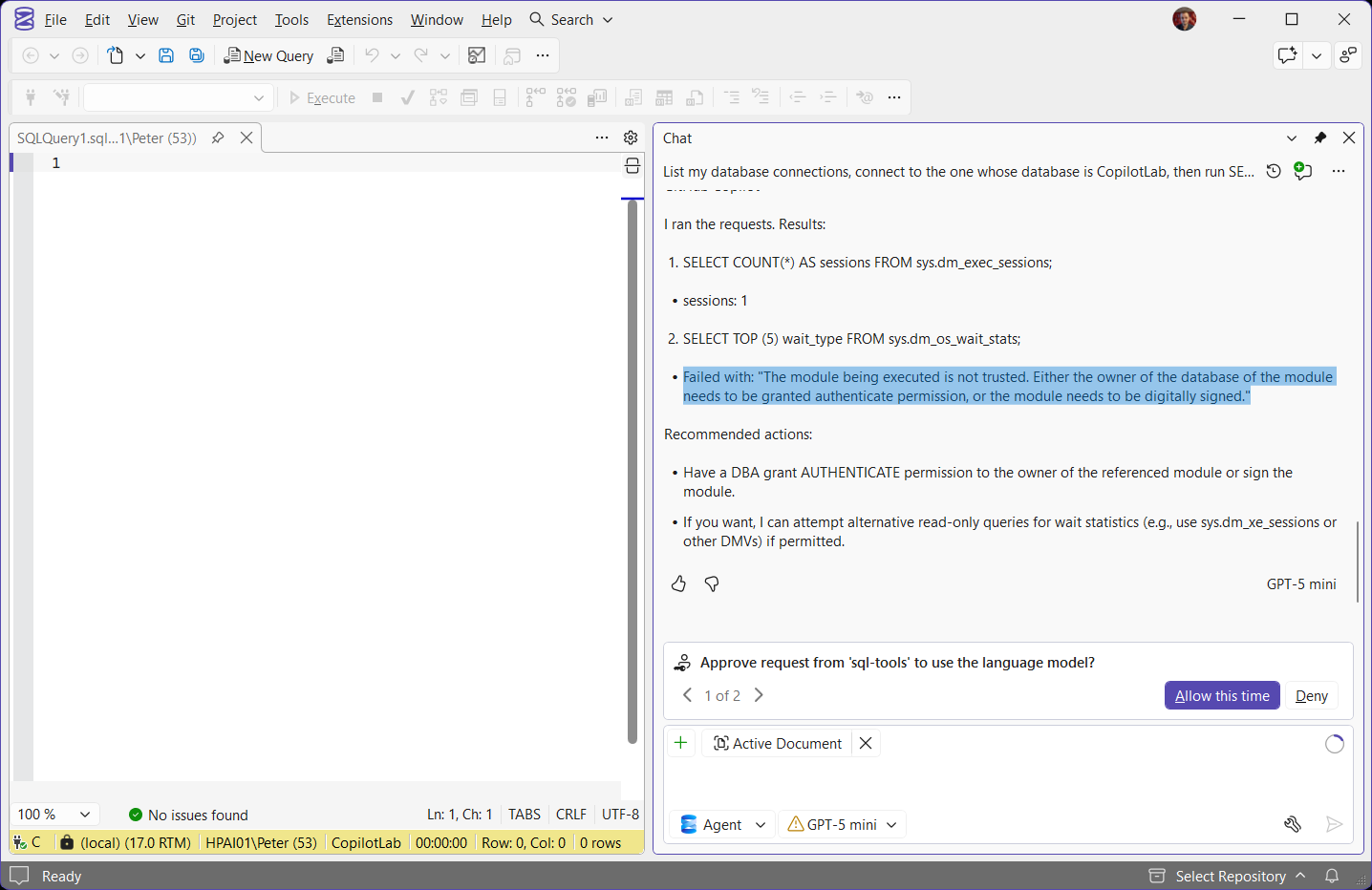
Copilot hits the same walls. Asked for sessions and waits, it saw 1 session and got the “module being executed is not trusted” error on the wait stats:
Query Store is database-scoped, so one grant opens it, and then queries like Get Query Store Top Queries work for Copilot too:
USE CopilotLab;

/* Lets the Copilot user read Query Store for this database */
GRANT VIEW DATABASE PERFORMANCE STATE TO GHCP_DatabaseUser;
The server-wide DMVs cannot be opened to a user without a login. If Copilot on this database should troubleshoot performance, name a SQL login instead, which agentExecuteAsUser also accepts. On the lab, a login granted VIEW SERVER PERFORMANCE STATE read all 1,547 wait stats rows while the same DENY still blocked the payments table. The trade-off is a server-level identity and a server-level grant: impersonating a login takes IMPERSONATE ON LOGIN, and without it SQL Server returns Msg 15406. Grant VIEW SERVER STATE covers the server-state permissions.
| Database user | SQL login | |
|---|---|---|
| Scope | One database | Server-wide identity |
| Server DMVs (sessions, waits) | No | Yes, with VIEW SERVER PERFORMANCE STATE |
| Grant users need | IMPERSONATE ON USER | IMPERSONATE ON LOGIN (server level) |
| Use it when | Copilot should only query this database | Copilot should also diagnose the instance |
Copied the Script From the Announcement?
The T-SQL in Microsoft’s SQL Server Blog announcement (Introducing Execution Context for GitHub Copilot in SSMS, June 2026) declares @GHCPUser and then uses @DBUser, so step 1 stops at the role grant:
Its step 2 also builds the constitution in an nvarchar(4000), which can pass the 3,750-character limit and fail with Msg 15097. The scripts on this page run as written, and Microsoft’s Learn page has the corrected reference.
Change It or Turn It Off
USE CopilotLab;

/* Change the identity or the rules */
EXEC sp_updateextendedproperty @name = N'CONSTITUTION.md', @value = N'---
agentExecuteAsUser: GHCP_DatabaseUser
---
Updated rules here.';

/* Remove it: Copilot goes back to running as you */
EXEC sp_dropextendedproperty @name = N'CONSTITUTION.md';
A change applies from the next query, with no restart. SSMS reads the property again before every Copilot query. Dropping it mid-chat put the very next query back under my own login:
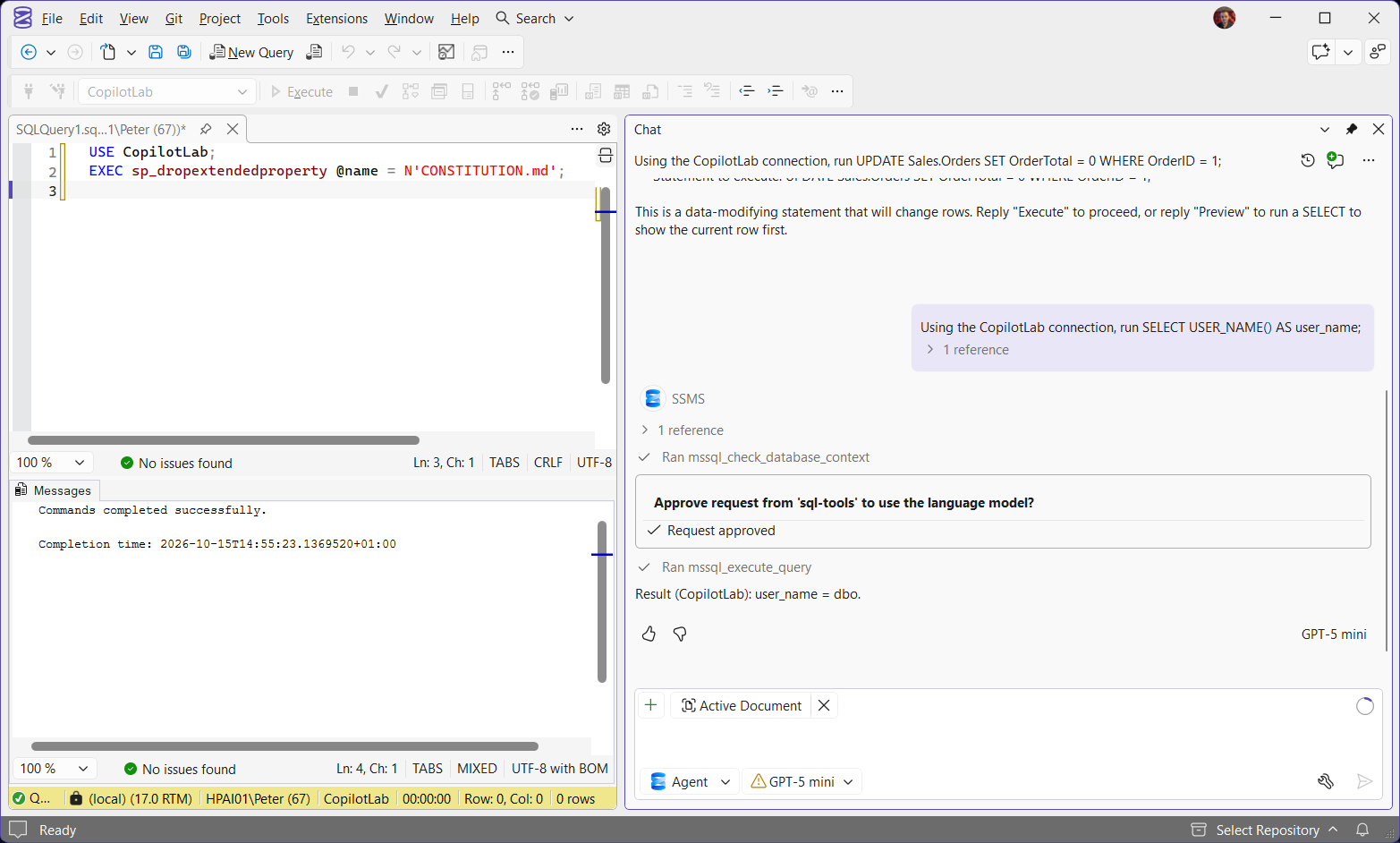
- Copilot ignores your query window. It connects from your Connect dialog history, and the constitution only applies when that connection opens in the protected database. Still running as you?
- Copilot can misreport its own connection. It said it used one login while the server showed another. Check on the server, not in the chat: See what Copilot ran.
- Agent mode sent a write to the server. Microsoft’s docs say Agent mode is read-only by default, but an
UPDATEreached SQL Server after one confirmation. The Copilot user’s permissions stopped it: step 4. - The approval card can stay on screen after you click Allow, even though the query has run. Read the results above it.
- Microsoft’s documented application name does not match. Copilot’s queries arrive as
SQL Server Management Studio, so an Extended Events filter on the documented name catches nothing.
Frequently Asked Questions
Does it apply to Ask mode as well as Agent mode?
Microsoft’s execution context page says it covers both. On the lab, Ask mode did not run the query at all: it drafted it for me to run, with an example result of dbo. A script you run yourself from Ask mode runs in your own query window, as you, so the constitution does not apply to it. Read what you run.
Does it change what I can do in the query editor?
No. Your own permissions in the editor and Object Explorer are unchanged. Only queries Copilot runs on your behalf use the restricted identity.
If I lack IMPERSONATE, does Copilot fall back to my permissions?
No. Every query on that connection fails with Msg 15517, as the capture in step 3 shows, so a missing grant never widens access. Copilot may offer to use a different saved connection that runs as you: that is your choice to make, not a fallback.
Can an AGENTS.md instruction override it?
No. The constitution has the highest precedence for the database, and object-level AGENTS.md instructions cannot override agentExecuteAsUser.
Can Agent mode change data by default?
Microsoft’s Agent mode page says it starts read-only. On SSMS 22.11 with the shipped settings, an UPDATE reached SQL Server after one confirmation in the chat, and only the Copilot user’s permissions stopped it (step 4). Do not rely on the read-only default. Rely on what the agentExecuteAsUser identity is allowed to do.
Is the constitution body enforced?
No. Rules like “never generate DROP” are guidance for the model. The permissions on the agentExecuteAsUser identity are the hard boundary, so put anything that matters there.
Does it carry across databases?
No. It is per database, and it applies to the database Copilot’s connection opens in. Each database needs its own CONSTITUTION.md, and a connection opened in a database without one runs Copilot as you.
Related
- GitHub Copilot in SSMS, setup and what a DBA should let it do
- GitHub Copilot Tools, Skills and MCP Servers in SSMS, the tools Copilot can call and which ones change things
- SSMS: The Complete Guide, the hub this post belongs to
- Msg 15517: Cannot Execute as the Database Principal
- Msg 229: The SELECT Permission Was Denied
- Get Sysadmin Members, everyone Copilot currently runs as sysadmin for
- What’s New in SSMS 22 for DBAs
- The sqldba MCP Server, checked SQL Server answers for AI assistants
- DBA Scripts: Security, permission and login audits
Leave a Reply