
You need the exact version and build of a SQL Server instance: support is asking for it, a cumulative update is being planned, or an audit wants it in writing. SQL Server exposes it in several places, and they do not all answer the same question, so this post covers each one and when to use it.
SERVERPROPERTY query and read ProductUpdateLevel for the CU. ProductLevel says RTM on every patched SQL Server 2017 and later instance, so it is not the patch level. Then look the build up on the builds list to see whether it is still in support.Why SQL Server Version Matters
Version information is not just informational, it directly affects supportability, security posture, patch and CU planning, upgrade readiness, and how quickly Microsoft support can engage.
In complex support cases, Microsoft will often ask early on whether the instance is running the latest supported update or cumulative update. Being behind does not automatically block support, but in practice you are frequently asked to update before deeper troubleshooting continues.
Knowing your exact version up front avoids unnecessary delay and keeps conversations focused on the actual issue.
Quick Visual Check in SSMS
When working interactively, the fastest check is in SQL Server Management Studio.
After connecting to an instance, SSMS shows the version and build number next to the server name in Object Explorer.
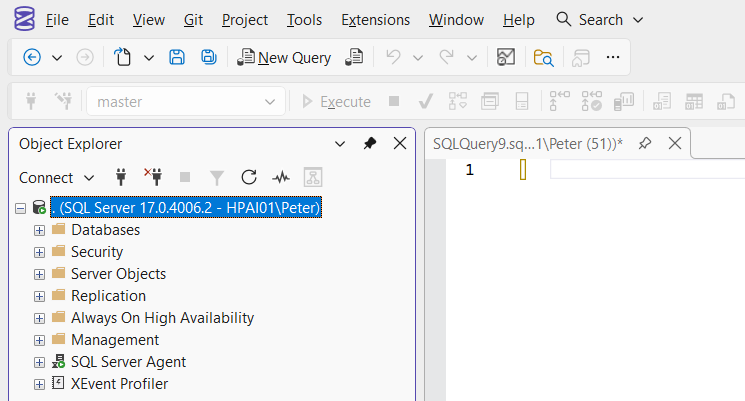
You can also right-click the server in Object Explorer, select Properties, and review the SQL Server version, edition, and configuration details in one place.
This is convenient for spot checks, but it requires SSMS access and is not suitable for automation or fleet-wide checks.
Preferred Method: Query the Instance
For anything repeatable or verifiable, querying the instance directly is the most reliable approach.
Structured version query
-- Return SQL Server version, patch level, and edition
SELECT
    SERVERPROPERTY('productversion') AS ProductVersion,
    SERVERPROPERTY('productlevel')   AS ProductLevel,
    SERVERPROPERTY('edition')        AS Edition;
This is the query most DBAs rely on. It returns the running version, patch level, and edition.
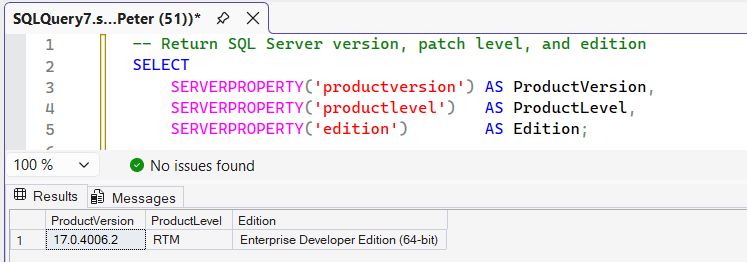
This method is ideal for automation, compliance checks, scripting, and confirming what is actually running when preparing updates or engaging support.
Full version string
SELECT @@VERSION;This returns a descriptive string including SQL Server and operating system details.

It is useful for quick context, but less practical when you need structured or machine-readable output.
ProductLevel does not tell you your CU, and that trips people up. Service packs ended with SQL Server 2016. On SQL Server 2017 and later SERVERPROPERTY('ProductLevel') returns RTM however many cumulative updates you have applied, so a fully patched SQL Server 2022 instance still reports RTM. The CU lives in ProductUpdateLevel, and the KB number in ProductUpdateReference.-- Version, build and the ACTUAL patch level (SQL Server 2017 and later)
SELECT SERVERPROPERTY('ProductVersion') AS ProductVersion, -- major.minor.build.revision
SERVERPROPERTY('ProductLevel') AS ProductLevel, -- RTM, even when patched
SERVERPROPERTY('ProductUpdateLevel') AS UpdateLevel, -- CUn <-- the real answer
SERVERPROPERTY('ProductUpdateReference') AS UpdateKB, -- the KB for that CU
SERVERPROPERTY('ProductMajorVersion') AS MajorVersion,
SERVERPROPERTY('Edition') AS Edition;On SQL Server 2016 and earlier, ProductLevel is still the right column to read, because service packs were how patches shipped then. ProductUpdateLevel returns NULL where it does not apply, so the query above is safe to run on any version.
Checking Version via Log Files
There are cases where querying the instance is not possible. In those situations, log files remain a reliable fallback.
SQL Server error log
The SQL Server error log records the full version and build number every time the service starts.
This is useful when:
- The instance is failing to start
- Connectivity is unavailable
- Verifying a restart after patching
- Investigating legacy or partially removed installs
Because it reflects what actually started, it is often more trustworthy than installation records or inventory data.
Setup summary log
SQL Server setup also records version information during installs and upgrades.
C:\Program Files\Microsoft SQL Server\<version>\Setup Bootstrap\Log\Summary.txt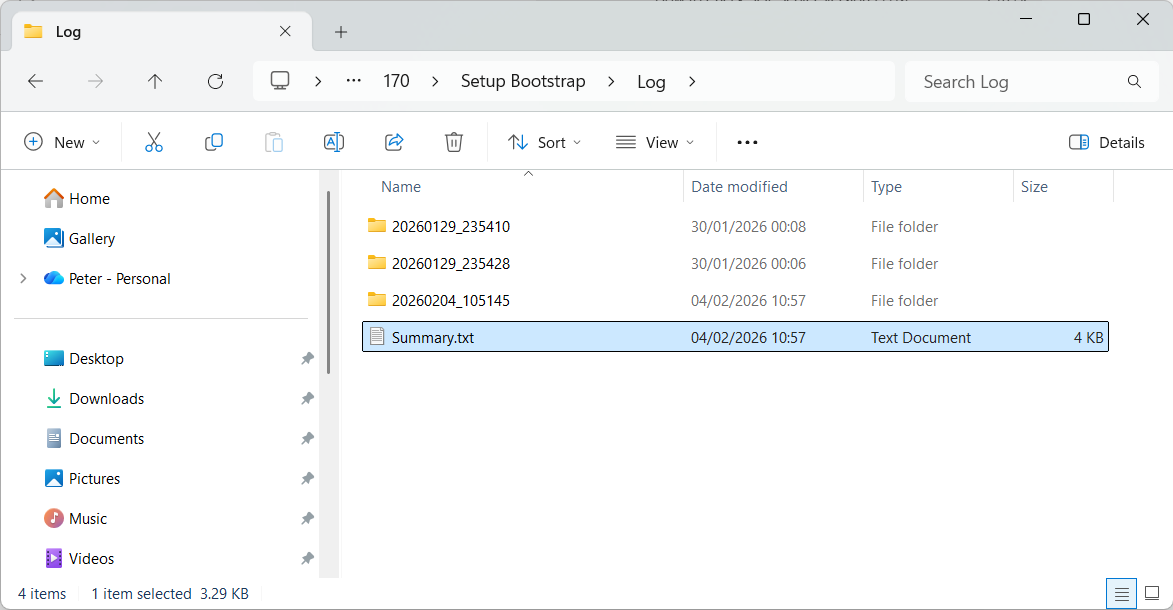
This confirms what was installed or upgraded, which is helpful for audits and change tracking, but it should not replace checking the running instance.
SQL Server Feature Discovery Report
The Feature Discovery Report provides a broader view than the methods above.
Instead of focusing only on the Database Engine, it shows which SQL Server features are installed, their versions, and whether components are instance-specific or shared.
To run it, open the SQL Server Installation Center, go to Tools, and select Feature Discovery Report.
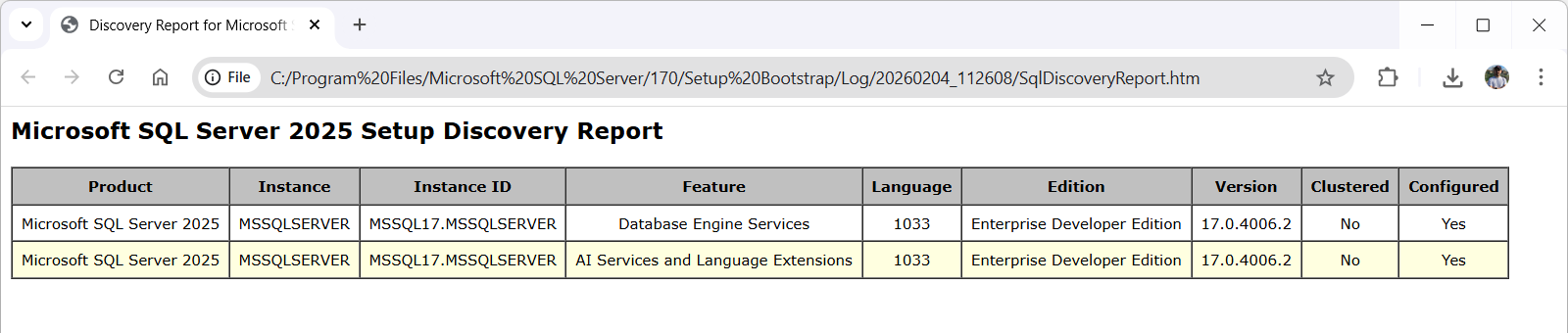
This method is slower and more manual, but it is useful when you need a full picture of what exists on a server.
It is most relevant when:
- Auditing installed SQL Server components
- Preparing for version or edition upgrades
- Reviewing legacy or multi-feature installations
- Verifying feature presence before change work
For upgrade and migration planning, understanding what is installed can be just as important as knowing which version is running.
Choosing the Right Method
In practice, most DBAs rely on queries for day-to-day work. The other methods exist for when access or context is different.
- Quick interactive check, SSMS Object Explorer
- Reliable verification and automation, the
SERVERPROPERTYquery - Restricted or broken access, the error log
- Installation and feature inventory, the Feature Discovery Report
Staying Current
Once you have the build number, the SQL Server builds and support lifecycle reference maps it to the exact CU and tells you whether that version is still in support.
Microsoft releases SQL Server updates on a regular cadence, typically as cumulative updates rather than monthly patches.
When validating your version or planning updates, always cross-check against Microsoft’s official release and download page:
Latest Updates and Version History for SQL Server For the history behind each version, see The Evolution of SQL Server.
The screenshots on this page show 17.0.4006.2, which is SQL Server 2025 CU1 (KB5078298). It was current when they were taken and it is not now, which is the whole reason to read the number off your own instance rather than off a screenshot.
Final Notes
Checking the SQL Server version is simple, but it underpins many operational decisions.
It affects security, supportability, and how quickly problems can be resolved. When incidents escalate or Microsoft support becomes involved, having accurate version information immediately available keeps focus on the problem rather than the environment.
Confirm what is running, understand where it sits in the support lifecycle, and make changes with that context in mind.
Frequently Asked Questions
Object Explorer shows 17.0 but my SSMS is version 22. Which one is the SQL Server version?
Can I check the version when the service is stopped?
HKLM\SOFTWARE\Microsoft\Microsoft SQL Server\<instance id>\Setup holds Version, the build the instance was installed at, and PatchLevel, the build it has been patched to. With the service stopped, Get-ItemProperty 'HKLM:\SOFTWARE\Microsoft\Microsoft SQL Server\MSSQL17.MSSQLSERVER\Setup' | Select-Object Version, PatchLevel returns the two builds, for example 17.0.1000.7 and 17.0.4075.5, RTM and CU8 of SQL Server 2025. The instance id for a default instance of 2025 is MSSQL17.MSSQLSERVER; the Instance Names\SQL key alongside it maps named instances to their ids. The error log says the same thing for the last time the service actually started.Which number does Microsoft support want?
ProductVersion, the 4-part build such as 17.0.4075.5, plus the edition. From the build they know the CU, and the builds list tells you before you open the case whether that CU is still in support. If it is not, expect to be asked to update before the case goes far.Related
Knowing the build number is only useful once you act on it. These are the steps that normally follow.
- DBA Scripts: Get Version and Edition, the same facts as one row per instance, for the fleet rather than one server.
- Check When SQL Server Was Last Restarted, the other instance fact people need in the first 5 minutes.
- Get Patch Level, check the patch level of every instance rather than one at a time.
- Patch SQL Server and Check Status, apply the update and confirm it actually landed.
- SQL Server Version Upgrade Runbook, when the answer is a new major version rather than a CU.
- DBA Scripts: The Complete Guide, every script on the site in one place.
Leave a Reply