
Windows Terminal is the modern command-line application for Windows and supports PowerShell, Command Prompt, and WSL in a single interface.
On recent versions of Windows (Windows 11 and newer), Windows Terminal is installed by default. If it’s already available on your system, no installation is required.
If it isn’t installed, or you’re working on older systems or automation scenarios, the methods below cover the common routes. Microsoft’s Windows Terminal installation page also covers the builds on GitHub for machines with no Store access.
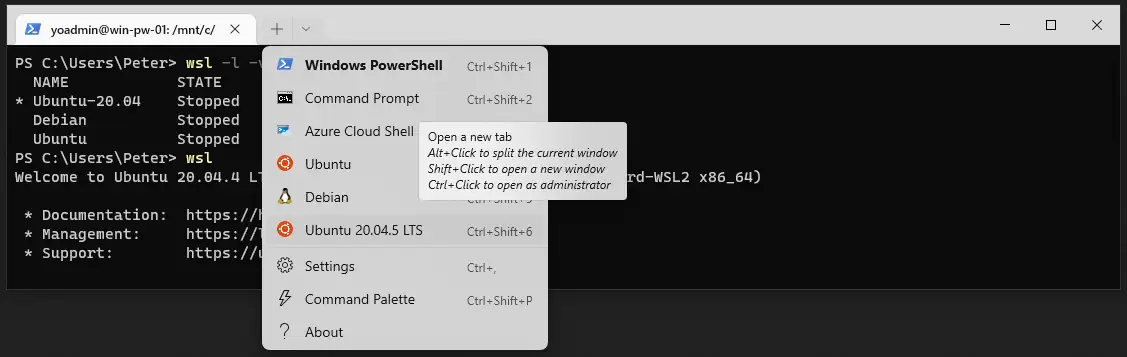
That dropdown is the reason to bother: one window holding PowerShell, Command Prompt and every installed WSL distribution, each on its own shortcut.
Quick check (is it already installed?)
Before installing anything, check:
- Press the Windows key
- Type Windows Terminal
- If it appears, it’s already installed
You can also run:
wtIf Windows Terminal opens, you’re good to go.
1. Install Windows Terminal from the Microsoft Store
This is the simplest and most common method.
Installing from the Microsoft Store ensures:
- Automatic updates
- The latest stable release
- Minimal maintenance
Steps:
- Open the Microsoft Store
- Search for Windows Terminal
- Click Install
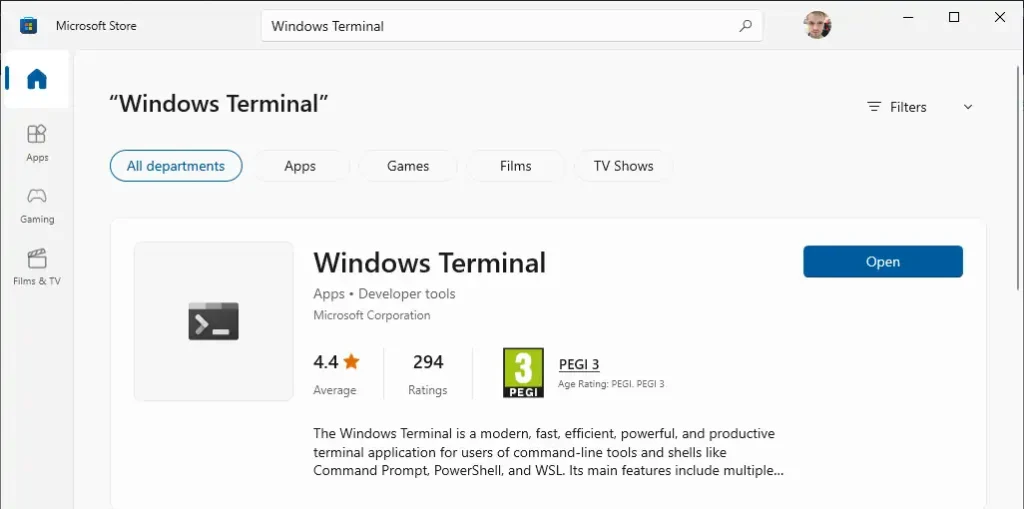
Once installed, updates are handled automatically by the Store.
2. Install Windows Terminal using winget
winget ships with Windows 11 and with App Installer on Windows 10, so on most machines it is already there. It is the method to reach for when you want one repeatable line rather than a trip through the Store, and it does not need anything installed first. Every switch is in the WinGet reference on Microsoft Learn.
winget install --id Microsoft.WindowsTerminal -eAdd --silent for unattended builds. To confirm what you ended up with:
winget list Microsoft.WindowsTerminal3. Install Windows Terminal using Chocolatey
Chocolatey is useful when:
- Managing multiple machines
- Automating workstation builds
- Working in enterprise environments
If Chocolatey is not installed:
# Install Choco
Set-ExecutionPolicy Bypass -Scope Process -Force
[System.Net.ServicePointManager]::SecurityProtocol = `
  [System.Net.ServicePointManager]::SecurityProtocol -bor 3072
iex ((New-Object System.Net.WebClient).DownloadString('https://community.chocolatey.org/install.ps1'))
Install Windows Terminal:
# Install WT with Choco
choco install microsoft-windows-terminal
Chocolatey will also handle upgrades when newer versions are released.
4. Install Windows Terminal using Scoop
Scoop is a lightweight, command-line–focused installer that works well for developer environments.
Install Scoop (current user):
# Install Scoop
Set-ExecutionPolicy -ExecutionPolicy RemoteSigned -Scope CurrentUser
Invoke-RestMethod -Uri https://get.scoop.sh | Invoke-Expression
Install Windows Terminal:
# Install WT with Scoop
scoop install windows-terminal
Scoop will keep the installation up to date automatically.
Running Windows Terminal as Administrator
You can run Windows Terminal with elevated privileges in several ways.
Start Menu
- Search for Windows Terminal
- Select Run as administrator
From PowerShell (open elevated Terminal)
You can also launch an elevated Windows Terminal session directly:
# Run Windows Terminal with PowerShell as Admin
Start-Process -Verb RunAs cmd.exe '/c start wt.exe -p "Windows PowerShell"'
This opens Windows Terminal and starts an elevated PowerShell profile.
From the profile dropdown
Ctrl-click any profile in the dropdown beside the new-tab button and it opens elevated, which is the quickest route of the three and the one most people never find. The same menu shows Alt-click to split the current pane and Shift-click for a new window.
Notes
- Windows Terminal is the default terminal experience on modern Windows
- It supports multiple tabs, panes, and profiles (PowerShell, WSL, cmd)
- Most PowerShell administration work benefits from using Windows Terminal
- If scripts fail unexpectedly, ensure the session is running as Administrator
Frequently Asked Questions
Do I need Windows Terminal for SQL Server work?
Not strictly, sqlcmd, PowerShell and SSMS all work without it. What it changes is the day: tabs and panes mean one window holding an elevated PowerShell, a WSL shell and a plain prompt at once, which is most of what remote SQL Server work looks like.
Which install method should I pick?
On a single machine, the Microsoft Store, because updates then look after themselves. On anything you build repeatedly, winget, because it is one line and it is already on the machine. Chocolatey and Scoop are worth it only if you already run one of them.
Is Windows Terminal the same as PowerShell?
No, and the distinction matters when something fails. Windows Terminal is the window; PowerShell, Command Prompt and WSL are shells that run inside it. If a script fails, the shell and its execution policy are what to look at, not the terminal.
It is installed but wt does nothing. Why?
Almost always because the shell was open before the install and its PATH is stale. Close it and open a new one. If it still fails, launch from the Start menu once, which is enough to register the app execution alias.
Where To Go Next
Installing it is the easy part. These are the things you actually do next.
- How to Open PowerShell as Administrator, the elevation step this page ends on, in full.
- .ps1 Cannot Be Loaded Because Running Scripts Is Disabled, the first error most people hit once the terminal is open.
- Testing Connectivity to Remote Server Ports with PowerShell, something useful to run in it.
- WSL Complete Guide, the distributions that fill that dropdown, end to end.
- The Best Terminal for Windows, why this one rather than the others, in about a minute.
Leave a Reply