
BACKUPIO and BACKUPBUFFER appear when backup operations are waiting on I/O:
BACKUPIO: backup I/O, mostly waiting for writes to the backup destination (disk, network share, VDI device, tape) to complete. The slower the destination, the more of it there is.BACKUPBUFFER: waiting for a free buffer between the read side (the data files) and the write side (the destination) of the backup. It climbs when there are too few buffers or the write side cannot empty them fast enough.
Microsoft’s wait types reference gives both the same one-line description (a backup task waiting for data, or for a buffer to store it), so the split above comes from testing. Backing up the same 360 MB database on the lab, BACKUPIO was 0.5 seconds writing to NUL and 2.5 seconds writing to a file on local disk. Forcing BUFFERCOUNT = 2 made BACKUPBUFFER the largest backup wait instead. BACKUPIO is the one that tracks a slow destination.
Is This Wait Expected?
Yes, during backup windows. If your full backup runs at midnight, you’ll see BACKUPIO elevated during that window. That’s normal and expected, backup I/O is I/O, and the wait type is just recording it. The question is whether your backups are completing in a reasonable time.
No, outside backup windows. BACKUPIO appearing during production hours when no scheduled backup is running means something unexpected is taking a backup, check for ad-hoc backups, third-party backup agents, or backup jobs that ran late and overlapped with business hours.
It’s a problem when:
- Backup duration has been growing over time and now extends into business hours
- Backups are timing out or failing
- Backup I/O is competing with production I/O and causing
PAGEIOLATCH_*waits to spike during the backup window
Root Causes
Slow backup destination, the most common cause. Writing to a UNC share over a 1 Gbps network, to a tape library, or to a remote backup server creates a write bottleneck. The backup can only write as fast as the destination accepts data. A 1 Gbps link carries about 100 MB/s in practice, so an uncompressed 1 TB backup needs close to 3 hours for the network alone, before any other overhead.
Backup destination I/O contention, a shared NAS or backup target that receives backups from multiple servers simultaneously. Your server competes with other servers for write bandwidth on the destination.
Backup competing with production reads, a full backup reads every allocated extent of the data files. It reads them straight from disk, not through the buffer pool, so it does not push cached pages out. It does compete for the same disk throughput, so production queries that have to read from disk wait longer and PAGEIOLATCH_SH climbs during the backup window. That is read competition, not BACKUPIO, but it is the companion problem.
No backup compression, uncompressed backups are proportionally larger and take proportionally longer to write. Backup compression is available in Standard edition from SQL Server 2008 R2 and later, and is almost always worth enabling.
Single backup file on a single destination, backup I/O is sequential to a single destination by default. Striping across multiple backup files to multiple disks or network paths multiplies effective throughput.
How To Diagnose It
Check backup history and duration trends:
SELECT TOP (50)
    bs.database_name,
    bs.type AS backup_type,
    bs.backup_start_date,
    bs.backup_finish_date,
    DATEDIFF(minute, bs.backup_start_date, bs.backup_finish_date) AS duration_min,
    CAST(bs.backup_size / 1073741824.0 AS decimal(12,2)) AS backup_size_gb,
    CAST(bs.compressed_backup_size / 1073741824.0 AS decimal(12,2)) AS compressed_size_gb,
    CAST(100.0 - (100.0 * bs.compressed_backup_size / NULLIF(bs.backup_size, 0)) AS decimal(5,1)) AS compression_pct,
    bmf.physical_device_name
FROM msdb.dbo.backupset AS bs
JOIN msdb.dbo.backupmediafamily AS bmf ON bmf.media_set_id = bs.media_set_id
WHERE bs.type = 'D'   -- D = full, I = differential, L = log
ORDER BY bs.backup_start_date DESC;
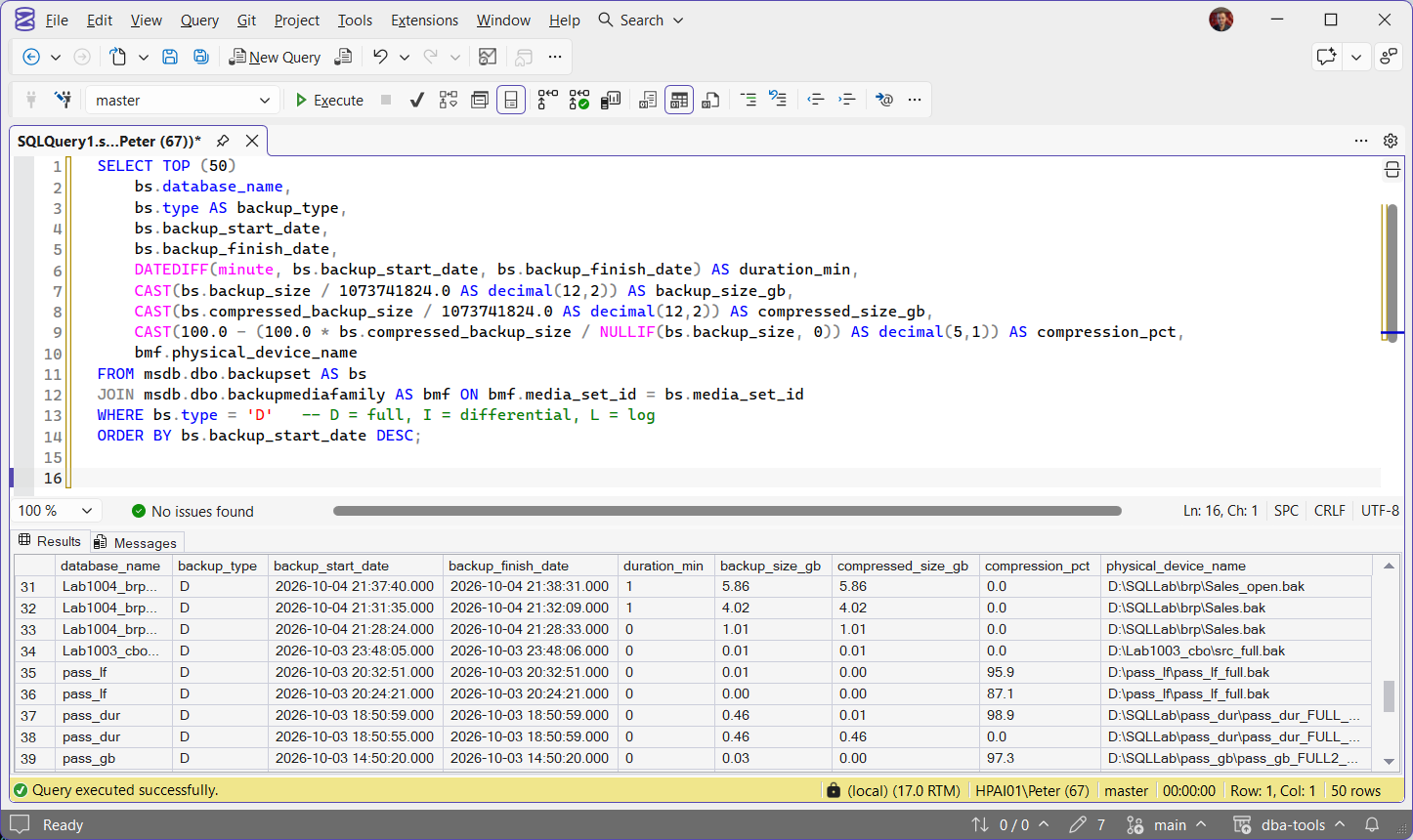
Look for:
duration_mintrending upward over weeks or months, the backup is getting slowercompression_pctat 0.0, the backup was not compressed (compressed_backup_sizeequalsbackup_size)physical_device_namepointing to a UNC share, the network may be the bottleneck
A backup striped across several files returns one row per file.
Check if backups are active right now:
SELECT
    r.session_id,
    r.command,
    r.percent_complete,
    r.estimated_completion_time / 1000 / 60.0 AS est_remaining_min,
    DB_NAME(r.database_id) AS database_name,
    r.wait_type,
    r.wait_time / 1000.0 AS wait_sec
FROM sys.dm_exec_requests AS r
WHERE r.command LIKE 'BACKUP%'
   OR r.command LIKE 'RESTORE%';
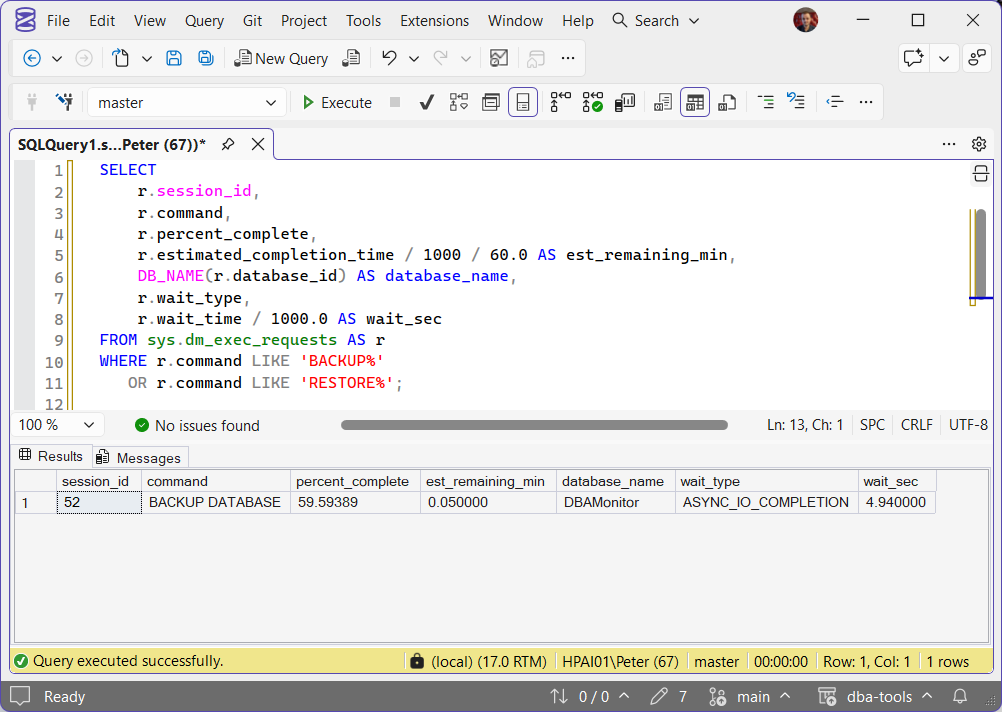
The request row is the backup’s main thread, and its wait_type is ASYNC_IO_COMPLETION. BACKUPIO and BACKUPBUFFER sit on the backup’s own worker threads, so look at its threads to see them:
SELECT
    wt.session_id,
    r.command,
    r.percent_complete,
    wt.exec_context_id,
    wt.wait_type,
    wt.wait_duration_ms
FROM sys.dm_os_waiting_tasks AS wt
JOIN sys.dm_exec_requests AS r ON r.session_id = wt.session_id
WHERE r.command LIKE 'BACKUP%'
   OR r.command LIKE 'RESTORE%'
ORDER BY wt.session_id, wt.exec_context_id;
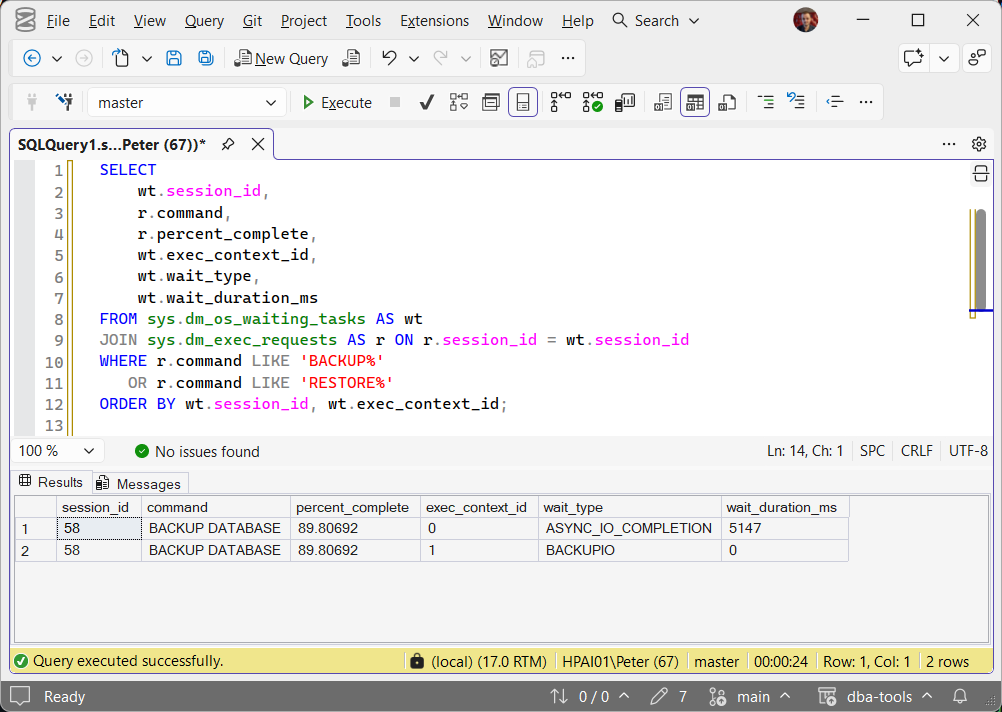
On the lab, a 365 MB backup showed one row per waiting thread for the same session: exec_context_id 0 in ASYNC_IO_COMPLETION, then BACKUPIO and BACKUPBUFFER on threads 1 and 2, each wait a few milliseconds long. They come and go, so one run may catch only one of them. Catching them proves a backup is running, not that it is slow: the history query and the NUL test below answer that.
Test the destination by backing up to NUL:
BACKUP DATABASE [YourDatabase]
TO DISK = 'NUL'
WITH COPY_ONLY;
This reads the whole database and throws the output away, so it times the read side on its own. COPY_ONLY keeps it out of the backup chain, though it still appears in the msdb history. If it finishes far faster than your real backup, the destination is the bottleneck. On the lab the same database took 0.8 seconds to NUL and 3.5 seconds to a local file. It reads every extent, so run it outside busy hours. While any backup runs, its main thread waits on ASYNC_IO_COMPLETION for almost the whole duration, which is expected.
What To Do
Enable backup compression, the single highest-impact change you can make to improve backup performance:
-- For a single backup:
BACKUP DATABASE [YourDatabase]
TO DISK = 'D:\Backups\YourDatabase.bak'
WITH COMPRESSION, STATS = 10;

-- Set as default for all future backups:
EXEC sp_configure 'backup compression default', 1;
RECONFIGURE;
Fewer bytes means less write I/O and less network transfer, at the cost of CPU while the backup runs. How much it saves depends on the data: read compression_pct in the history query after the first compressed backup.
Stripe across multiple backup files, write to multiple destinations simultaneously:
BACKUP DATABASE [YourDatabase]
TO DISK = '\\backup1\share\YourDatabase_1.bak',
   DISK = '\\backup2\share\YourDatabase_2.bak',
   DISK = 'D:\LocalBackup\YourDatabase_3.bak'
WITH COMPRESSION, STATS = 5;
This spreads I/O across destinations and can multiply effective throughput.
Move backups to faster or dedicated backup storage, a dedicated backup LUN or a local fast disk for landing backups, followed by a secondary copy job, is faster than writing directly to a shared NAS over the network.
Tune BUFFERCOUNT and MAXTRANSFERSIZE, for large databases, increasing these can improve backup throughput:
BACKUP DATABASE [YourDatabase]
TO DISK = 'D:\Backups\YourDatabase.bak'
WITH COMPRESSION, MAXTRANSFERSIZE = 4194304, BUFFERCOUNT = 50;
MAXTRANSFERSIZE = 4194304 (4 MB) is the maximum. The backup buffers take BUFFERCOUNT times MAXTRANSFERSIZE of memory, so the example above uses 200 MB. Set it too high and the backup fails with an out-of-memory error, so test before using it on production.
Offload to an AG secondary, if you have an Always On AG, take backups on a secondary replica instead of the primary. What a secondary can take depends on the version: up to SQL Server 2022, copy-only full backups and log backups only, no differentials. SQL Server 2025 adds full and differential backups on secondaries (Offload backups to a secondary replica).
-- On the primary: prefer secondaries for backups
ALTER AVAILABILITY GROUP [YourAG]
SET (AUTOMATED_BACKUP_PREFERENCE = SECONDARY);

ALTER AVAILABILITY GROUP [YourAG]
MODIFY REPLICA ON 'SecondaryServer'
WITH (BACKUP_PRIORITY = 50);

ALTER AVAILABILITY GROUP [YourAG]
MODIFY REPLICA ON 'PrimaryServer'
WITH (BACKUP_PRIORITY = 0);

-- In the backup job, on every replica:
IF sys.fn_hadr_backup_is_preferred_replica(N'YourDatabase') = 1
    BACKUP DATABASE [YourDatabase] TO DISK = 'D:\Backups\YourDatabase.bak' WITH COPY_ONLY;
The preference settings move nothing on their own: the job has to run on every replica and check sys.fn_hadr_backup_is_preferred_replica, and only the preferred replica takes the backup. Its reads then land on the secondary’s disks, not the primary’s. Drop COPY_ONLY only on SQL Server 2025.
Schedule backups to avoid peak hours, if backups are running into business hours, either start them earlier (allowing more time) or break one large full into a differential strategy (smaller daily jobs, larger weekly full).
Related Scripts
- Get-WaitStatistics, the overview script
- Get-BackupCoverage, audit backup coverage across all databases
- Backup Restore Progress, what the backup is doing right now and when it will finish
- Backup Size Trend, whether backups are growing, which is often why they got slower
Leave a Reply