
You upgraded SSMS, sqlcmd or an application driver, and a connection that worked yesterday now fails with this. Nothing changed on the server: the client got stricter, and it now refuses the certificate it used to accept without checking.
TrustServerCertificate=True in the connection string, -C on sqlcmd). The connection stays encrypted, but the client stops checking who it is talking to. Properly: give the instance a certificate from a CA the clients already trust, bind it in SQL Server Configuration Manager, restart, and untick the box again.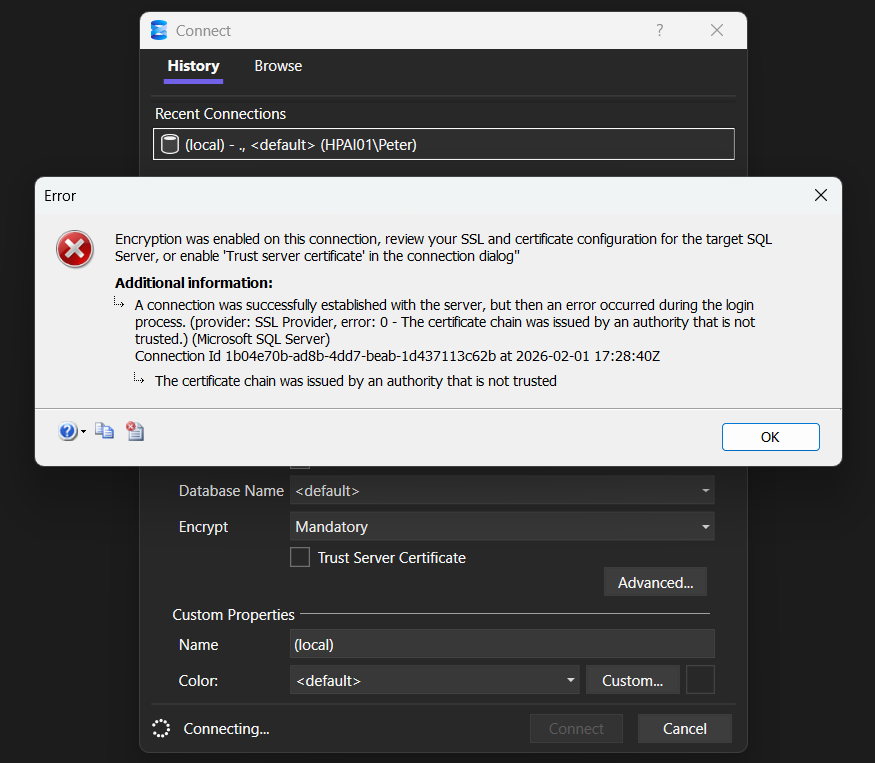
The defaults moved on the client side. SSMS 20 put Encryption and Trust server certificate on the main Login page of the Connect dialog with Mandatory as the default (MS Docs, Connect to Server). ODBC Driver 18 shipped “Default Encrypt to Yes/Mandatory” as a breaking change (MS Docs, ODBC release notes), so the sqlcmd built on it defaults to -Nm (MS Docs, sqlcmd). Microsoft.Data.SqlClient turned encryption on by default at version 4.0 and made Mandatory the default at 5.0 (MS Docs, the Encrypt property), which is why applications meet it on a package upgrade.
That matters, because the fastest fix and the correct fix are different, and most search results only give you the fast one.
What Is Actually Happening
Read the first half of the message: a connection was successfully established with the server. The port, the firewall and the instance name are all fine. The failure is in the TLS step after it. If your message does not start that way, the cannot-connect checks start earlier in the path.
SQL Server encrypts the login packets whether you asked for it or not, so it always needs a certificate. If nobody installed one, SQL Server generates a self-signed certificate at startup and uses that (MS Docs).
A self-signed certificate is not issued by any authority your machine trusts. Older clients defaulted to no encryption, encrypted only the login and never validated anything. With Mandatory as the default, the client validates the trust chain, the dates and the server name, and the self-signed certificate fails the first check. The same failure from the command line, with ODBC Driver 18 sqlcmd and no -C:
So there are exactly two honest options: tell the client not to check, or give the server a certificate worth checking.
The Fast Fix (and when it is acceptable)
In SSMS 20 and later: on the Login page of the Connect dialog, the Encryption dropdown (labelled Encrypt in the newer dialog in the screenshot above) and the Trust server certificate checkbox sit together. Leave Encryption on Mandatory, tick Trust server certificate, connect. Older SSMS versions keep the checkbox on the Connection Properties tab under Options.
In a connection string:
Server=YOURSERVER;Database=YourDb;Encrypt=True;TrustServerCertificate=True;With sqlcmd (driver 18 and later):
sqlcmd -S YOURSERVER -d YourDb -C-C is the same as TrustServerCertificate=True (MS Docs). Against the same lab instance as the capture above, sqlcmd -S HPAI01 -E -C connects, and sys.dm_exec_connections reports encrypt_option TRUE over TCP for that session.
What this actually does: the connection is still encrypted, but the client no longer verifies that the server is who it claims to be. You are protected against passive eavesdropping and not against an active man-in-the-middle.
If Encryption is set to Strict, the checkbox does nothing. Strict always validates, and MS Docs states that TrustServerCertificate “has no effect with Strict” (Encryption and certificate validation). Use Mandatory with it, or fix the certificate.
That is fine on a laptop talking to a local dev instance. It is not fine across a network you do not control, and it is not fine as a permanent answer on a production server just because it made the error go away. If you find yourself setting this in application connection strings across an estate, you have quietly turned off certificate validation everywhere.
Check Which Certificate the Instance Loaded
The ERRORLOG records which certificate the service picked up at startup:
EXEC xp_readerrorlog 0, 1, N'certificate', NULL, NULL, NULL, N'DESC';That line (message 26018) means no certificate was configured and the instance is using its own self-signed one, so every client that validates will refuse it. An instance using a certificate you bound logs message 26013 instead: “The certificate [Cert Hash(sha1) “…”] was successfully loaded for encryption.” If you see 26013 and still get this error, the certificate is real but the client does not trust its issuer, which is the client-side half of the proper fix below.
The Proper Fix
Install a certificate that the connecting machines already trust, from your internal CA in a domain environment, or a public CA for internet-facing instances. Then make sure every client trusts the issuer: the root and any intermediate certificates have to be in the client’s trusted store. MS Docs notes that an enterprise certificate “isn’t automatically trusted inside a Linux container or on a separate developer computer”.
The certificate must meet the SQL Server certificate requirements on MS Docs:
- The Subject Alternative Name should include every name clients actually connect with. If people connect to
sqlprod01.corp.local, a certificate forsqlprod01alone will not do. For a DNS alias you cannot add, the client-side Host name in certificate option names the expected name instead. - It needs the Server Authentication EKU (
1.3.6.1.5.5.7.3.1), and the current date must sit between its Valid from and Valid to dates. - It must be created with
KeySpecAT_KEYEXCHANGE (a legacy CSP). MS Docs calls this a common cause of configuration failures: a certificate from a Key Storage Provider hasKeySpec = 0and cannot be used. - The private key must be present, and the SQL Server service account needs permission to read it.
- It must be in the local computer store or the service account’s own store. Use the local computer store, so a change of service account does not break it.
Then set it in SQL Server Configuration Manager > SQL Server Network Configuration > Protocols for [instance] > Properties > Certificate tab, and restart the service. On SQL Server 2019 and later, Configuration Manager validates the requirements as you pick the certificate.
Do not expect a silent fallback. A configured certificate that only meets some of the requirements stops the service starting at all (MS Docs), and the ERRORLOG carries message 26014, “Unable to load user-specified certificate … The server will not accept a connection.” Do this in a change window, with the previous setting noted.
After the restart, check the ERRORLOG for the 26013 line, then confirm what connections are really getting:
-- What encryption are current connections really getting?
SELECT c.session_id,
       c.encrypt_option,
       c.protocol_type,
       c.client_net_address,
       s.program_name,
       s.login_name
FROM   sys.dm_exec_connections c
JOIN   sys.dm_exec_sessions s ON s.session_id = c.session_id
WHERE  c.session_id > 50
ORDER  BY c.encrypt_option DESC, s.login_name;
If It Is Not the Certificate
The SSL Provider prefix appears on several different faults. Read the text after it:
- “The target principal name is incorrect.” The certificate is trusted, but the name you typed is not in it. Connect with a name the certificate carries, or set Host name in certificate.
- A TLS version or cipher mismatch, typically after a hardening pass, usually surfaces as a pre-login handshake failure rather than this text. The pre-login handshake post works that checklist.
- Strict against a server that does not support TDS 8.0 fails the connection whatever the certificate. Strict needs SQL Server 2022 or later.
Stopping It Recurring
- Decide the policy once, per environment.
TrustServerCertificate=Truefor local development, a real certificate everywhere else. Mixed practice is how it ends up permanently in production. - Diary the expiry. SQL Server keeps running on a certificate that expires after it was configured, so nothing on the server warns you. Clients that check validity on every connection start failing instead (MS Docs, Expired certificates).
- When you patch or upgrade tooling, expect this. Driver 18 and SSMS 20 are the reason most people meet this error, and the next default change will do the same thing again.
Frequently Asked Questions
Is TrustServerCertificate=True safe?
Why did this start after upgrading SSMS?
I installed a certificate and it is still using the self-signed one.
How do I confirm the connection ended up encrypted, rather than assume it?
SELECT encrypt_option, auth_scheme, net_transport FROM sys.dm_exec_connections WHERE session_id = @@SPID;. encrypt_option comes back TRUE when the connection is encrypted and FALSE when it is not. This matters because TrustServerCertificate=True does not turn encryption off, it turns the identity check off: the traffic is still encrypted, you have simply stopped verifying who you are encrypting to. Drop the WHERE clause to audit every current connection at once.Why do I get it with Encryption set to Optional?
Does Trust server certificate work with Strict encryption?
This error comes from the stricter encryption defaults in modern clients. The rest of that story is here.
- Download and Install SSMS, what changed, and how to keep the client current.
- Check SQL Server Connection Encryption and Protocol, confirm what your connections are actually using.
- SSMS Complete Guide, the whole SSMS reference in one place.
- Cannot Connect to SQL Server: The Checks in the Order That Finds It, the router for every connection error, start here when you are not sure which one you have.
- Forcing Encrypted Connections Using Certificates, the full server-side setup once you have a certificate to bind.
- SQL Server Error Severities Explained, for the engine errors around this one that do carry a Msg and Level.
Leave a Reply