
One query has gone slow, the application code cannot change this week, and you want to know whether a query hint would buy time. Trying hints by hand means editing the query, running it, comparing timings, and doing that twenty times. SSMS 22 does the trying for you. The Query Hint Recommendation Tool runs the selected query with one hint after another inside a time budget, and reports the hints that made it meaningfully faster. It has been generally available since SSMS 22.4.1.
Install It First
It is not in a default SSMS install, so if Tools has no Query Hint Recommendation Tool, that is why. It is an optional component you add once:
- Close every SSMS window. The installer cannot change SSMS while it is running.
- Start menu, type
Visual Studio Installer, open it. SSMS 22 is installed through it, so it is already on the machine. - On the SQL Server Management Studio 22 tile, select Modify.
- Open the Individual components tab. Scroll to the Code tools heading, or type
hintin the search box. - Tick Query Hint Recommendation Tool. It appears under Installation details on the right.
- Select Modify at the bottom right and accept the admin prompt. It is a small download, about 150 MB.
- When it says it is done, open SSMS. Tools → Query Hint Recommendation Tool is now on the menu.
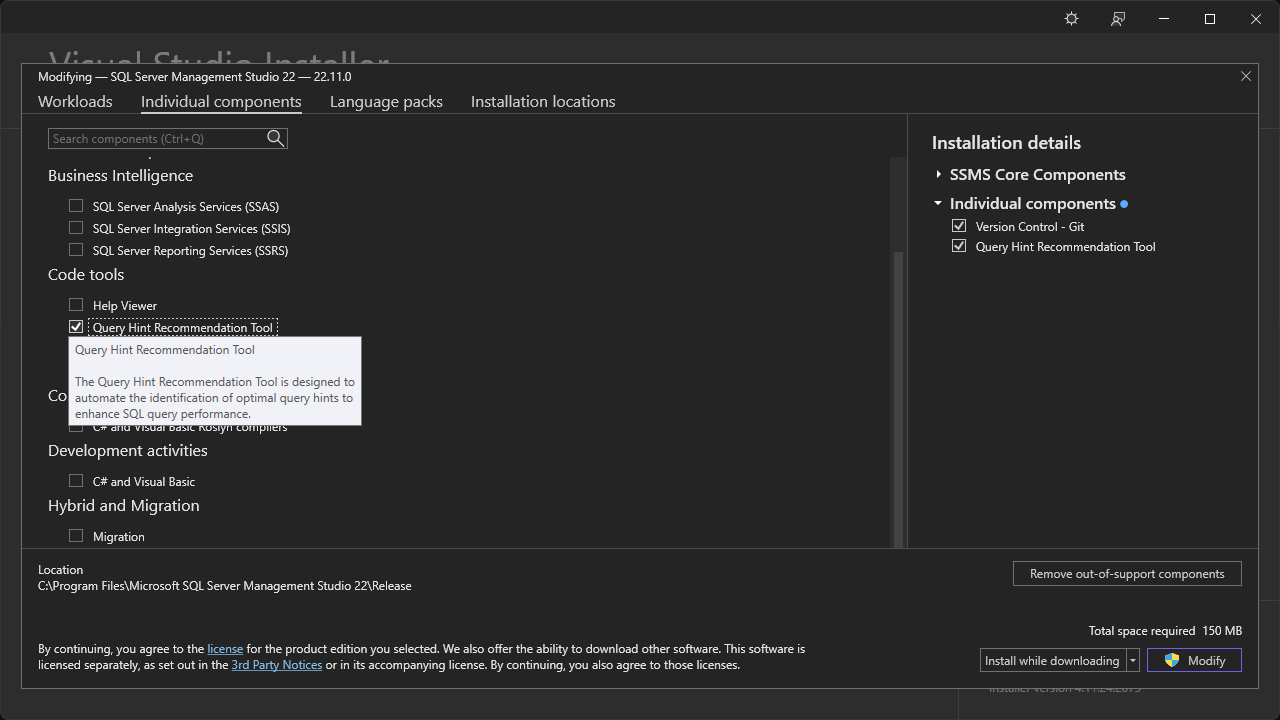
On SSMS 22.11 it is on the Individual components tab. Microsoft’s install page describes it as part of a Code Tools workload; on this release it is the component, not a workload, that you tick.
Before You Press Start
- It executes the query, every time. Each hint it tries is a real run against the connected database. On production that is extra load, possibly for the whole time budget.
- Keep it to SELECT. A query that inserts, updates or deletes would make its change on every run.
- Run it where the data looks like production. A hint that wins on a ten-row test table proves nothing. A restored copy of the real database is the right place.
- One query at a time. It works on the single query you have selected in the editor.
Run It
- Connect a query window to the database and paste the slow query.
- Select the query itself, from
SELECTto the semicolon. Leave anyUSEline out of the selection: the tool takes one SELECT statement and nothing else. - Open Tools → Query Hint Recommendation Tool. Its window opens beside the editor.
- Set Maximum tuning time, the total seconds it may spend. The default is 300, five minutes.
- Set Minimum improvement percentage. The default is 50%, meaning a hint has to at least halve the elapsed time to count.
- Select Start.
Microsoft’s walk-through of the tool labels every part of the window. It measures the query with no hint first, as the baseline, then works through the hint list, plotting each better hint on a chart and listing every attempt in a table.
What It Found on My Lab
To see it work without touching anything real, I built a throwaway database where one query is slow for a reason a hint can fix: 10,000 customers, 1% of them in region ZZ, and a million orders with every ZZ order at the very end of the table. Asking for the first ten ZZ orders makes the optimizer expect to find them early, so it plans for a short read that turns into a long one.
USE master;
GO
IF DB_ID(N'zz_hint') IS NOT NULL
BEGIN
    ALTER DATABASE zz_hint SET SINGLE_USER WITH ROLLBACK IMMEDIATE;
    DROP DATABASE zz_hint;
END;
GO
CREATE DATABASE zz_hint;
GO
ALTER DATABASE zz_hint SET RECOVERY SIMPLE;
GO
USE zz_hint;
GO
CREATE TABLE dbo.Customers
(
    CustomerId int     NOT NULL PRIMARY KEY,
    Region     char(2) NOT NULL
);
CREATE TABLE dbo.Orders
(
    OrderId    int   NOT NULL IDENTITY PRIMARY KEY,
    CustomerId int   NOT NULL,
    Amount     money NOT NULL
);
GO
-- 10,000 customers; the last 100 (1%) are region ZZ
INSERT INTO dbo.Customers (CustomerId, Region)
SELECT n, CASE WHEN n > 9900 THEN 'ZZ' ELSE 'EU' END
FROM (SELECT TOP (10000) ROW_NUMBER() OVER (ORDER BY (SELECT NULL)) AS n
      FROM sys.all_objects AS a CROSS JOIN sys.all_objects AS b) AS t;
GO
-- 1,000,000 orders; every order for a ZZ customer comes last
INSERT INTO dbo.Orders (CustomerId, Amount)
SELECT CASE WHEN n > 999000 THEN 9900 + (n % 100) + 1 ELSE (n % 9900) + 1 END, n % 500
FROM (SELECT TOP (1000000) ROW_NUMBER() OVER (ORDER BY (SELECT NULL)) AS n
      FROM sys.all_objects AS a CROSS JOIN sys.all_objects AS b CROSS JOIN sys.all_objects AS c) AS t
ORDER BY n;
GO
UPDATE STATISTICS dbo.Customers WITH FULLSCAN;
UPDATE STATISTICS dbo.Orders WITH FULLSCAN;
GO
Then the slow query, selected on its own, with the tool set to 60 seconds and the default 50%:
SELECT TOP (10) o.OrderId, o.Amount, c.Region
FROM dbo.Orders AS o
JOIN dbo.Customers AS c ON c.CustomerId = o.CustomerId
WHERE c.Region = 'ZZ';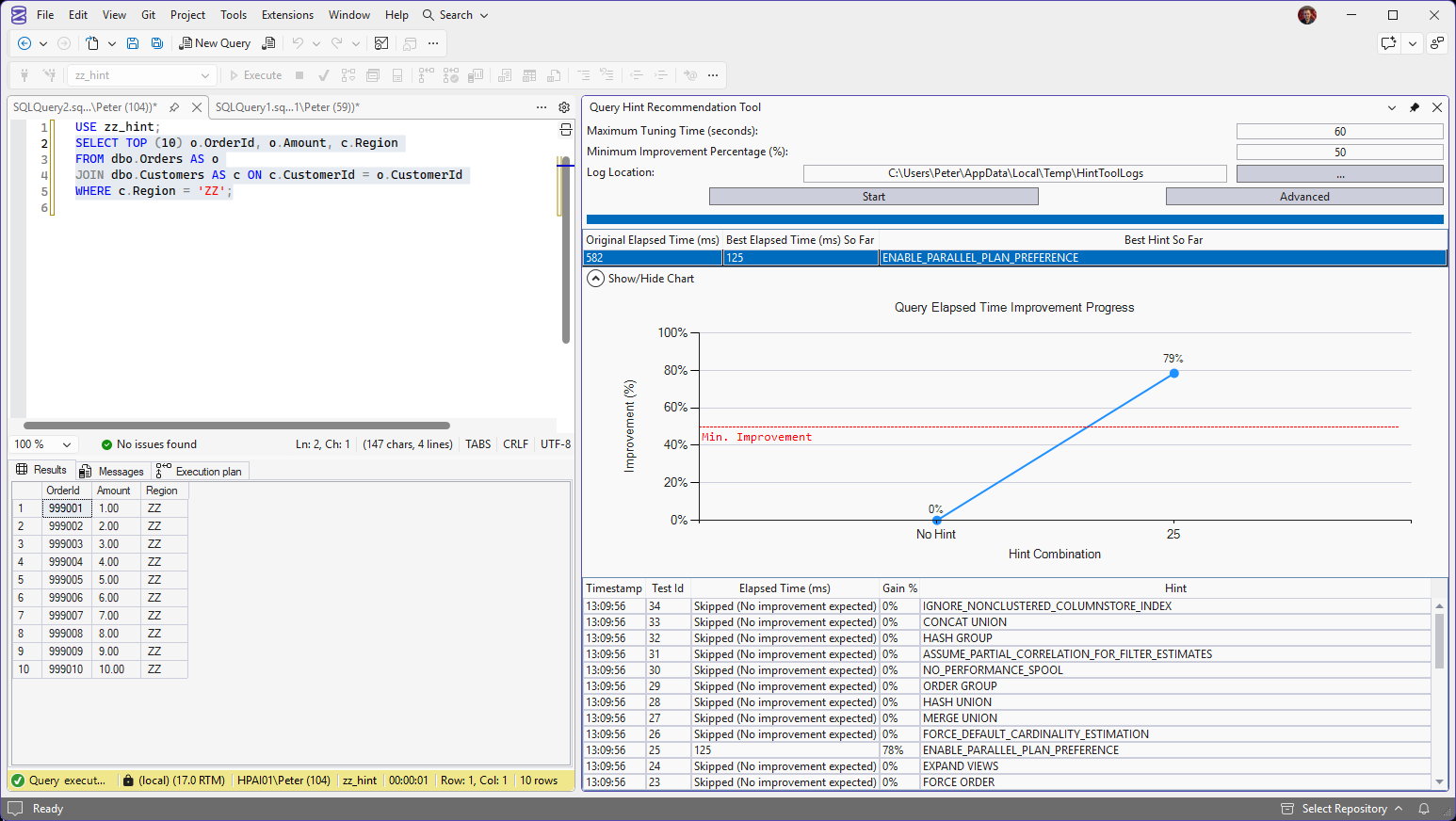
The answer came back inside the minute. With no hint the query took 582 ms. With ENABLE_PARALLEL_PLAN_PREFERENCE, test 25, it took 125 ms, a 78% gain and well past the 50% bar marked on the chart. Nearly every other hint in the list shows Skipped (No improvement expected): the tool worked out it would get a plan it had already timed, and did not spend the budget running it.
Reading the Results
The table has one row per attempt: the timestamp, a test ID, the elapsed time in milliseconds, the gain % over the baseline, and the hint itself. Rows that were not run carry the reason instead of a time:
- Invalid query plan: the hint could not produce a plan for this query.
- Skipped (No improvement expected): the hint gives the same plan as one already tried, or could not beat the best so far.
- Stopped (Exceed the time limit): it was running longer than the best plan found, so the tool stopped it.
Skipped rows are the tool saving your time budget, not errors. The line that matters is the summary across the top: the original time, the best time so far, and the hint that got it.
Narrow the Search
By default it tries every predefined hint and some combinations of them. Advanced lets you cut that down by category, which matters when the query is slow and five minutes only covers a few runs:
- Plan space hints: join types and join order.
- Cardinality model hints: how the optimizer estimates row counts, the usual suspect after an upgrade or a compatibility level change.
- Miscellaneous: the rest, including degree of parallelism.
You can also switch off hint combinations, or exclude individual hints you would never ship.
Add the Hint to the Query
- Highlight the query in the editor again, the same SELECT you tuned.
- Right-click the winning row in the table and choose Append Hint to Query.
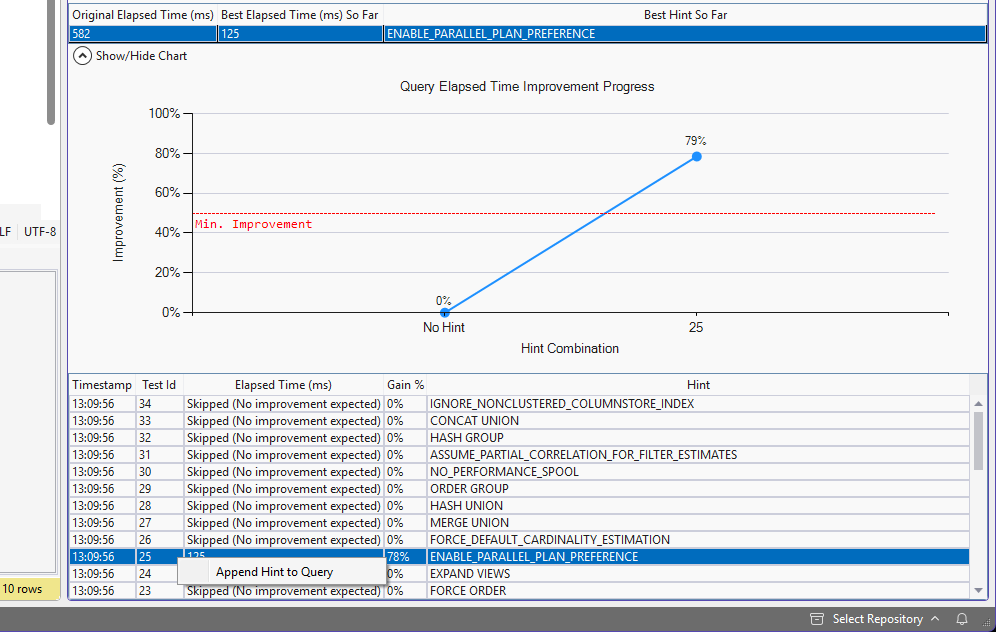
Do it in that order. The first time, I right-clicked the row without the query highlighted, and the tool stopped with this:
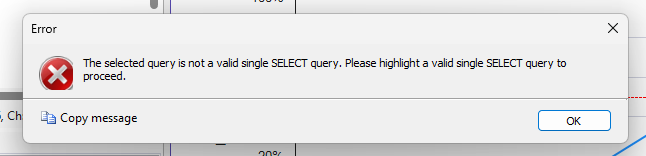
Nothing is wrong with the query. The tool appends to whatever is selected, so it needs the SELECT highlighted, and only the SELECT. Highlight it again and the menu works.
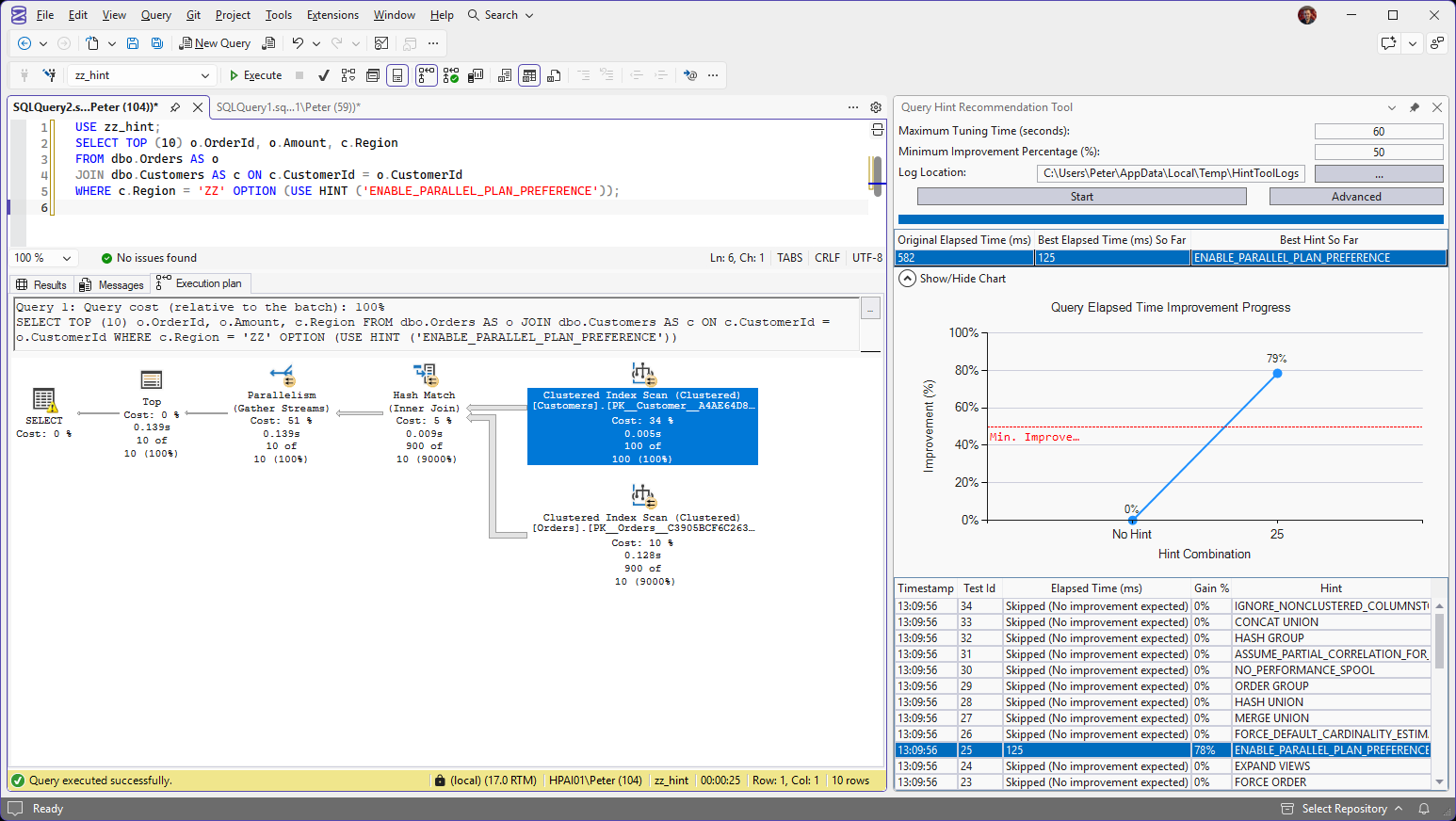
The hint lands as OPTION (USE HINT ('ENABLE_PARALLEL_PLAN_PREFERENCE')) on the end of the query, and the actual plan shows what changed: a parallel plan that scans both tables and joins them with a hash match. It also shows why the original plan went wrong. Orders reads 900 of 10, nine hundred rows read where the optimizer estimated ten, because the TOP (10) made it assume the matches came early.
Make It Stick, Then Fix the Cause
Appending the hint only changes your copy of the query. To make the application’s query use it without a code change, apply it as a Query Store hint with sys.sp_query_store_set_hints, which needs Query Store on for that database (check whether it is).
Then treat the hint as what Microsoft calls it, a temporary mitigation. A parallel-plan hint spends more CPU on every run, which is fine for one report and not for a query that runs a thousand times a minute. Find out why the plan went bad, whether that is parameter sniffing, stale statistics, a bad estimate like the one above, or a regression after a change, fix that, and remove the hint. Get Query Store Regressions and Forced Plans shows what is already being forced, so a hint applied in a hurry does not get forgotten.
Common Questions
Why is it not in my Tools menu?
It is an optional component. In the Visual Studio Installer, Modify your SSMS 22 installation, and on the Individual components tab tick Query Hint Recommendation Tool under Code tools. Reopen SSMS afterwards.
Which SSMS version has the Query Hint Recommendation Tool?
SSMS 22. It was a preview at the 22.0 release and has been generally available since 22.4.1. Install and Update SSMS gets you onto the current release.
Is it safe to run on production?
It runs the query repeatedly for up to the whole time budget, so it adds real load. Use a restored copy where you can. If production is the only place the problem shows, keep the time budget short and run it outside busy hours.
Where is the log?
In your %TEMP% folder by default. The folder button in the tool window changes the location. It records each attempt in detail, including errors.
Does it replace fixing the query?
No. A hint pins one behaviour of the optimizer and stays pinned when the data changes. Use it to buy time, then fix the cause and remove it.
Related
- SSMS: The Complete Guide, the hub this post belongs to
- The Query Is Fast in SSMS but Slow From the Application
- Get Query Store Top Queries, to find the query worth tuning
- What’s New in SSMS 22 for DBAs
Leave a Reply