
In SQL Server, every connection to the database engine is assigned a Session Process ID, commonly known as a SPID.
There are situations where you may need to kill a SPID in SQL Server. This typically occurs when a session is blocking other queries, running indefinitely, holding locks during maintenance, or preventing a database from being restored or dropped.
2 weeks ago I was on call on a Saturday evening when an alert came in. An important database was growing rapidly, tempdb was increasing and nearing capacity, and a service interruption was about to happen. A developer had executed an ad hoc SSMS query on the Friday and walked away for the weekend. Killing that session was the only realistic option.
Killing a SPID is a valid DBA action, but it must be done deliberately and with a clear understanding of the consequences.
This guide walks through how to identify the correct SPID, terminate it safely, and understand what really happens when you do.
What is a SPID in SQL Server
A SPID uniquely identifies a session connected to SQL Server. Every user connection, background task, and internal process runs under a session ID.
You can view active SPIDs using:
- Activity Monitor in SSMS
- sp_who2
- sp_whoisactive
- Dynamic Management Views
System processes often occupy lower session IDs, while user sessions typically appear above 50. This is not a strict rule, but it is commonly observed.
When Should You Kill a SPID
The KILL command should not be routine. It is a corrective action.
Common scenarios include:
- A blocking session disrupting an application
- A long running query that is clearly stuck
- A database that cannot be dropped due to active connections
- A runaway process consuming excessive CPU, memory, or I/O
If you are investigating blocking specifically, refer to my other post: How to Check Blocking in SQL Server.
Whenever possible, address the root cause. Optimising the query, improving indexing, or correcting transaction scope is preferable to terminating sessions reactively.
How to Identify the Correct SPID
Before terminating anything, confirm you are targeting the correct session.
The following query shows active user sessions and key runtime metrics:
SELECT
    s.session_id,
    s.login_name,
    s.host_name,
    s.program_name,
    r.status,
    r.blocking_session_id,
    r.cpu_time,
    r.total_elapsed_time / 1000 AS elapsed_seconds,
    r.wait_type,
    r.wait_time,
    r.open_transaction_count
FROM sys.dm_exec_sessions s
JOIN sys.dm_exec_requests r
    ON s.session_id = r.session_id
WHERE s.is_user_process = 1
ORDER BY r.cpu_time DESC;
When reviewing results, focus on:
- Non zero blocking_session_id
- Long elapsed time
- High wait times
- Open transactions
Always confirm you are targeting the lead blocker. Killing a session that is itself blocked will not resolve the chain.
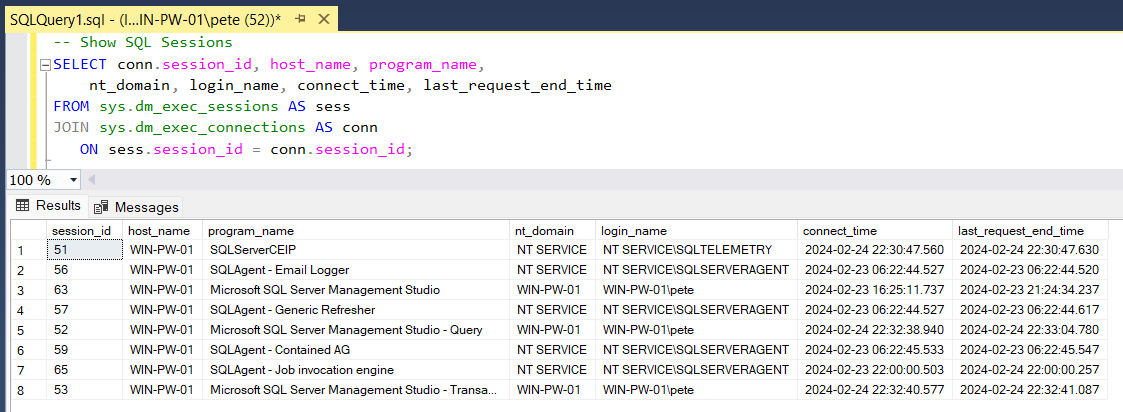
How to Kill a SPID in SQL Server
KILL is simple to execute, but its behaviour under load or during large rollbacks is not always simple. Before using it in production, review the official Microsoft KILL documentation, especially if you are dealing with anything beyond a straightforward session termination.
Once you are confident the session is safe to terminate, use the KILL command.
KILL <SPID>;Example:
KILL 69;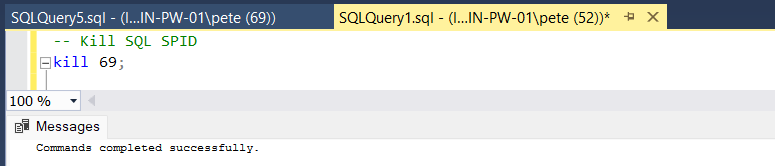
The KILL statement ends the user session associated with that session ID. Internally, SQL Server stops the connection and begins rolling back any active transactions tied to it.
If there is significant work to undo, the KILL statement itself can take time to complete. Large transactions do not disappear instantly and must be fully reversed before SQL Server can release the associated locks.
You cannot cancel the rollback once it has started.
KILL can also be used with a Unit of Work (UOW) identifier when dealing with orphaned or in doubt distributed transactions involving MS DTC, although this is far less common in typical SQL Server DBA work.
What Permission You Need to Run KILL
If KILL comes back with Msg 6102, Level 14, State 1. User does not have permission to use the KILL statement. then the session is fine and your login is the problem.
KILL needs ALTER ANY CONNECTION. That is a server level permission, and it does not have to arrive through sysadmin. Membership of processadmin is enough, and so is a bare grant with no server role at all:
-- Enough to kill sessions, without handing over the instance
GRANT ALTER ANY CONNECTION TO [DOMAIN\SomeLogin];
That distinction is worth knowing, because the narrower grant is a much easier thing to get approved than sysadmin. Microsoft documents the requirement as ALTER ANY CONNECTION, with sysadmin and processadmin simply being roles that already include it.
When KILL Refuses
The messages are short and they each mean something specific. Find the one you were given:
| What SQL Server said | What it means | What to do |
|---|---|---|
Msg 6102User does not have permission to use the KILL statement. | Your login has neither ALTER ANY CONNECTION nor a server role that carries it. | Ask for the grant above. You do not need sysadmin for this. |
Msg 6104Cannot use KILL to kill your own process. | You have targeted the session you are typing in. | Run SELECT @@SPID; and target a different session. Cancel your own query in the client instead. |
Msg 6106Process ID N is not an active process ID. | The session has already gone, or the number was never a live session. | Re-run the identifying query. Session IDs are reused, so a stale number can later belong to somebody else. |
Msg 6107Only user processes can be killed. | You have targeted an internal engine session. | Leave it alone. Filter on is_user_process = 1, as the query above does. |
Msg 6120Status report cannot be obtained. Rollback operation for Process ID N is not in progress. | You ran WITH STATUSONLY against a session that is not rolling anything back. | Nothing is wrong. Either the session had no open transaction or the rollback has already finished. |
Monitoring Rollback Progress
If the killed session had an open transaction, SQL Server must roll it back. The rollback phase can take longer than the original transaction, particularly if large data modifications were involved.
To check rollback status:
KILL <SPID> WITH STATUSONLY;Example:
KILL 69 WITH STATUSONLY;This may return:
- Percentage complete
- Estimated time remaining
On a session that really is rolling back it prints a single line, for example SPID 58: transaction rollback in progress. Estimated rollback completion: 33%. Estimated time remaining: 2 seconds.
If nothing is rolling back it does not stay silent, it raises Msg 6120, Level 16, State 1. Status report cannot be obtained. Rollback operation for Process ID 58 is not in progress. That message is good news. It means the session had nothing to undo, or the undo has already finished.
One thing worth knowing before you lean on it: WITH STATUSONLY is a report, not a second kill. Running it repeatedly does nothing to the session, so you can poll it as often as you like while you wait.
If you would rather watch it in a grid than read messages, the same progress is in a DMV:
SELECT session_id, status, command, percent_complete
FROM sys.dm_exec_requests
WHERE session_id = 58;
Rollback itself can continue holding locks. In high volume systems, this may temporarily increase blocking before the system stabilises.
Rollback duration is directly tied to the amount of work that must be undone. Large transactions can take a very long time to reverse. There is an old SQL podcast episode that shares a horror story about a rollback that ran for 2 months after a SPID was killed. Extreme, but technically possible.
Once rollback begins, there is no way to cancel it, so think carefully before issuing KILL against a session with a large open transaction.
KILLED/ROLLBACK and a Session That Will Not Die
You killed it 2 minutes ago and it is still sitting there. Before you kill it again, read the state. A session that is rolling back is working, not stuck, and nothing you type will interrupt it.
Session 53 below sat idle inside an open transaction that had written 1,416 MB of log on SQL Server 2025 CU8. A second window ran KILL 53, then KILL 53 WITH STATUSONLY every 12 seconds:
Three things in that output matter mid incident. open_transaction_count is still 1 and command reads AWAITING COMMAND, because nothing is executing, the engine is undoing. The status of rollback is the real signal, and sp_who2 splits the same state across 2 columns, Status of ROLLBACK and Command of AWAITING COMMAND.
Ignore the first estimate. The opening report said 0 percent with 800 seconds remaining. The rollback finished inside 40 seconds. The number is only worth reading once the percentage has started moving.
The last line is the other lesson. By the fourth report the session had finished and gone, and its session ID had already been handed to an internal process, so the poll came back with Msg 6107 instead. If the wait is not survivable, the decision is a failover or a restore, not another KILL.
Killing All User Sessions on a Database
Sometimes you need everyone out of a database, usually when you are restoring it, dropping it, or doing maintenance that requires exclusive access and SQL Server is refusing because active connections still exist.
If that is the situation you are dealing with, I have covered it properly in a separate guide: How to Kill All User Sessions on a Database in SQL Server. That post walks through when it actually makes sense to do this and how to handle it safely without causing unnecessary disruption.
Sessions You Should Never Kill
System sessions should not be terminated.
Microsoft’s documentation for the KILL command makes this clear. You cannot kill your own session, and certain internal SQL Server processes must never be terminated.
These include:
- AWAITING COMMAND
- CHECKPOINT SLEEP
- LAZY WRITER
- LOCK MONITOR
- SIGNAL HANDLER
These are core engine processes. SQL Server will usually prevent you from killing them, but it is important to understand what they are before attempting to terminate any low numbered SPIDs.
You can confirm your current session using:
SELECT @@SPID;To review active sessions more broadly, query:
- sys.dm_exec_sessions
- sys.dm_exec_requests
- sys.dm_tran_locks
If a session is in rollback after being killed, sp_who reports its status as rollback and sp_who2 reports ROLLBACK. sys.dm_exec_requests and sys.sysprocesses both say rollback too. The string KILLED/ROLLBACK that you will see quoted in a lot of places is what SSMS Activity Monitor displays, not what any of these return.
For a full breakdown of the behaviour and limitations of the KILL command, including distributed transactions and edge cases, see the official Microsoft documentation for KILL (Transact SQL).
Production Considerations
Before executing KILL:
- Confirm the session is the lead blocker
- Review open_transaction_count
- Assess impact to users
- Understand potential rollback duration
Large transactions can take significant time to reverse. Once rollback begins, it cannot be stopped.
If you frequently need to kill SPIDs in SQL Server, investigate:
- Query design
- Indexing strategy
- Transaction scope
- Application behaviour
KILL is a control mechanism. It is not a performance tuning strategy.
Killing the session ends the symptom. These find what caused it.
- Linked Server: Login Failed for User NT AUTHORITY\ANONYMOUS LOGON, and Error 7391 Distributed Transactions, the KILL that waits on a provider call instead of rolling back straight away
- What WITH (NOLOCK) Actually Does, before you reach for it to dodge the blocking
- Troubleshoot SQL Server Blocking, Step by Step, work out what was blocking what before you kill anything again.
- Get Blocking Chains, see the whole chain, not just the session at the head of it.
- Blocking and Locking Scripts, the full set of blocking and locking checks.
- TempDB Is Full or Still Growing, when the session you are about to kill is filling tempdb, see what holds the space first.
Leave a Reply