
After a recent Availability Group failover, Database Mail stopped sending emails. On investigation, the underlying cause was Service Broker not being enabled on the system database required by Database Mail.
To confirm the status, I ran:
SELECT name, is_broker_enabled
FROM sys.databases;
The is_broker_enabled column was returning 0, indicating that Service Broker was disabled for that database.
I then attempted to enable it:
ALTER DATABASE [database_name] SET ENABLE_BROKER;The statement did not error, but it did not complete either. It continued running for several minutes, which is far longer than expected for this change.
This behaviour is not version-specific. Enabling Service Broker requires an exclusive database lock. If there are active connections against the database, SQL Server waits for them to disconnect before applying the change.
The Fix
Use this carefully in production environments and, where possible, perform the change during a planned maintenance window.
We can force the change by adding WITH ROLLBACK IMMEDIATE to the ALTER DATABASE command:
ALTER DATABASE [database_name]
SET ENABLE_BROKER
WITH ROLLBACK IMMEDIATE;
With this option added, the command completes immediately and Service Broker is enabled.
It’s important to understand what WITH ROLLBACK IMMEDIATE does. According to Microsoft Documentation for ALTER DATABASE, using this termination option immediately disconnects other sessions from the database and rolls back any incomplete transactions. Any active work running against the database will be terminated and rolled back before the change is applied.
There was no need to drop queues, contracts, or services. The delay was simply active connections preventing the required lock.
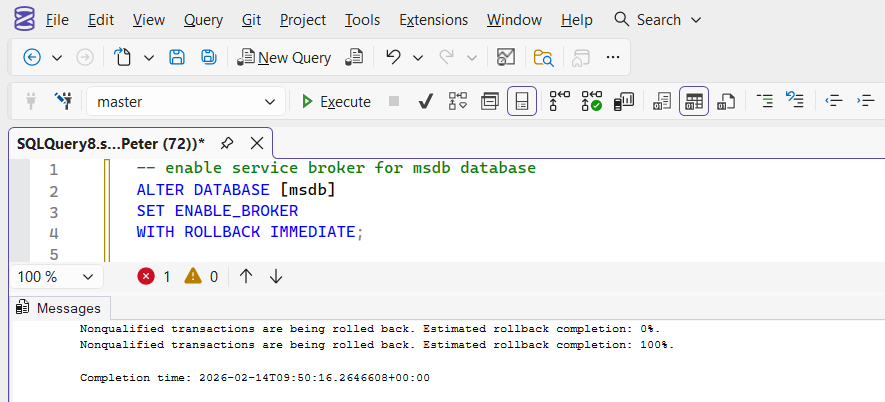
Confirming Service Broker Status
You can verify the setting at any time:
SELECT name, is_broker_enabled
FROM sys.databases
WHERE name = 'database_name';
A value of 1 indicates Service Broker is enabled for the database.
A value of 0 indicates it is disabled.
If ALTER DATABASE SET ENABLE_BROKER appears stuck, it is almost always waiting on active connections.
Use WITH ROLLBACK IMMEDIATE, apply the change, and continue with your configuration.
Leave a Reply