
VIEW SERVER STATE is the permission that unlocks most server-level DMVs and DMFs.
If someone can’t run basic instance health checks and keeps hitting permission errors, this is usually why. It gives visibility into what is happening on the box right now: active sessions, running requests, waits, connection details, and plan cache level query stats.
Common DMVs it enables include:
- Session and request state:
sys.dm_exec_sessions,sys.dm_exec_requests - Connection details:
sys.dm_exec_connections - Waits and pressure signals:
sys.dm_os_wait_stats - Performance counters:
sys.dm_os_performance_counters - Plan cache stats:
sys.dm_exec_query_stats(plussys.dm_exec_sql_text/sys.dm_exec_query_plan)
Grant it deliberately. It exposes operational metadata about the instance.
What It Allows
VIEW SERVER STATE allows a login to read server-scoped state from DMVs and DMFs.
That usually means visibility into:
- sessions, requests, and connection details
- waits and workload pressure signals
- cached query stats and plan cache metadata
- server-wide performance counters
It does not grant access to user data by itself, but it can expose query text, object names, and other internal operational details.
Check Who Has VIEW SERVER STATE
This shows explicit grants.
-- List logins explicitly granted VIEW SERVER STATE
SELECT
    p.name         AS login_name,
    sp.permission_name,
    sp.state_desc
FROM sys.server_permissions sp
JOIN sys.server_principals p
    ON sp.grantee_principal_id = p.principal_id
WHERE sp.permission_name = 'VIEW SERVER STATE'
ORDER BY p.name;
This only shows explicit GRANTs. Sysadmin members won’t appear here because sysadmin implies the permission.
If you also want to review who has full instance visibility, use my Script: List Sysadmin Role Members.
Grant VIEW SERVER STATE
Run this as sysadmin (or a login that can grant server permissions):
GRANT VIEW SERVER STATE TO [DOMAIN\SomeUser];
-- or
GRANT VIEW SERVER STATE TO [SomeSqlLogin];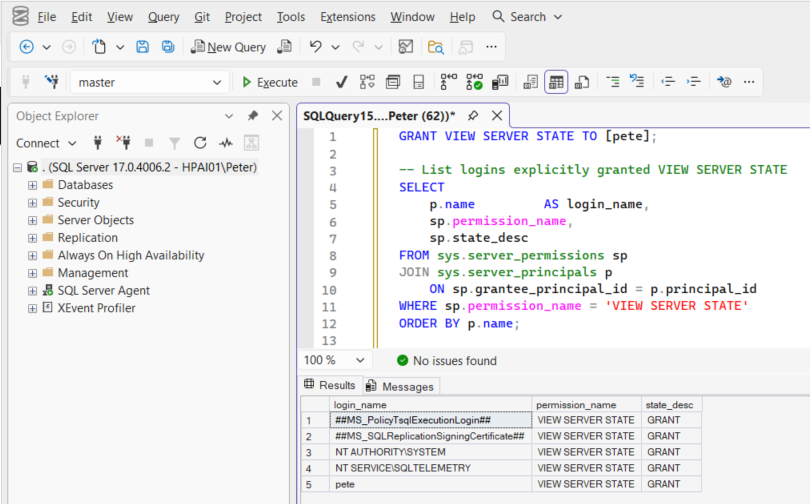
To remove it, run the following:
REVOKE VIEW SERVER STATE FROM [DOMAIN\SomeUser];In most environments you either grant it to the right operational accounts, or you do not. Explicit DENY is possible, but it is uncommon and usually not needed in normal DBA workflows.
VIEW SERVER PERFORMANCE STATE
On SQL Server 2019 and earlier, VIEW SERVER STATE is usually the permission you grant when someone needs to read server-scoped DMVs.
Starting in SQL Server 2022, Microsoft introduced VIEW SERVER PERFORMANCE STATE and some performance-focused DMV access moved behind it. In practical terms, a monitoring login can have VIEW SERVER STATE and still hit permission errors on certain performance queries until you grant this as well.
If you are on SQL Server 2022+ and a monitoring account still cannot read what it needs after VIEW SERVER STATE, grant:
GRANT VIEW SERVER PERFORMANCE STATE TO [DOMAIN\SomeUser];If you try to grant it on a version that does not support it, you’ll get an “invalid permission” style error. In that case, VIEW SERVER STATE is the correct permission set for that instance.
Operational Notes
- This is a server-level permission, not database-level.
- This does not cover database-scoped DMVs. Those are controlled by
VIEW DATABASE STATEat the database level. - For Availability Groups, permissions are per replica. If the same monitoring login connects to multiple replicas, grant it on each instance.
- Don’t grant this to generic app logins. Keep it to DBA, support, and monitoring accounts.
- In Azure SQL Database, many server-scoped DMVs aren’t available in the same way, so this permission isn’t a like-for-like fix there.
Summary
If a user needs to run real DMV-based troubleshooting queries, VIEW SERVER STATE is usually the correct permission.
Audit who has it, grant it intentionally, and only add VIEW SERVER PERFORMANCE STATE when you have a concrete monitoring requirement and the SQL version supports it.
Leave a Reply