
When troubleshooting connectivity, firewall rules, or unexpected routing, you often need one simple answer: which IP address and port did my session actually connect to?
SQL Server can listen on multiple IPs (and listeners can resolve to multiple addresses), so the hostname in your connection string does not always tell you what you really hit.
This post shows the quickest production-safe ways to confirm the connected server IP and port from inside SQL Server, plus a short listener VIP check when you need to validate AG routing.
1. Recommended: sys.dm_exec_connections
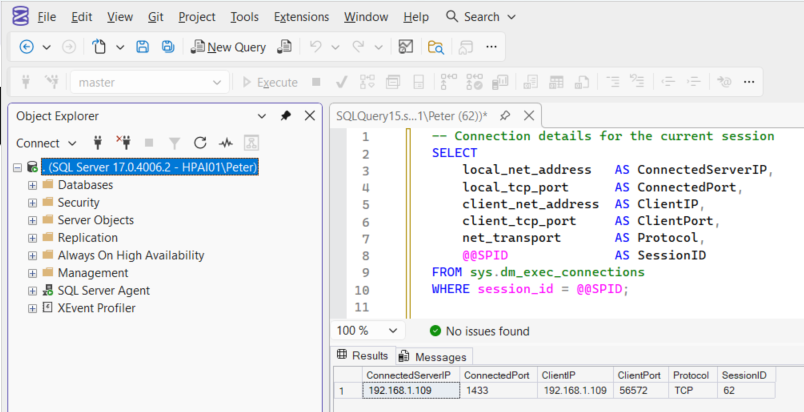
This is the method I use most because it shows the server-side IP and port for your current session, plus useful client details.
-- Connection details for the current session
SELECT
    local_net_address   AS ConnectedServerIP,
    local_tcp_port      AS ConnectedPort,
    client_net_address  AS ClientIP,
    client_tcp_port     AS ClientPort,
    net_transport       AS Protocol,
    @@SPID              AS SessionID
FROM sys.dm_exec_connections
WHERE session_id = @@SPID;
Permission required: VIEW SERVER STATE
If you get NULL here for local_net_address, confirm you are actually connected over TCP/IP. If TCP/IP is disabled, remote connectivity will not work at all. See: Enabling TCP Connections in SQL Server.
Depending on your network configuration, local_net_address may return an IPv6 address rather than IPv4. In that case, validate firewall rules and whitelists are aligned to IPv6 as well.
2. Quick Alternative: CONNECTIONPROPERTY()
If you only need a quick value and you know the connection is TCP:
SELECT
    CONNECTIONPROPERTY('local_net_address') AS ServerIPAddress,
    CONNECTIONPROPERTY('local_tcp_port')    AS ServerPort,
    CONNECTIONPROPERTY('net_transport')     AS Protocol;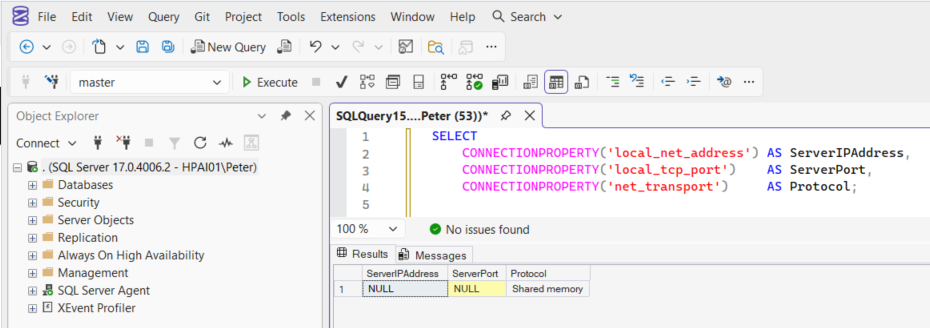
This returns NULL for non-TCP connections (Shared Memory, Named Pipes) and in some platform scenarios (for example Azure SQL Database).
If the port surprises you, do not assume 1433. SQL Server can be configured to listen on non-default ports, especially where multiple instances exist. See: SQL Server Default Ports.
Availability Group Listener and Whitelisting
If you connect through an Availability Group listener, there are two common checks:
- Did my session connect via a listener VIP (Virtual Network IP) or directly to a node?
- What IPs should be whitelisted (listener VIPs and node IPs)?
A VIP (Virtual Network IP) is the IP address assigned to the listener name that clients connect to. It is “virtual” in the sense that it is not tied permanently to one host, it is owned by whichever node currently has the listener online.
Confirm whether you hit a listener VIP
SELECT
    local_net_address AS ConnectedToIP,
    local_tcp_port    AS ConnectedPort
FROM sys.dm_exec_connections
WHERE session_id = @@SPID;
Compare that IP to the listener VIPs:
SELECT
    dns_name,
    ip_address,
    state_desc
FROM sys.availability_group_listener_ip_addresses;
If ConnectedToIP matches one of the listener IPs, you came in through the listener VIP as expected. If it shows a node IP, your connection string is likely bypassing the listener.
If you are troubleshooting cross-zone connectivity, validate the route from the application side as well. See: Testing Remote Server Port Connectivity with PowerShell.
DNS check from the client side
On a client machine (or anywhere with the same DNS view as the app), run:
nslookup AGListenerNameThat shows which listener IPs DNS is returning. In multi-subnet setups it is normal for multiple IPs to be returned. In those cases, make sure your application connection string uses MultiSubnetFailover=True to reduce failover connection delays.
For whitelisting, you will typically need the listener VIPs plus the replica node IPs as well:
nslookup Node1Name
nslookup Node2Name
If you need to confirm what the host is actually listening on and which process owns the port, use OS-level checks. For port defaults and common configurations, see SQL Server Default Ports. For the OS view, see How to Check Listening Ports on Windows.
Summary
If you only run one query, use:
SELECT local_net_address, local_tcp_port
FROM sys.dm_exec_connections
WHERE session_id = @@SPID;
It returns the exact IP and port your session connected to. This is the quickest way to confirm whether you hit the expected instance or listener VIP during connectivity troubleshooting.
Leave a Reply