
By default, the SQL Server Database Engine listens on TCP port 1433. This is useful to know, but it is not something you should rely on blindly.
SQL Server can be configured to listen on different ports, and this is common on hosts running multiple SQL Server instances where each instance requires its own port.
In practice, DBAs need to know which ports SQL Server is actually using, how to verify them, and how they affect connectivity, firewall rules, and client configuration.
This post explains the default SQL Server ports, what they are used for, and how to confirm which ports your SQL Server instances are listening on.
If you are troubleshooting connectivity issues, make sure TCP is enabled first. See Enabling TCP Connections in SQL Server before working through port checks.
SQL Server Networking for DBAs
SQL Server networking is not just a server configuration concern, it is an operational responsibility for DBAs.
In most environments, DBAs are expected to:
- Ensure TCP connections are enabled
- Confirm which ports SQL Server is listening on
- Create or validate local Windows Firewall rules
- Provide accurate port information to network teams
In larger organisations, network access is usually controlled by central firewall teams. When requesting access, DBAs are typically required to supply:
- Source and destination hosts
- Protocol, usually TCP
- Destination port number
It is also our responsibility to test connectivity and confirm that changes work as expected once firewall rules are applied. See Testing Remote Server Port Connectivity with PowerShell for the client-side check.
How to Check Which Port SQL Server Is Using
The most reliable way to check which port a SQL Server instance is configured to use is through SQL Server Configuration Manager.
Open SQL Server Configuration Manager and navigate to:
SQL Server Network Configuration → Protocols for <InstanceName> → TCP/IP Properties → IP Addresses tab
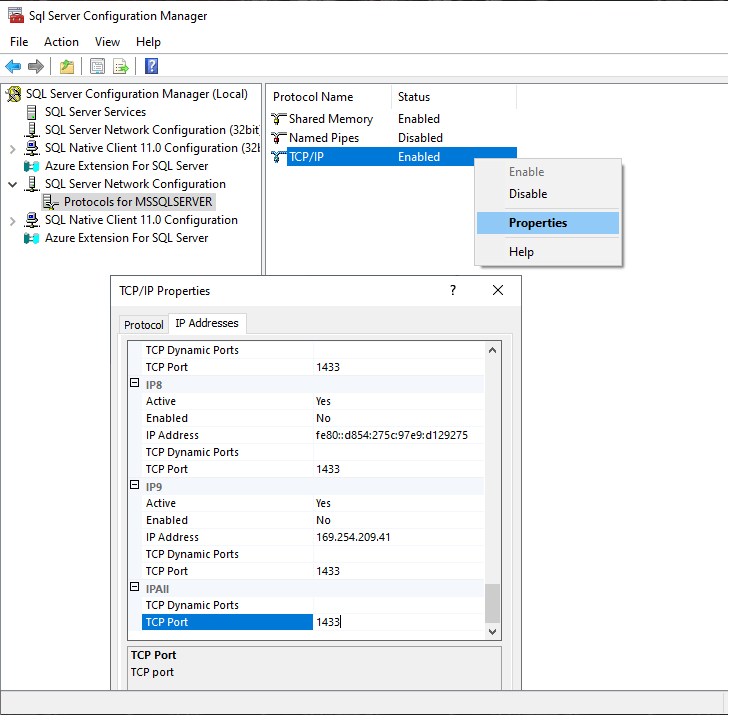
This shows the port SQL Server is configured to listen on.
If multiple SQL Server instances are installed on the same server, repeat this check for each instance.
If you need to confirm what the host is actually listening on and which process owns the port, use OS-level checks. See: How to Check Listening Ports on Windows.
Checking the HADR or Mirroring Endpoint Port
Availability Groups and database mirroring use a separate TCP endpoint, which listens on its own port.
To view the endpoint port number, run the following query:
-- Show database mirroring endpoint state, encryption, and listening port
SELECT
    e.name AS Endpoint_Name,
    e.state_desc AS Endpoint_State,
    e.type AS Endpoint_Type,
    e.type_desc AS Endpoint_Type_Description,
    d.state AS Mirroring_State,
    d.state_desc AS Mirroring_State_Desc,
    tcp.port AS Port_Number,
    d.is_encryption_enabled AS Encryption_Enabled,
    d.encryption_algorithm_desc AS Encryption_Algorithm_Desc,
    d.certificate_id AS Certificate_Id
FROM sys.endpoints e
JOIN sys.database_mirroring_endpoints d ON e.endpoint_id = d.endpoint_id
JOIN sys.tcp_endpoints tcp ON e.endpoint_id = tcp.endpoint_id;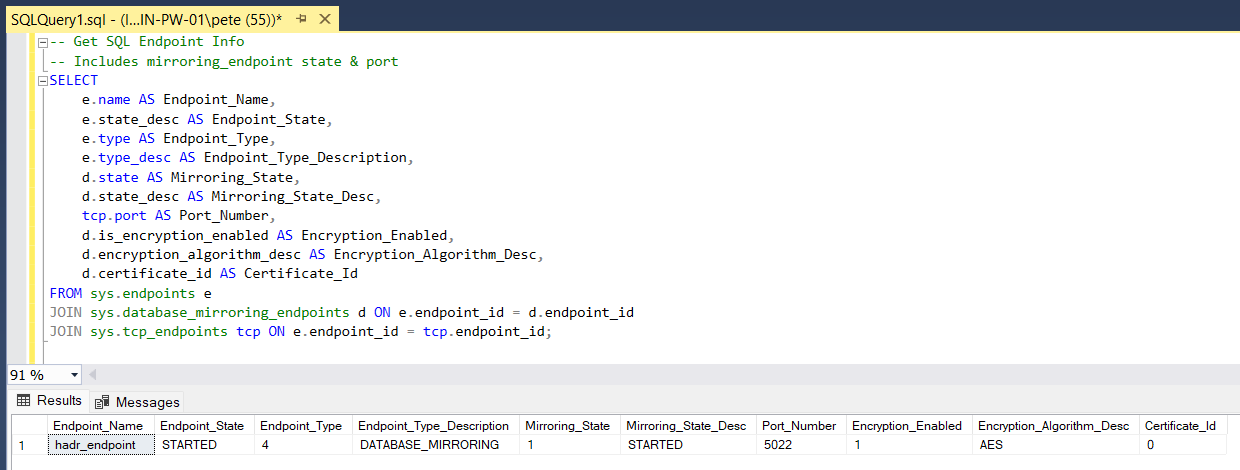
This endpoint commonly uses port 5022, but it is fully configurable. Do not assume defaults when validating firewall rules or Availability Group connectivity.
Common SQL Server Default Ports
SQL Server uses multiple ports depending on features and configuration.
The most commonly encountered ports are outlined below.
SQL Server Database Engine
TCP 1433
The default port for the SQL Server Database Engine. Client applications connect to this port unless the instance is configured to use a different one.
SQL Server Browser Service
UDP 1434
Used by the SQL Server Browser service to help clients discover instance names and port numbers, mainly when using named instances with dynamic ports.
The Browser service does not carry database traffic. It only assists with instance discovery.
Dedicated Administrator Connection (DAC)
The Dedicated Administrator Connection does not use a fixed port. It connects over the same TCP port as the SQL Server Database Engine using a reserved connection path.
You may see references online claiming DAC requires UDP port 1434. This is incorrect. UDP 1434 is used by the SQL Server Browser service for instance discovery, not for DAC traffic.
In most DBA scenarios, no separate DAC firewall rule is required.
SQL Server Integration Services (SSIS)
TCP 135
Used for DCOM communication related to SSIS and other Windows based components. This is environment specific and often restricted in hardened networks.
Database Mirroring or Availability Group Endpoint
TCP 5022 (common default)
Used for database mirroring and Always On Availability Group replica communication. This port must be open between replicas.
All of these ports can be changed. Always verify actual configuration rather than relying on assumptions.
Other Ways to Identify SQL Server Ports
Review the SQL Server Error Log
The SQL Server error log records the listening port during service startup.
To check it:
- Open SQL Server Management Studio
- Connect to the SQL Server instance
- Navigate to Management → SQL Server Logs
- Open the current error log
- Look for messages indicating which TCP port SQL Server is listening on.
Check the Windows Registry
SQL Server port configuration is also stored in the Windows Registry.
The port number can be found under:
HKEY_LOCAL_MACHINE\SOFTWARE\Microsoft\Microsoft SQL Server<InstanceName>\MSSQLServer\SuperSocketNetLib\TcpReplace <InstanceName> with the appropriate instance name.
Registry checks are useful for automation and verification, but should not replace SQL Server Configuration Manager for day to day administration.
Query Active Connections
You can view the TCP port used by current connections with the following query:
SELECT DISTINCT local_net_address, local_tcp_port
FROM sys.dm_exec_connections
WHERE local_tcp_port IS NOT NULL;
This returns the port used by active connections, not the configured listening port. On idle systems, it may return no rows.
If you need the single-session view (what your session connected to right now), see: How to Get the SQL Server IP Address.
Operational Considerations
- Do not assume SQL Server is listening on port 1433
- Named instances often use dynamic ports
- Availability Group endpoints always require separate firewall rules
- SQL Server Browser usage should be deliberate, not accidental
When troubleshooting connectivity, validate in this order:
- TCP is enabled
- SQL Server is listening on the expected port
- The port is reachable from the client
- The client is connecting correctly
- Confirm which IP and port the session actually connected to
Related Checks and Follow Ups
These posts naturally pair with port validation:
- Enabling TCP Connections in SQL Server
- Testing Remote Server Port Connectivity with PowerShell
- How to Check Listening Ports on Windows
- How to Get the SQL Server IP Address
Final Thoughts
Knowing which ports SQL Server uses is foundational DBA knowledge.
Ports directly affect connectivity, security, firewall rules, and troubleshooting. Verifying configuration instead of assuming defaults prevents wasted effort and unnecessary escalation.
Leave a Reply