
In modern versions of SQL Server Management Studio, line numbers are enabled by default.
If you are running SSMS 21 or newer, you will already see line numbers in query windows without changing anything. Older versions of SSMS did not enable them by default, which is why many guides still focus on “turning them on”.
Regardless of version, understanding why line numbers matter, and where to enable or disable them, is still useful DBA knowledge.
This post explains what line numbers are used for in SSMS, when they help, and how to control the setting if you want to change it.
Why Line Numbers Matter
Line numbers do not affect how SQL runs, but they reduce friction in everyday work.
They are useful when:
- Error messages reference a specific line number
- Debugging long scripts, stored procedures, or migrations
- Sharing a screen and discussing code verbally
- Reviewing SQL with other engineers
- Navigating large query windows quickly
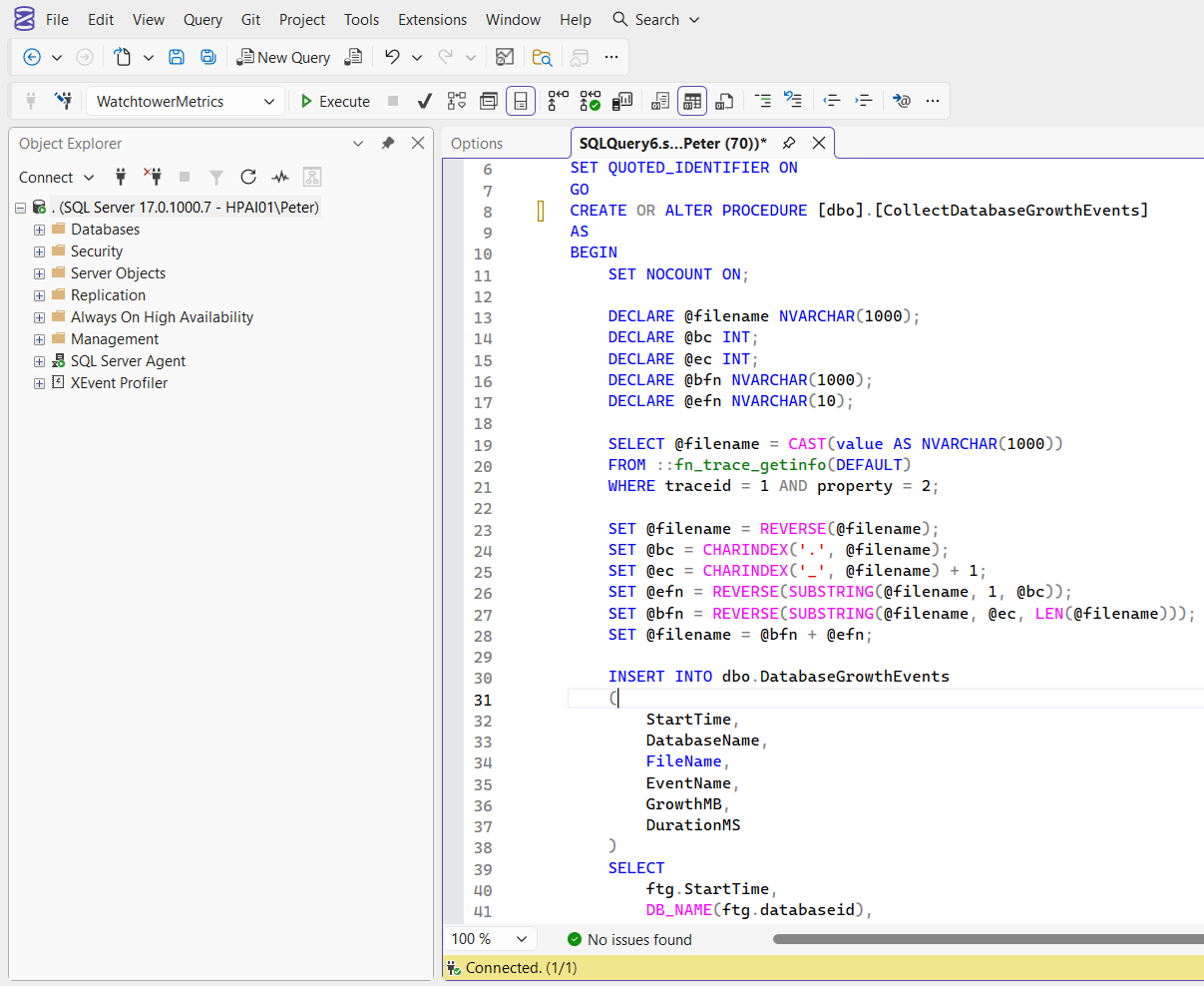
If someone says “look at line 42”, line numbers remove guesswork immediately.
This becomes especially valuable during incidents, reviews, or collaborative troubleshooting.
Default Behaviour in Recent SSMS Versions
In SSMS 21 and beyond, line numbers are enabled by default for Transact-SQL query windows.
If you see line numbers already present on the left side of your query window, nothing needs to be changed.
In older SSMS versions, line numbers were disabled by default and had to be enabled manually. This is why many legacy posts still describe the setting as optional.
How to Enable or Disable Line Numbers in SSMS
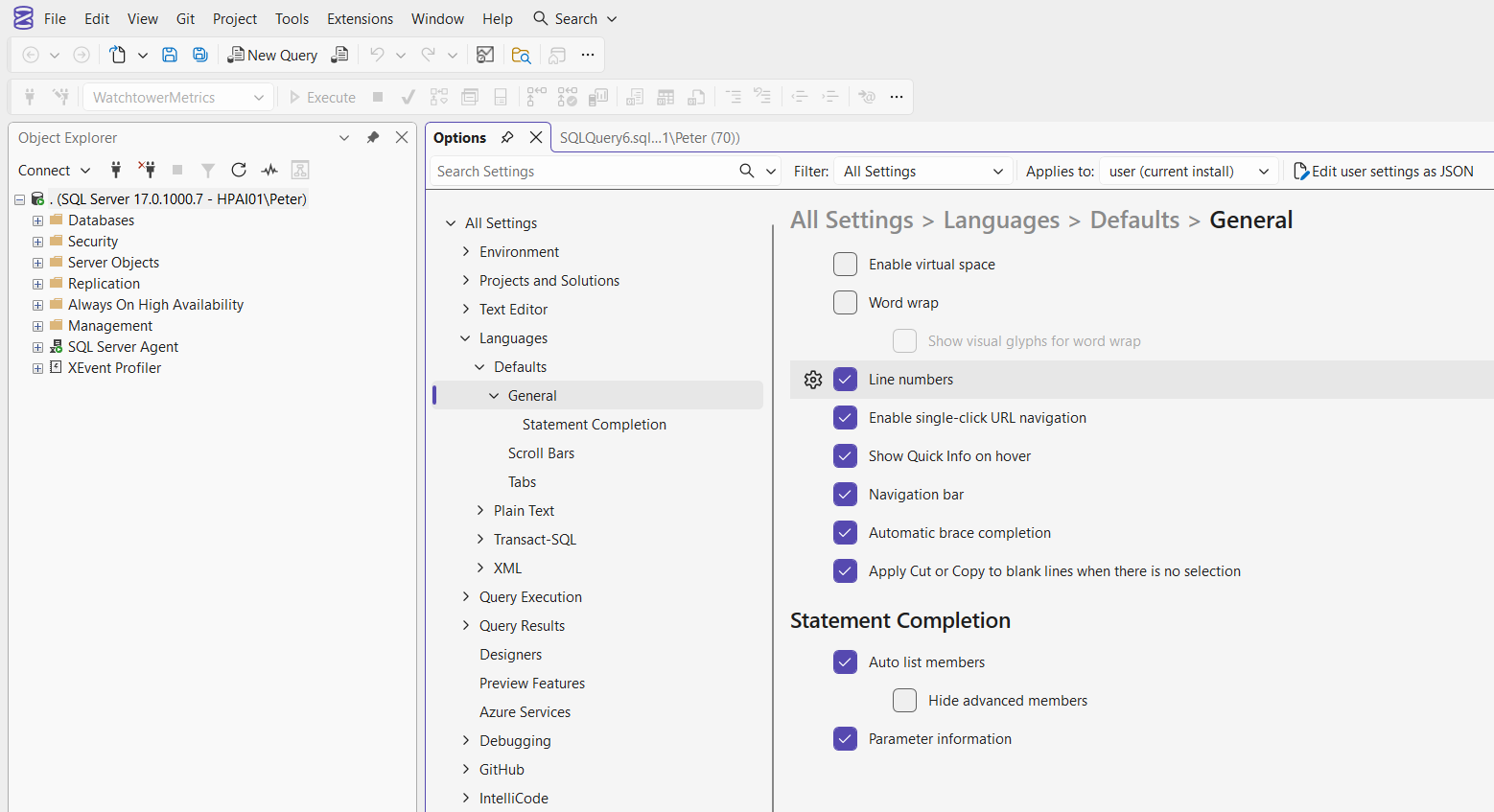
Line numbers are controlled globally per SSMS installation.
To change the setting:
- Open SQL Server Management Studio
- Go to Tools → Options
- Navigate to Text Editor → Transact-SQL → General
- Check or uncheck Line numbers
- Click OK
This affects all new Transact-SQL query windows.
Using Line Numbers With Errors
Many SQL Server error messages include a line reference, for example:
Msg 102, Level 15, State 1, Line 33
Incorrect syntax near 'else'.
With line numbers visible, you can jump straight to the relevant section instead of manually counting lines.
The reported line is not always exact, but it reliably points you close to the problem area.
Navigating to a Specific Line
Line numbers work well with built-in SSMS navigation features:
- Double-click an error in the Messages pane to jump to the referenced line
- Use Ctrl + G to go directly to a specific line number
Both are much more effective when line numbers are visible.
Final Notes
In current versions of SSMS, line numbers are already on, which is exactly where they should be.
They make debugging faster, communication clearer, and collaboration smoother, without changing how SQL behaves. Whether enabled by default or manually, this is one of those features that quietly improves day-to-day DBA work.
Leave a Reply