
Keeping track of database file sizes and available free space is a basic but essential part of SQL Server administration.
If you don’t know how large your data and log files are, or how much free space they contain, capacity planning becomes guesswork. Problems tend to surface late, usually during growth events, backups, or unexpected workload spikes.
This post shares a practical SQL script that retrieves database file sizes and free space across an entire SQL Server instance, making it easy to spot potential issues before they turn into incidents.
Why Monitoring Database File Sizes Matters
Database files grow over time, but rarely in a smooth or predictable way.
In day-to-day DBA work, file size and free space checks are often needed when:
- Planning disk capacity and future growth
- Investigating sudden storage alerts
- Reviewing autogrowth behaviour
- Preparing for server builds or migrations
- Understanding how recovery model affects log usage
Free space inside a database file is just as important as the size of the file itself. A file can be large but mostly empty, or relatively small and nearly full. Both scenarios require different decisions.
If you also need to understand where database files live on disk, see:
👉 Get Database File Names and Paths in SQL Server
The script below loops through all databases on the instance and returns file sizes and free space for each database file.
It uses sys.database_files and FILEPROPERTY to calculate space used and free space within each file.
-- Get sizes of all database and log files, store into a temp table & select output
DROP TABLE IF EXISTS #MSSQL_Database_Sizes
CREATE TABLE #MSSQL_Database_Sizes (
    [database_name] [nvarchar](MAX) NULL,
    current_size_mb [int] NULL,
    freespace_mb [int] NULL,
    collection_date [date] NULL
)

DECLARE @db_name NVARCHAR(MAX)

DECLARE db_cursor CURSOR FOR
SELECT name
FROM sys.databases
-- WHERE database_id > 4 -- Exclude system databases

OPEN db_cursor
FETCH NEXT FROM db_cursor INTO @db_name

WHILE @@FETCH_STATUS = 0
BEGIN
    DECLARE @command NVARCHAR(MAX)
    SET @command =
        'USE ' + QUOTENAME(@db_name) + '
        INSERT INTO #MSSQL_Database_Sizes ([database_name], current_size_mb, freespace_mb, [collection_date])
        SELECT
            [name] AS FileName,
            [size]/128.0 AS [current_size_mb],
            [size]/128.0 - CAST(FILEPROPERTY([name], ''SpaceUsed'') AS INT)/128.0 AS [freespace_mb],
            CAST(GETDATE() AS DATE) AS [collection_date]
        FROM sys.database_files'

    EXEC sp_executesql @command

    FETCH NEXT FROM db_cursor INTO @db_name
END

CLOSE db_cursor
DEALLOCATE db_cursor

SELECT *
FROM #MSSQL_Database_Sizes
ORDER BY 2 DESC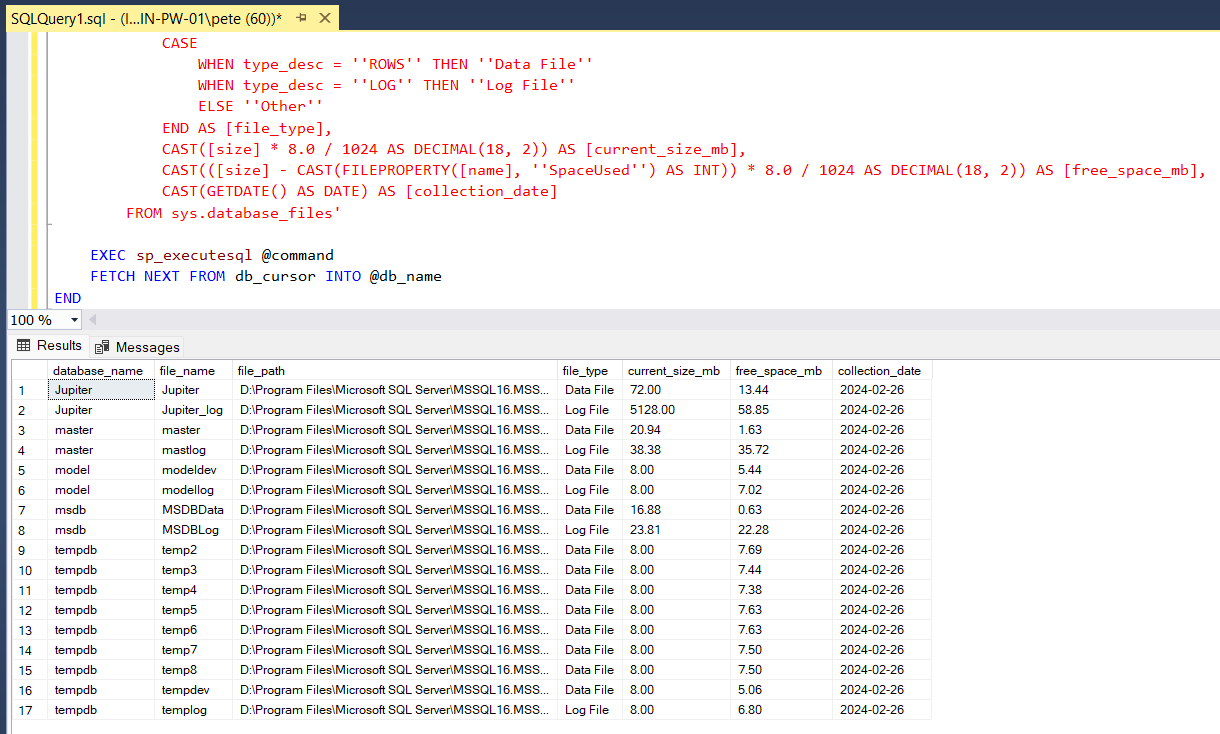
Interpreting the Results
This output gives you a quick, instance-wide view of:
- File sizes for data and log files
- How much free space exists inside each file
- Which databases may need attention soon
In many environments, log file free space varies significantly depending on recovery model and backup frequency. Data files, on the other hand, tend to show more predictable patterns.
If you see files frequently approaching full capacity, that’s often a sign to review growth settings or disk allocation before autogrowth becomes a recurring problem.
To understand when files are growing, rather than just their current size, see:
👉 Show Database Growth Events in SQL Server
Notes and Practical Considerations
- This script reports free space inside the database file, not free space on disk
- Shrinking files to reclaim free space is usually a last resort, especially in production
- Consistent file layouts and sensible growth settings reduce the need for reactive changes
If you are troubleshooting log-related space issues specifically, pairing this with log usage checks is useful:
👉 How to Check Transaction Log Space Usage in SQL Server
Microsoft Docs References
For deeper background on the system views and functions used here:
👉 Microsoft Docs: sys.database_files (Transact-SQL)
👉 Microsoft Docs: FILEPROPERTY (Transact-SQL)
These are worth skimming if you want to extend or adapt the script.
Final Thoughts
Knowing database file sizes and internal free space gives you early warning before storage becomes a problem.
This is not a script you run once and forget. It’s something worth keeping handy, or even scheduling, so you can make decisions while you still have options rather than reacting under pressure.
Leave a Reply