
Knowing when SQL Server last restarted is one of the simplest checks a DBA can perform, and one of the most useful.
It immediately answers questions around patching, failovers, configuration changes, and unexplained behaviour. Before assuming anything else, confirming uptime is always worth doing first.
This post shows the most reliable way to check SQL Server start time using system views, with a secondary signal you can use when needed.
Why This Check Matters
SQL Server restart timing matters when:
- Investigating sudden performance changes
- Validating patching or maintenance windows
- Reviewing failovers or node reboots
- Confirming configuration changes that require a restart
- Building an accurate incident timeline
If SQL Server restarted recently, many symptoms suddenly make sense.
Check SQL Server Start Time
The authoritative source for SQL Server uptime is the sys.dm_os_sys_info Dynamic Management View (DMV).
-- Show when the SQL Server service last started
SELECT
    sqlserver_start_time
FROM sys.dm_os_sys_info;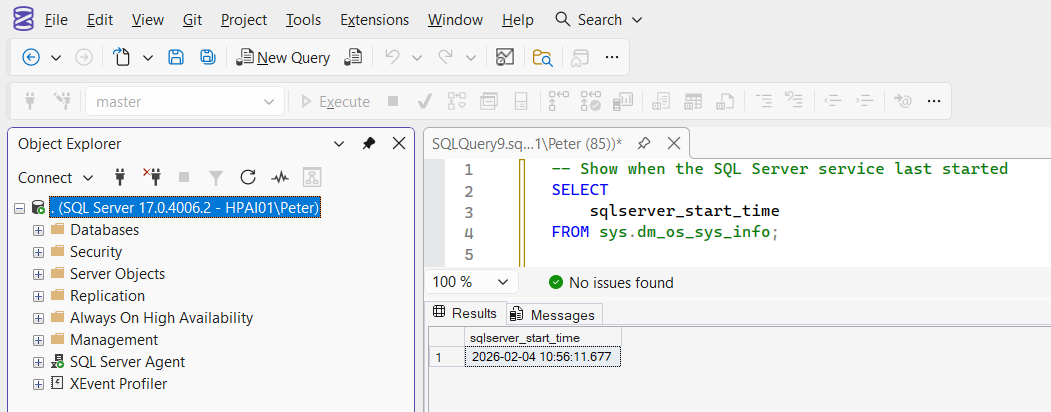
This returns the exact time the SQL Server service last started.
No inference. No approximation. This should always be your primary source.
Using the temp db System Database
The temp db system database is recreated every time SQL Server starts. Its creation time therefore closely aligns with service startup.
When you need a secondary signal, you can query its creation date directly.
-- Show when the temp db system database was created
SELECT
    create_date
FROM sys.databases
WHERE name = 'temp' + 'db'; -- split word to avoid WordPress JSON error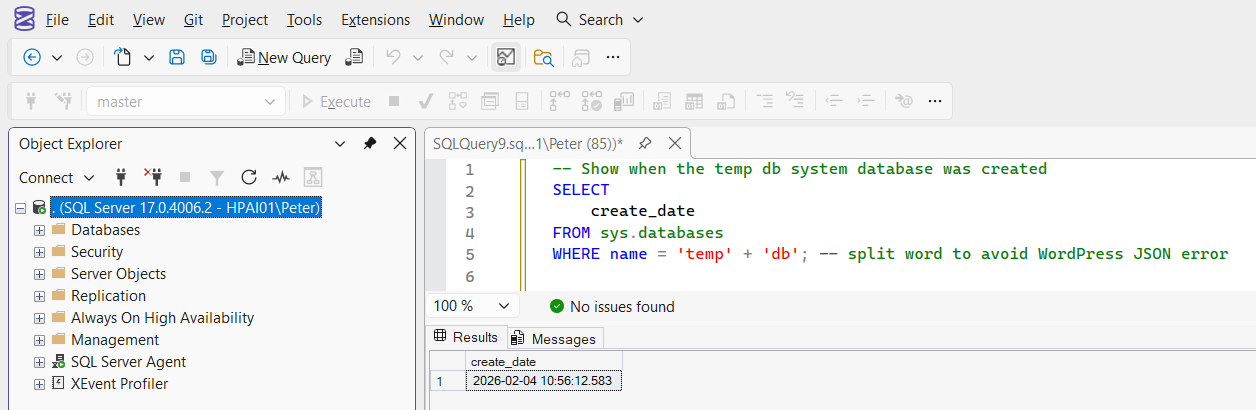
This usually matches the SQL Server start time closely and can be useful when:
- Access to certain DMVs is restricted
- You are validating restart assumptions
- You want to cross-check results during troubleshooting
The DMV remains the preferred source, but this is a reliable fallback.
What This Tells You Immediately
From the SQL Server start time, you can quickly infer:
- Whether a restart occurred during patching
- Whether a failover involved a service restart
- Whether recent configuration changes took effect
- Whether uptime aligns with reported incidents
It is often the first query run during investigations, and frequently the one that saves the most time.
Final Notes
This is a basic check, but it pays for itself constantly.
Before diving into deeper analysis or chasing symptoms, always confirm how long SQL Server has actually been running.
Other sources such as Windows event logs, cluster logs, or monitoring platforms can also indicate restart activity, but SQL Server itself should be your first reference point.
You might also glance at SQL Server error log rollover times for a quick sense of recent activity, but they are not definitive. Error logs can be cycled manually or by scheduled jobs, so any conclusions should always be verified against the actual SQL Server start time.
Leave a Reply