
No SSMS on the box, or SSMS will not connect, and you need to run a query or a script file from a shell right now. sqlcmd does that from Command Prompt, PowerShell or a Linux shell. On any current install it also refuses the first connection with a certificate error until you add -C, so every example on this page carries it.
Run a Query Now
Windows authentication against the local default instance, one query, then straight back to the prompt:
sqlcmd -S . -E -C -W -Q "SELECT @@SERVERNAME AS server_name, SERVERPROPERTY('ProductVersion') AS version"-S names the server, and . is the local default instance (leaving -S out does the same). -E is Windows authentication, which is also the default. -C trusts the server certificate. -W trims the padding sqlcmd adds to every column, which otherwise makes a short value thousands of characters wide. -Q runs the query and exits; -q runs it and leaves you at the 1> prompt. Add -d to start in a database other than the login's default.
SQL Authentication
sqlcmd -S <server-name> -U <login> -CLeave -P off and sqlcmd prompts for the password, which keeps it out of your shell history and the process list. In a scheduled script, set the SQLCMDPASSWORD environment variable instead. MS Docs on -P calls the switch insecure for exactly that reason.
Named Instance or a Specific Port
sqlcmd -S <server-name>\<instance-name> -E -C
sqlcmd -S tcp:<server-name>,<port> -E -C
The \instance form needs the SQL Server Browser service to tell the client which port the instance is on. The tcp:server,port form skips Browser entirely, so it is the one to use when Browser is stopped or UDP 1434 is blocked. If neither connects, check that TCP is enabled, that the port is the one you think it is, and that a firewall is not dropping it.
Dedicated Administrator Connection
sqlcmd -S . -E -C -A-A opens the Dedicated Administrator Connection, the reserved connection that still gets in when the instance is too busy to accept a normal login. Without remote admin connections enabled it only works on the server itself.
Certificate Error on Newer Versions of sqlcmd
Run sqlcmd without -C against an instance using its own self-signed certificate and this is all you get, with exit code 1:
Nothing is wrong with SQL Server. The client changed. sqlcmd from the SQL Server 2025 tools, running on ODBC Driver 18, asks for an encrypted connection by default (-Nm, mandatory) and validates the server certificate, and MS Docs on -N records this as a breaking change: in SQL Server 2022 and earlier the default was -No, optional. A self-signed certificate is not issued by anything the client trusts, so the connection stops at the TLS step.
There are 2 switches that get you in, and they are not the same thing:
sqlcmd -S <server-name> -E -C
sqlcmd -S <server-name> -E -No
-C keeps the connection encrypted and skips the certificate check. -No makes encryption optional, and against a server that does not force it the session ends up not encrypted at all: on the lab instance, encrypt_option in sys.dm_exec_connections read TRUE for the -C session and FALSE for the -No one. Mid-incident, -C is the one to reach for.
Trusting the certificate is fine on an internal server you know. The real fix is a certificate the client can validate, and SSMS Certificate Chain Not Trusted Error (Trust Server Certificate Fix) covers that, along with the same error in SSMS.
Which sqlcmd You Have, and Where It Is
There are 2 sqlcmd utilities with the same name. sqlcmd (ODBC) is the classic one, installed with SQL Server and with the Microsoft Command Line Utilities, and in the mssql-tools package on Linux. sqlcmd (Go), sometimes called go-sqlcmd, is a standalone download (winget install sqlcmd) with its own version numbers. The first line of sqlcmd -? tells you which one is on the PATH:
sqlcmd -?
where.exe sqlcmd
sqlcmd (ODBC) prints Microsoft (R) SQL Server Command Line Tool and a version such as 17.0.1000.7, the one on the SQL Server 2025 instance these examples were run against. sqlcmd (Go) prints a 1.x version. In PowerShell use where.exe, not where, which is an alias for Where-Object. Everything on this page targets sqlcmd (ODBC); where the Go version behaves differently, the switch table says so. MS Docs on checking the installed version also notes that installing the Go version puts it ahead of the ODBC one on the PATH.
On Windows, sqlcmd (ODBC) lives under the ODBC driver it came with, and setup adds the folder to the PATH:
C:\Program Files\Microsoft SQL Server\Client SDK\ODBC\<version>\Tools\Binn\The number in that path is the ODBC driver's major version, not the SQL Server version: 180 for ODBC Driver 18, 170 for ODBC Driver 17. Older sqlcmd installs sat under C:\Program Files\Microsoft SQL Server\<nnn>\Tools\Binn\ instead. Double-clicking SQLCMD.EXE opens a window and closes it again, which is expected: run it from an existing Command Prompt or PowerShell session. If it is missing altogether, MS Docs: Download and install the sqlcmd utility has both versions for Windows, Linux and macOS.
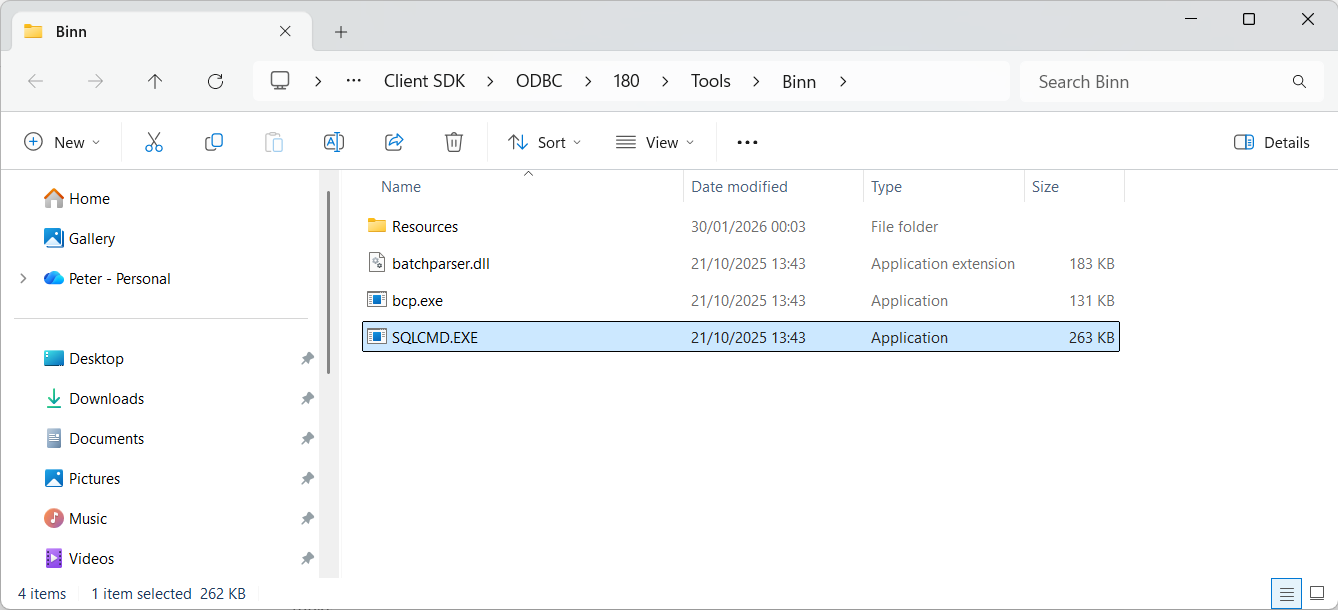
Running Queries with sqlcmd
Run sqlcmd with no -Q and you get the 1> prompt. Nothing runs until you type GO on a line of its own, which sends everything typed since the last GO as one batch.
Identify the instance:
SELECT @@SERVICENAME;
GO
Check the connected login:
SELECT SUSER_NAME();
GO
List databases:
SELECT name FROM sys.databases;
GO
Change database context:
USE MyDatabase;  -- replace with your database
GO
List tables:
SELECT name FROM sys.tables;
GO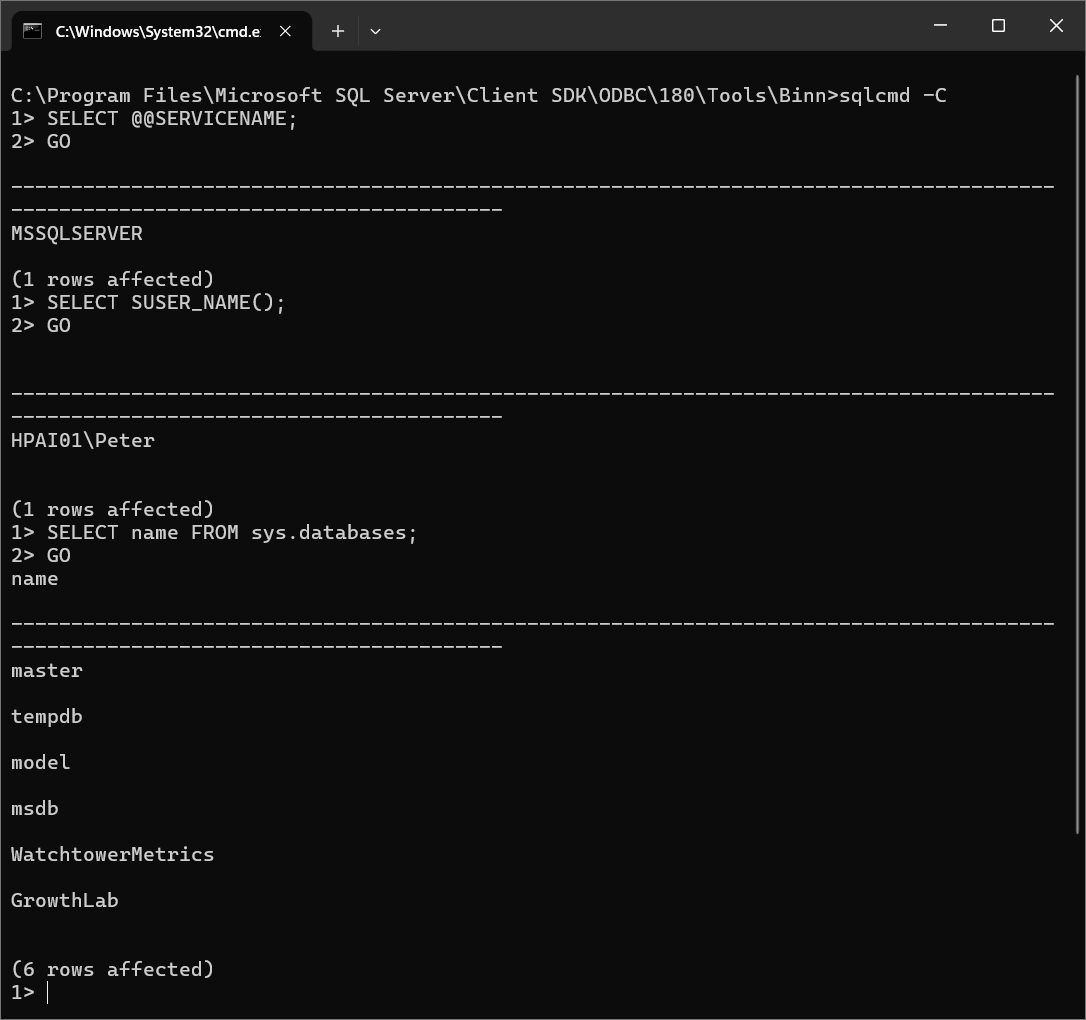
EXIT or QUIT leaves the session. Anything typed after the last GO is thrown away, not run. EXIT(SELECT 5) runs the query and hands its value back as the exit code.
Executing Queries Non-Interactively
Run a query against the local instance and exit:
sqlcmd -C -Q "SELECT name FROM sys.databases"Against another server:
sqlcmd -S <server-name> -E -C -Q "SELECT name FROM sys.databases"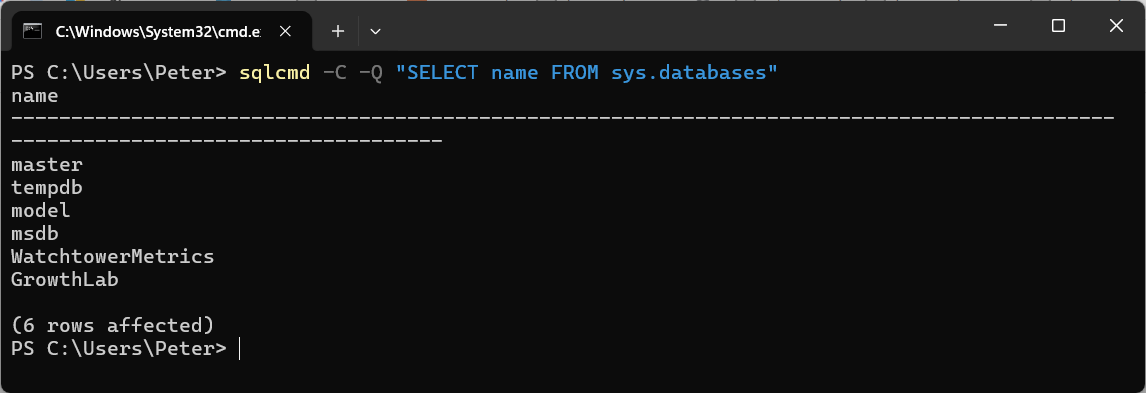
Output to a file instead of the screen:
sqlcmd -S <server-name> -E -C -Q "SELECT name FROM sys.databases" -o databases.txtWith -o the screen stays empty even when the query fails: the error goes into the file. Check the file and the exit code, not the console. Comma-separated output is -s "," -W -h -1, but sqlcmd quotes nothing, so a value containing a comma breaks the row. How to Export SQL Server Query Results to CSV compares it against the methods that do quote.
Running a Script File
sqlcmd -S <server-name> -E -C -d <database> -b -i fix.sql -o fix-output.txt-i reads the file and runs each GO-separated batch in order. Quote the path if it contains spaces. To pass a value in, reference it in the script as $(DbName) and supply it with -v:
sqlcmd -S . -E -C -W -i check.sql -v DbName="SalesDB"A variable the script uses but the command does not supply prints 'DbName' scripting variable not defined. and then, without -b, runs the batch anyway and exits 0. With -b it stops there with exit code 1. The DBA Scripts library is written to run this way, one file per check.
Exit Codes: Make a Failed Script Fail
This is the one that hurts in an incident. By default sqlcmd prints the error, carries on with the next batch, and exits 0, so the Agent job step, the pipeline or the wrapper script records success. The same 3-batch script, with the middle batch reading a table that does not exist, run without and then with -b:
Without -b, batch 3 still ran and the exit code was 0. With it, sqlcmd stopped at the failing batch and returned 1. MS Docs on -b: the exit code is 1 when the error's severity is greater than 10, and severity 10 and below is informational and never sets it. Add -V 17 and only severity 17 and up count.
One gap -b does not close. A query timeout set with -t prints Timeout expired, and on sqlcmd 17.0.1000.7 the script moved on to the next batch and still exited 0, with -b set and with :ON ERROR EXIT in the script. If a timeout has to fail the job, check the output for that line. Execution Timeout Expired covers whose timeout it is.
The Switches DBAs Actually Use
Every switch below was run against sqlcmd (ODBC) 17.0.1000.7. The last column is what MS Docs lists as different in sqlcmd (Go), documented, not reproduced here.
| Switch | What it does | sqlcmd (Go) |
|---|---|---|
-S | Server, server\instance or tcp:server,port. Omitted, the local default instance. | Same |
-E | Windows authentication. The default when no -U is given. | Same |
-U / -P | SQL login and password. Leave -P off to be prompted. | Same |
-d | Database to start in. A name that does not exist fails the login (error 4060). | Same |
-Q / -q | Run a query and exit / run it and stay at the prompt. | Same |
-i / -o | Script file in / output file out. Errors go to the file too. | Same |
-v | Set a $(var) scripting variable. | Same |
-b | Exit code 1 when an error above severity 10 is raised. | Same |
-l | Login timeout in seconds. Default 8. | Same |
-t | Query timeout in seconds. Default none. | Same |
-C | Trust the server certificate without validating it. | With neither -N nor -C, Go does not validate the certificate at all |
-N | -Ns strict, -Nm mandatory (the default), -No optional. | Takes a word: strict, mandatory, optional or disable |
-h -1 | No column headers. | Same |
-W | Trim trailing spaces. Cannot be combined with -y or -Y. | Same |
-s | Column separator, for example -s ",". | Same |
-y | Display width for varchar(max), nvarchar(max), XML and the other large types. Default 256, so longer values are cut. -y 0 is unlimited. | Same |
-Y | Display width for char(n), varchar(n) and the other sized types. Default 0, unlimited. | Same |
-r | -r0 sends errors of severity 11 and up to stderr, -r1 sends every message including PRINT. | Needs the 0 or 1 |
-e | Echo each batch before its output. | Same |
-m | Hide messages below this severity. -m-1 shows everything, with no space. | Same |
-k | Remove control characters (-k1 replaces each with a space). | Same |
-X | Disable !! shell commands, ED and the startup script. -X1 exits on them. | Same |
The -y default is the one that misleads: a long query text or an XML plan read through sqlcmd stops at exactly 256 characters with no warning. The full list is on the MS Docs sqlcmd utility page.
When Not to Use sqlcmd
sqlcmd is the wrong tool when you need a graphical execution plan, a result set too wide to read in a terminal, or a debugger. It complements SSMS, it does not replace it. SSMS has its own SQLCMD Mode, but that runs through a different client library, so a script can behave differently there than in the utility.
When sqlcmd cannot reach the instance at all, the fault is on the network path rather than in the tool. Pair it with Testing Remote Server Port Connectivity with PowerShell and How to Check Listening Ports on Windows.
Frequently Asked Questions
Why does sqlcmd say the certificate chain was issued by an authority that is not trusted?
sqlcmd on ODBC Driver 18 encrypts by default and validates the server certificate, and an instance using its own self-signed certificate fails that check. Add -C to trust the certificate for this connection. The permanent fix is a certificate the client trusts, covered in the certificate chain post.
My script failed but the job step says it succeeded. Why?
Without -b, sqlcmd exits 0 after an error and runs the rest of the script. Add -b and it stops at the failing batch and exits 1. A query timeout from -t still exits 0 on sqlcmd 17.0.1000.7, so check the output for Timeout expired as well.
Why is my column cut off at 256 characters?
-y defaults to 256 for varchar(max), nvarchar(max) and XML. Add -y 0 for no limit. sqlcmd refuses to combine it with -W or -h, so drop those when you need the full value.
Login failed with -d, but the login works without it. Why?
-d is part of the login, so a database that does not exist, or that the login cannot open, fails the whole connection with Cannot open database ... requested by the login. Check the spelling and the login's access. Cannot Open Database Requested by the Login has the rest.
Do I have the Go version or the ODBC version?
Run sqlcmd -?. The ODBC version prints Microsoft (R) SQL Server Command Line Tool and a version like 17.0; the Go version prints a 1.x version. Both can be installed at once, and the first one on the PATH wins.
When sqlcmd cannot reach the instance the problem is usually the network path, not the tool. These work back along it.
- Testing Remote Server Port Connectivity with PowerShell, prove the client can reach the port at all.
- SQL Server Ports: 1433, Dynamic Ports and Firewall Rules, the port may not be the one you assumed.
- How to Check Listening Ports on Windows, confirm something is listening on the server side.
- Enabling TCP Connections in SQL Server, the usual cause when nothing is listening.
- How to Get the SQL Server IP Address, confirm the IP and port your session actually landed on.
- DBA Scripts: Server and Configuration, the hub this sits in, every instance-level check that establishes what a server is and how it is configured.
Leave a Reply