
As a DBA, you regularly need to know where your database files live, how big they are, and how they’re configured to grow.
Capacity planning, migration prep, new environment review, disk space incidents: they all start here. This script gives you a full picture of every user database file on the instance: physical path, drive letter, current size, max size, and autogrowth settings, all in one result set.
Why It Matters
File layout problems are quiet. They don’t announce themselves until something breaks.
Percentage autogrowth is the classic example. Before SQL Server 2016 the log default was 10% growth, and databases created then, or upgraded since, often still carry it (new databases have defaulted to 64 MB since 2016). On a 200 GB log, 10% is a 20 GB growth that has to be zeroed before anything else can write to the database. Data files skip that wait when instant file initialization is on. Log files always wait, except for growths of 64 MB or less on SQL Server 2022 and later. Most environments I’ve inherited have this on at least some databases. Occasionally all of them.
Data and log files on the same volume is another one. It looks fine until a growth event fills the disk and the log file can’t extend either. At that point nothing can commit and you’re in an incident.
Max size is worth checking too. A file with no cap grows until the volume is full. Knowing which files have unlimited growth tells you where monitoring and alerting need to be.
If you manage multiple instances, consistent file layouts also make migrations and capacity planning far less painful.
The file paths also matter for antivirus exclusions. SQL Server database directories need to be excluded from real-time scanning. Microsoft’s guidance on configuring antivirus for SQL Server covers exactly what to exclude.
The Script
Returns path, drive, size, max size, and autogrowth configuration for every file across all user databases. System databases are excluded.
/*
Script Name : Get-DatabaseFilesDetail
Category    : storage-capacity-management
Purpose     : Show per-file details for all user databases: path, size, max size, growth settings.
Author      : Peter Whyte (https://sqldba.blog/dba-scripts-get-sql-server-database-file-details/)
Requires    : VIEW ANY DATABASE
HealthCheck : Yes
*/
-- SAFE:ReadOnly
-- IMPACT:Low
SET NOCOUNT ON;
SET QUOTED_IDENTIFIER ON;

SELECT
    d.name AS database_name,
    d.state_desc AS db_state,
    d.recovery_model_desc AS recovery_model,
    mf.file_id,
    mf.name AS logical_name,
    mf.type_desc AS file_type,
    LEFT(mf.physical_name, 1) AS drive_letter,
    mf.physical_name AS physical_path,
    CAST(mf.size * 8.0 / 1024 AS DECIMAL(12,2)) AS current_size_mb,
    -- NULL = no maximum. An unlimited log file is stored as 268435456 pages (the 2 TB log
    -- ceiling), not -1, so it is mapped to NULL as well; otherwise logs read 2097152.00.
    CASE
        WHEN mf.max_size = -1 THEN NULL
        WHEN mf.type = 1 AND mf.max_size = 268435456 THEN NULL
        WHEN mf.max_size = 0 THEN CAST(mf.size * 8.0 / 1024 AS DECIMAL(12,2))
        ELSE CAST(mf.max_size * 8.0 / 1024 AS DECIMAL(12,2))
    END AS max_size_mb,
    CASE mf.is_percent_growth
        WHEN 1 THEN CAST(mf.growth AS VARCHAR(10)) + '%'
        ELSE CAST(CAST(mf.growth * 8.0 / 1024 AS INT) AS VARCHAR(20)) + ' MB'
    END AS auto_growth,
    mf.is_percent_growth AS growth_is_percent,
    mf.state_desc AS file_state
FROM sys.master_files AS mf
INNER JOIN sys.databases AS d ON d.database_id = mf.database_id
WHERE d.database_id > 4
ORDER BY d.name, mf.type, mf.file_id;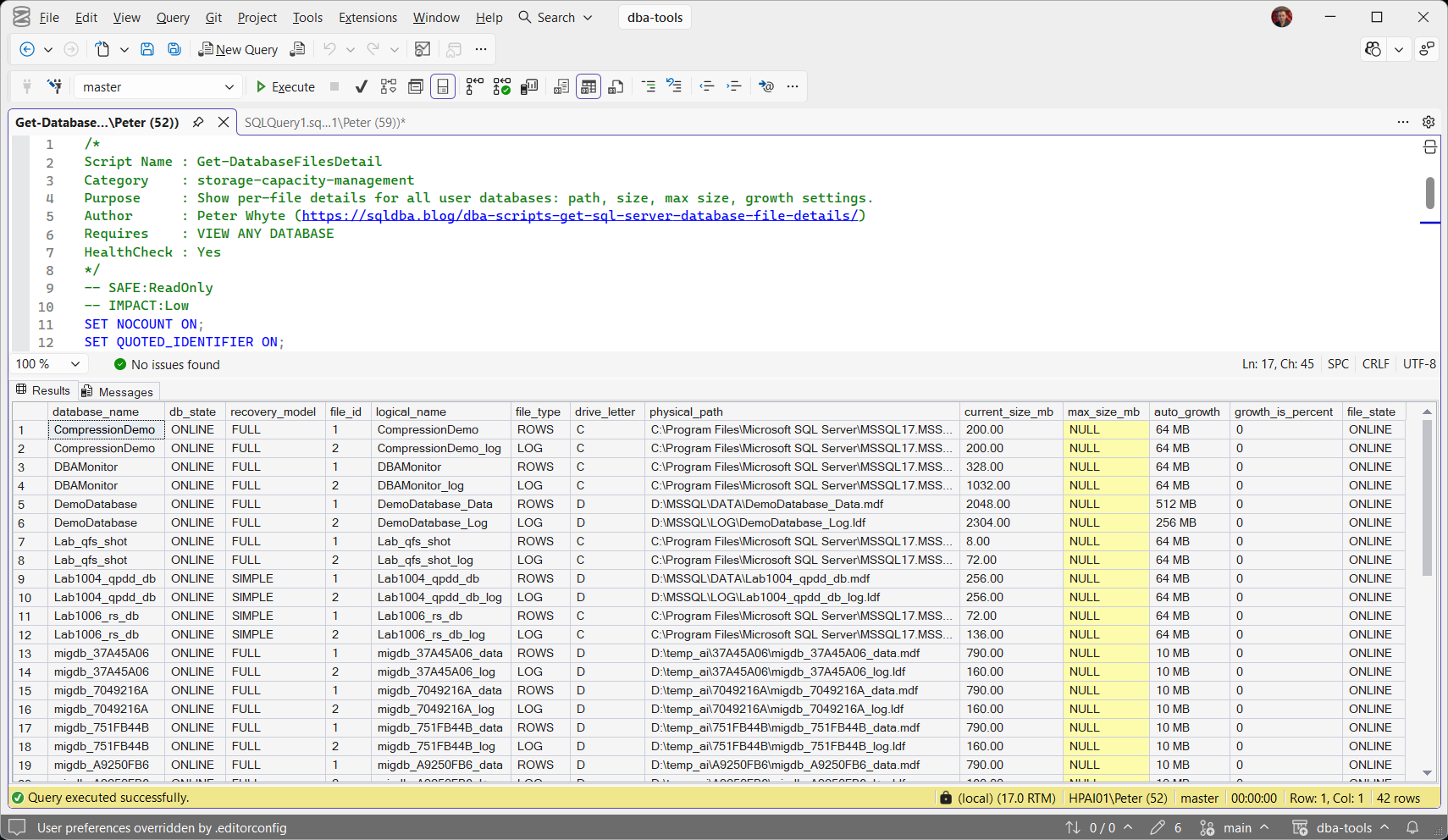
Reading The Output
One row per database file, data files and log files across all user databases.
growth_is_percentauto_growthdrive_letterphysical_pathmax_size_mbNULL means no cap, for data and log files alike. A number is a limit somebody set, and the file stops growing there.current_size_mbdatabase_namedb_staterecovery_modelfile_idlogical_namefile_typefile_stateProduction Notes
Fix a percentage step in place. Any row with growth_is_percent = 1 should move to a fixed step: 256 MB suits smaller databases, 1 GB or more large ones. Use the logical_name from the output. The change is online and takes effect straight away:
-- logical_name from the output, not the physical file name
ALTER DATABASE [YourDatabase]
MODIFY FILE (NAME = N'YourDatabase_log', FILEGROWTH = 256MB);
The log’s growth step decides its VLF count. Many small growths leave thousands of virtual log files, which slow recovery and restores. Check with Get VLF Counts, and size the log up front with How to Right-Size SQL Server Database Files.
max_size_mb = NULL means no cap, for data and log files alike. The file grows until the disk is full, so disk monitoring is the only safety net. SQL Server stores an uncapped log differently, as the log ceiling of 268,435,456 pages (2 TB per log file), and the script maps that back to NULL.
A number in max_size_mb is a cap somebody set. When a file reaches it, a data file raises Error 1105 and a log file raises Error 9002, with free space still on the drive. Check this column first when either one appears.
Data and log sharing a drive letter share one failure. Use drive_letter to spot them: a runaway log fills the volume and the data files stop growing too. On a SAN or cloud disk, 2 letters can still sit on the same storage, so separating them is about capacity first and I/O second.
System databases are excluded (database_id > 4). Remove that filter to see master, model, msdb or tempdb.
On Azure SQL Database sys.master_files is not available. Query sys.database_files in each database instead. Managed Instance runs the script as it is.
For free space inside each file, use Get Database Sizes and Free Space in SQL Server. This script shows how each file is set up, and that one shows how full it is.
It runs in the health check as database-files in Invoke-HealthCheckCollection.ps1, and in the pre-migration assessment, where the paths and growth settings are the baseline to rebuild on the new server.
Get The Scripts
The full scripts are in the dba-tools repo on GitHub. Clone it once if you haven’t already:
git clone https://github.com/peterwhyte-lgtm/dba-tools.git
cd dba-tools
Once cloned, the Get-DatabaseFilesDetail wrapper runs it from the repo, with -ServerInstance for a remote server and -OutputFormat Csv to save the results. If you would rather not clone anything, the script has its own page, Get SQL Server Database File Details, with example output and what each column means: copy the T-SQL from that page and run it in SSMS.
sql/monitoring/disk-space/Get-DatabaseFilesDetail.sqlpowershell/wrappers/monitoring/disk-space/Get-DatabaseFilesDetail.ps1
File layout is one of those things that looks fine until it isn’t. Run this on an instance you haven’t checked in a while, you’ll almost always find at least one thing worth changing.
Related
- Get Database Sizes and Free Space in SQL Server, how much free space is available inside each file right now
- Show Database Growth Events in SQL Server, when files have grown and by how much
- How to Check Transaction Log Space Usage in SQL Server, log file usage and recovery model context
- How to Right-Size SQL Server Database Files, fixing oversized files and poor growth settings
- Configuring antivirus software for SQL Server, Microsoft Docs
- sys.master_files, Microsoft Docs
- Storage & Capacity, the scripts and guides for this part of the stack.
Leave a Reply