
When working in corporate SQL Server environments, you will often need to connect using a different Active Directory domain account.
Common reasons include:
- Testing permissions for a newly created AD login
- Connecting to SQL Server in another domain
- Verifying access without logging out of Windows
SQL Server Management Studio (SSMS) does not allow switching users inside the connection dialog. To connect as another user, you must launch SSMS itself using that account.
This post covers the two reliable ways to do that, including how this changes with newer SSMS versions.
Open SSMS as a Different Domain User (GUI Method)
This is the quickest option when you only need to switch users occasionally.
To do this, start SSMS under the alternate domain account.
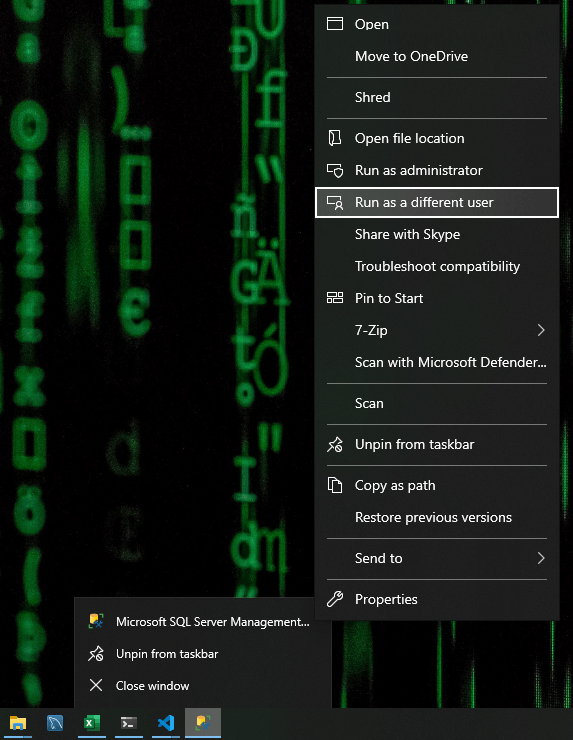
- Locate SQL Server Management Studio (SSMS) in the Start Menu or taskbar
- Hold Shift, then right-click the SSMS shortcut
- Select Run as different user
- Enter the credentials for the required domain account
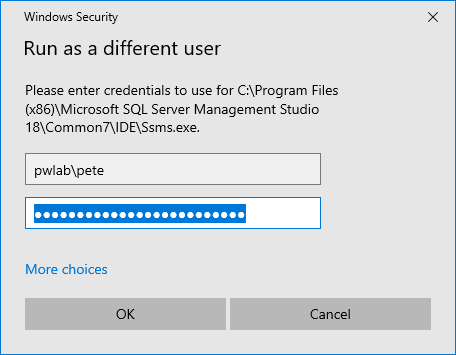
Enter the credentials for the Domain User in the prompt that follows:
SSMS will open using the login credentials you provided:
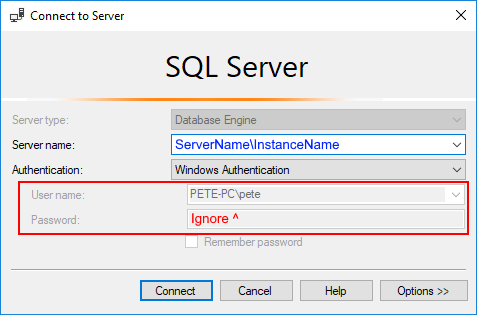
Even though the Connect to Server window may display your currently logged-in Windows domain, SSMS will establish the connection using the supplied Active Directory credentials. This behaviour is expected and can be safely ignored.
Open SSMS as a Different Domain User (Command Line)
If you need to do this regularly, launching SSMS from the command line is faster and easier to repeat.
Run the command below, updating the domain, username, and SSMS path as required:
# Open SSMS as another domain user
# Amend domain\username before running
C:\Windows\System32\runas.exe /user:domain\username /netonly "C:\Program Files (x86)\Microsoft SQL Server Management Studio 19\Common7\IDE\Ssms.exe"
You will be prompted for the password, after which SSMS will start using the supplied domain credentials.
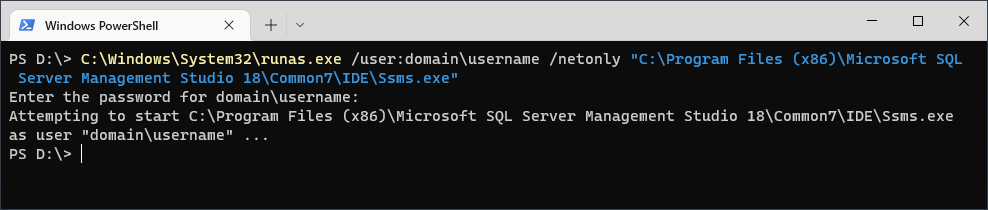
The /netonly switch ensures only network authentication uses the alternate account. Your local Windows session remains unchanged.
If this is something you do often, saving the command as a shortcut or small PowerShell script removes the friction entirely.
Finding the SSMS Executable Path (SSMS 21 and Later)
The example path above targets SSMS 19. From SSMS 21 onwards, SQL Server Management Studio is installed and managed via the Visual Studio Installer, which means the installation location is no longer fixed.
As a result, Ssms.exe may be installed in a different location depending on the SSMS version and how it was installed.
If you need the correct executable path for use with runas, use the Visual Studio Installer to locate it.
How to find the SSMS path:
- Open Visual Studio Installer
- Locate SQL Server Management Studio
- Select Modify
- Note the installation location shown at the bottom of the window
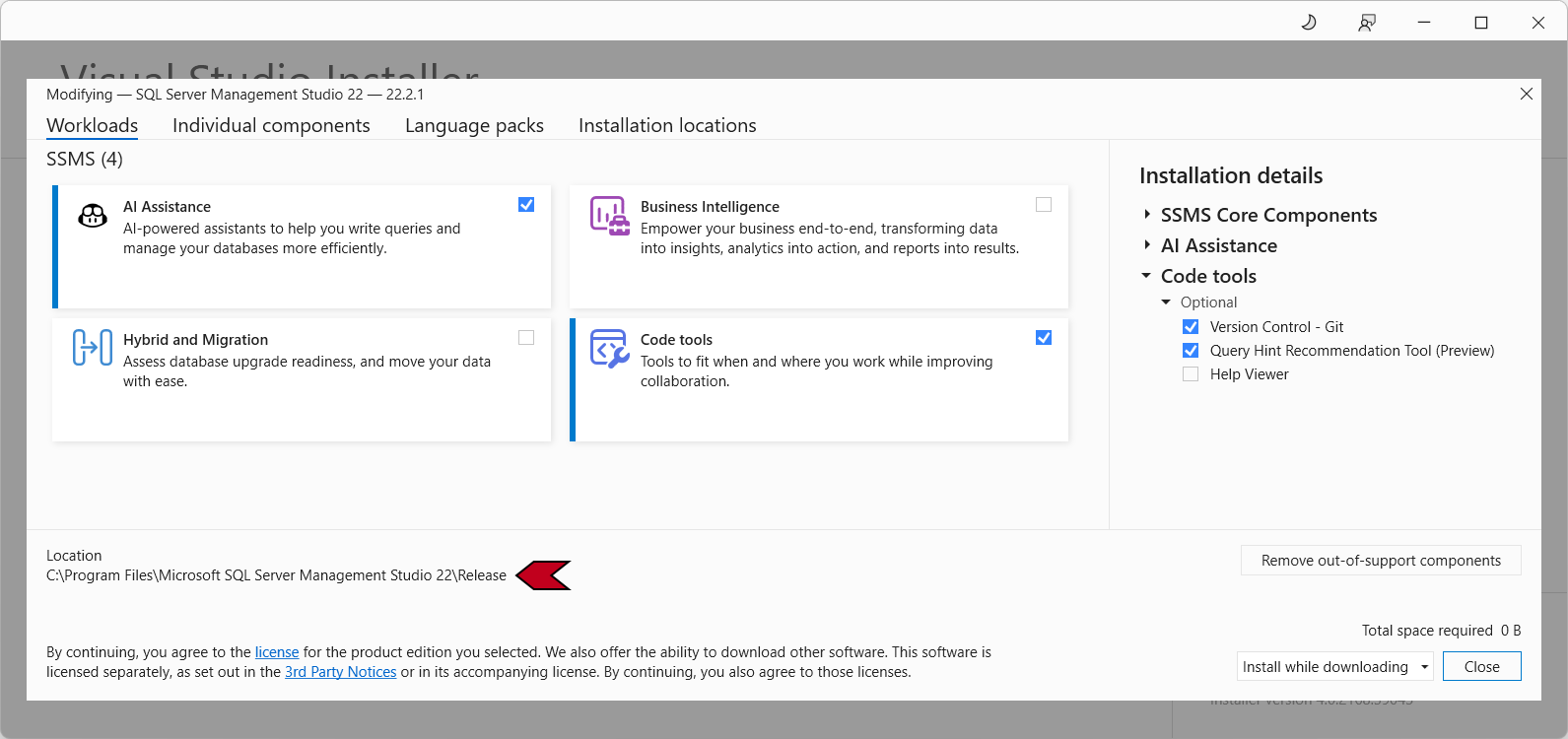
The SSMS executable (Ssms.exe) will be located in this directory shown above.
Example runas command using SSMS 22:
C:\Windows\System32\runas.exe /user:domain\username /netonly "C:\Program Files\Microsoft SQL Server Management Studio 22\Release\Common7\IDE\Ssms.exe"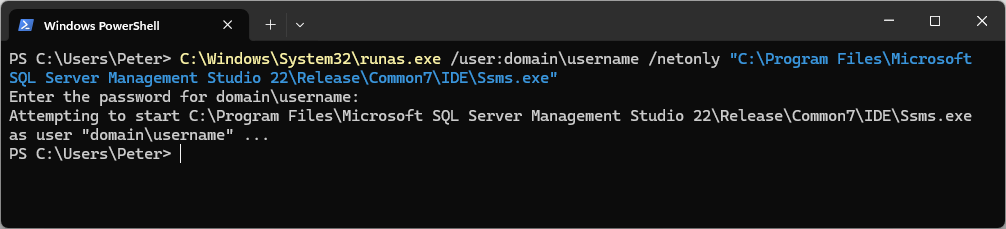
If you need to confirm which version of SSMS is installed, how it was installed, or where it lives on disk, see Install and Update SQL Server Management Studio (SSMS)
Summary
SSMS does not support switching users inside the application, but Windows does.
Launching SSMS as a different domain user is typically required when testing SQL Server permissions, validating Active Directory group membership, working across domains, or troubleshooting authentication issues where your Windows login does not match the SQL Server domain.
For one-off access, Run as different user is the quickest option.
For repeatable workflows, using runas provides a simple and predictable approach.
Both methods are supported and commonly used in real production environments.
Leave a Reply